
This guide explains, step-by-step and with visuals, how faculty members can create, edit, preview, and publish a course syllabus using KUHub. Each tab is summarized with key points and important notes.
Quick Steps
-
Log in to KUHub.
-
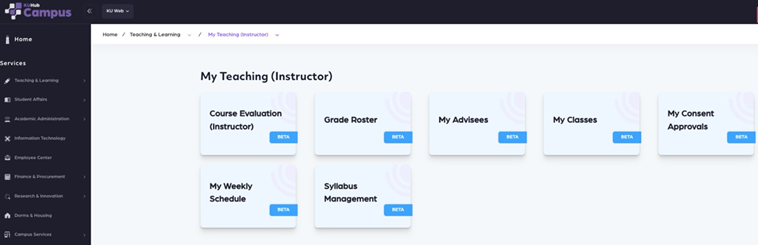
Open Teaching & Learning > My Teaching (Instructor) > Syllabus Management.
-
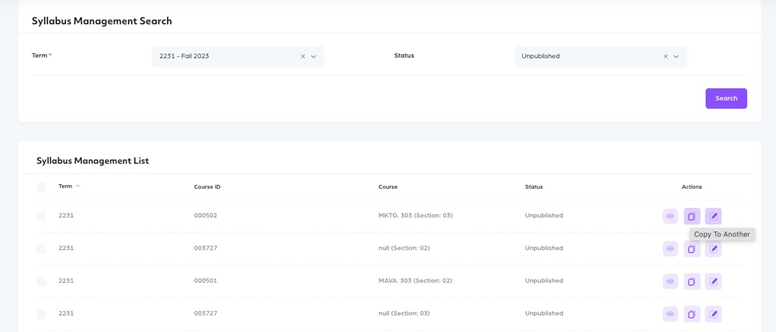
Select Term and Syllabus Status, then click Search.
-
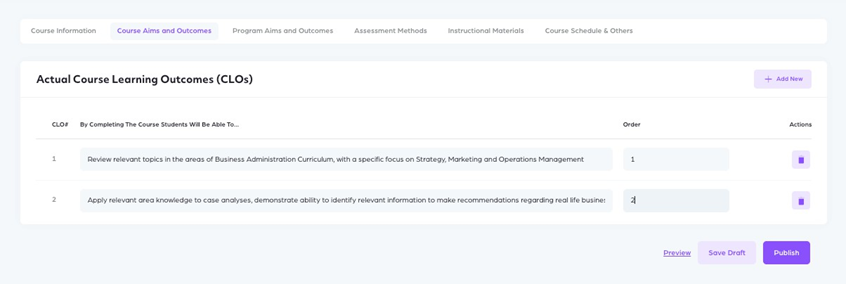
Use Edit to modify, Save Draft to save, Preview to review, and Publish to make the syllabus visible.
-
If needed, use Copy to Another to copy a syllabus to other courses.
Course Information
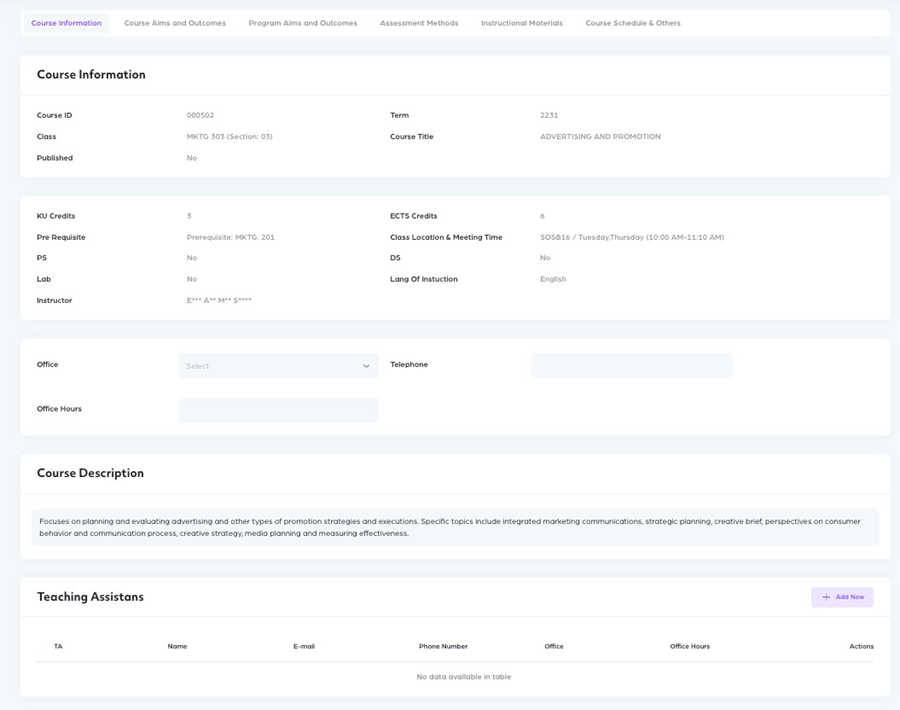
Course catalog information (course code, title) is imported automatically.
Verify the Primary Instructor. Complete fields such as Teaching Assistant, Office Hours, and Course Overview.
Course Aims & Outcomes (CLOs)
Enter each learning outcome clearly. Ensure outcomes are specific and measurable where possible.
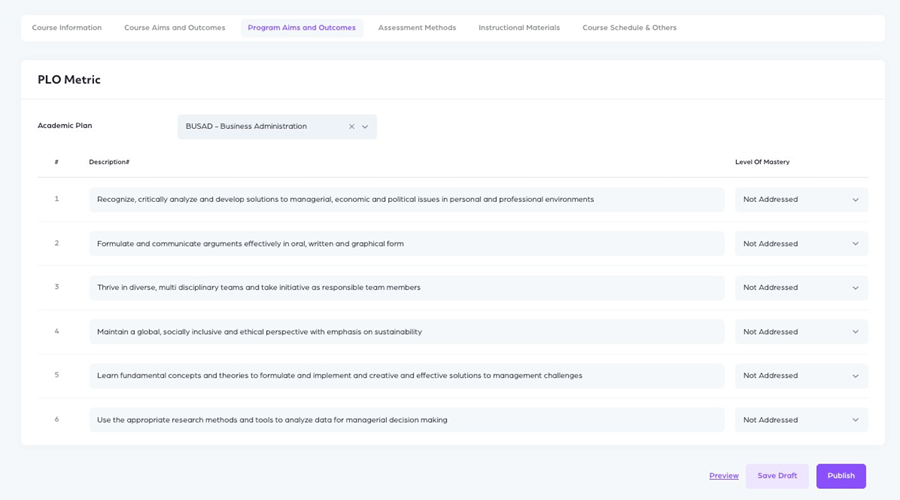
Program Aims & Outcomes
Select the program the course belongs to and map the corresponding Program Learning Outcomes (PLOs) to the course.
For each PLO, indicate the course contribution level (Introductory / Developing / Mastery).
Assessment Methods
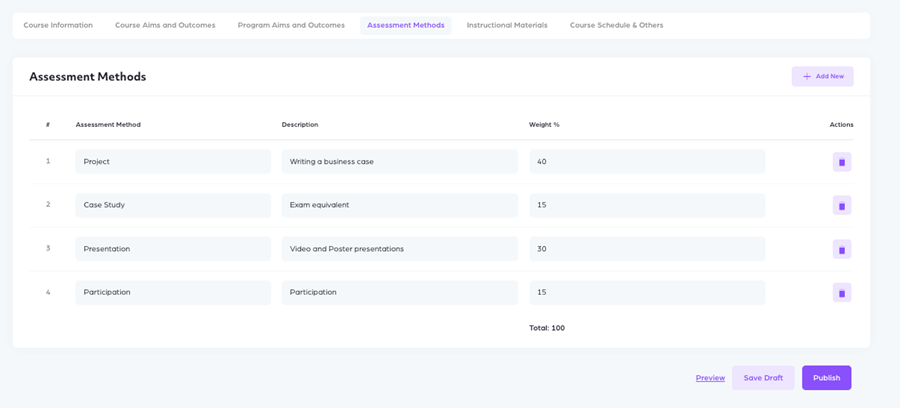
Add assessment components such as midterm, final, assignments, participation, and assign weights to each.
Ensure the total weight equals 100%. If applicable, include a grading scale or special grading rules.
Instructional Materials
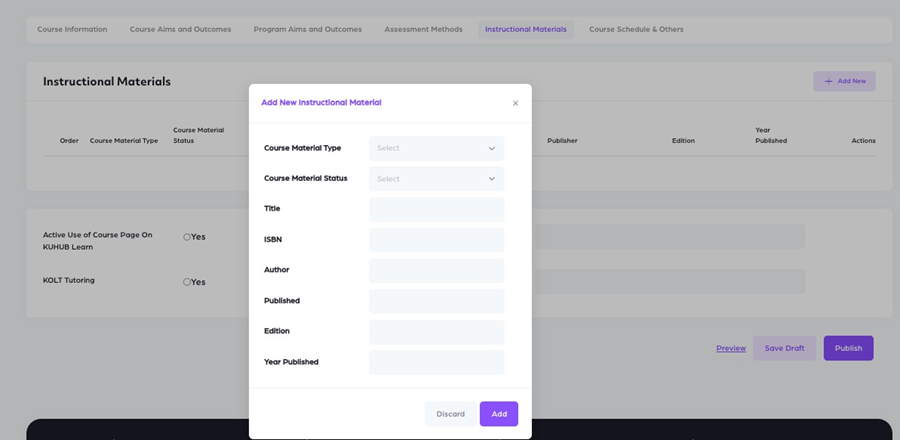
Add textbooks, articles and online resources with full bibliographic details.
Course Schedule & Others
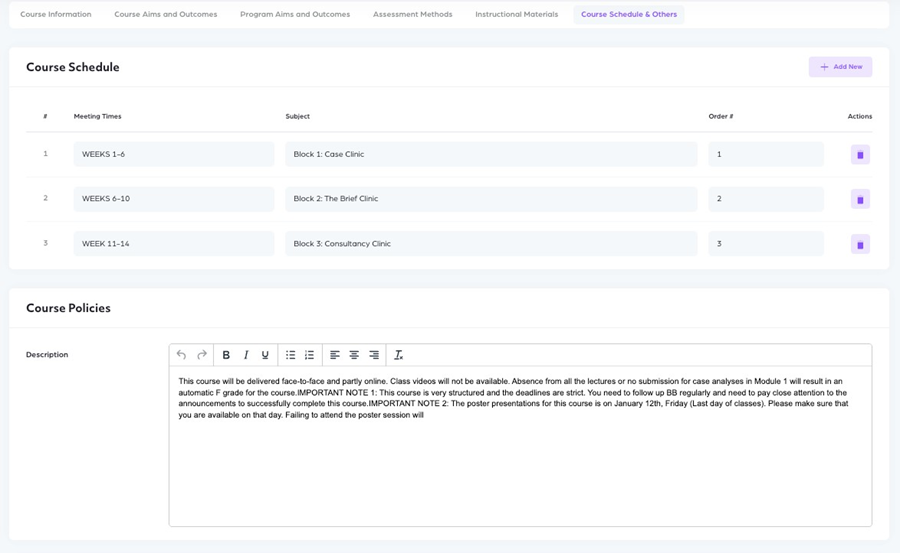
Enter week-by-week topics, exam, and deadlines.
Include class policies, academic integrity expectations and accessibility information.
Pre-Publish Checklist
-
Is the course title and code correct?
-
Is the primary instructor information up to date?
-
Have the CLOs been added?
-
Do the assessment weights total 100%?
-
Have important dates (exams, deadlines) been entered?
-
Has the final preview been checked?
Contact & Support
Technical/IT support: Your institution's IT Service Desk (Trackit).