
To access Panopto through LearnHub, follow the steps below:
· Log in to LearnHub with your KU NetID and password.
· Open the relevant course.
· Click Lecture Videos (Panopto) from the course page.
· Panopto will open within LearnHub, and you will be automatically signed in with your KU account.
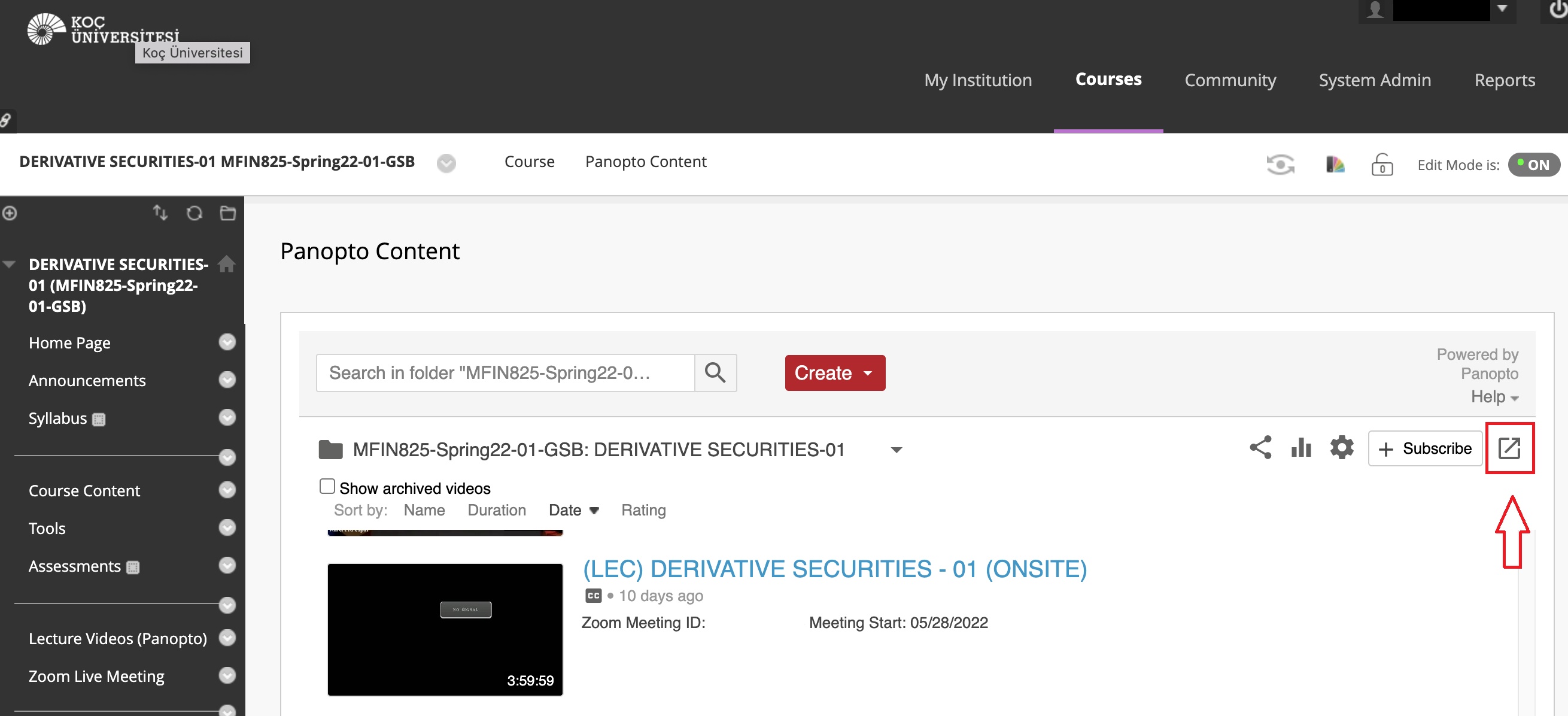
If Panopto does not open correctly or you encounter an error when accessing Lecture Videos (Panopto), check the following browser settings:
Allow Pop-ups
Panopto may require pop-ups to be enabled in your browser. If the Panopto window does not open, make sure that pop-ups are allowed for LearnHub.
Allow Third-Party Cookies
Depending on your browser settings, third-party cookies may need to be enabled for Panopto to work correctly.
For detailed instructions on enabling third-party cookies in supported browsers, please refer to Panopto's support documentation:
Panopto: How to Enable Third-Party Cookies in Supported Browsers