
Welcome to the KUHub Grade Roster. This guide will walk you through each step—from accessing your grade roster to posting and changing grades—with embedded screenshots to illustrate every action.
1. Accessing the Grade Roster
-
Log in to Campus Hub.
-
Navigate to Home > Teaching & Learning > My Teaching (Instructor) / Grade Roster.
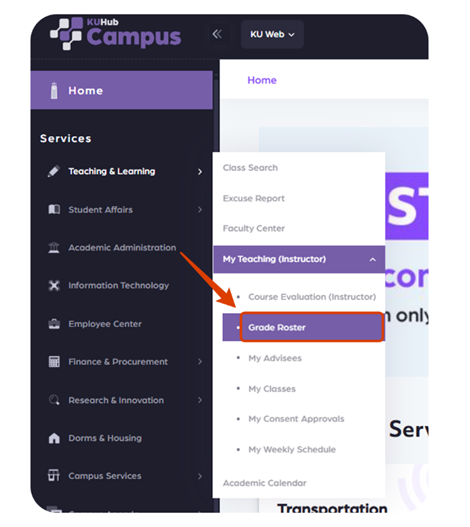
-
Or click Faculty Center under Highlighted Services on the main menu.
-
In the Faculty Center, select your course from the Classes dropdown, then click the Grade Roster icon next to it.
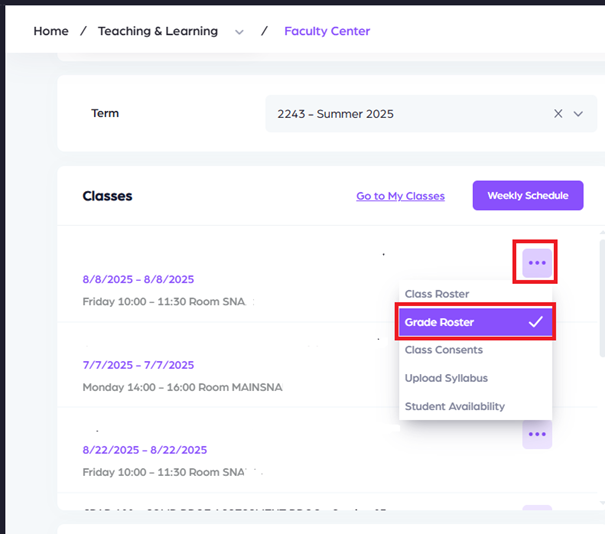
Quick Link: https://campus.hub.ku.edu.tr/GradeRoster/Get
2. Viewing Your Roster
-
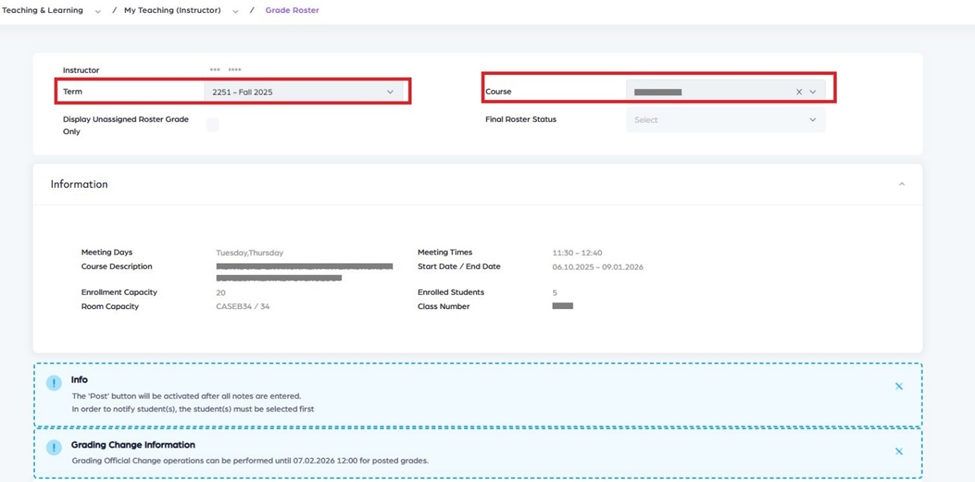
On the Grade Roster page, choose the Term and Course from the dropdowns.
-
Information Page
The Information page displays key details related to the selected class.
The following information is available on this page:
-
Class Number
Displays the unique identification number of the class. -
Meeting Days & Times
Shows the scheduled days and meeting times for the class. -
Start Date & End Date
Displays the start and end dates of the class. -
Course Description
Provides a brief description of the course content and objectives. -
Enrollment Capacity
Indicates the total enrollment capacity for the class. -
Room Capacity
Displays the maximum number of students allowed based on the room capacity. -
Enrolled Students
Shows the current number of students enrolled in the class.
3. Entering Grades
There are three methods to enter grades. Follow the screenshots for clarity.
A. Manual Entry
-
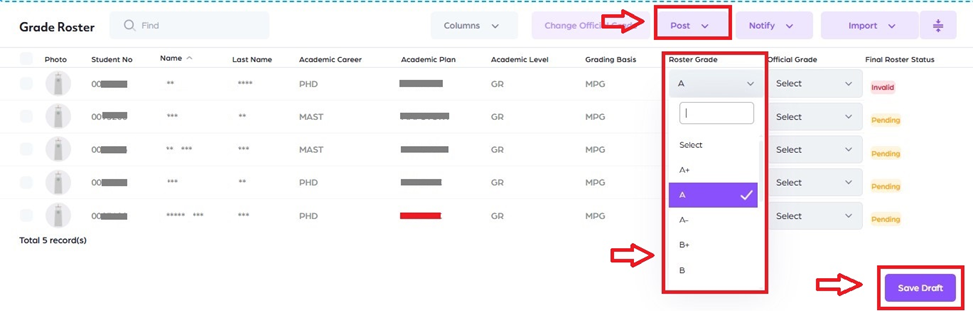
Use the Grade Roster dropdown next to each student.
-
Click Save Draft to save without posting.
-
Once all grades are entered, the Post button activates.
-
Click Post to finalize.
Tip: Save drafts frequently to avoid losing work.
Sorting on the Class Roster Page
On the Class Roster page, the student list can be sorted using the available column headers.
Instructors can sort the list by:
-
Student ID
-
First Name
-
Last Name
Sorting helps instructors quickly organize and locate student information based on their preferred order.
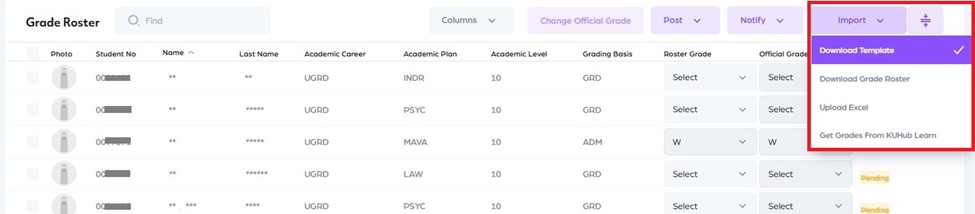
B. Upload via Excel Template
-
Click Import.
-
Under Download Template, download the Excel file.
-
Fill in grades offline (do not alter the template format).
-
Back on Grade Roster, click Upload Excel, select your file, then Post
C. Sync from LearnHub (for LearnHub courses)
-
In Import, select Get Grades from KUHub Learn.

Note: To complete this process, you need to follow these steps in KUHub Learn. To get help you can send an email to it@ku.edu.tr
4. Posting Grades
-
Click Post after entering or importing all grades.
-
Students see grades immediately.
Note: Post is enabled only when every student has a grade.
5. Changing Posted Grades
-
Update the official grade in the roster.
-
Click Change Official Grade to save.

Reminder: You can modify posted grades up to the grading deadline.
6. Notifying Students
-
Check the box beside student(s) you wish to notify.
-
Click Notify Selected Students.

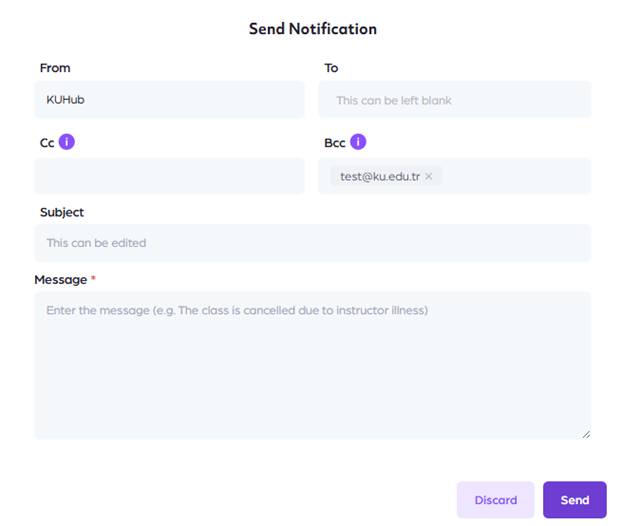
Tip: Always select students first.
7. Downloading Grade Rosters
-
Under Import, click Download Grade Roster.

-
Save the file for records or reports.