How the Google Drive Service Deactivated During the Student Graduation Process? (Change Ownership-Graduated Student to Academic)
When students are marked as “graduated” in the Student Information System, they are notified that their OneDrive / Google Drive services will be deactivated. They are informed that only their Email and KUSIS access will remain active.
Following the notifications sent to graduating students, if the data is not deleted, all of graduating students data will be transferred to an account managed by the IT department and subsequently deleted.
Graduates are given 3 months to transfer their data.
What Is the Concept of File Ownership in Google Drive and How Does It Work?
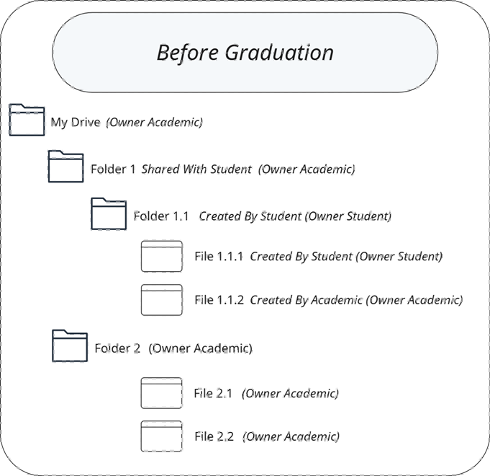
In Google Drive, the person who creates or uploads a file or folder is considered its owner.
Even if you create a folder yourself, any files uploaded into that folder by other users remain owned by those users.
Example: Folders Created by an Academic and Shared with a Student
How is the Google Drive Deletion Process for Graduates Applied?
The deletion process is carried out in two steps:
-
Ownership Transfer
-
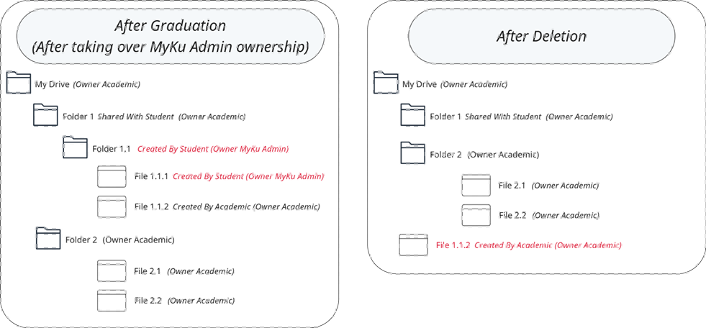
All files that belong solely to the grad students are transferred to the MyKU Admin account, which the IT department manages.
-
Then, the deletion process is carried out for the data belonging to the graduated student.
-
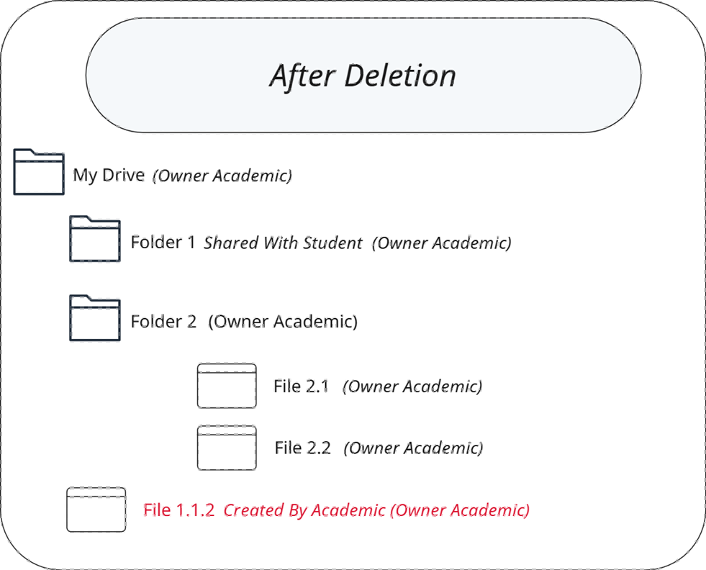
During the deletion process, the files created by the student (Folder 1.1 and File 1.1.1) are removed. The file created by the Academic inside Folder 1.1 (File 1.1.2) is moved to the Academic’s My Drive (root directory).
How can I find files shared with graduates or files I share with them?
-
Files owned by the Graduated Student account appear as shown below (Example: Alumni Account shown as below)
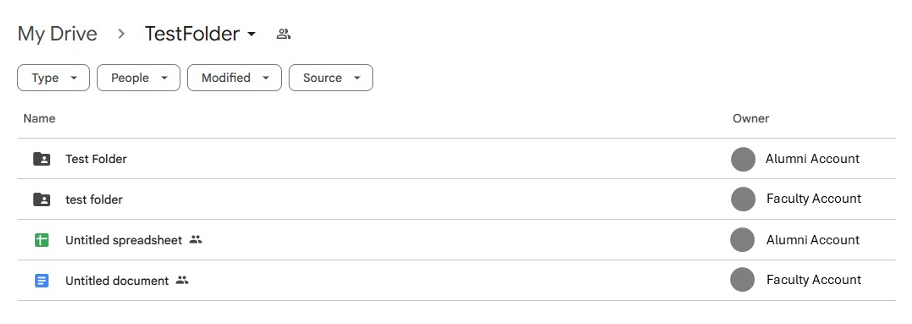
How to Find Files Owned by a Graduate Student
· On your computer, open Google Drive.
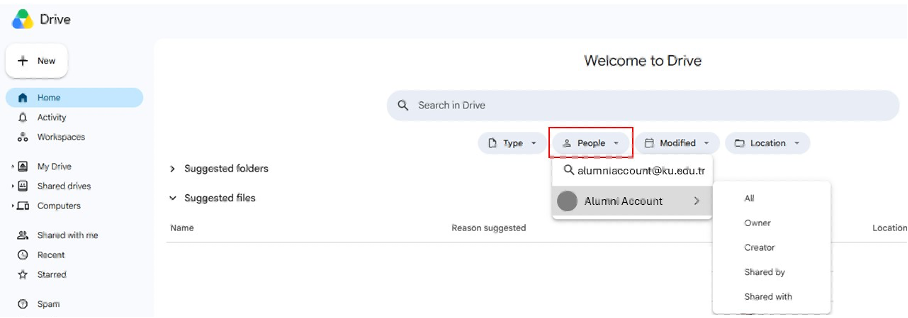
· On the main page, click the People tab located below the Search bar.
· Then, enter the graduate student's email address.
· Select the corresponding account to display either all files associated with the user or only the files they own by using the options on the right.
Here, you can identify the files owned by Graduated Student.
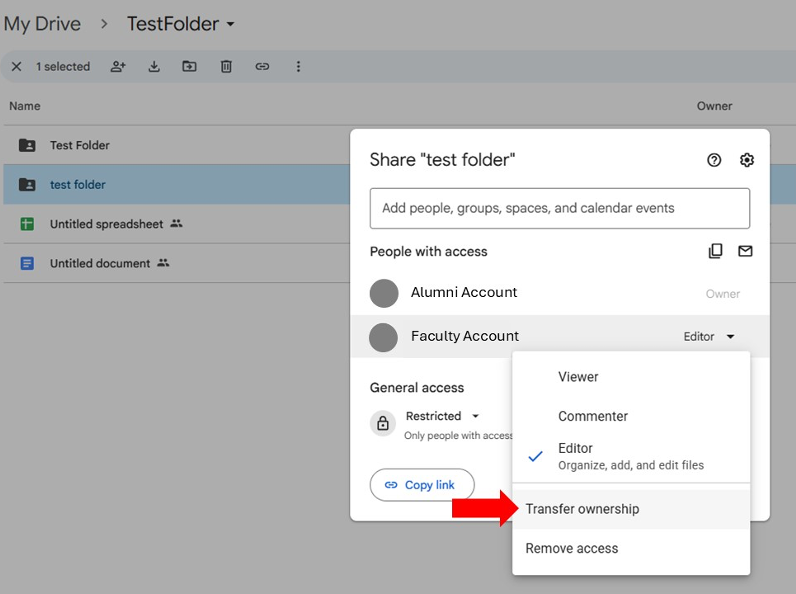
How To Transferownership Google Drive Account (The Transfer Ownership action must be performed by the file owner.)
· On your computer, open Google Drive.
· Find the file you want to transfer then right-click.
· Click Share > click Share Share.
· Next to the recipients name, click the Down arrow Down arrow and then Transfer ownership.
Info : If the folder contains one or more subfolders, make sure to select the parent folder along with all subfolders and files before performing the Transfer Ownership action.
Notice : Since you will be the owner of the transferred files, you must have sufficient storage space available in your Google Drive to accommodate the transferred content.