
1. Advance Request
-
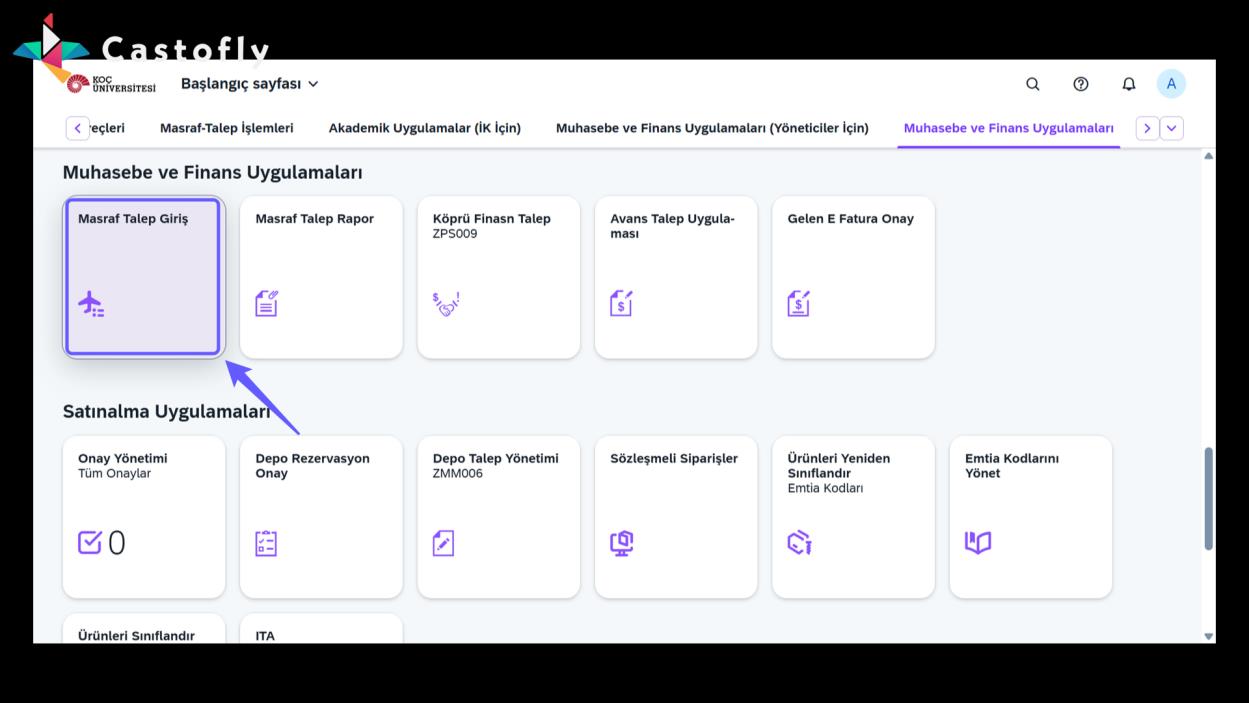
To submit an advance request, first click the "Expense Request Entry" button.
2. Submit a Request
-
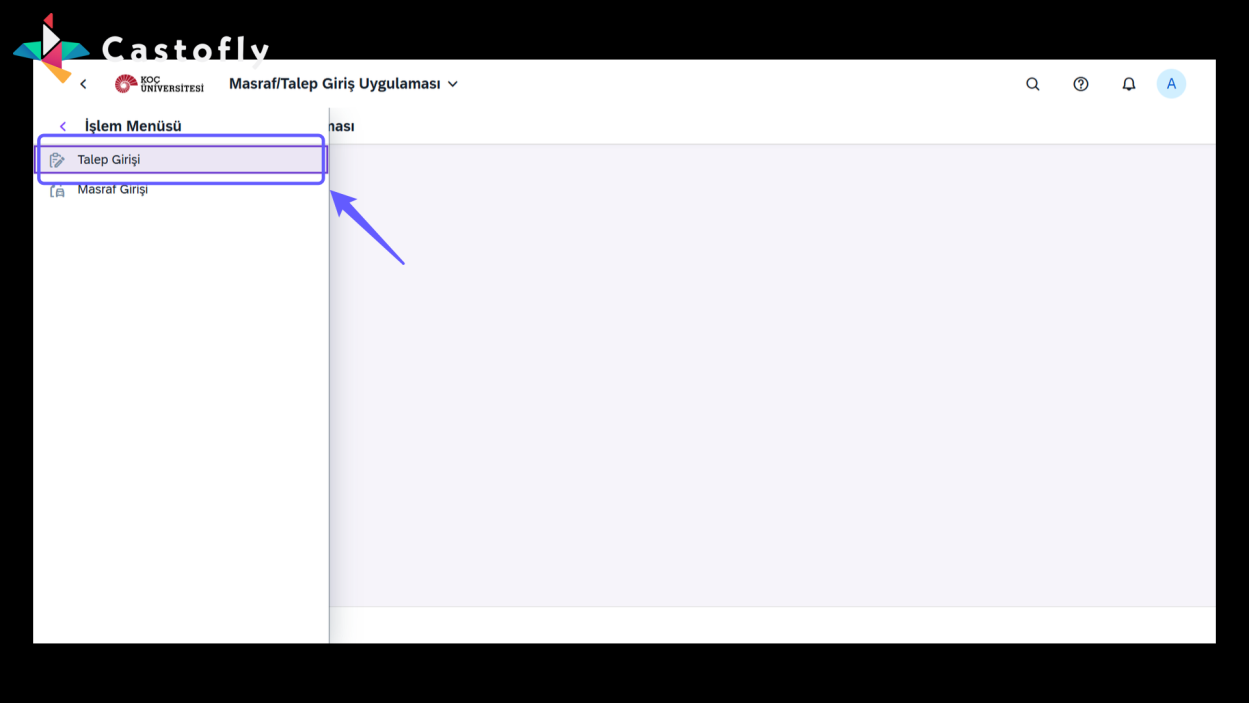
Continue by selecting "Request Entry".
3. Select Company Code
-
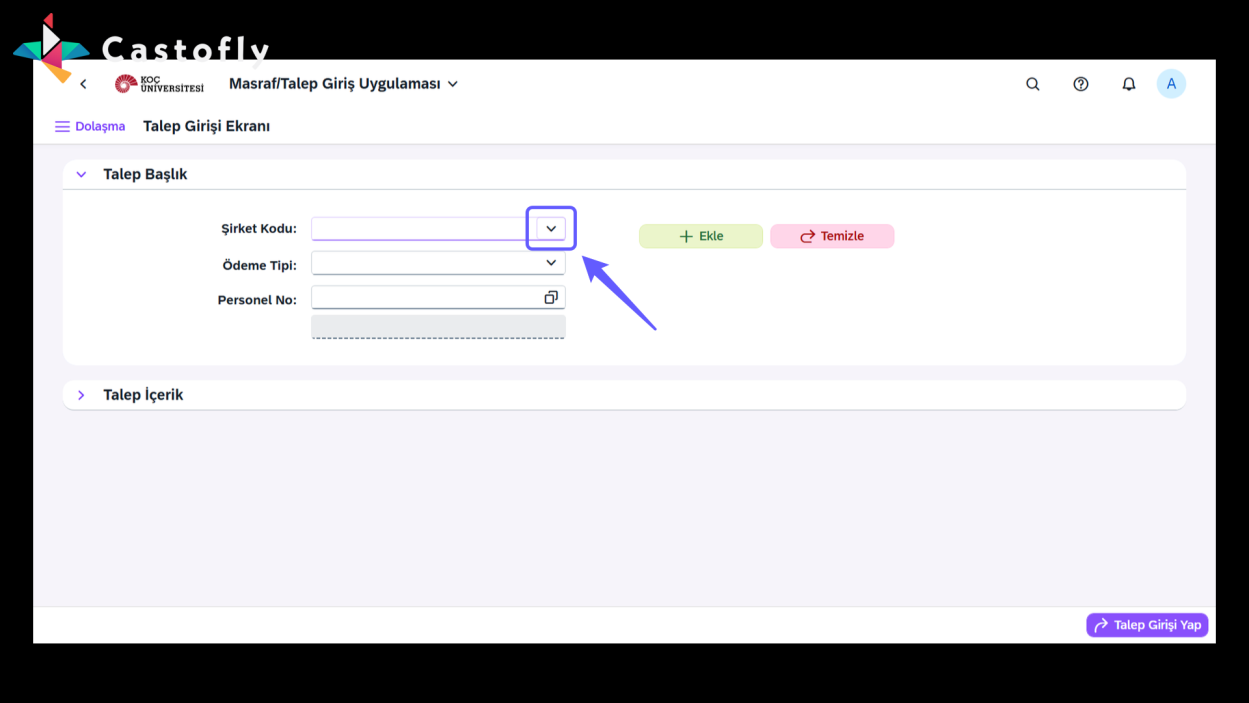
Click the drop-down arrow and select an existing company code from the list.
4. Select Payment Type
-
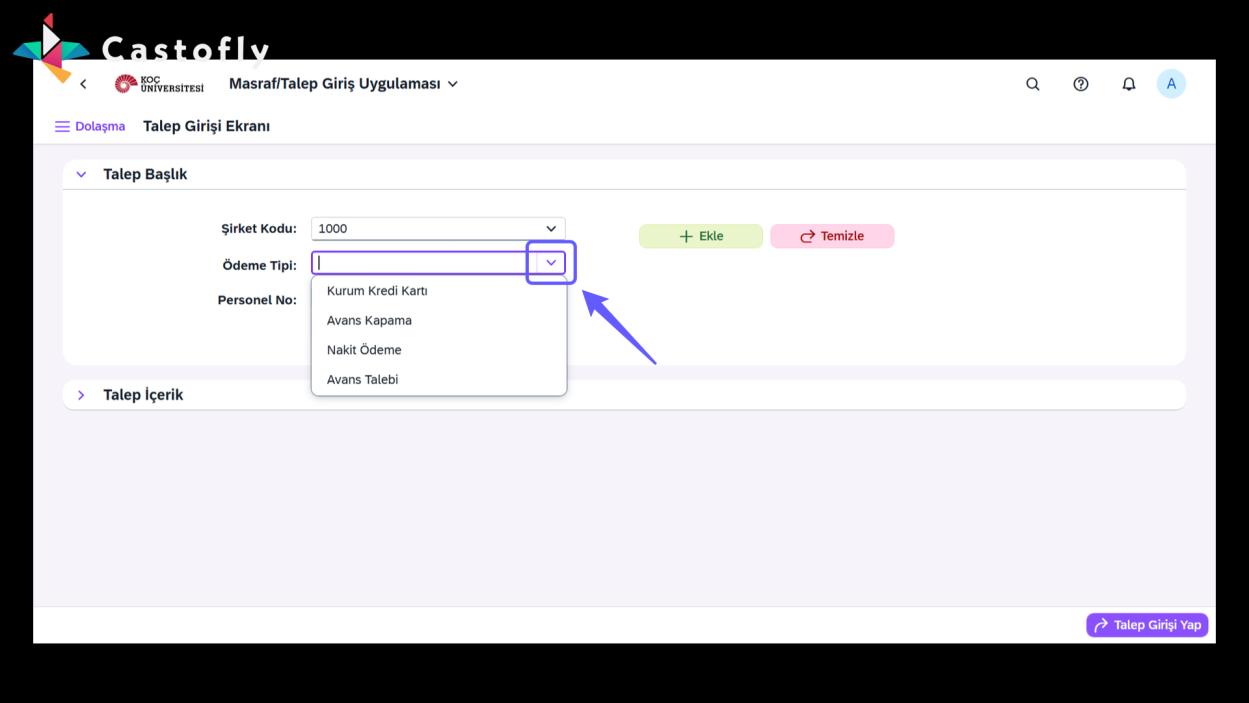
Continue by selecting "Advance Request" from the Payment Type field.
5. Select Personnel
-
Select the personnel you want to submit the advance request for from the list.
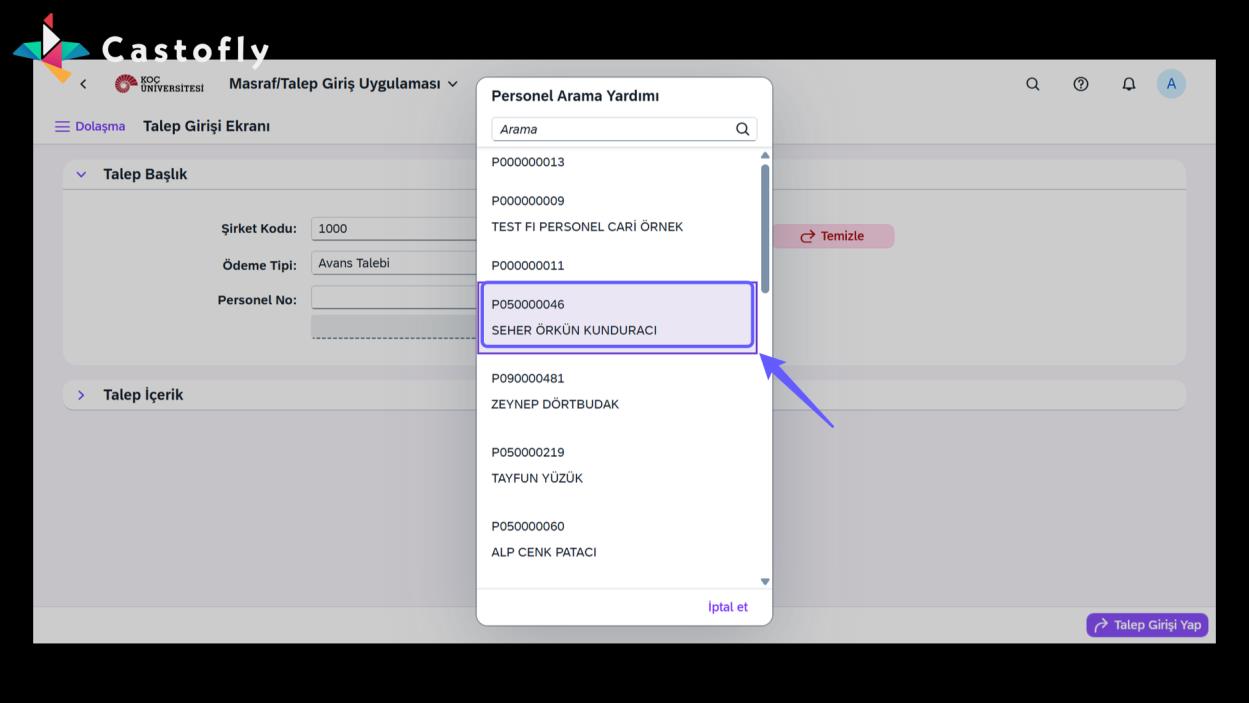
6. View the Request Content
-
Click the 'Request Content' button to view the details.
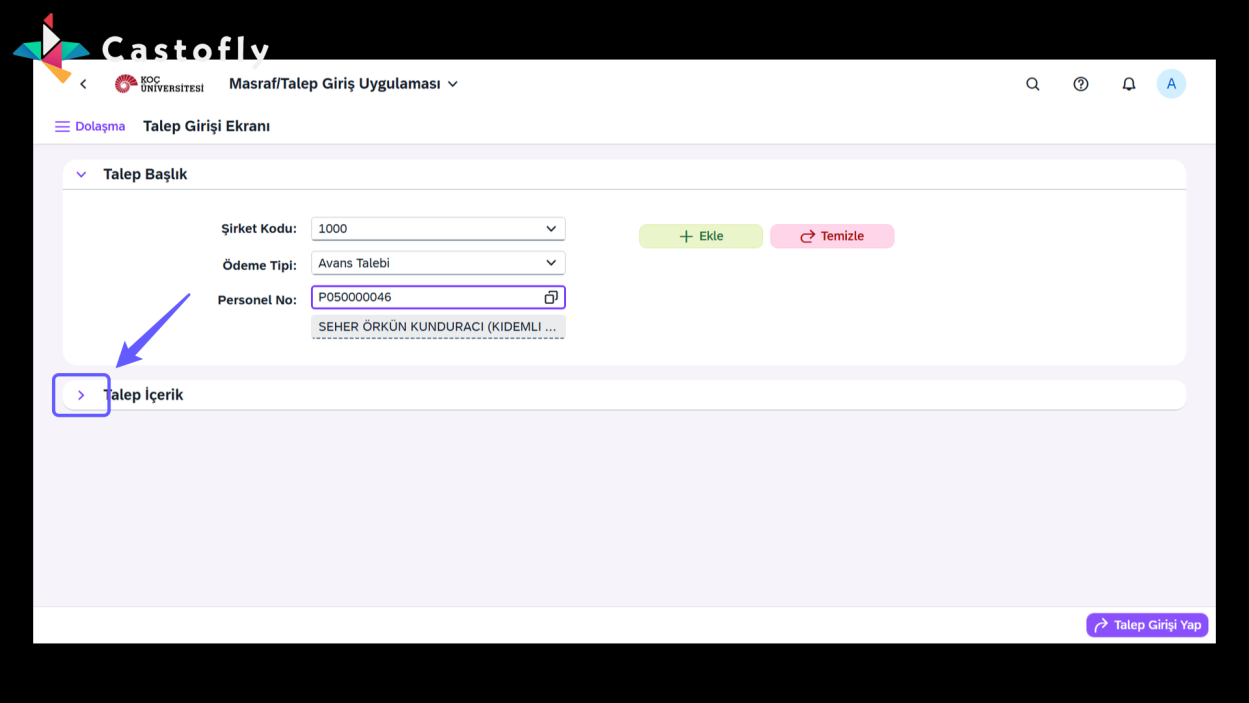
7. Advance Request
-
Select the "Advance" category from the request content.
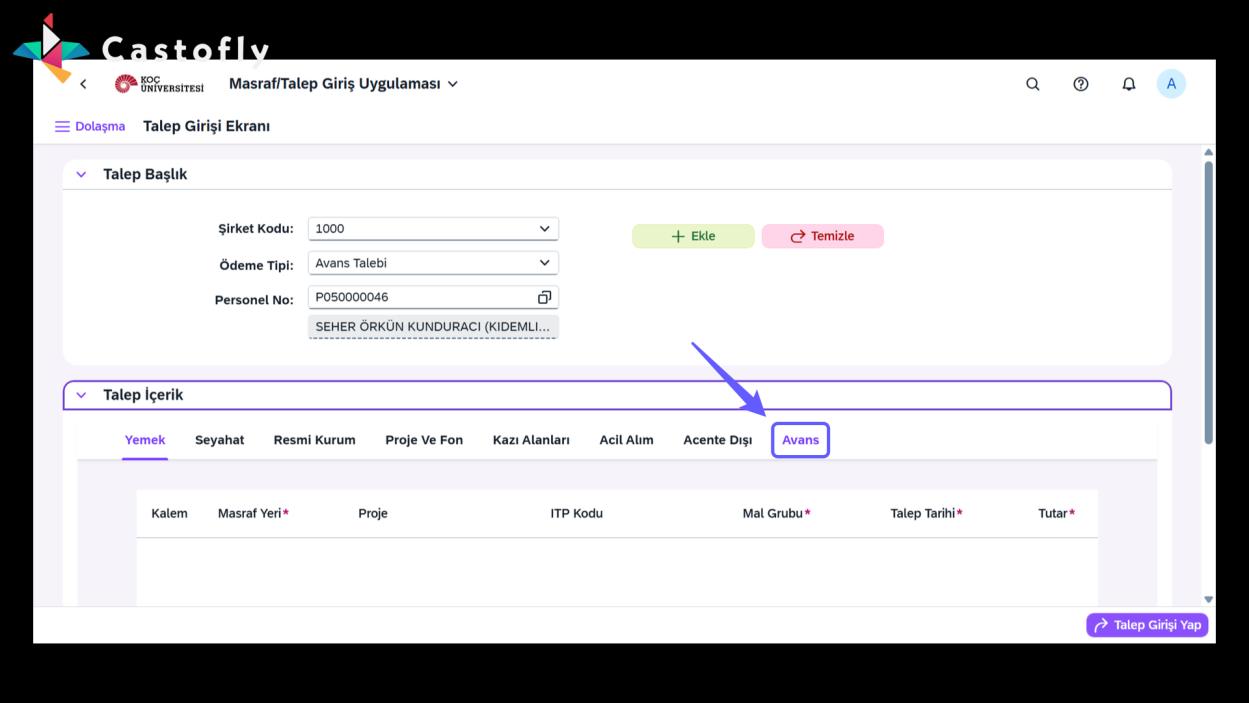
8. Click Add
-
Click the Add button to add the request.
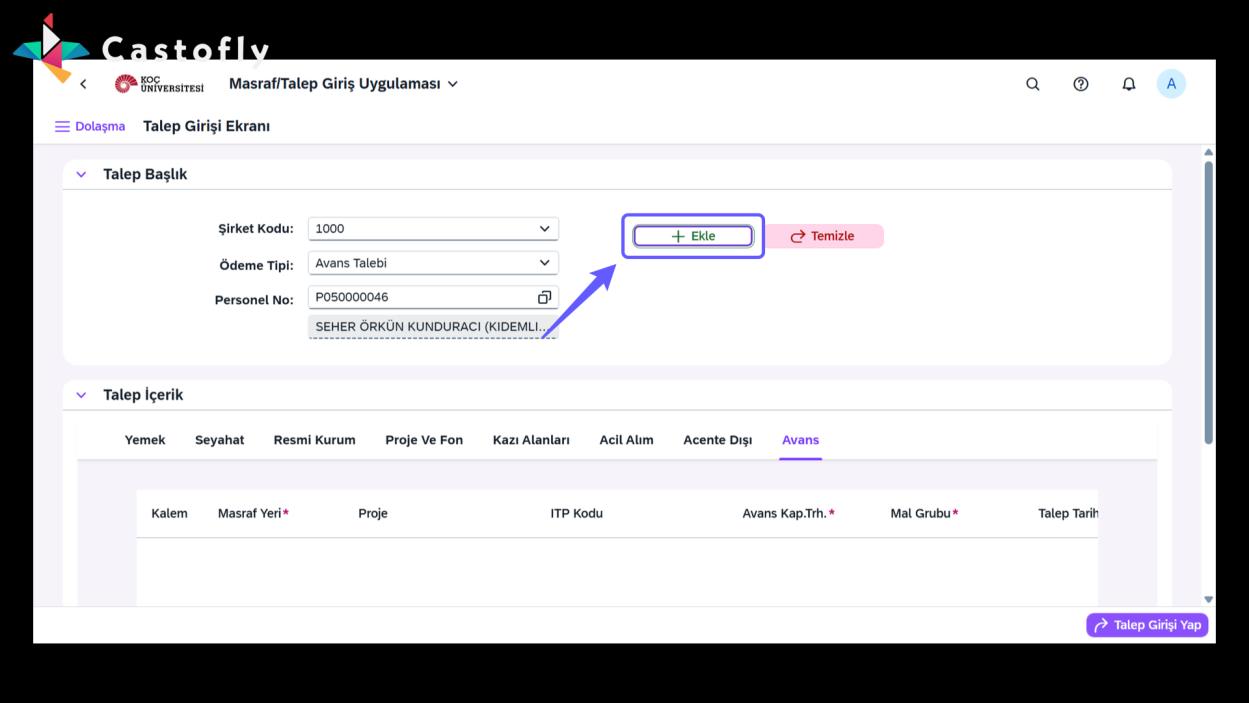
9. Advance Details
-
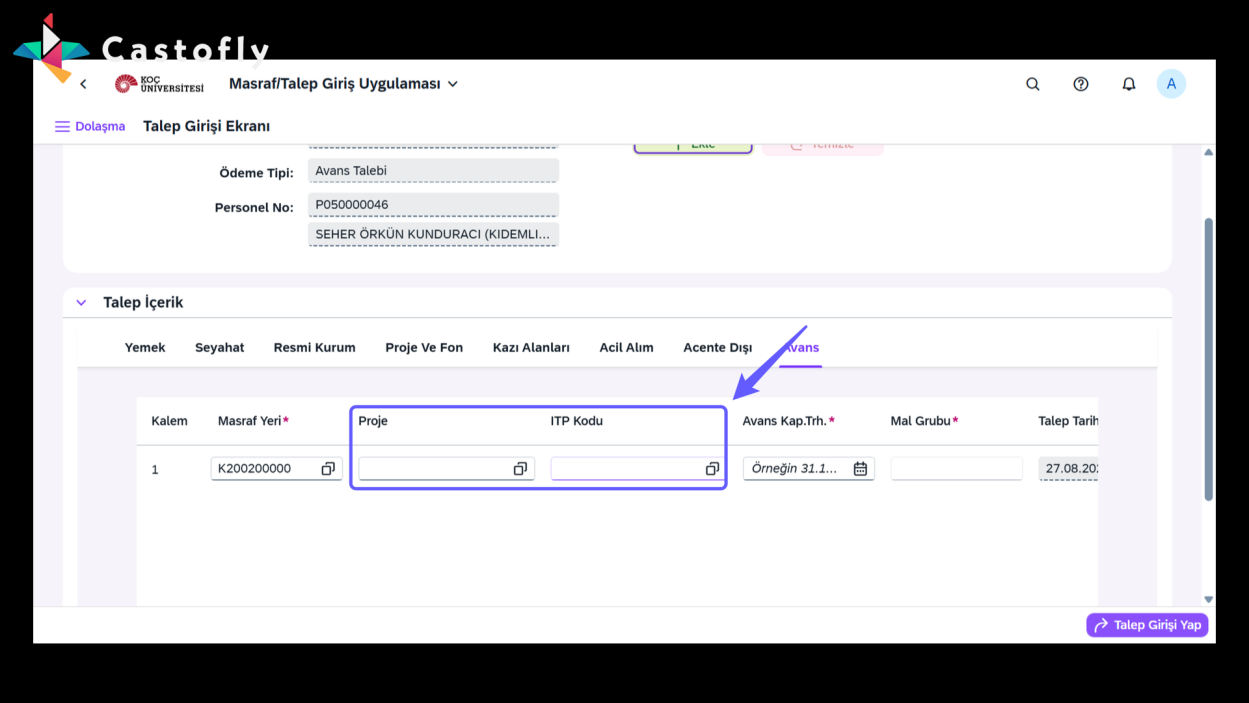
Continue by selecting the WBS element or budget you want to use the advance for.
10. Submit the Request
-
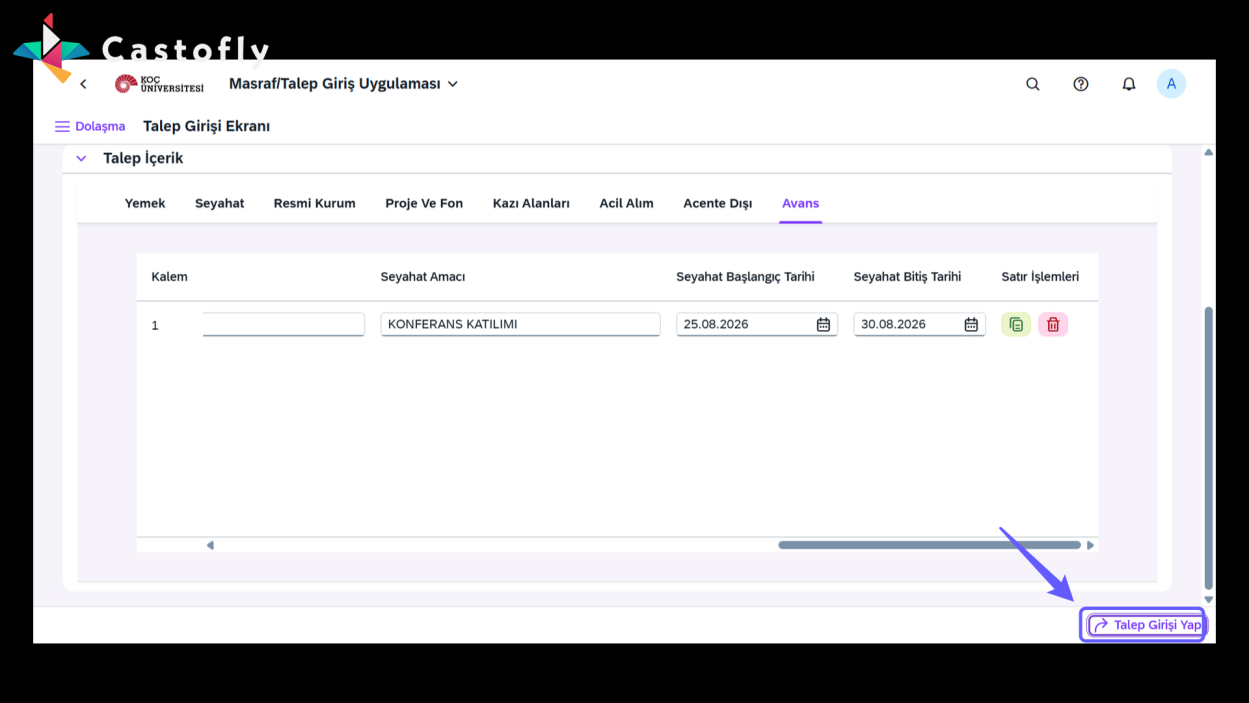
After filling in details such as the Advance Closing Date, Travel Purpose, and Travel Dates, click "Submit Request" to submit your advance request. Your payment will be made once all approvals are complete.
11. Advance Closing Process
-
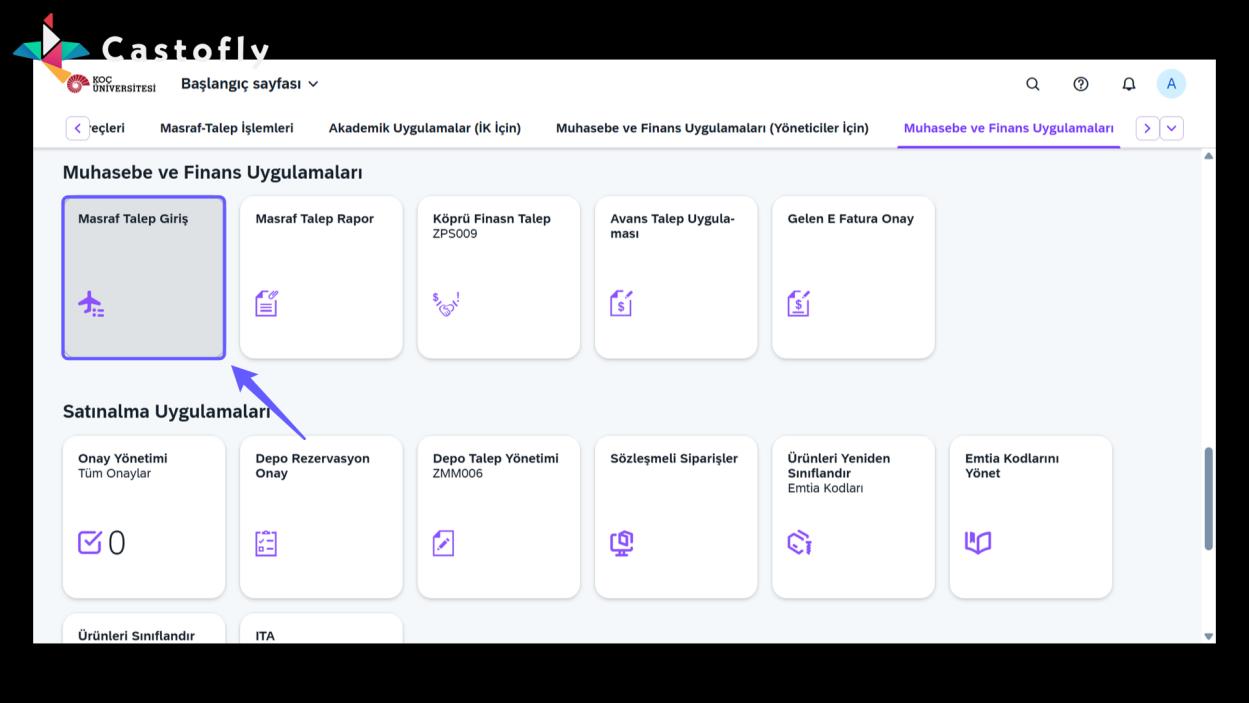
To close an advance you received, go to the Expense Request Entry menu.
12. Submit a Request
-
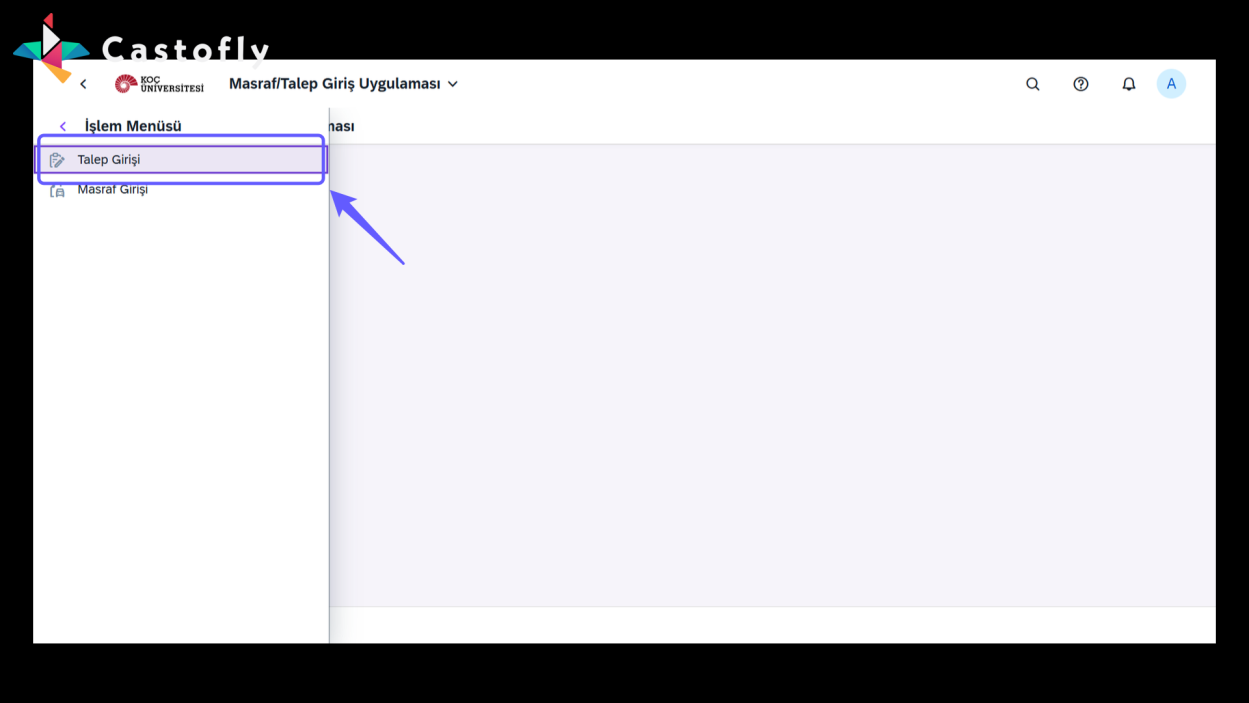
Continue by clicking the "Request Entry" button.
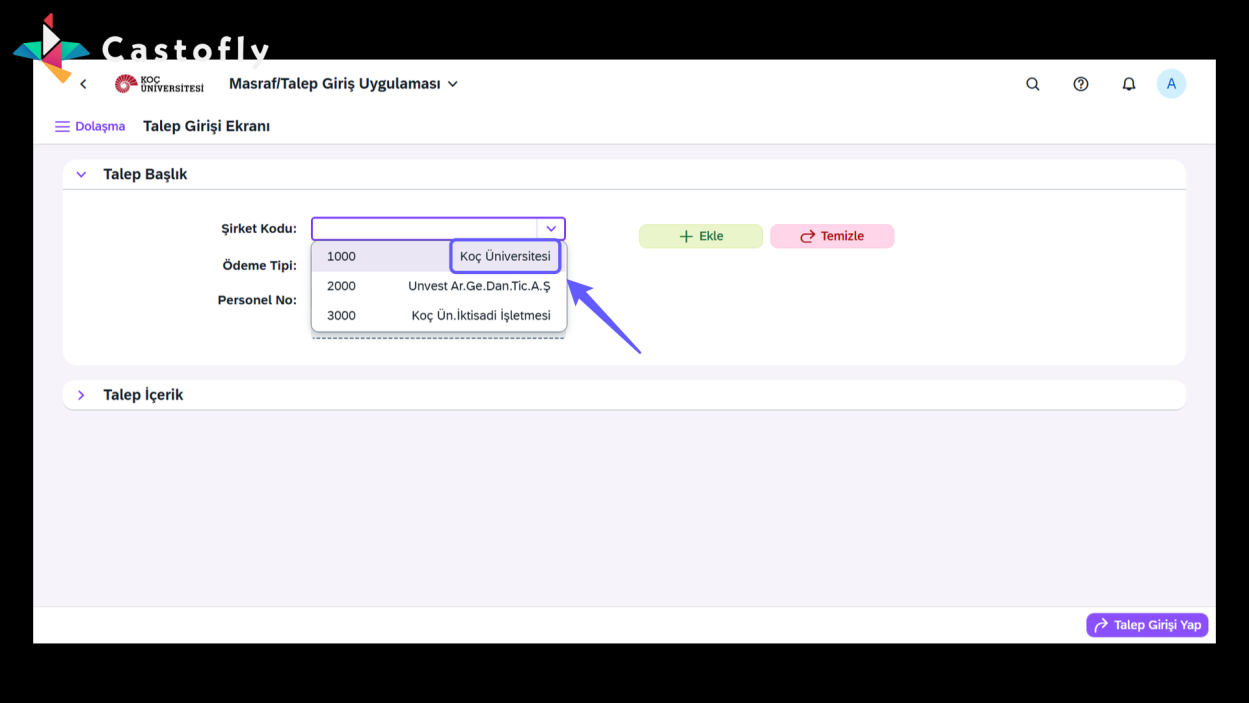
13. Enter the Company Code
-
Select the company code from the drop-down menu.
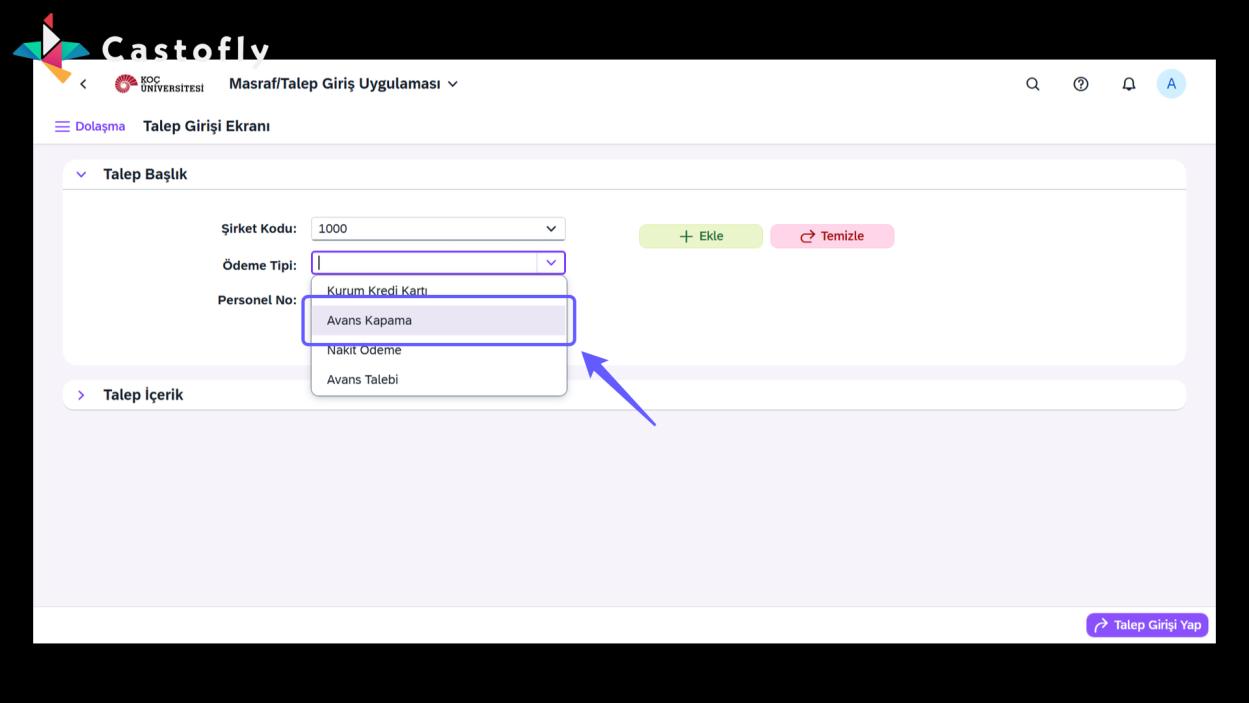
14. Select Payment Type
-
It is important to select "Advance Closing" as the payment type. The payment type cannot be changed afterward, and your advance closing cannot be completed otherwise.
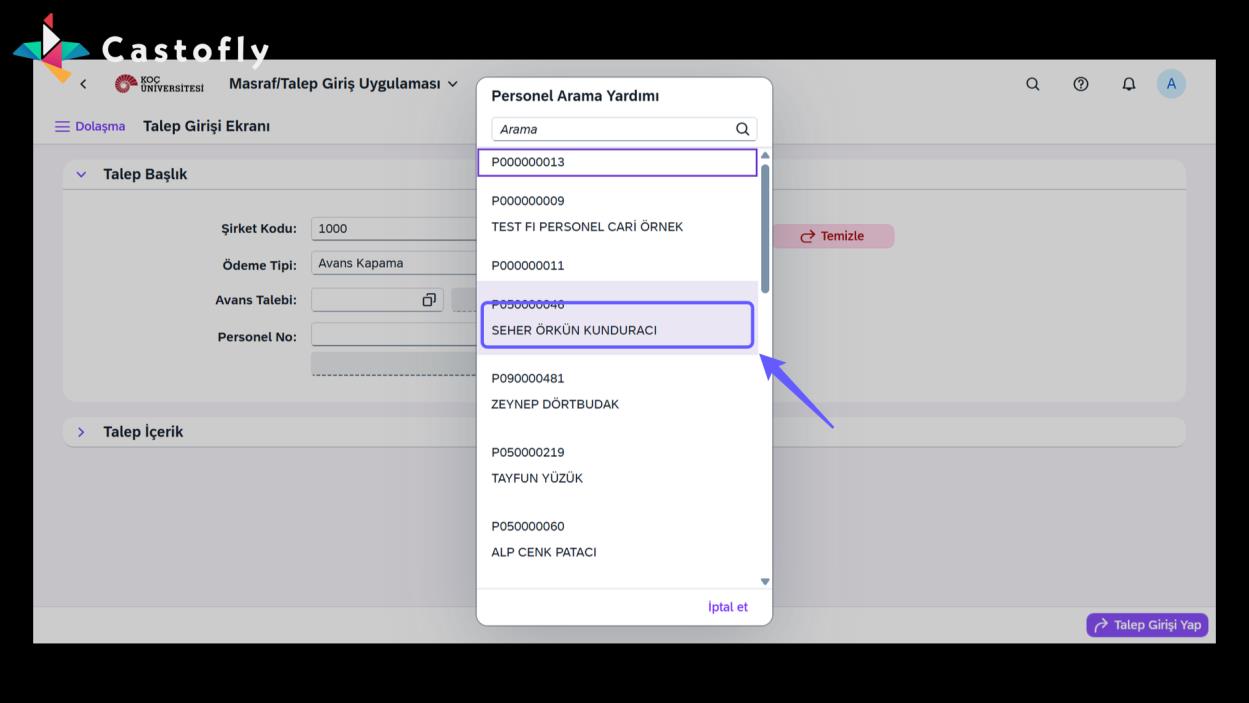
15. Select the Personnel Number
-
Select the personnel whose advance will be closed.
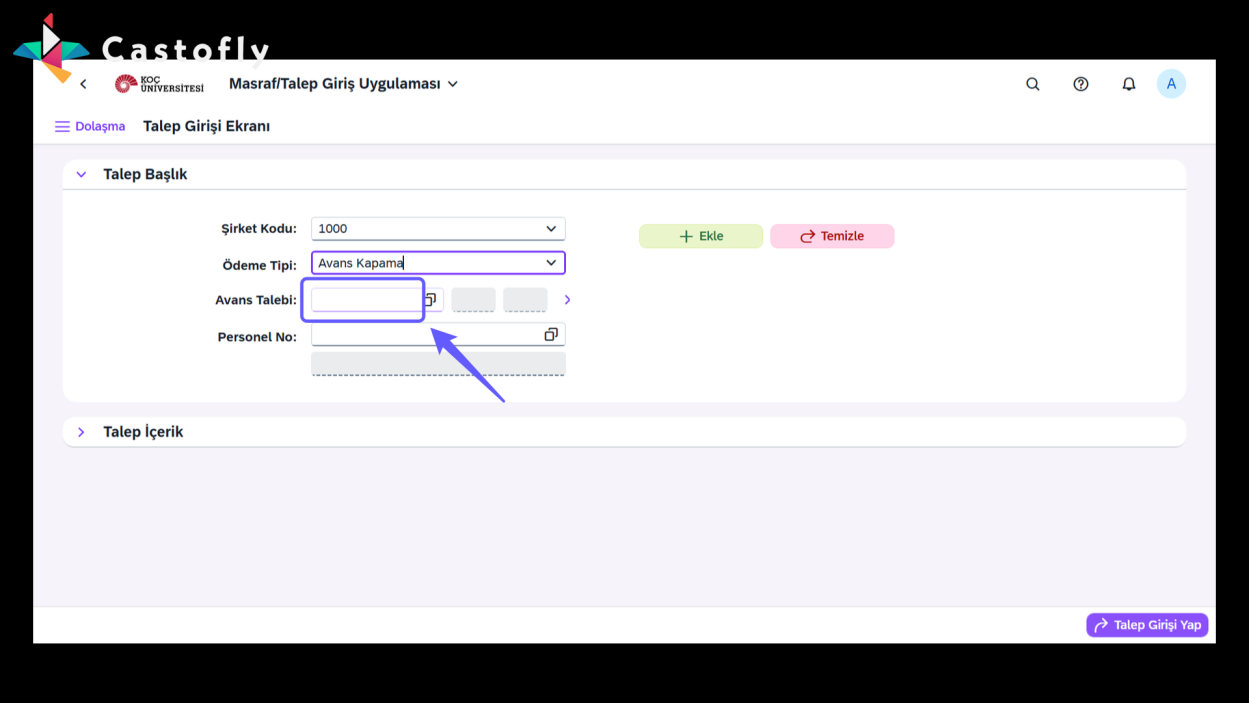
16. Advance Request Entry
-
After selecting your payment type and the relevant personnel, the "Advance Request" field will become active. Enter the advance number you received here and continue.
17. Business Travel Request Detail
-
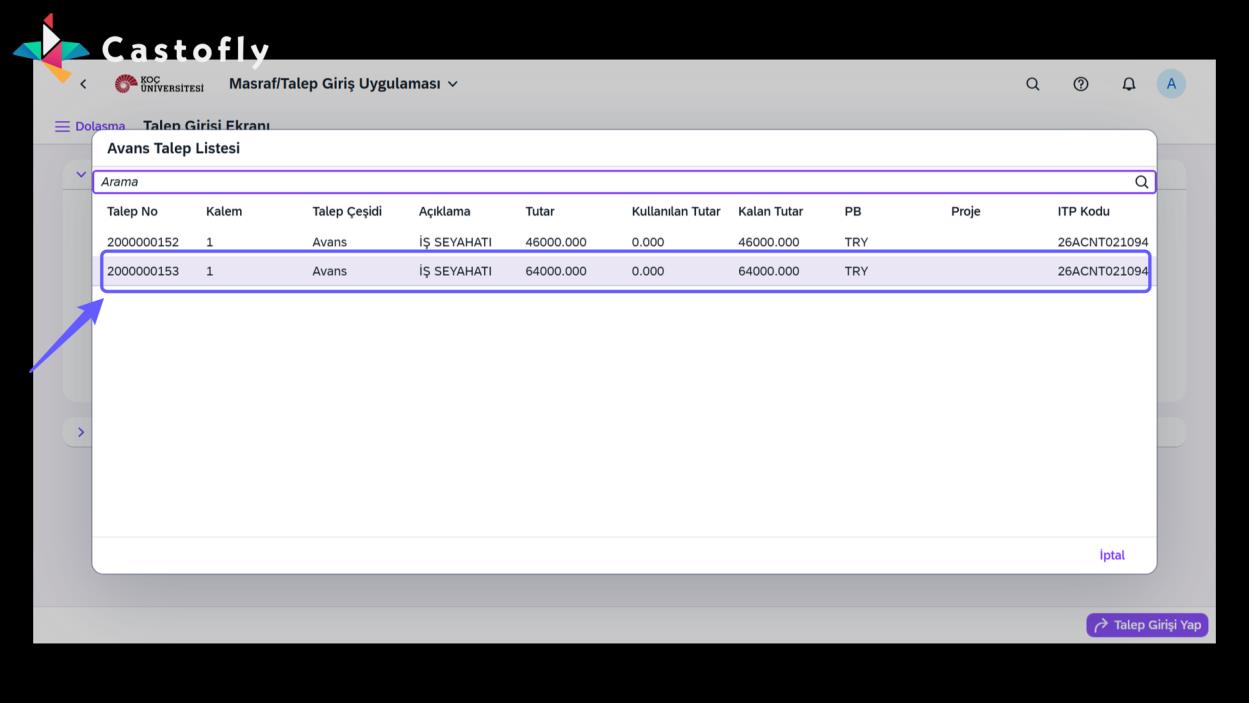
If you don't know your advance number, you can use the search-help option to view your previously received advances that have not yet been closed.
18. Go to Request Content
-
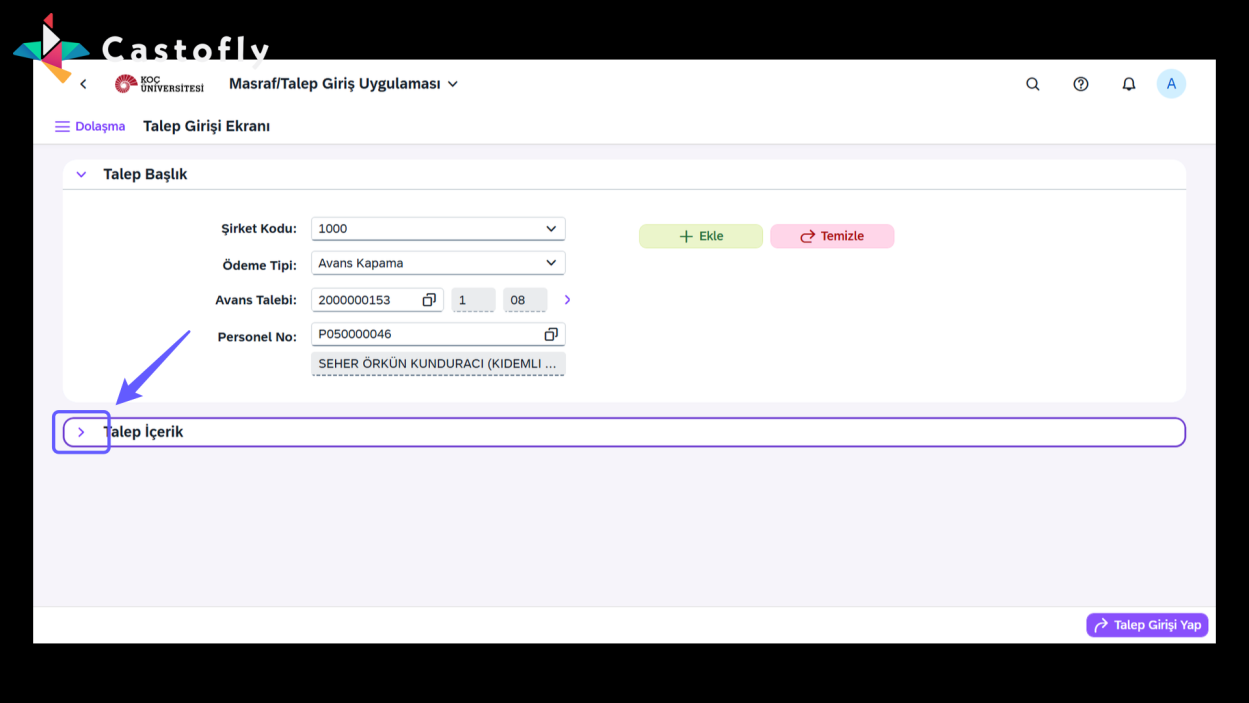
From this point on, the process is the same as the standard expense entry process. You may continue with your transactions.
1. Avans Talebi
-
Avans talebinde bulunmak için öncelikle "Masraf Talep Giriş" butonuna tıklayın.
2. Talep Girişi Yap
-
"Talep Girişi"ni seçerek devam edin.
3. Şirket Kodu Seçimi
-
Açılır ok tuşuna tıklayarak mevcut şirket kodu listesinden bir seçim yapın.
4. Ödeme Tipi Seçimi
-
Ödeme tipinden "Avans Talebi"ni seçerek devam edin.
5. Personel Seçimi
-
Listeden avans talebinde bulunmak istediğiniz personeli seçin.
6. Talep İçeriğini Görüntüle
-
'Talep İçerik' butonuna tıklayarak detayları görüntüleyin.
7. Avans Talebi
-
Talep içeriğinden "Avans" kategorisini seçin.
8. Ekleye Tıkla
-
Ekle düğmesine tıklayarak talebi ekle.
9. Avans Detayları
-
Avans kullanmak istediğiniz PYP veya bütçeyi seçerek devam edin.
10. Talep Girişi Yapın
-
Avans Kapama Tarih, Seyahat Amacı, Seyahat Tarihleri gibi detayları doldurduktan sonra "Talep Girişi Yap" butonuna tıklayarak avans talebinde bulunabilirsiniz. Onaylar tamamlandıktan sonra ödemeniz yapılacaktır.
11. Avans Kapama Süreci
-
Almış olduğunuz avansı kapatmak için, Masraf Talep Girişi menüsüne girin.
12. Talep Girişi Yap
-
"Talep Girişi" butonuna tıklayarak devam edin.
13. Şirket Kodunu Girin
-
Açılır menüden şirket kodunu seçin.
14. Ödeme Tipi Seçimi
-
Ödeme tipinin "Avans Kapama" seçilmesi önemlidir. Daha sonradan ödeme tipi değiştirilememekte ve avans kapamanız yapılamamaktadır.
15. Personel Numarasını Seç
-
Avans kapaması yapılacak olan personeli seçin.
16. Avans Talebi Girişi
-
Ödeme tipinizi ve ilgili personeli seçtikten sonra, "Avans Talebi" kutucuğu aktif olacaktır. Buraya almış olduğunuz avans numarasını yazarak devam edin.
17. İş Seyahati Talep Detayı
-
Avans numaranızı bilmiyorsanız, giriş yardımı seçeneğinden daha önce almış olduğunuz ve henüz kapaması yapılmamış avanslarınızı görüntüleyebilirsiniz.
18. Talep İçeriğine Git
-
Bundan sonraki süreç standart masraf girişi süreci ile aynıdır. İşlemlerinize devam edebilirsiniz.