
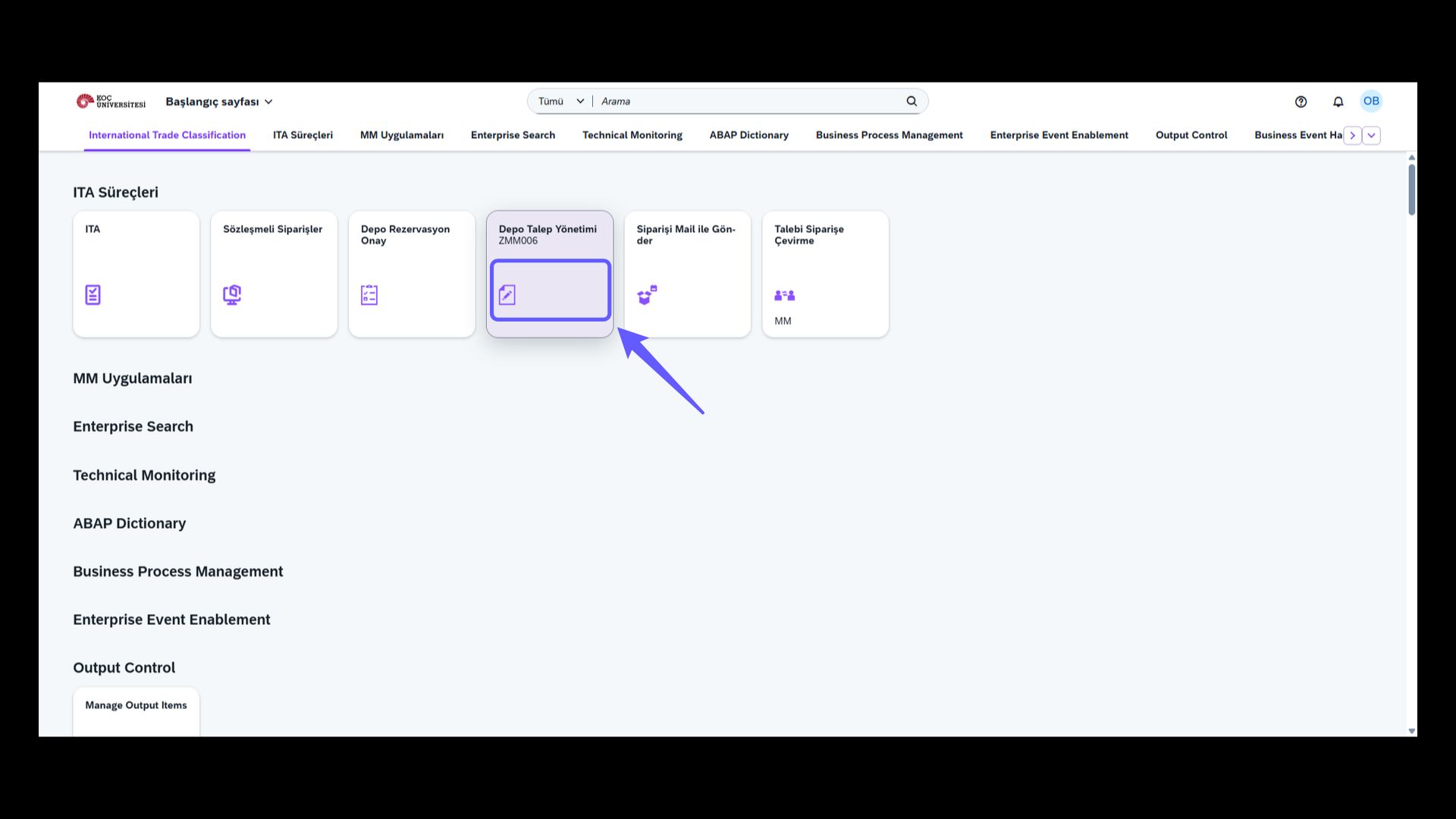
1. Warehouse Request Management
-
Enter the Warehouse Request Management section to view the warehouse request form.
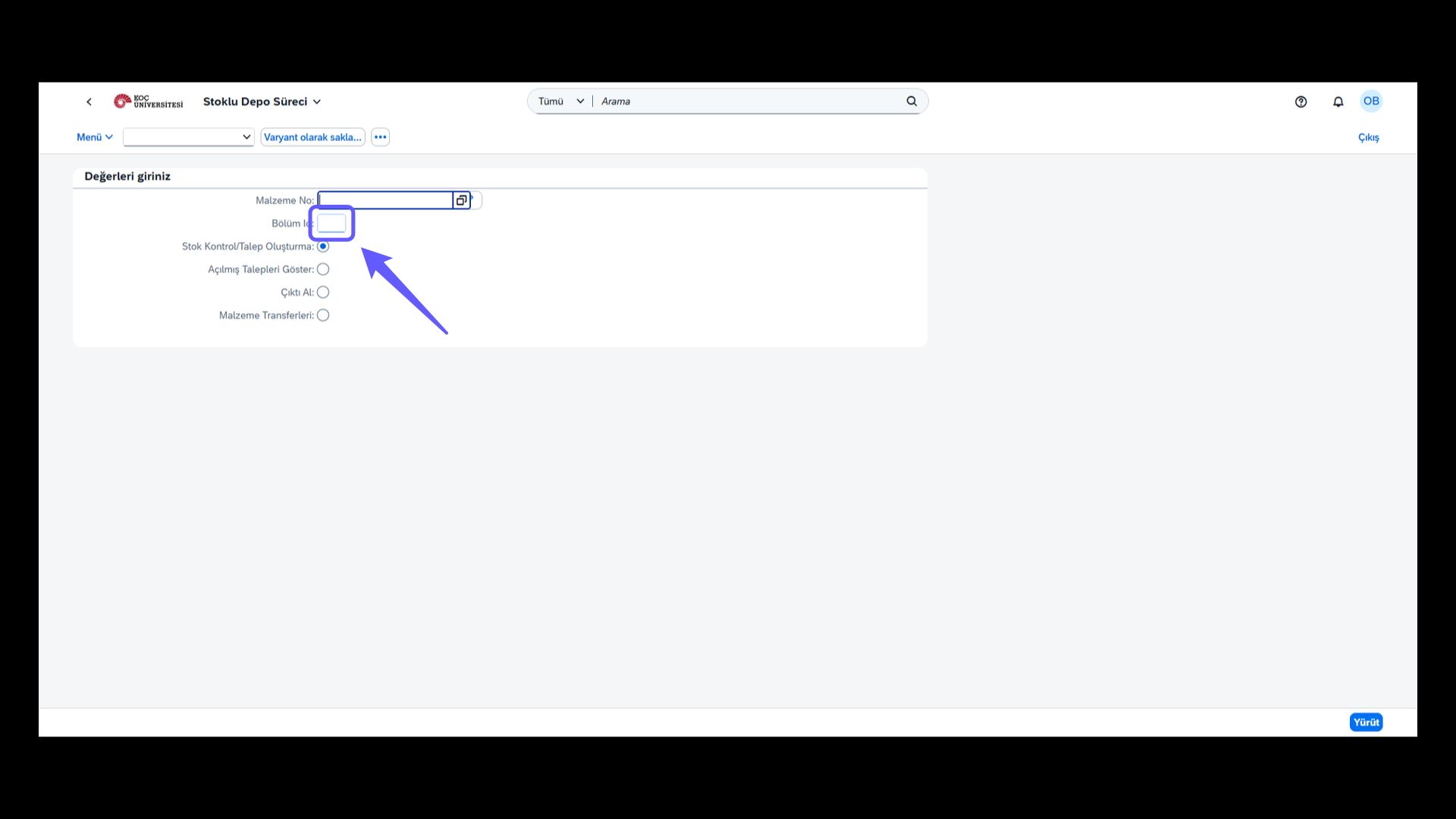
2. Enter Department ID
-
Enter the department ID and verify its accuracy. Do not leave this field blank.
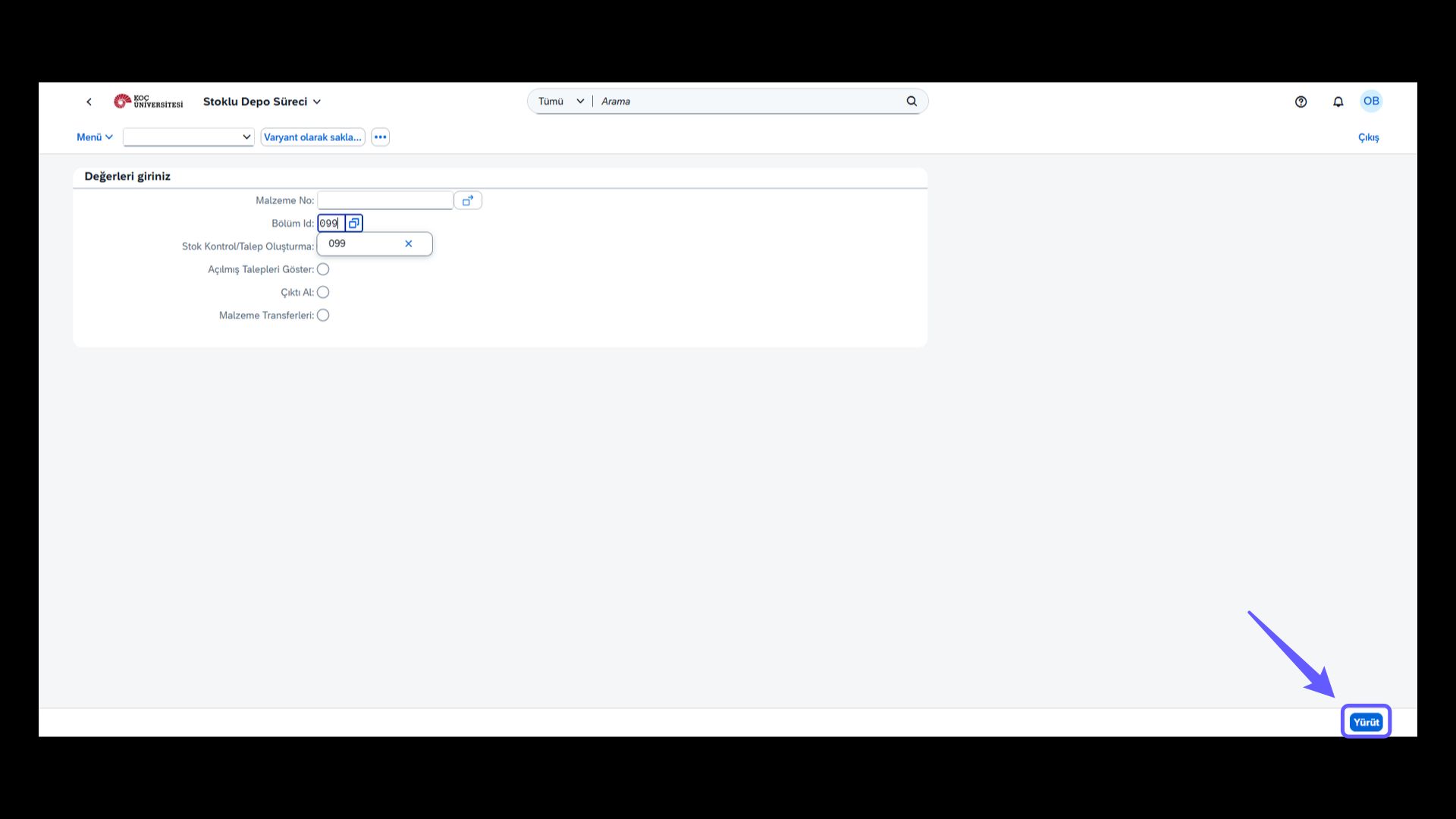
3. Start the Process
-
Click the 'Execute' button and start the process.
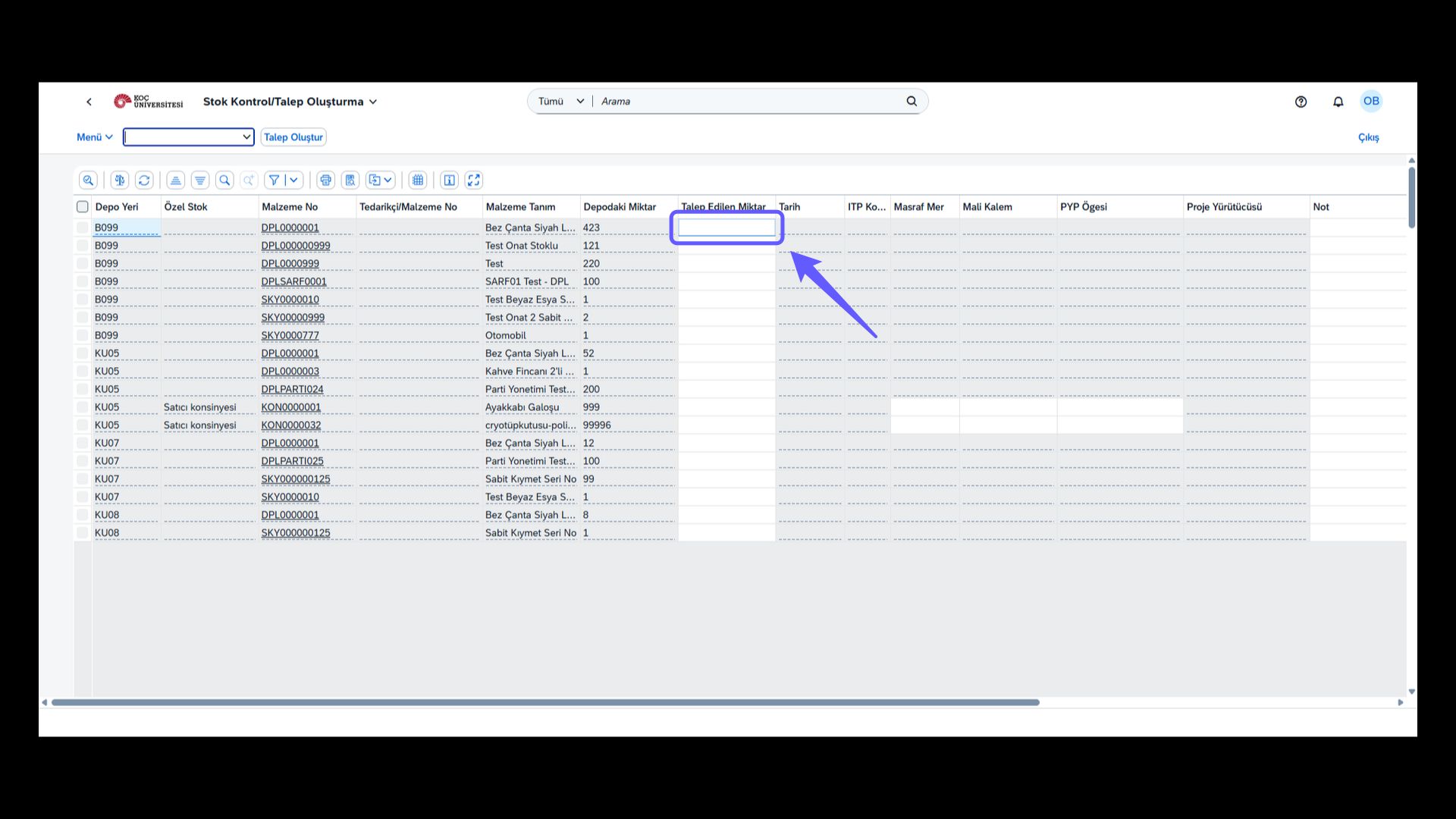
4. Check the Requested Quantity
-
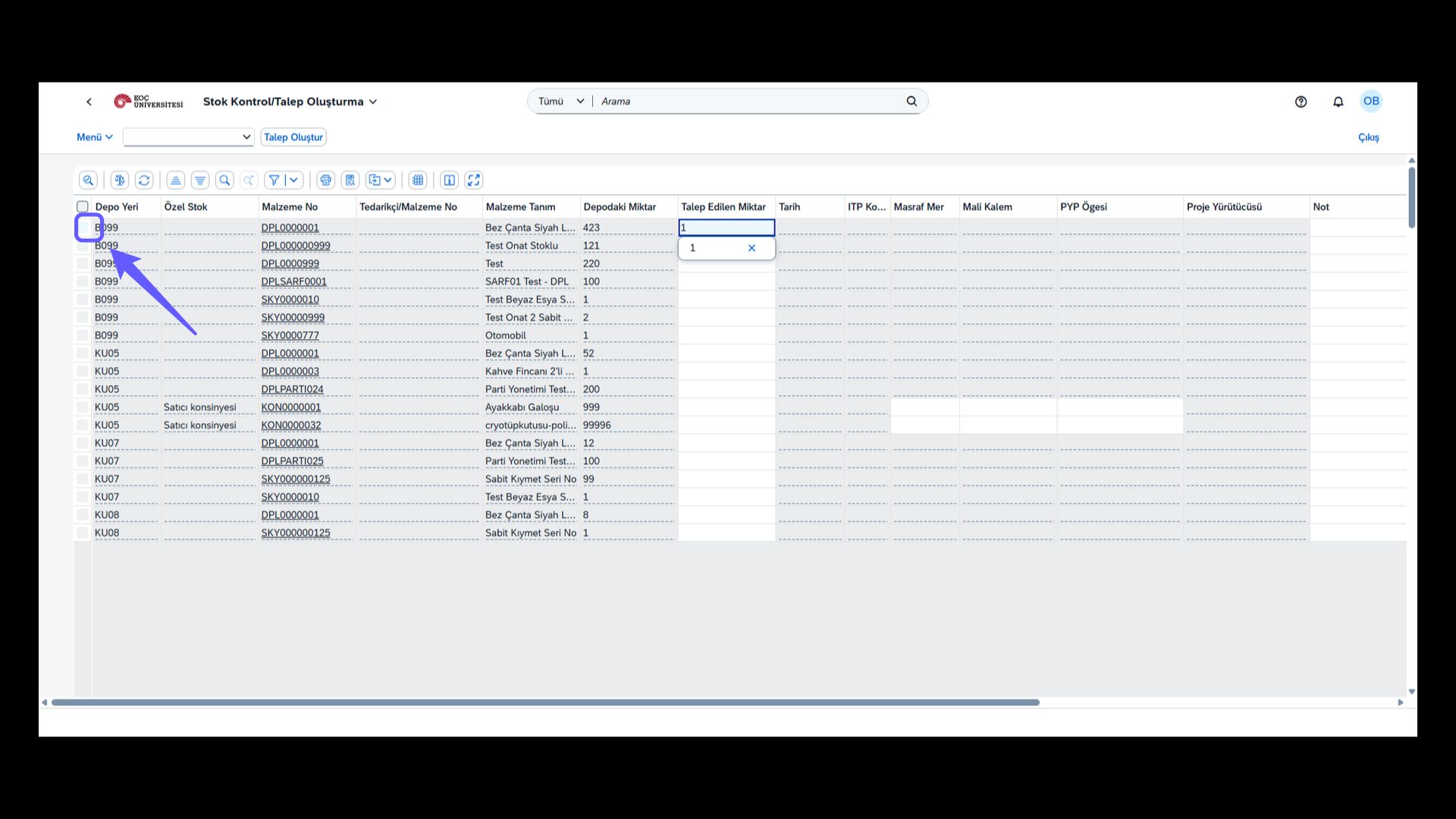
This page contains the material number and material description. Enter the material you need in the Requested Quantity field.
5. Check the Selection Box
-
Use this checkbox to select the rows of items for which a quantity has been entered.
6. Create Request
-
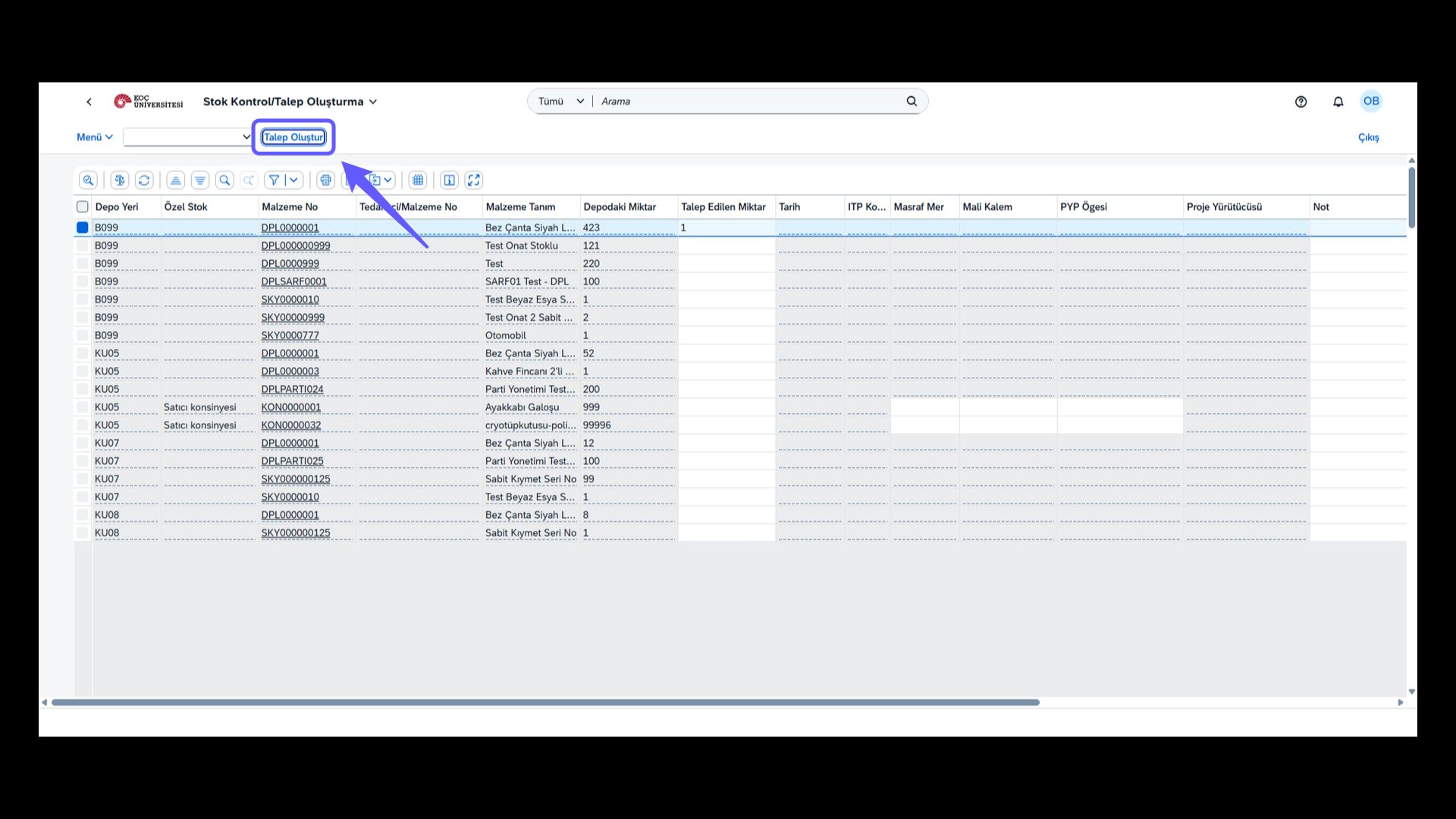
Start a new request by clicking the 'Create Request' button. Follow this step to start the stock control and request creation processes. Select the option in the top menu of the user interface.
7. Reservation Success Message
-
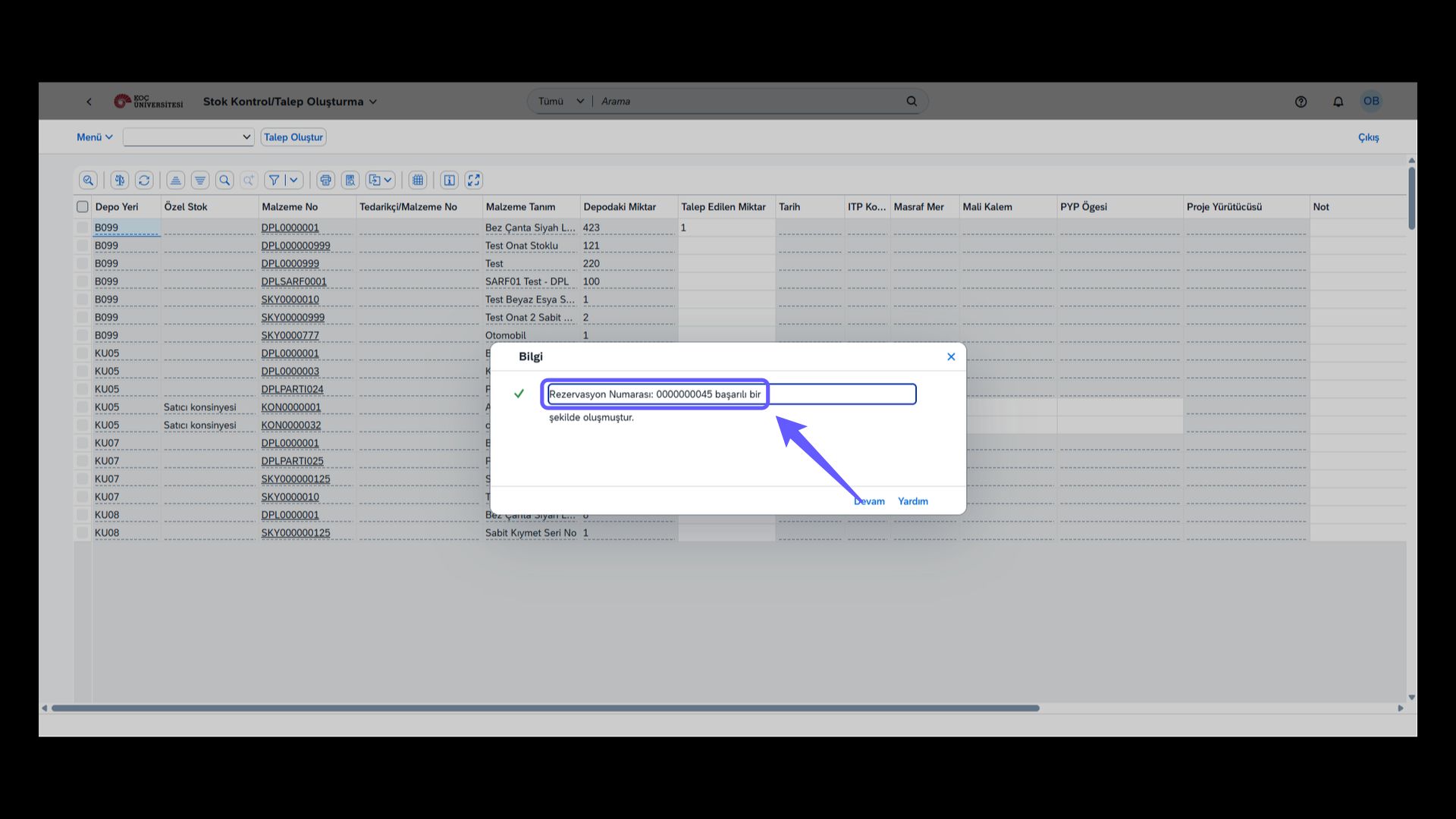
Your reservation number 45 has been completed successfully. You can easily reach the logistics department with this number to inquire about product supply.
1. Depo Talep Yönetimi İşlemi
-
Depo Talep Yönetimi bölümüne girin depo talep formunu görüntüleyin.
2. Bölüm ID’sini Girin
-
Bölüm ID'sini girin ve doğruluğunu kontrol edin. Bu alanı boş bırakmayın.
3. İşlemi Başlat
-
'Yürüt' butonuna tıklayın ve işlemi başlatın.
4. Talep Edilen Miktar Kontrolü
-
Bu sayfada malzeme numarası ve malzeme tanımı bulunuyor. ihtiyacınız olan malzemeyi Talep Edilen Miktar alanına girişlerinizi yapın.
5. Seçim Kutusunu İşaretle
-
Miktarı girilen kalemlerin satırlarını bu kutucuk yardımıyla seçin.
6. Talep Oluşturma
-
'Talep Oluştur' butonuna tıklayarak yeni bir talep başlatın. Stok kontrol ve talep oluşturma işlemlerini başlatmak için bu adımı takip edin. Kullanıcı arayüzünde üst menüdeki seçeneği seçin.
7. Rezervasyon Başarı Mesajı
-
Rezervasyon numaranız 45 başarıyla tamamlanmıştır. Bu numara ile ürün temini sorgulamak için lojistik birimine kolaylıkla ulaşabilirsiniz.