
Follow the steps below to download the Moodle mobile application and log in using your institutional credentials.
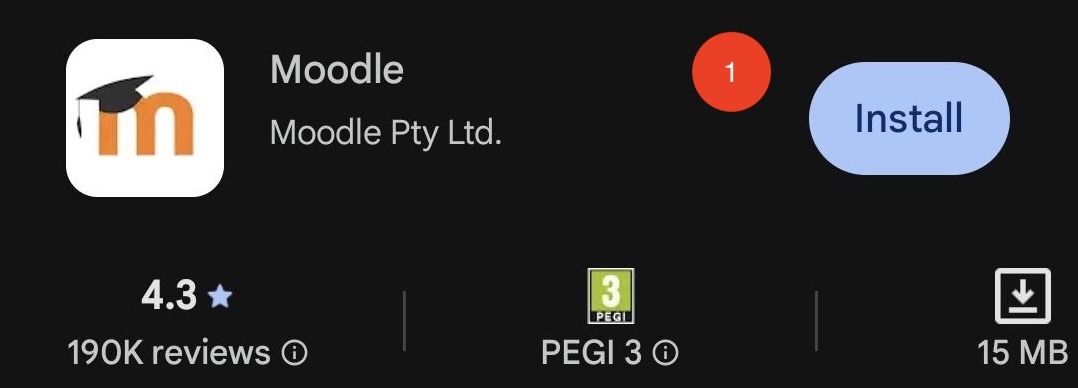
Step 1: Download the Moodle App
-
Search for “Moodle” in the Google Play Store.
-
Tap the Install button to download and install the official Moodle app on your device.
-
Make sure you download the official Moodle app developed by Moodle Pty Ltd.
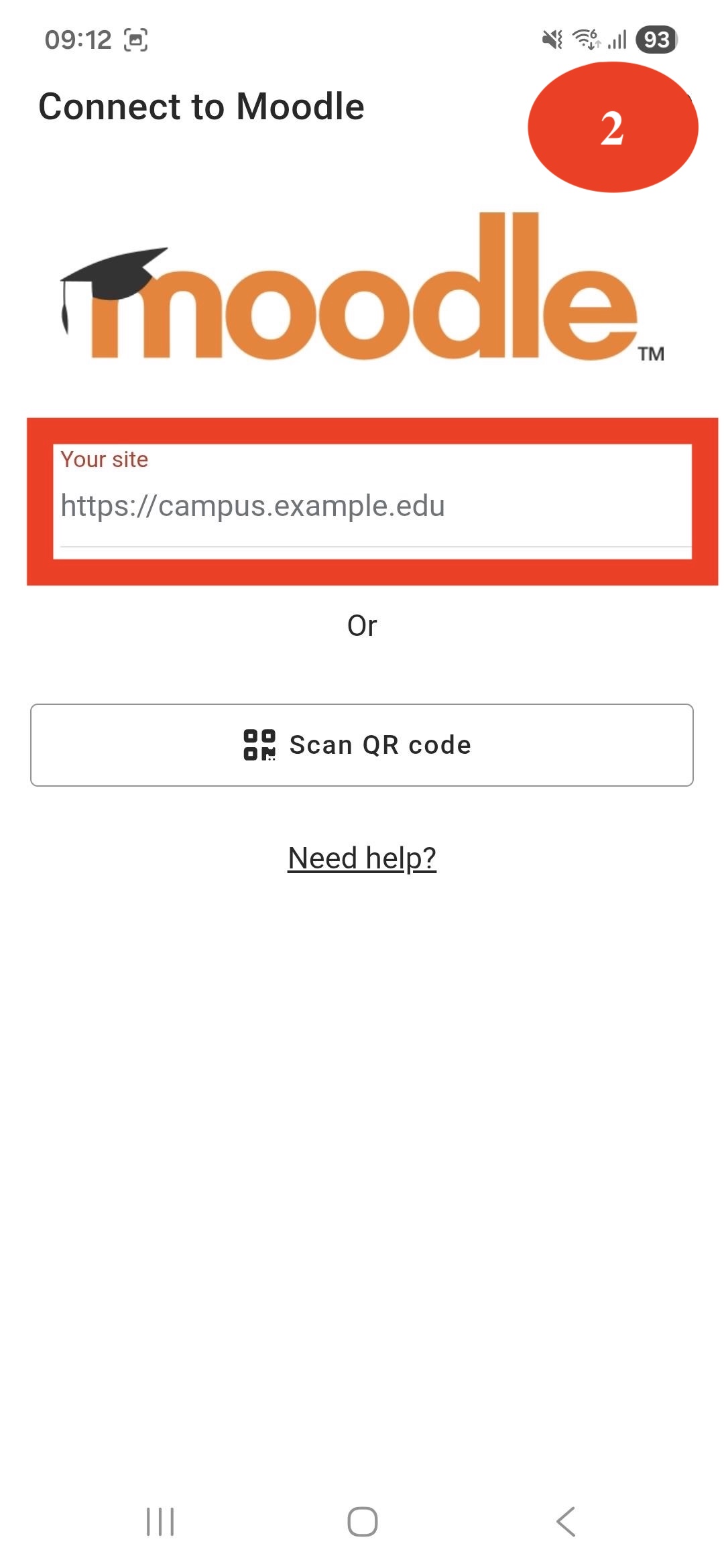
Step 2: Connect to Your Moodle Site
-
On the next screen, you will see the “Connect to Moodle” page.
-
Tap the field where you can enter your Moodle site address.
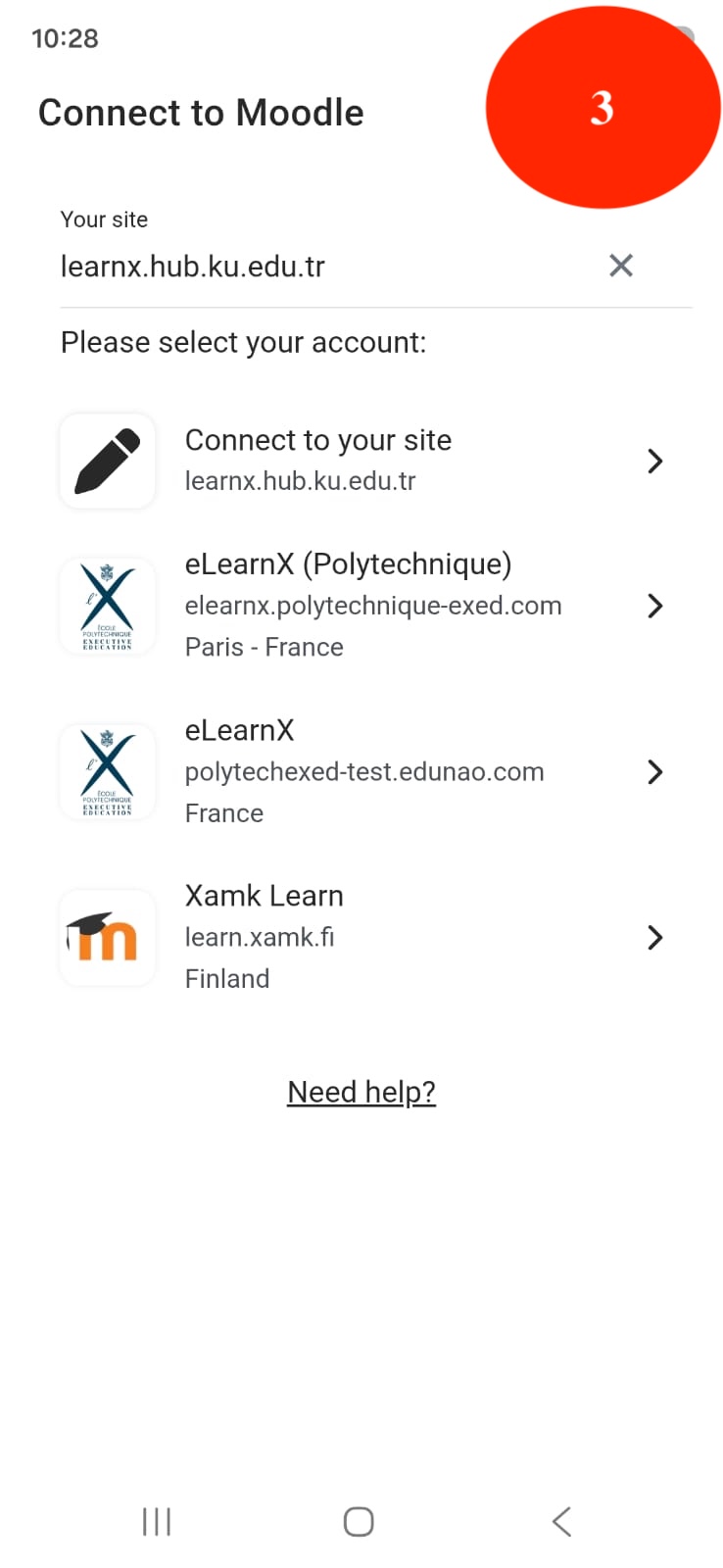
Step 3: Enter the Moodle Site Address
-
In the site address field, type:
learnx.hub.ku.edu.tr -
After entering the address correctly, tap Connect to your site.
-
Make sure there are no spelling mistakes when typing the address.
Step 4: Log In with Your Credentials
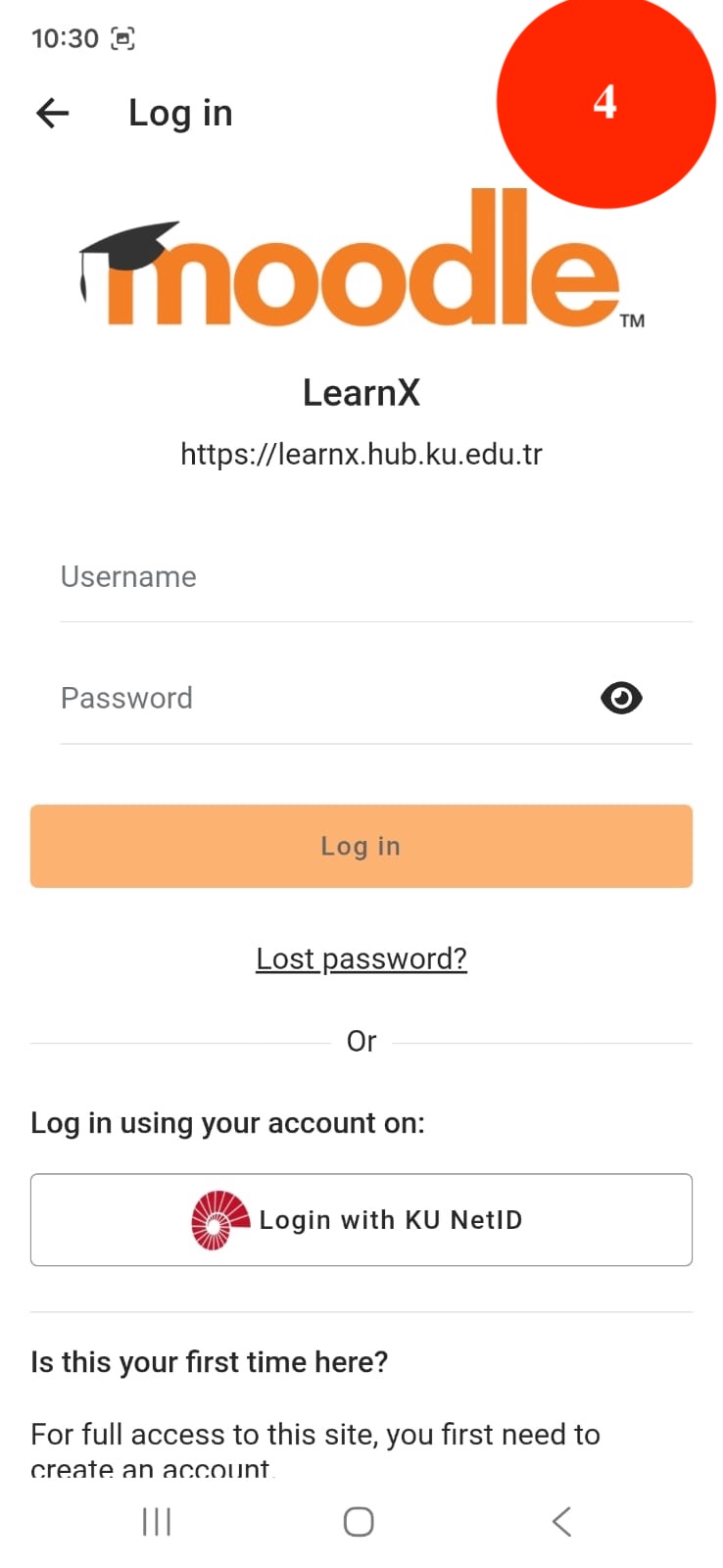
Once the KUHub LearnX login page appears:
-
Enter your username
-
Enter your password.
-
Tap the Log in button.
Please make sure you enter the correct username and password.
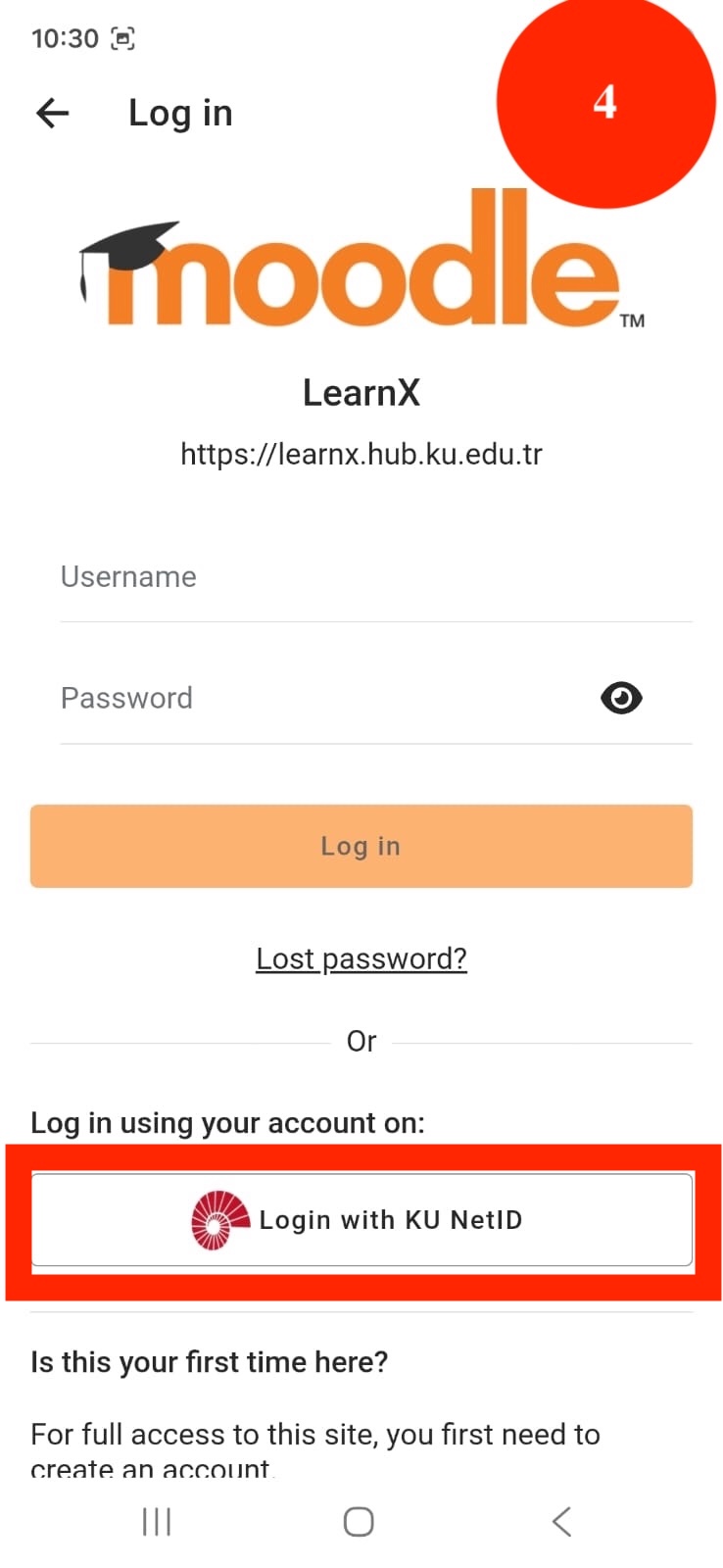
Tap KuNetID Login to sign in with your Koç University account. If you are already signed in on your device, you will be logged in to LearnX automatically. Otherwise, you may be asked to authenticate with your KuNetID.
Step 5: Access Your Courses
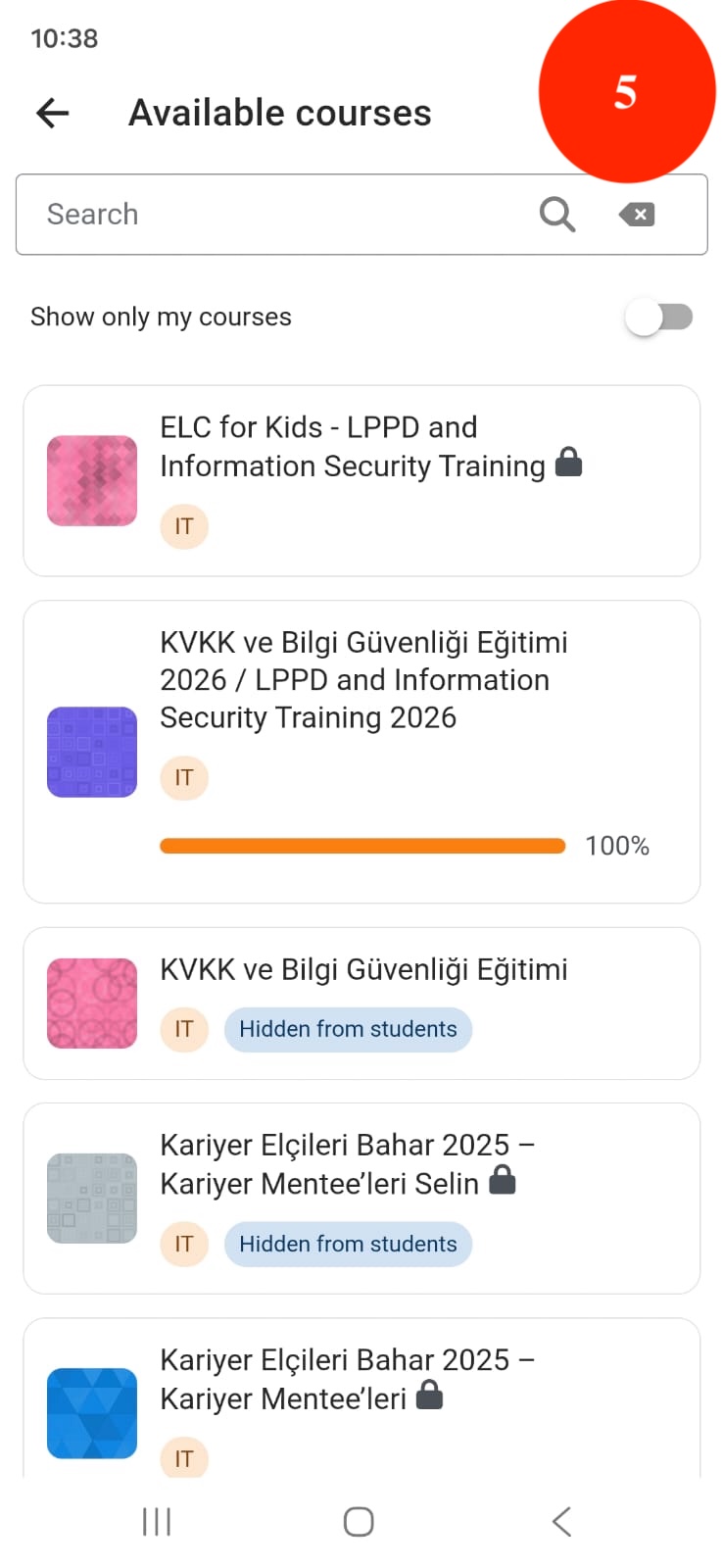
After logging in successfully, the My Courses page will open by default.
Here, you can:
-
View your enrolled courses
-
Access course materials
-
Track your learning progress
Tap on any course to start learning.
If you experience login issues, please make sure:
-
The site address is entered correctly.
-
You are using your official email and password.
-
Your internet connection is stable.