
This page shows the steps to follow from running the SPSS installation file through the licensing screen. In each step, first read the explanation, then complete the action according to the related screenshot. Before you start, make sure the installation file is available on your computer and that you have administrator privileges.
1. Run the installation file as an administrator
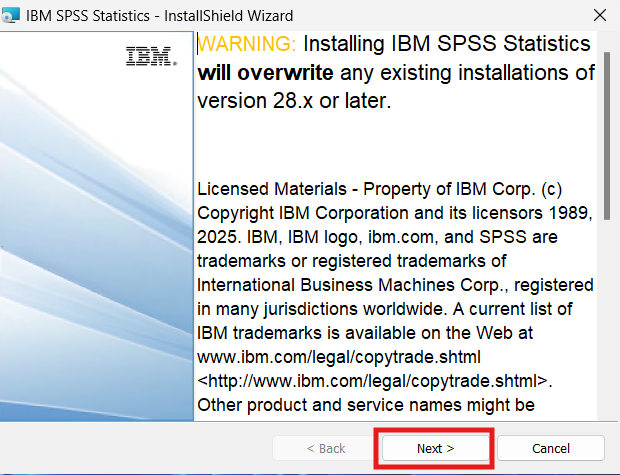
Right-click the SPSS installation file and select Run as administrator. If a security or user account control warning appears, approve it to continue. When the installation wizard opens, follow the on-screen instructions and use Next or the relevant continue button to move to the next step.
2. Accept the license agreement
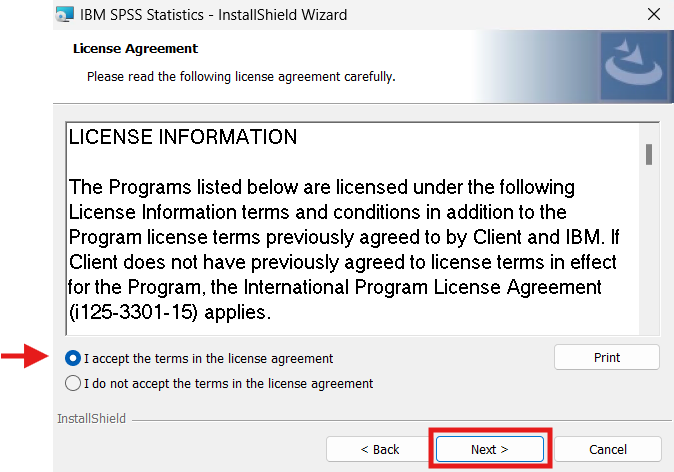
On the license agreement screen, read the terms. To continue, select the acceptance option and proceed to the next step.
3. Confirm the installation options
If options such as installation type, destination folder, or additional components are displayed, review the default settings.
4. Start the installation and wait for it to finish
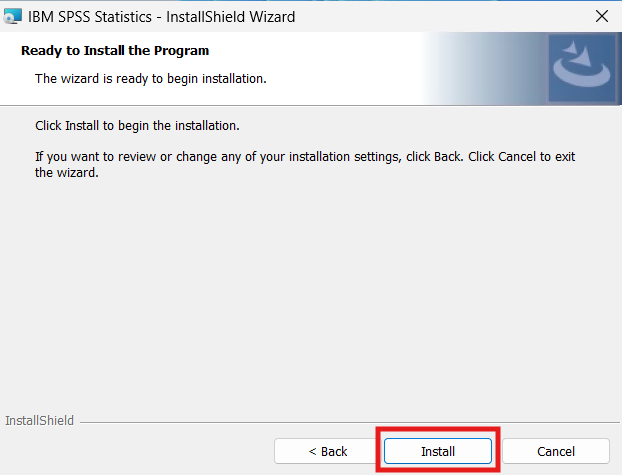
On the installation summary or ready screen, start the installation. Do not close the window while the files are being copied, and wait until the process is complete.
5. Open the licensing wizard
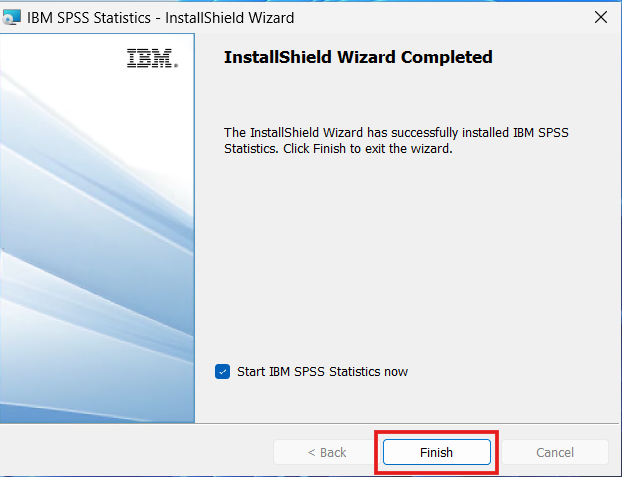
After the installation is complete, continue if the SPSS licensing wizard opens automatically. If it does not open, start the SPSS application or the licensing tool and proceed to the licensing steps.
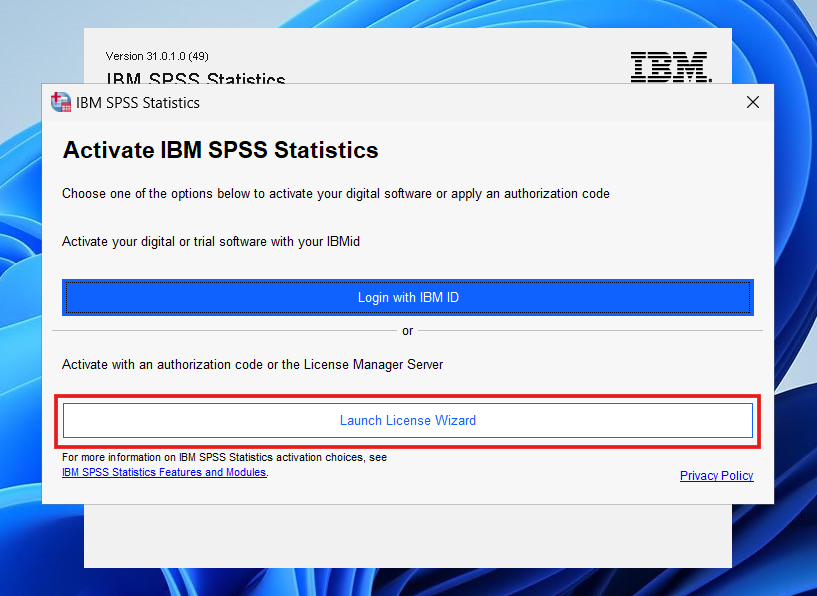
6. Select the license type
On the licensing screen, select the license type provided by your organization. If an authorization code is being used, select the relevant option and continue.
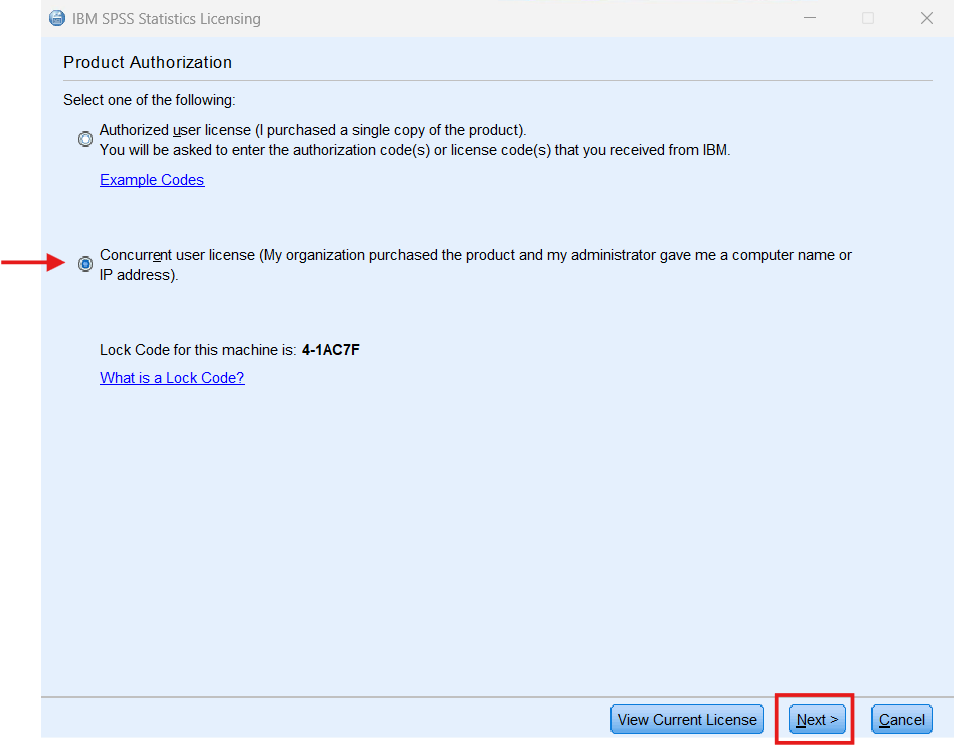
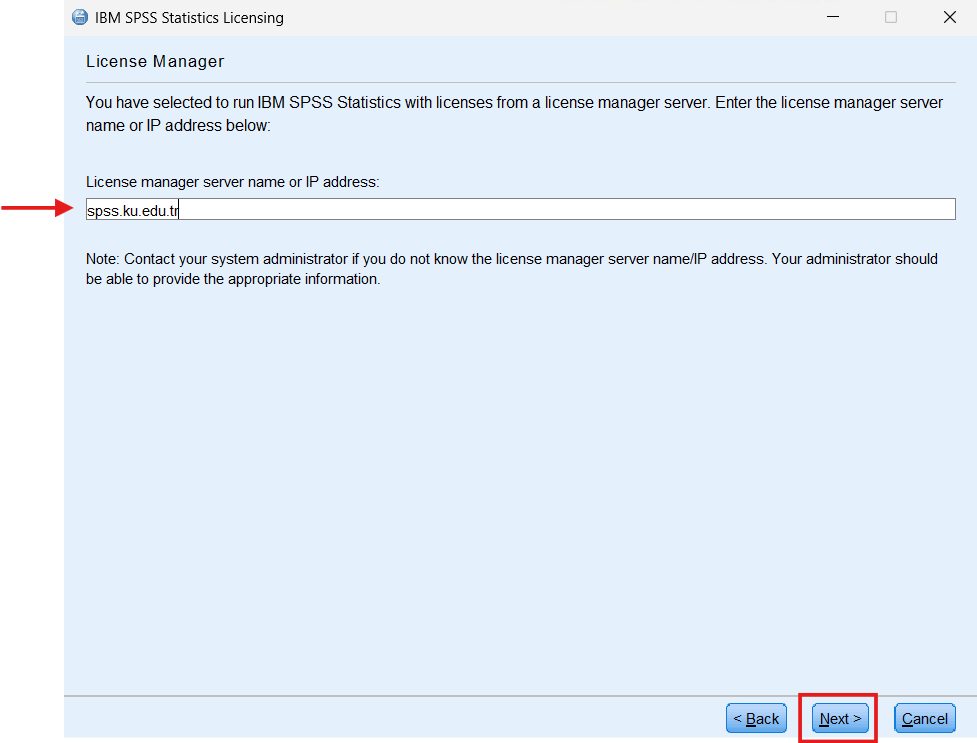
7. Enter the license information and finish the process
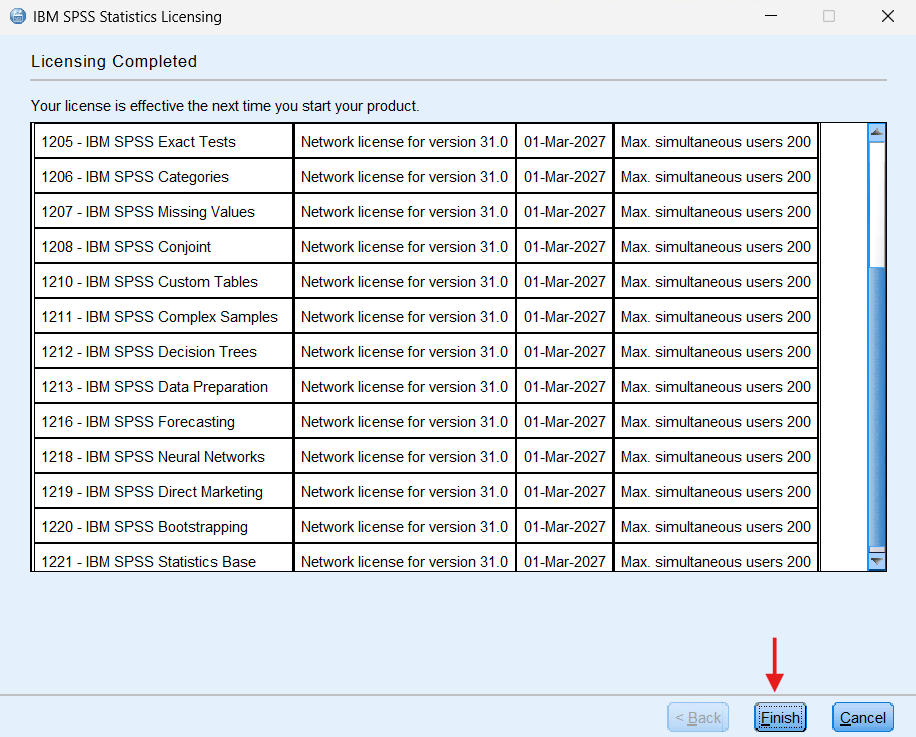
Enter the license or authorization information provided to you in the relevant field. When the process is complete, check the success message and close the wizard.
If you experience any issues
-
Make sure you run the installation file as an administrator.
-
When copying the license code, check that there are no extra spaces or missing characters.
-
Make sure your internet connection is active.
-
If you receive an error message, contact the support team with a screenshot.