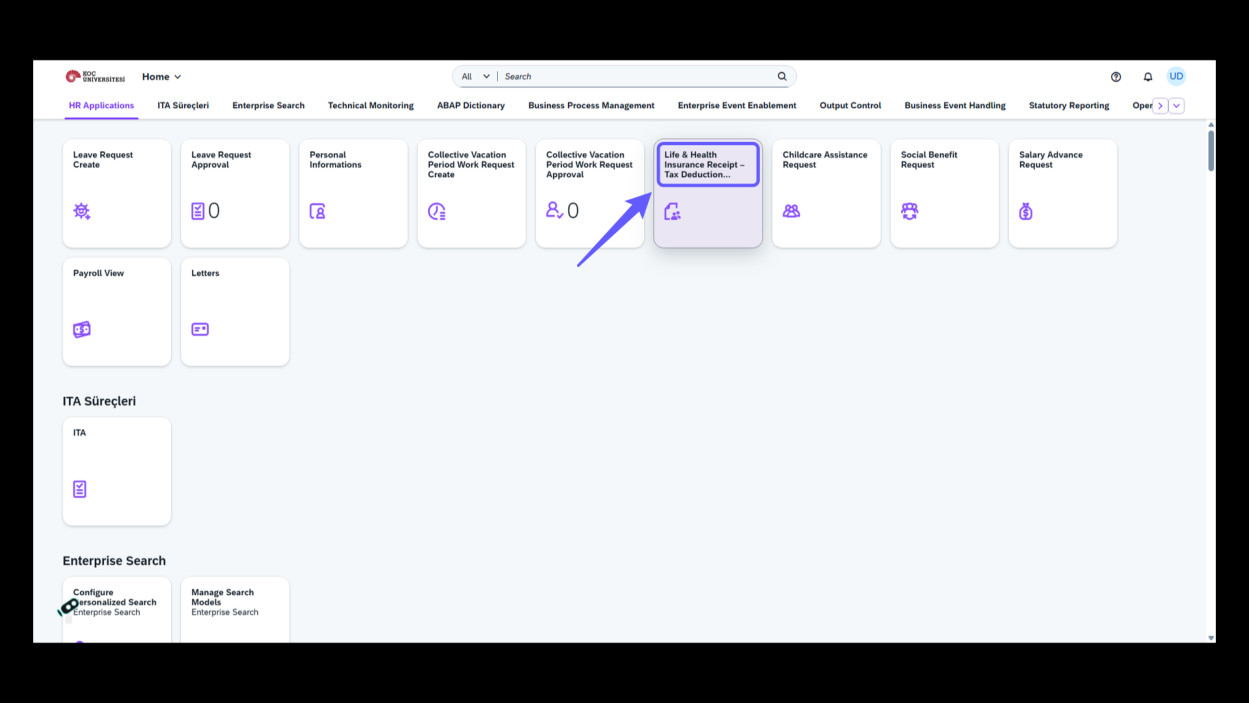
1. Access Tax Deduction Receipt
-
Select the tab labeled 'Life & Health Insurance Receipt – Tax Deduction' to view and manage your insurance receipts and related tax deductions.
2. Initiate a New Request
-
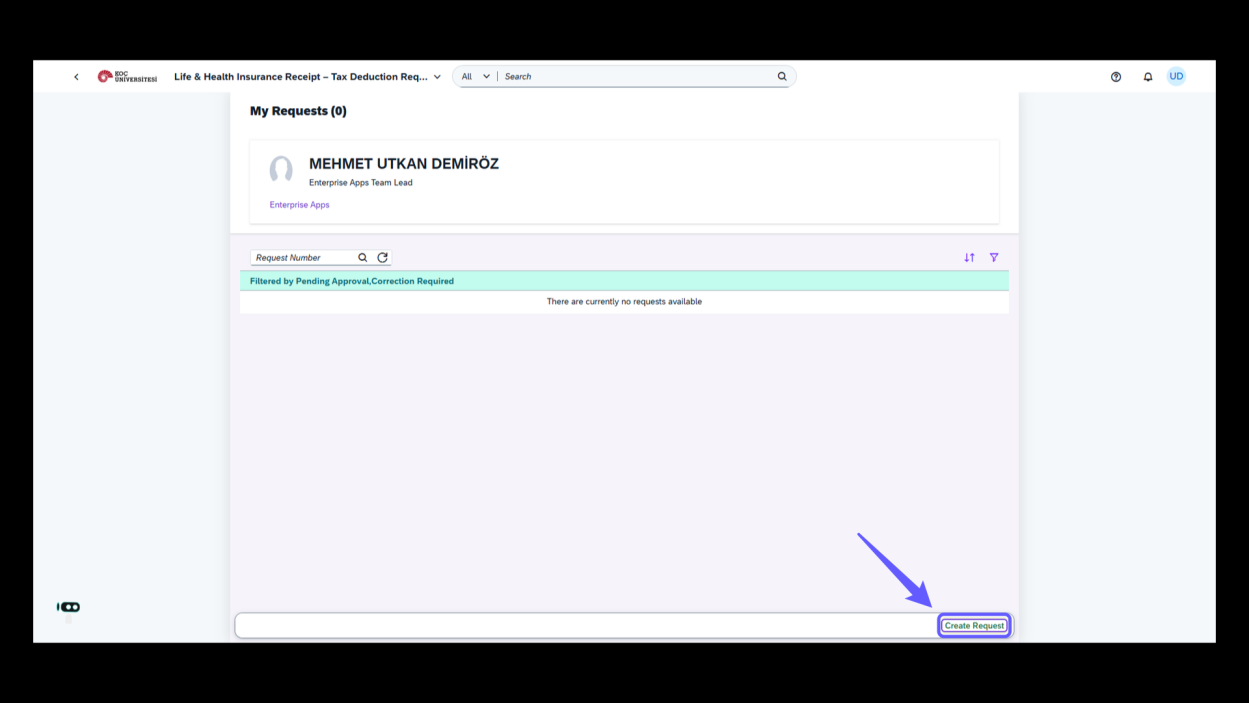
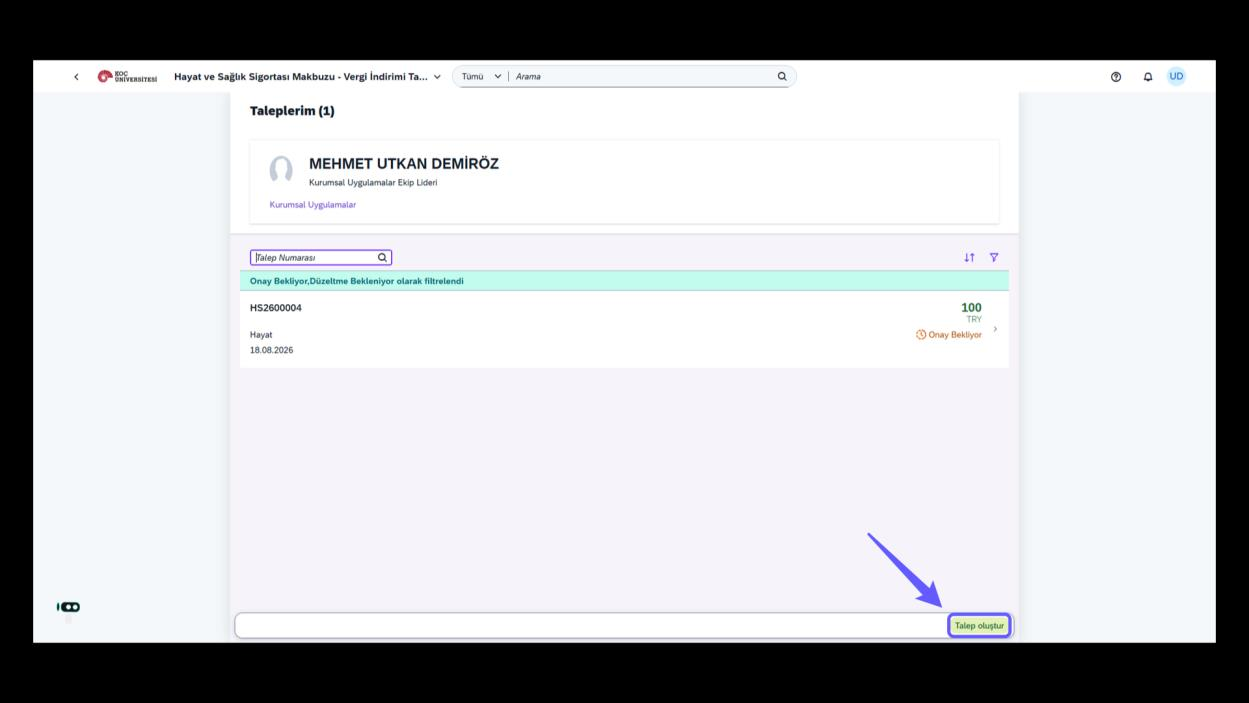
Click 'Create Request' to begin the process of submitting a new request.
3. Select Document Type
-
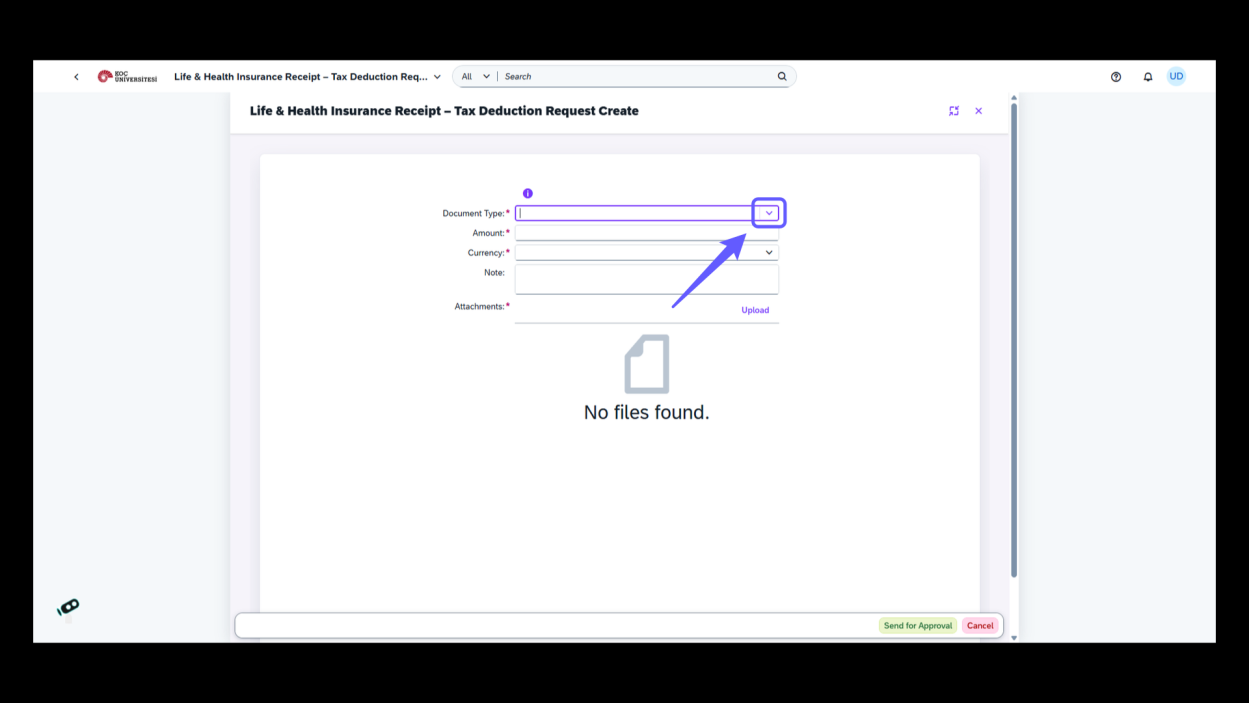
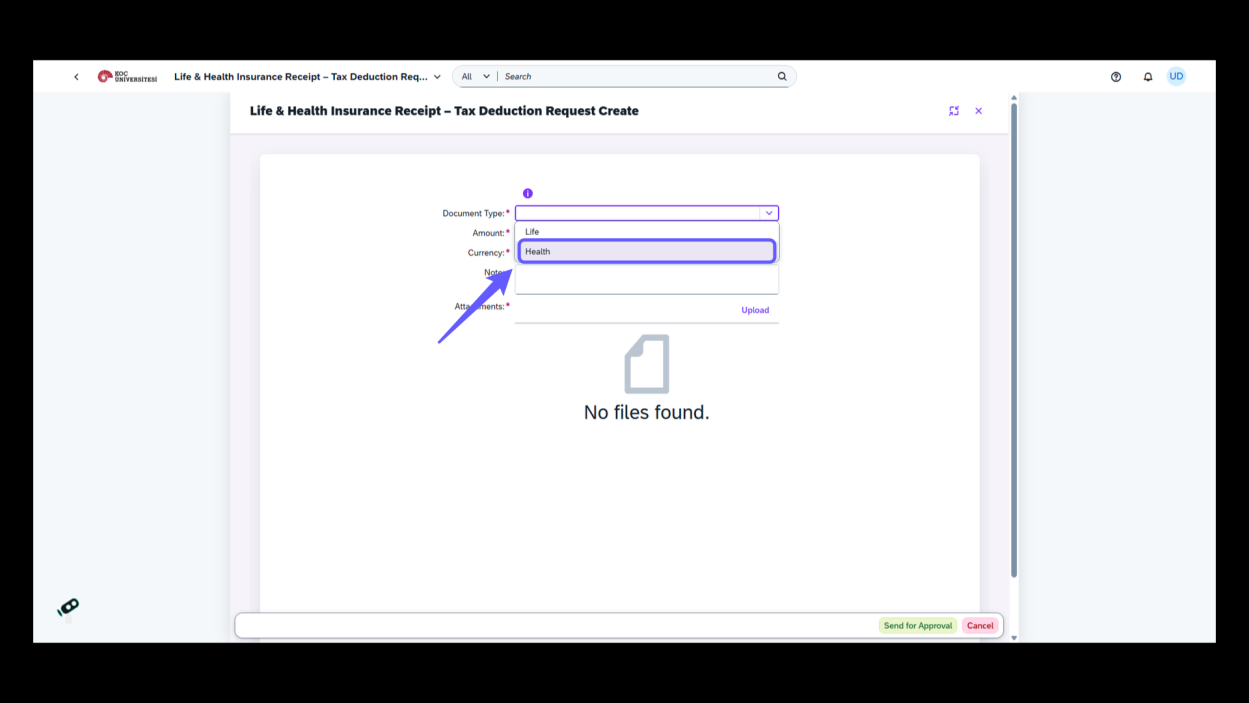
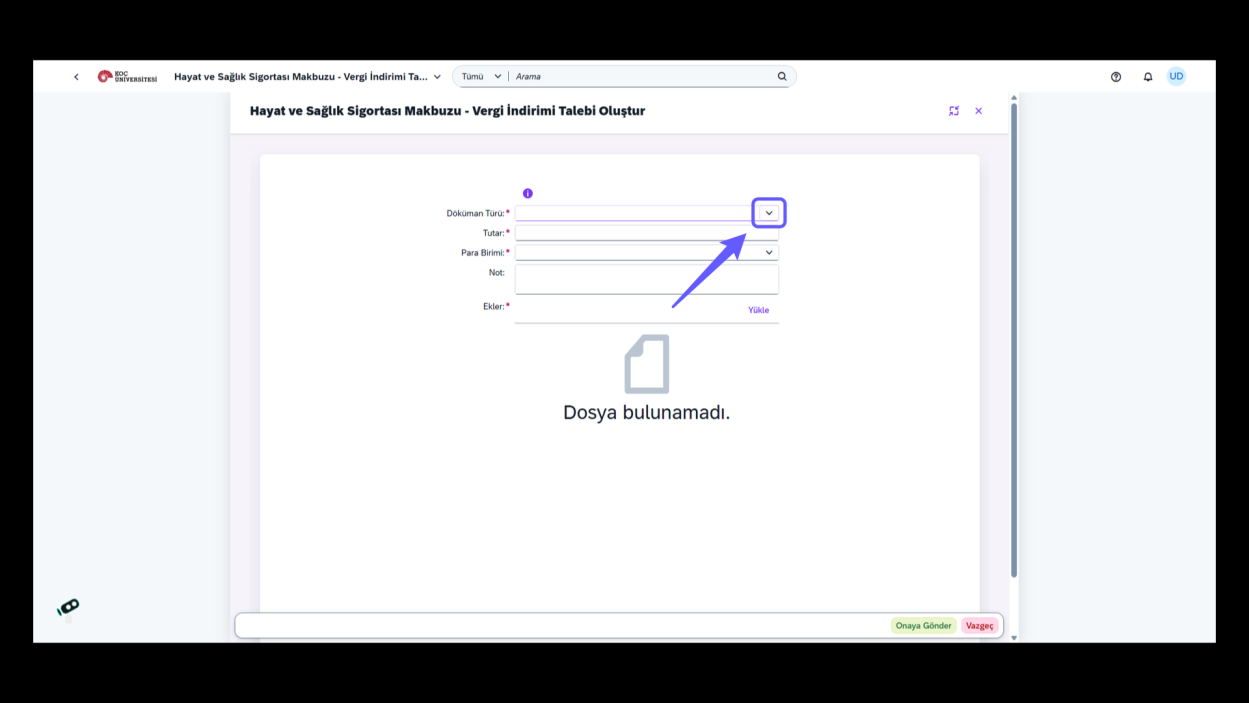
Click the dropdown arrow to choose the document type needed for the tax deduction request form.
4. Choose Currency Type
-
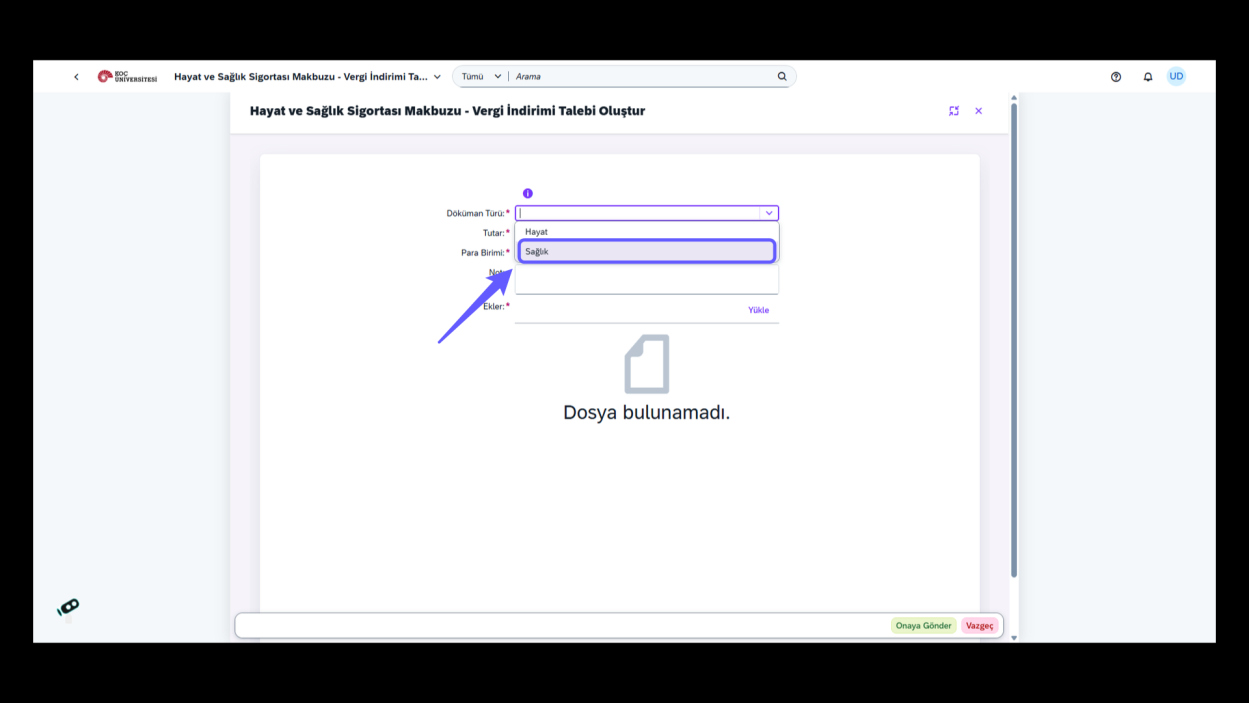
Select document type from dropdown menu.
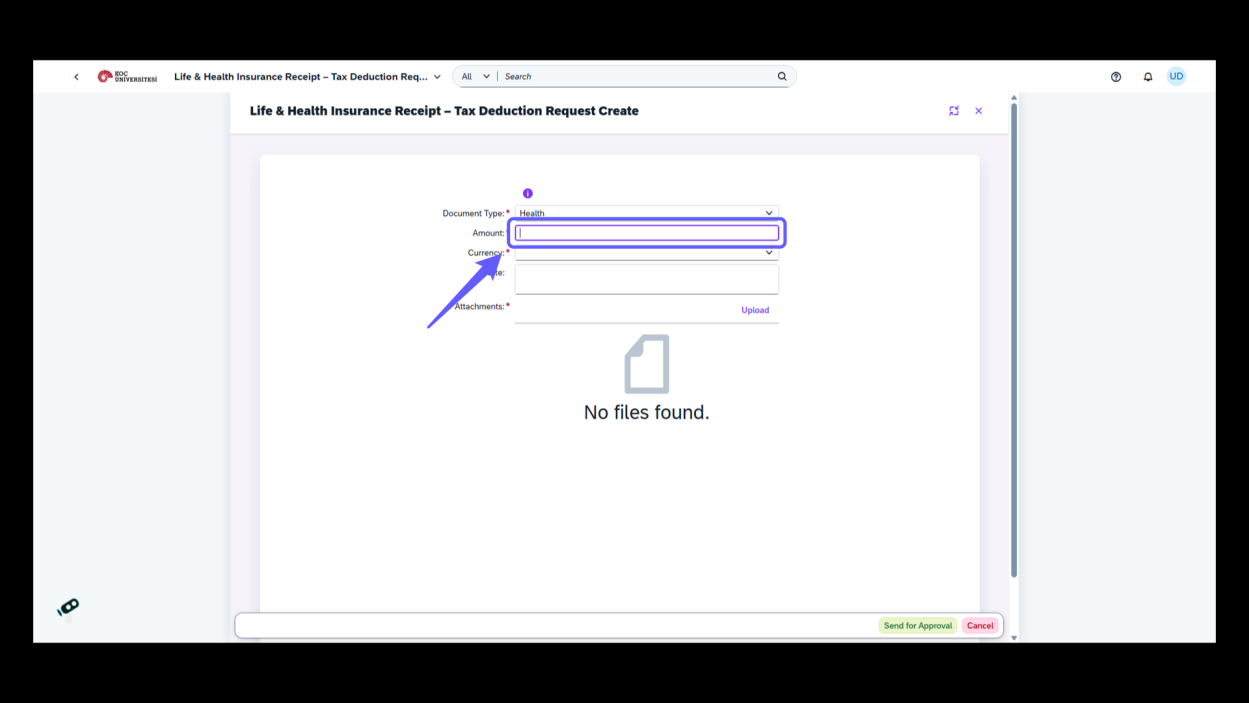
5. Enter Amount Value
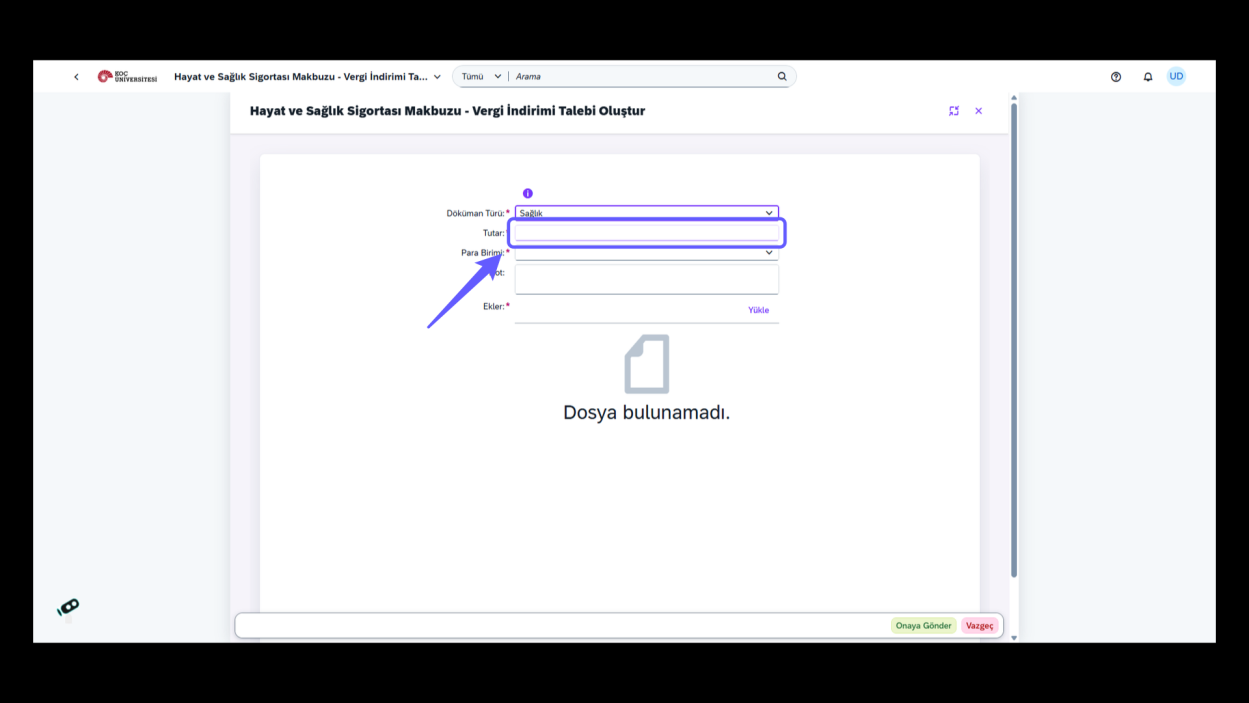
Input the amount value in the text field after selecting the document type and before choosing the currency.
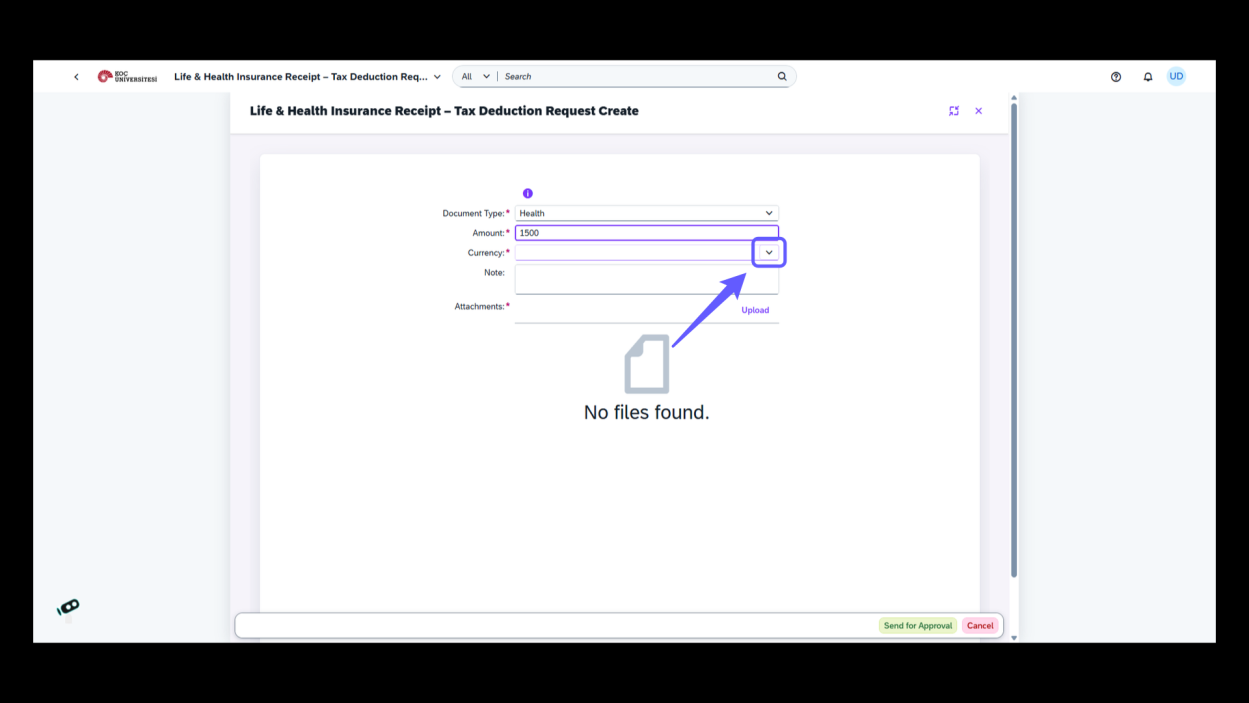
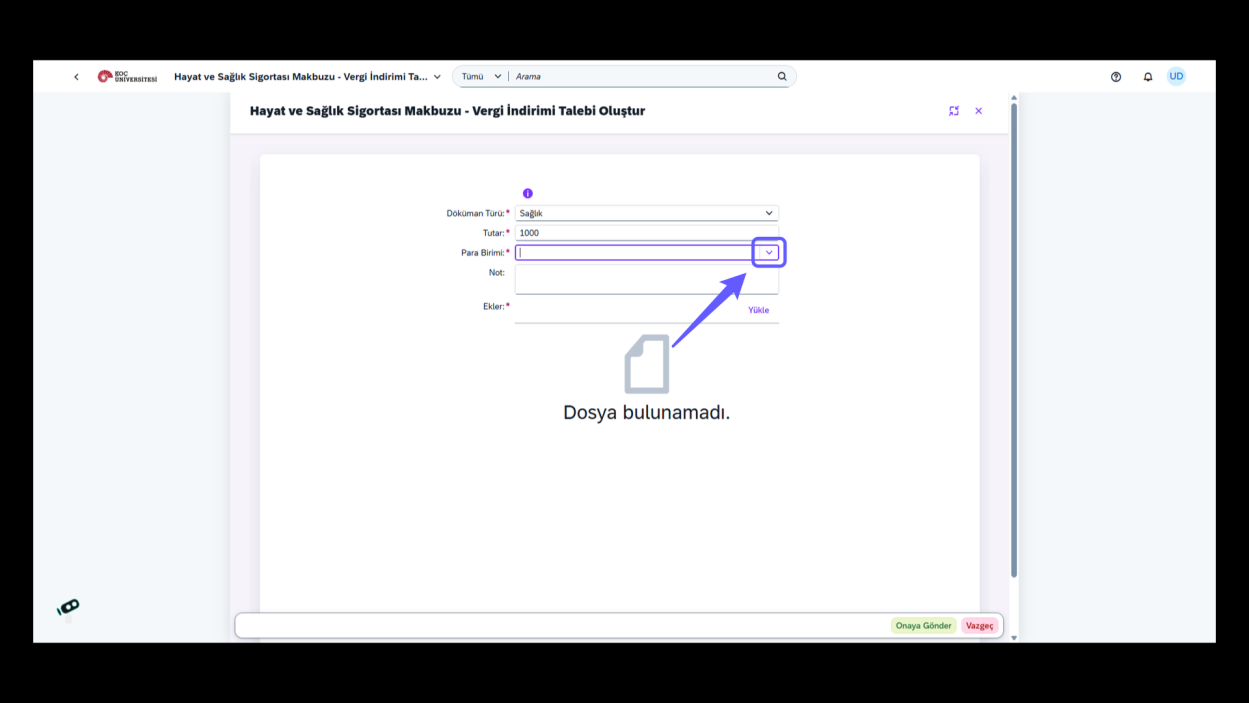
6. Select Currency Option
-
Click the dropdown arrow to choose a currency for the transaction.
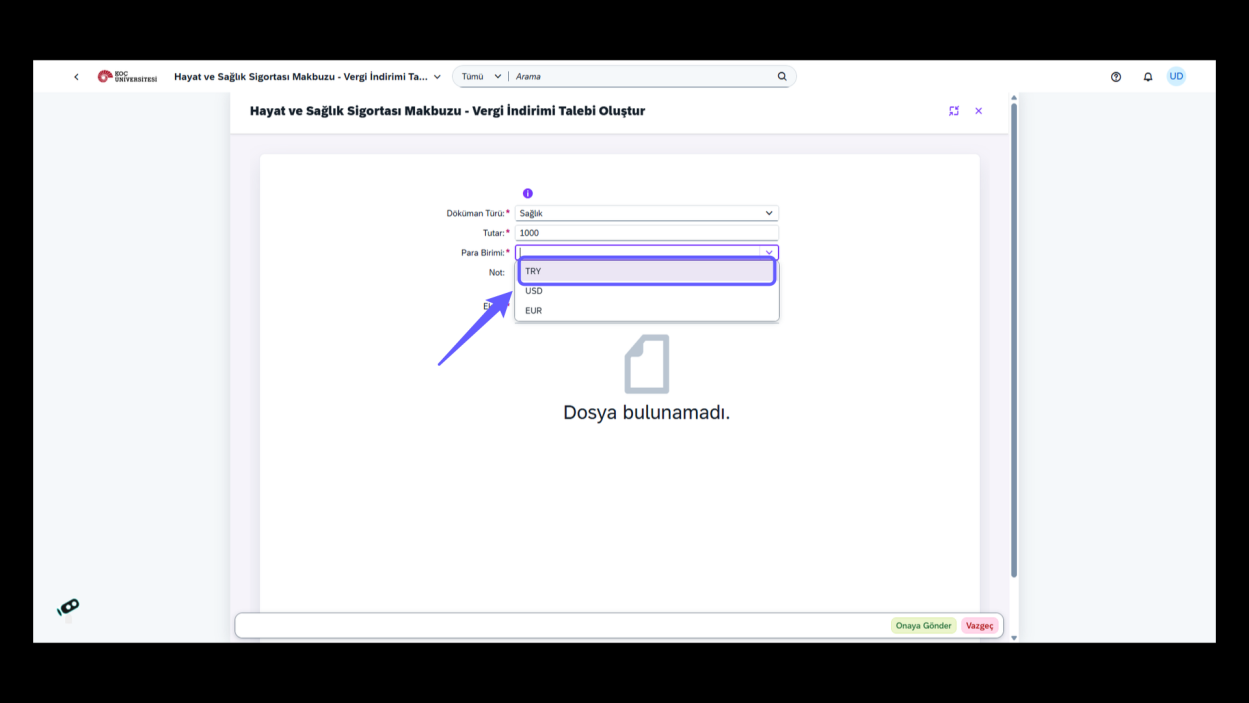
-
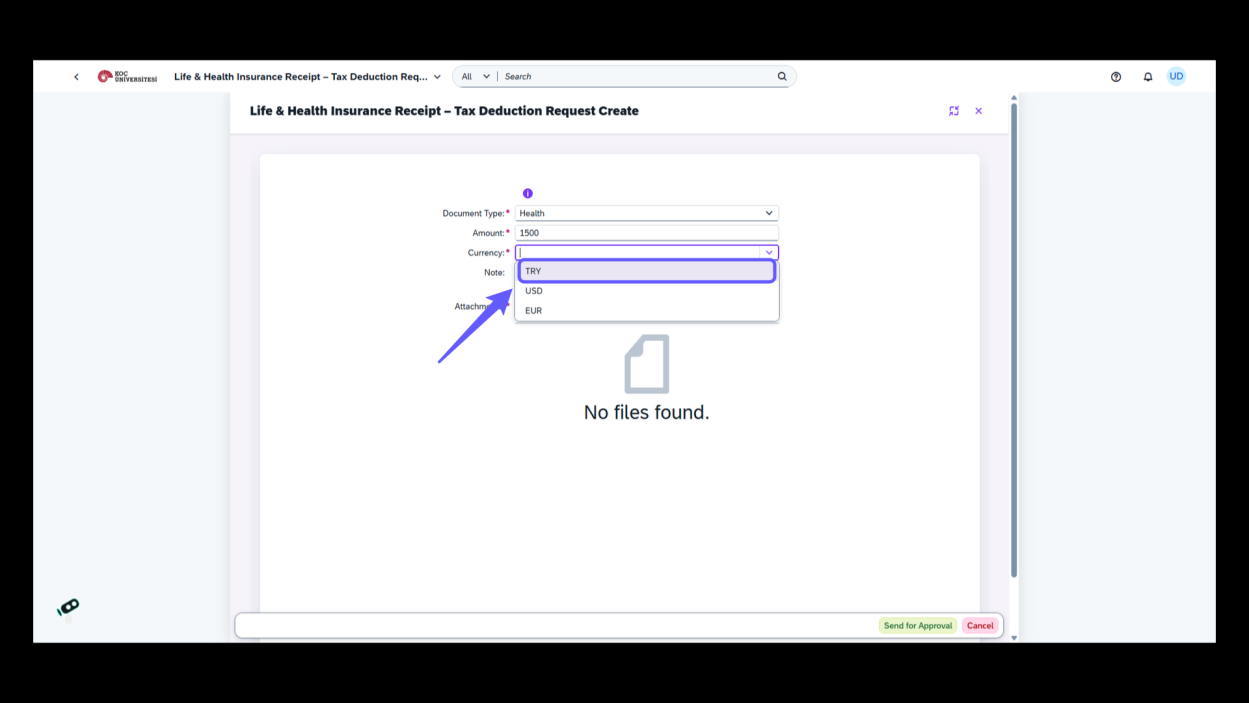
Choose currency from dropdown list.
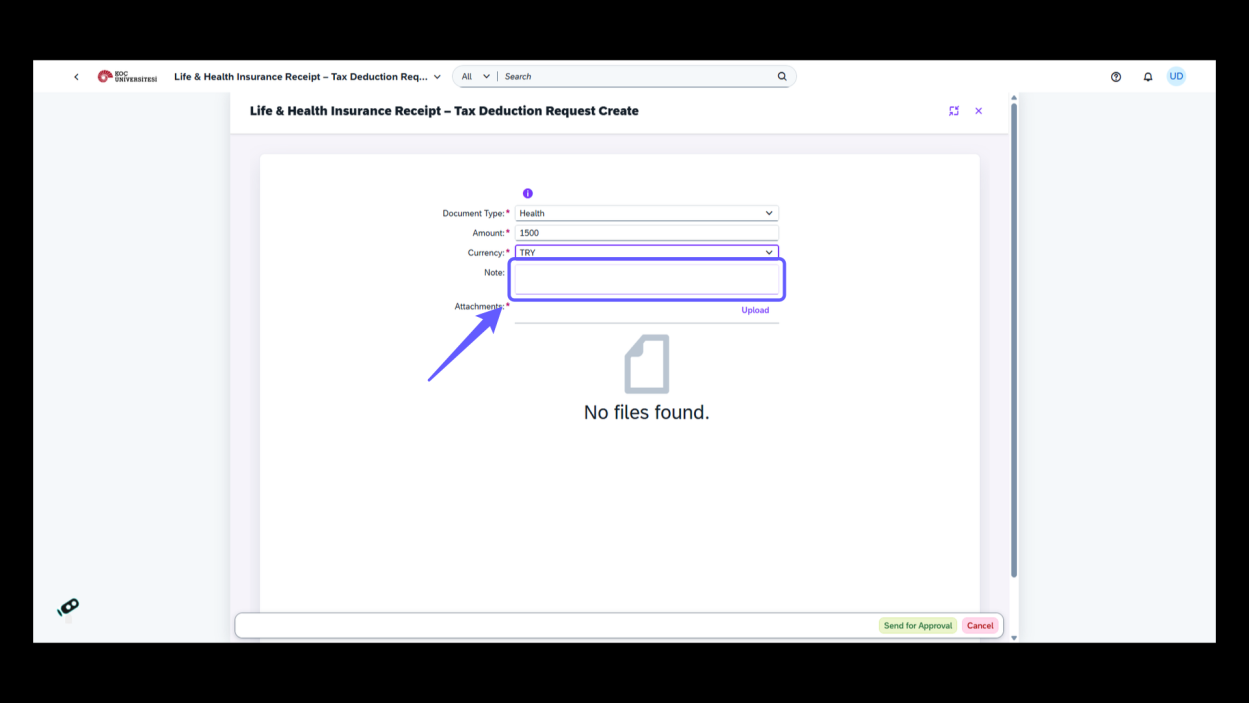
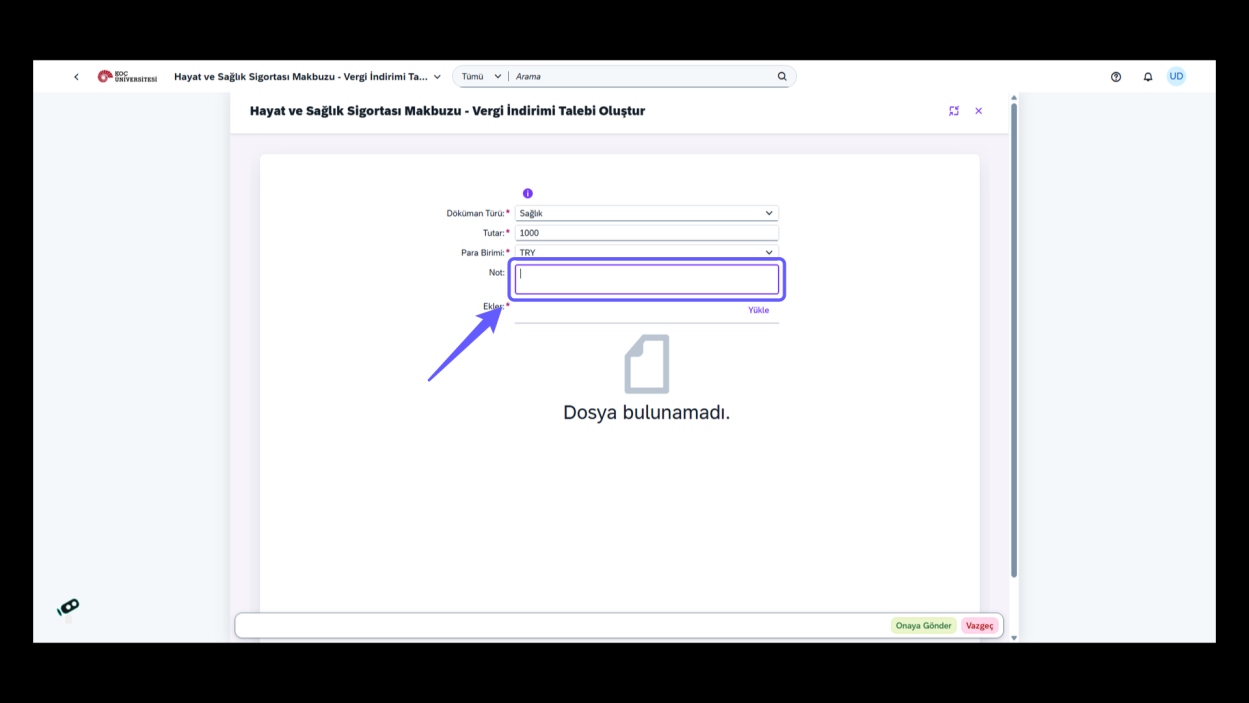
7. Complete Note Section
Enter necessary details in the 'Note' field for additional information or comments regarding the document.
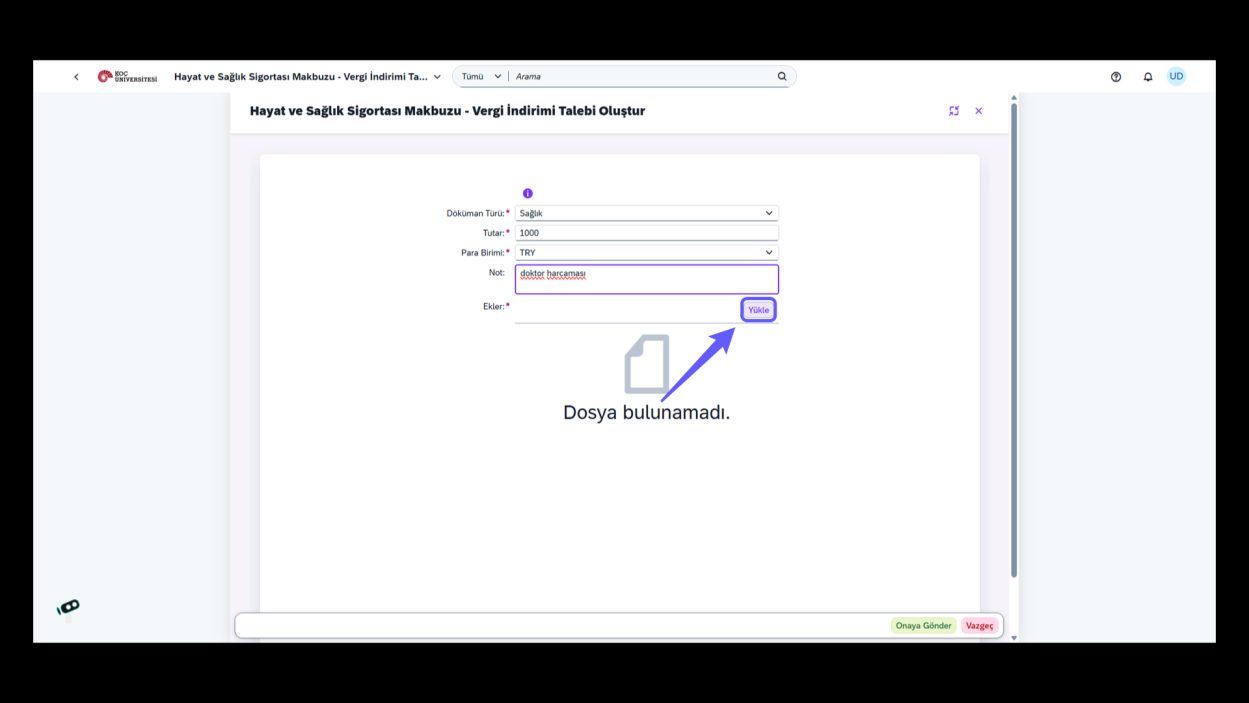
8. Initiate File Upload
-
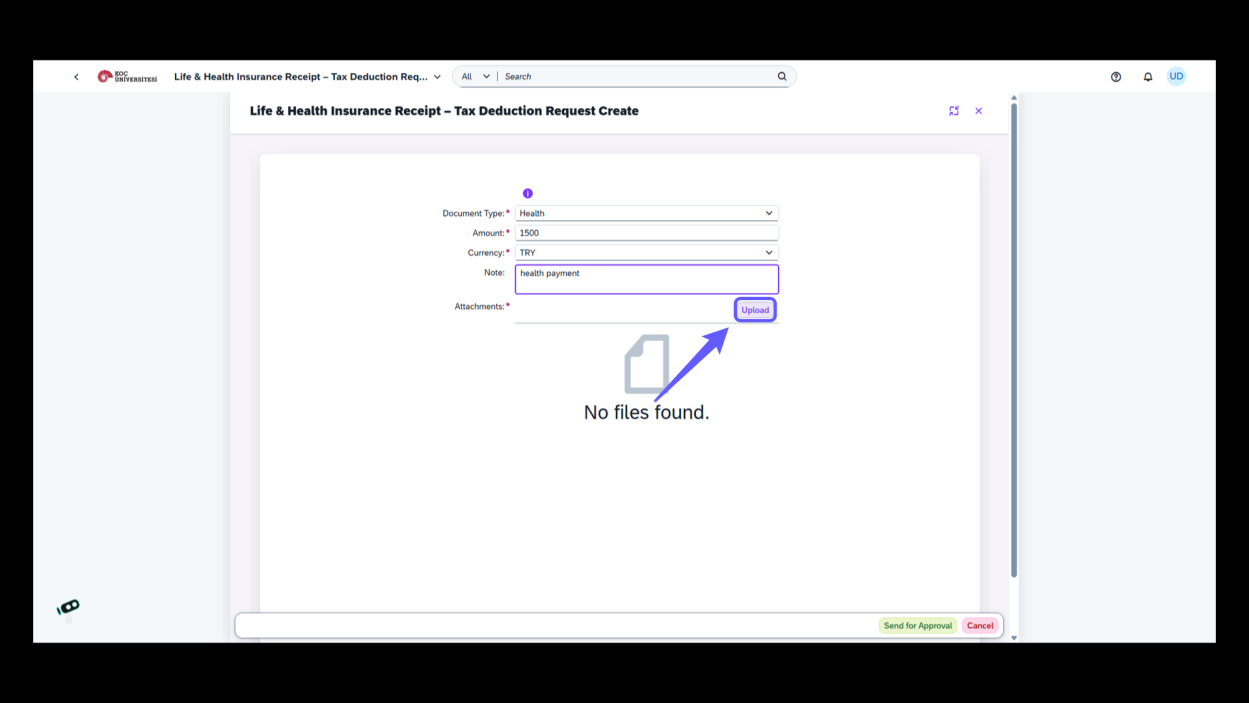
Click the 'Upload' button to add a new attachment to the form.
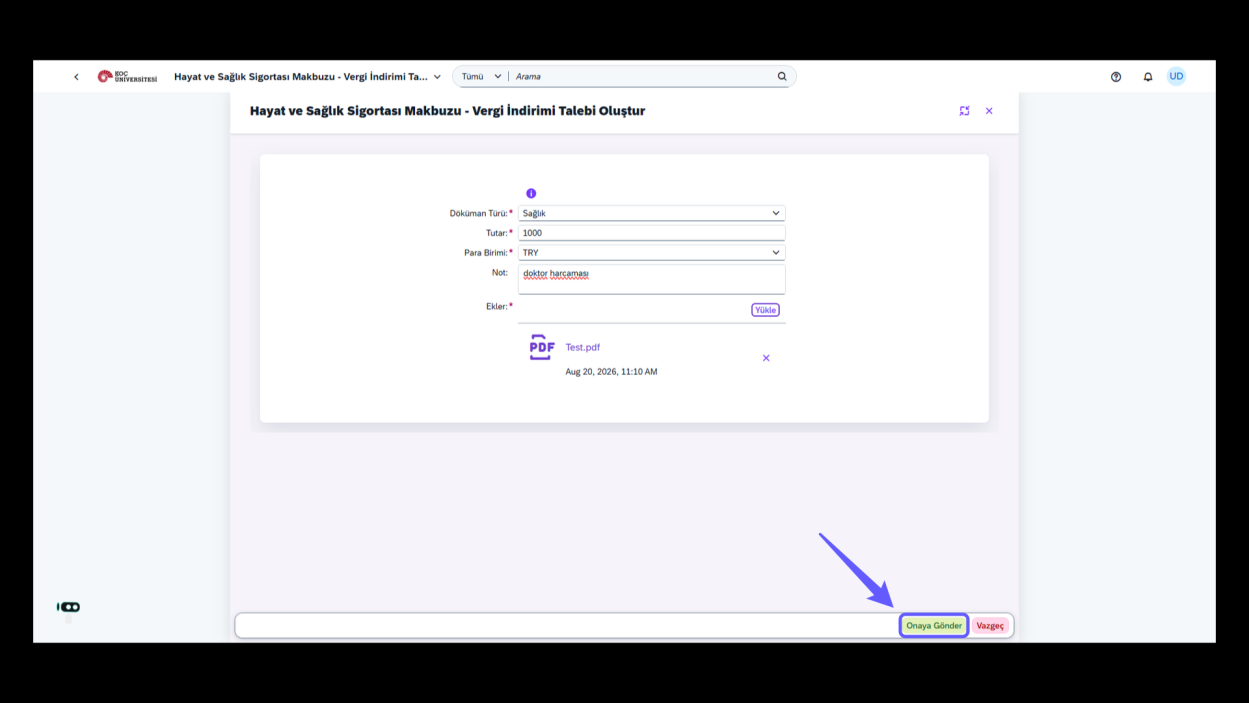
9. Submit the Request
-
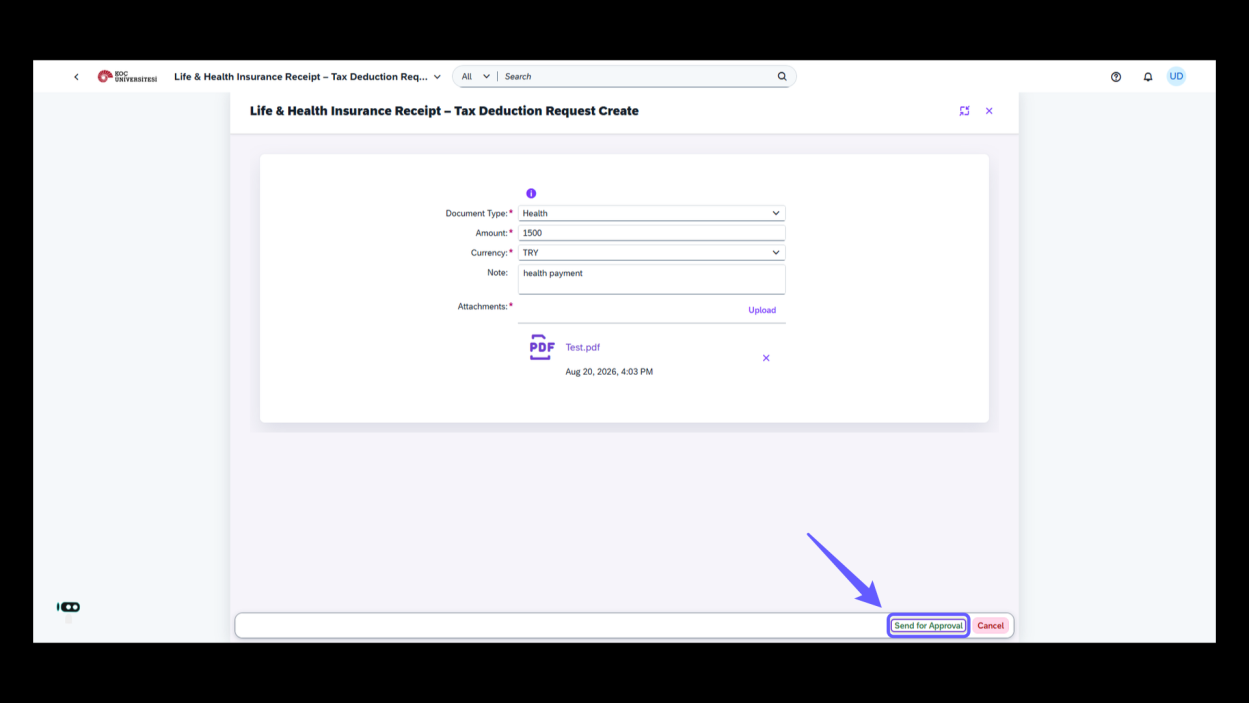
Click 'Send for Approval' to submit your request for processing.
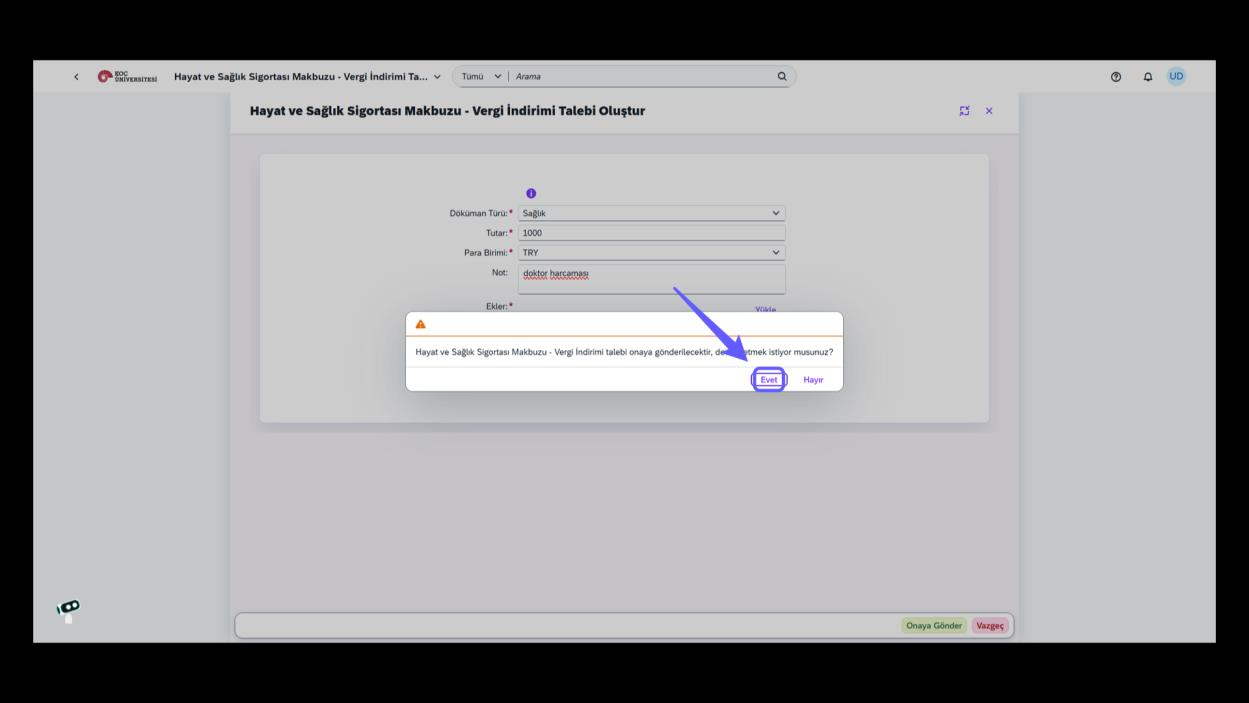
10. Confirm Approval Submission
-
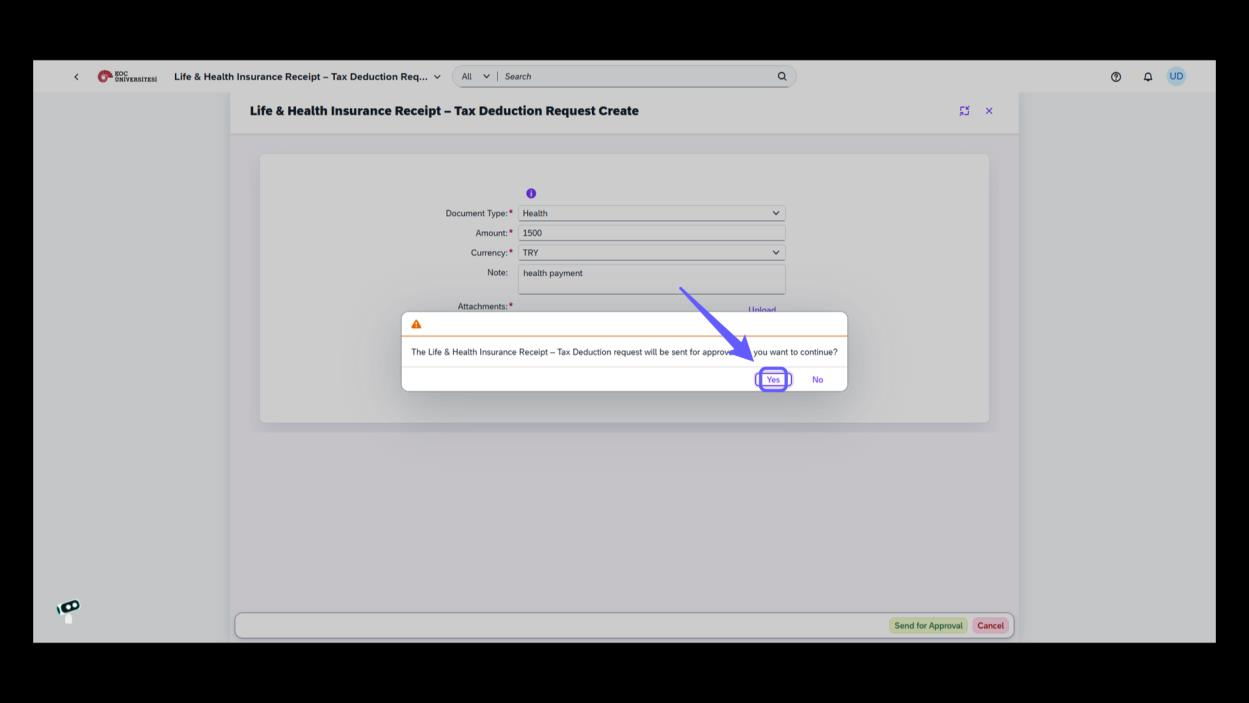
Click 'Yes' to proceed with sending the tax deduction request for approval.
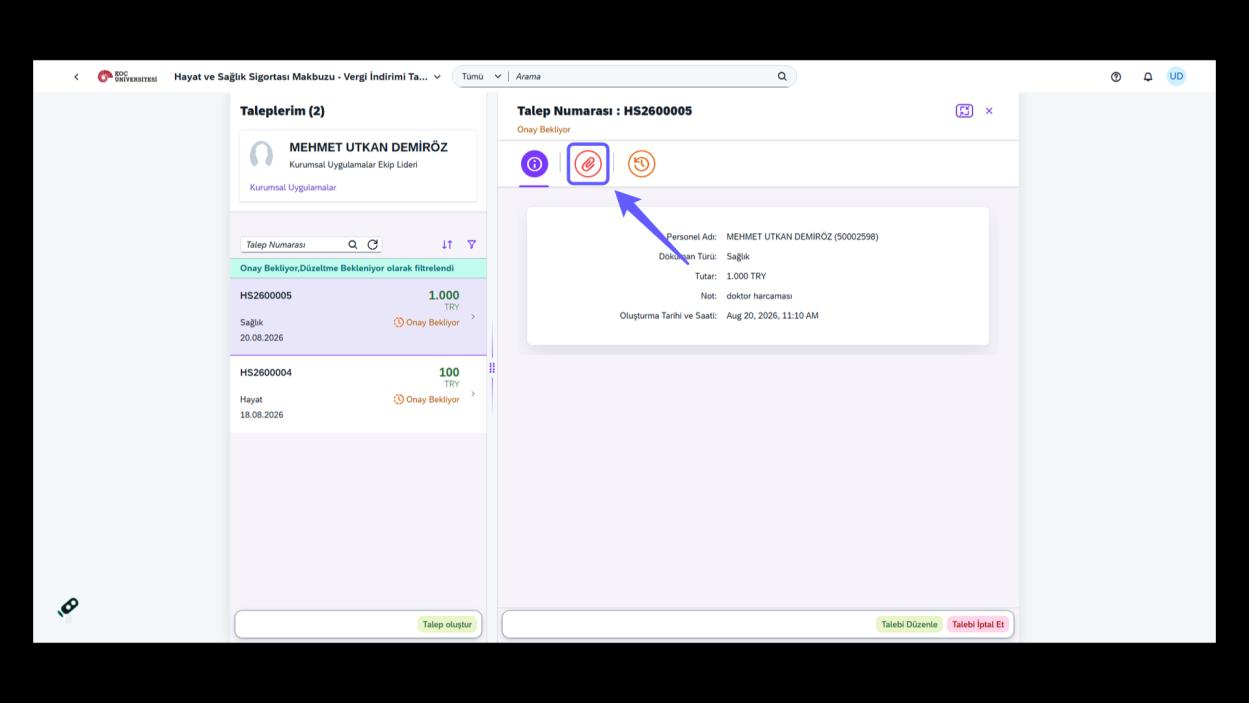
11. Access Attachment
-
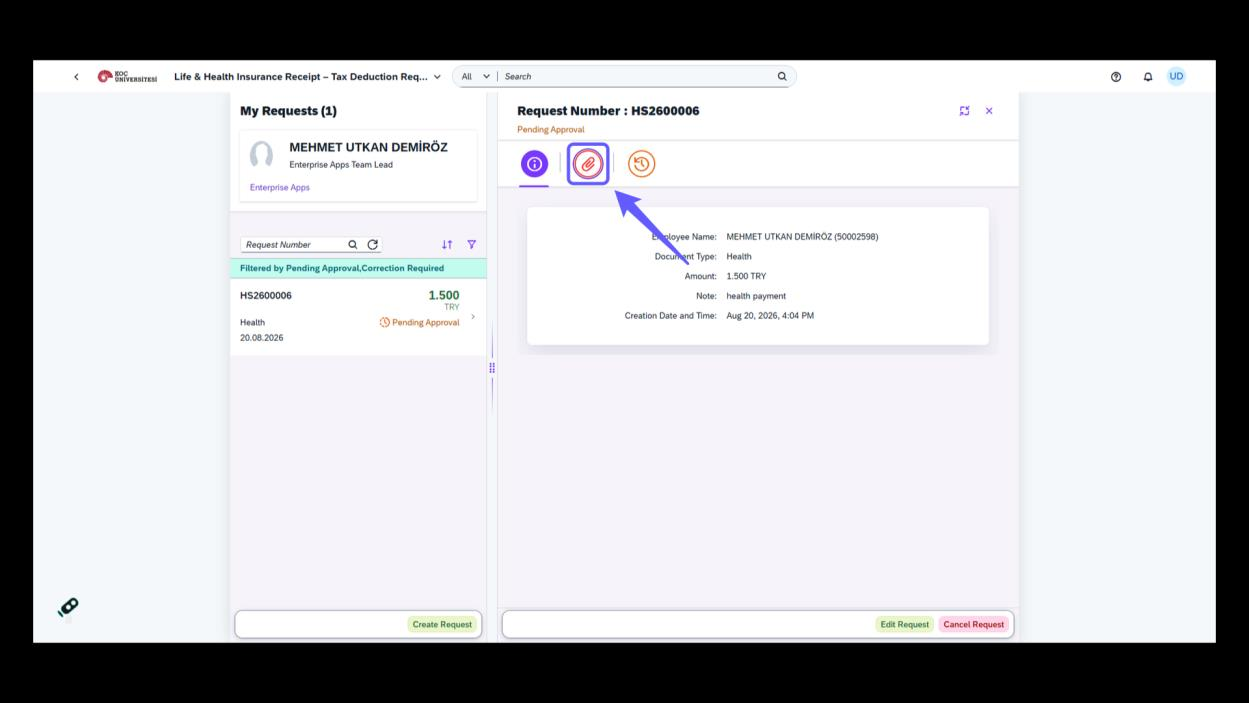
Click the paperclip icon to view attachments to the request.
12. Access Actions Menu
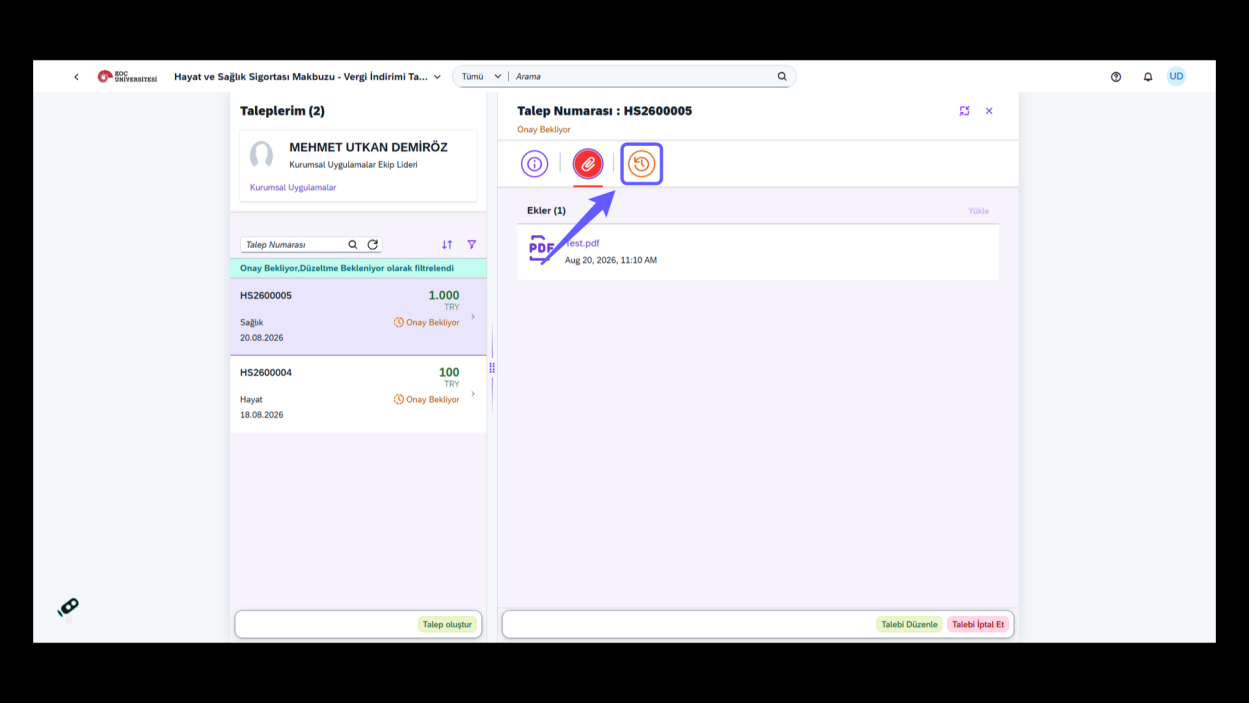
-
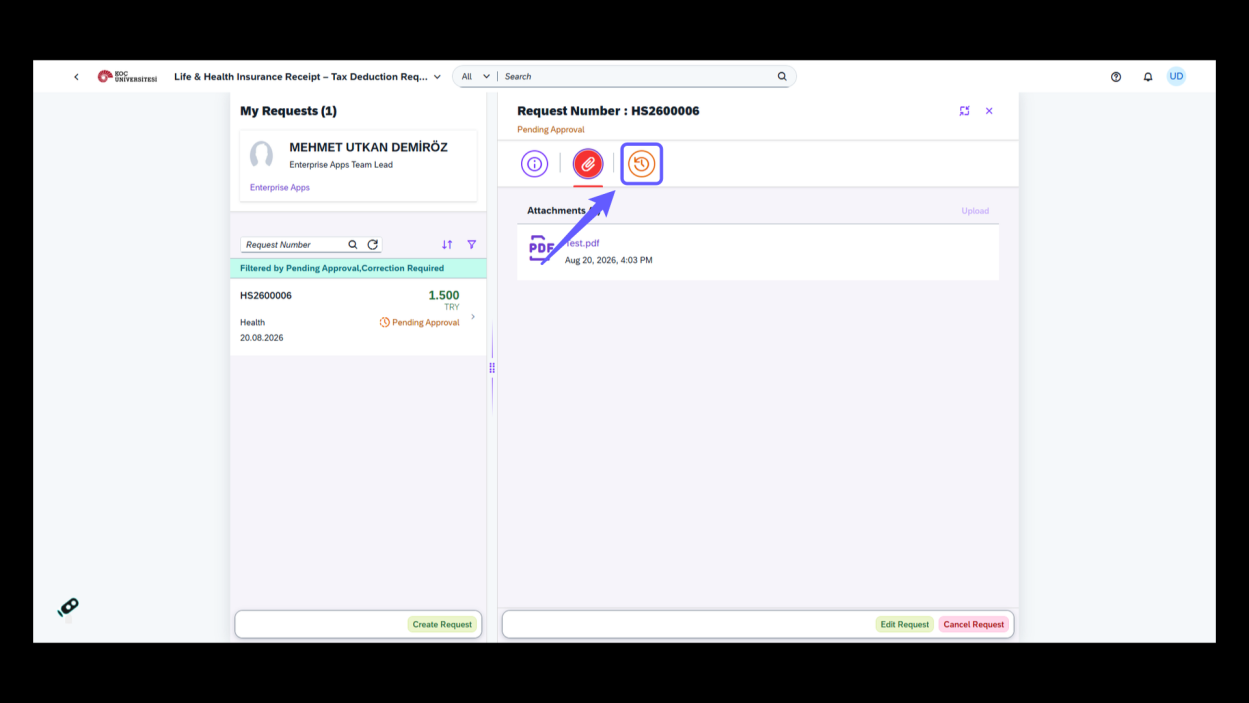
Click the clock icon to view request actions or history.
13. Request Creation Details
-
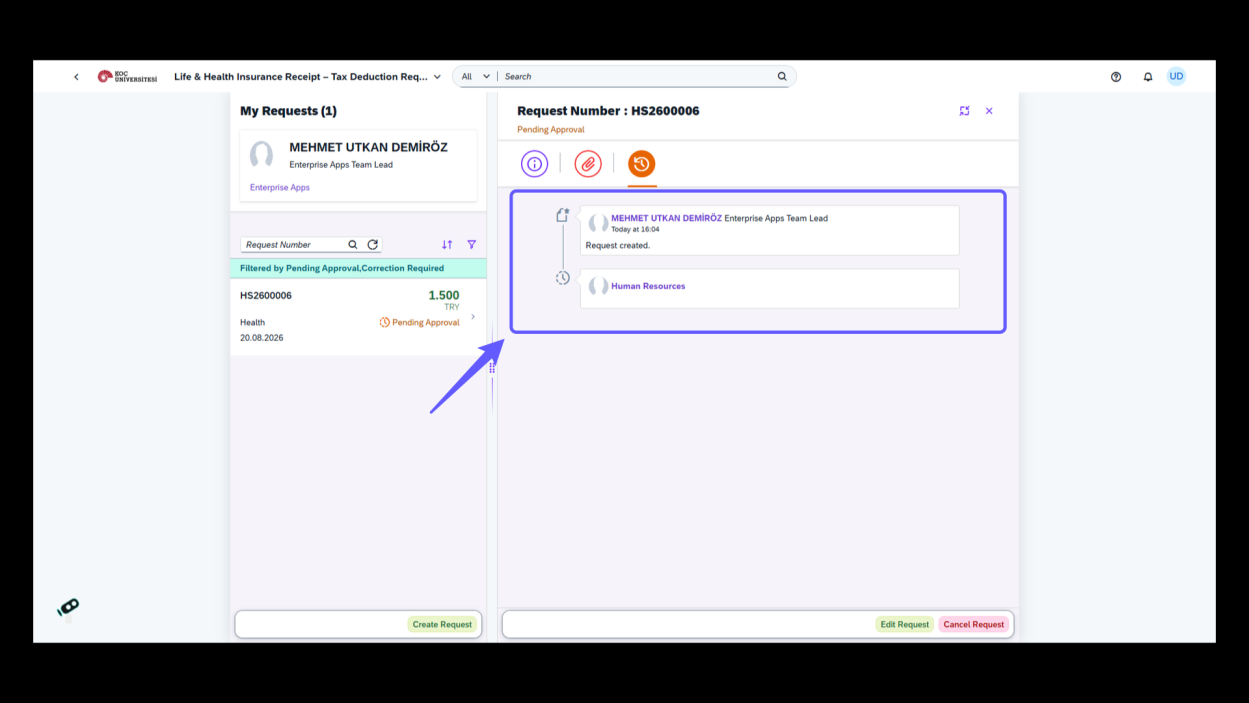
View the request details.
1. Vergi İndirim Talebi Başlat
-
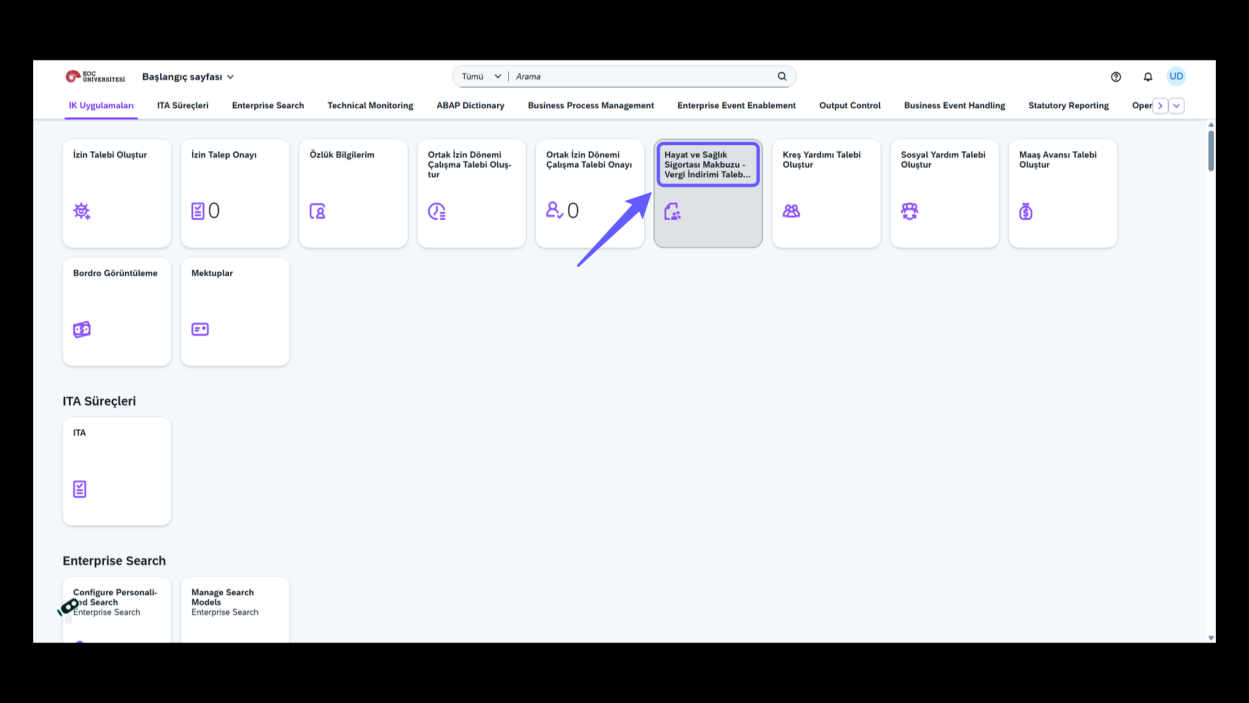
Hayat ve sağlık sigortası makbuzu vergi indirimi talebinizi başlatmak için buraya tıklayın.
2. Talep Oluşturma Yönergesi
-
"Talep oluştur" düğmesine tıkla ve formu doldurarak yeni bir talep başlat. Onay Bekleyen taleplerinizi bu ekranda görebilirsiniz.
3. Doküman Türünü Seçin
-
Doküman türünü seçmek için aşağıdaki açılır menüyü kullan.
-
İlgili doküman türünü seç.
4. Para Miktarını Girin
-
Doküman türünü belirleyin ve ardından tutar alanına harcama miktarını girin.
5. Para Birimi Seçimi
-
Para birimi menüsünü açarak uygun seçeneği işaretleyin.
-
Para Birimi alanından ilgili seçimini yap.
6. Not Alanına Yazın
-
Notlar alanına açıklama girin veya gerekli bilgileri not edin.
7. Dosya Yükle
-
'Yükle' düğmesine tıklayarak dosyanızı yükleyin.
8. Onaya Gönder
-
Belgeyi onay için gönder.
9. Onayı Tamamla
-
Evet düğmesine tıklayarak talebi onaya gönderin.
10. Dosya İkonunu Seç
-
Önceki taleplerdeki ekleri görmek için ataç işaretine tıkla.
11. Geçmiş İşlemleri İncele
-
Önceki talep hareketlerini görmek için simgeye tıklayın. İşlemlerin detaylarını inceleyin ve onay sürecini takip edin.