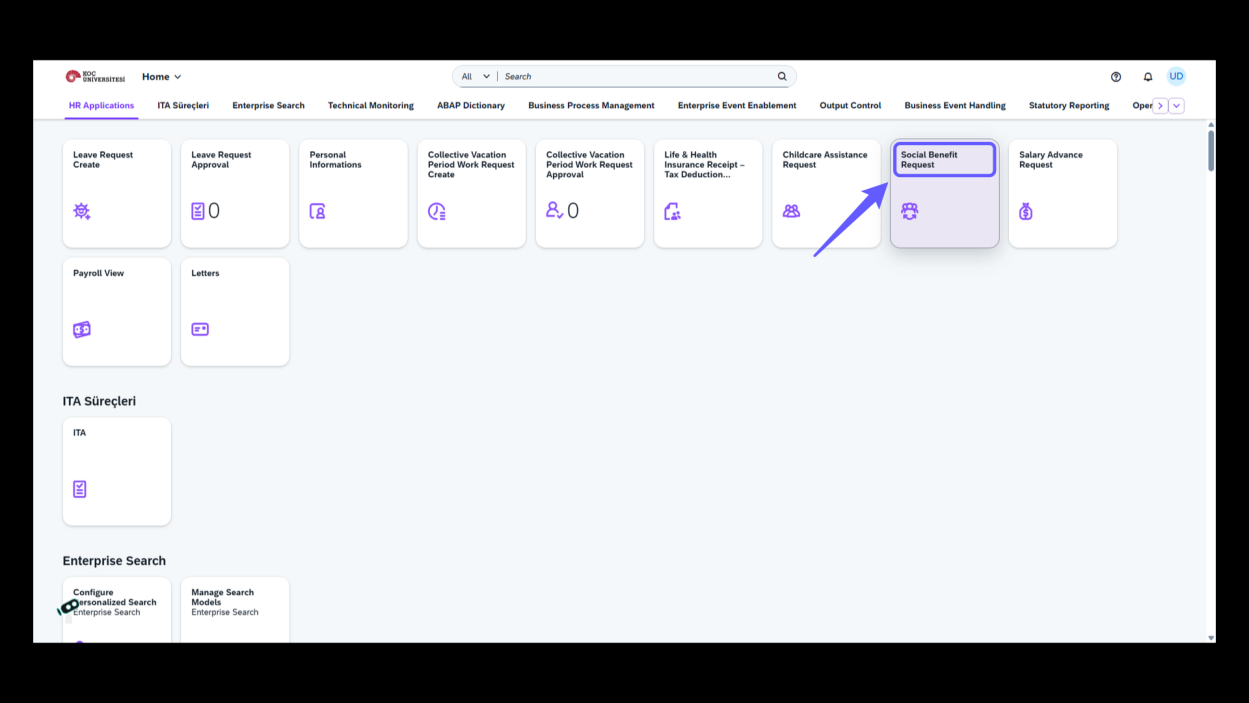
1. Access Social Benefit Request
-
Select 'Social Benefit Request' to proceed with your application.
2. Initiate Request
-
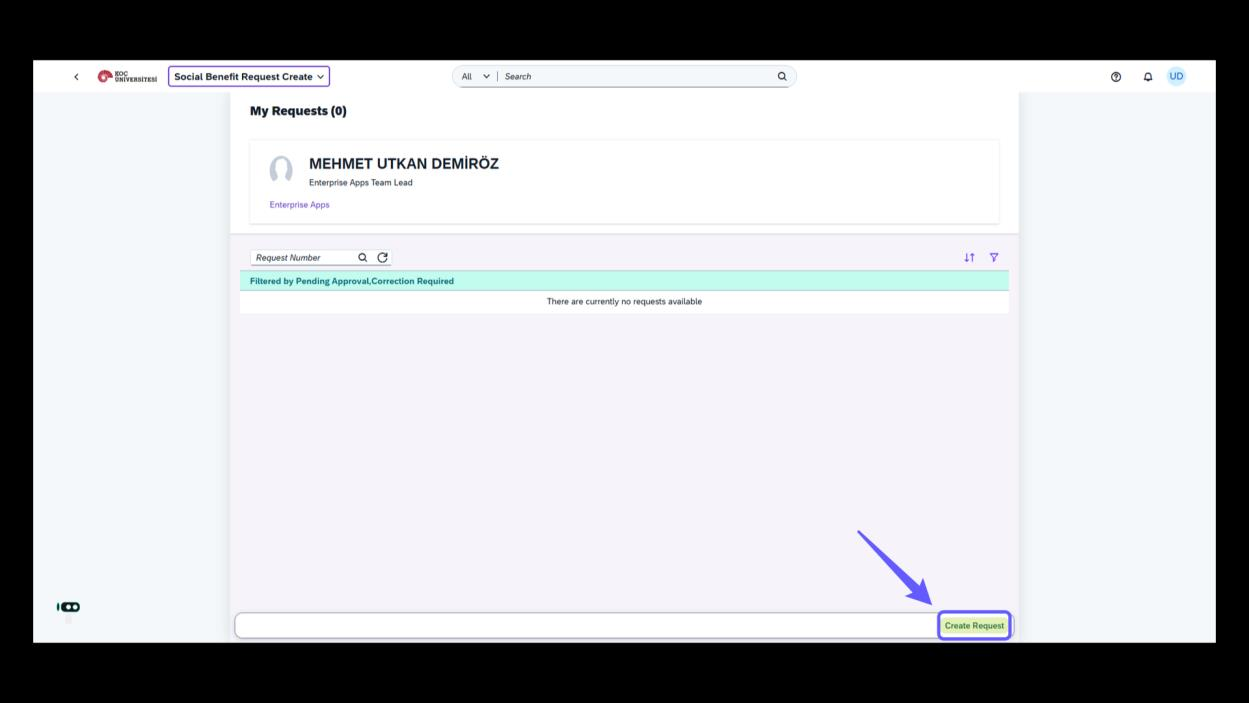
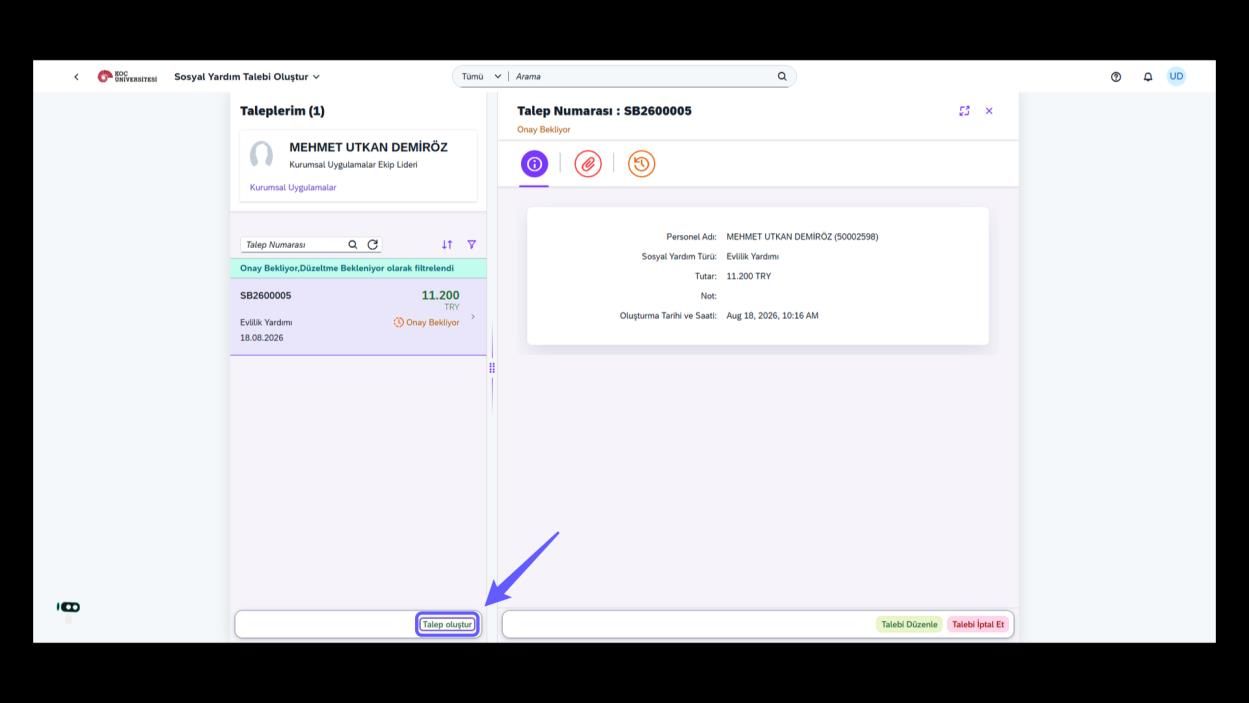
Click 'Create Request' to start a new submission process.
3. Select Social Benefit Type
-
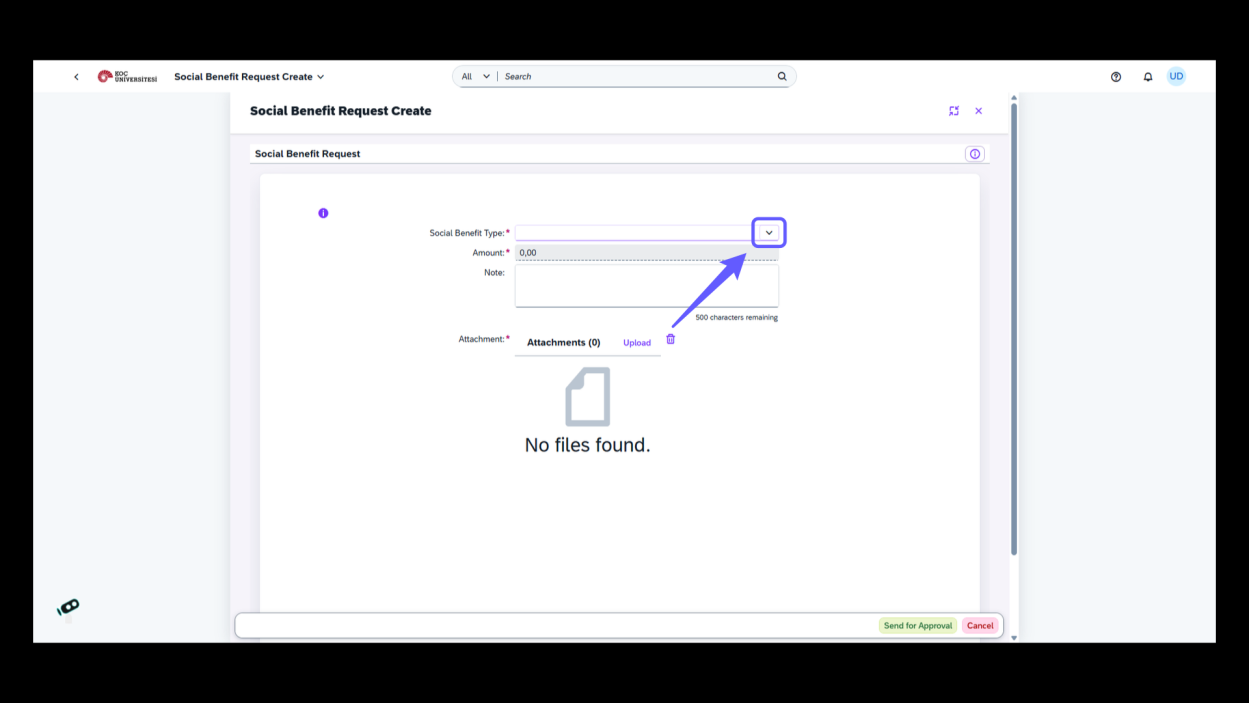
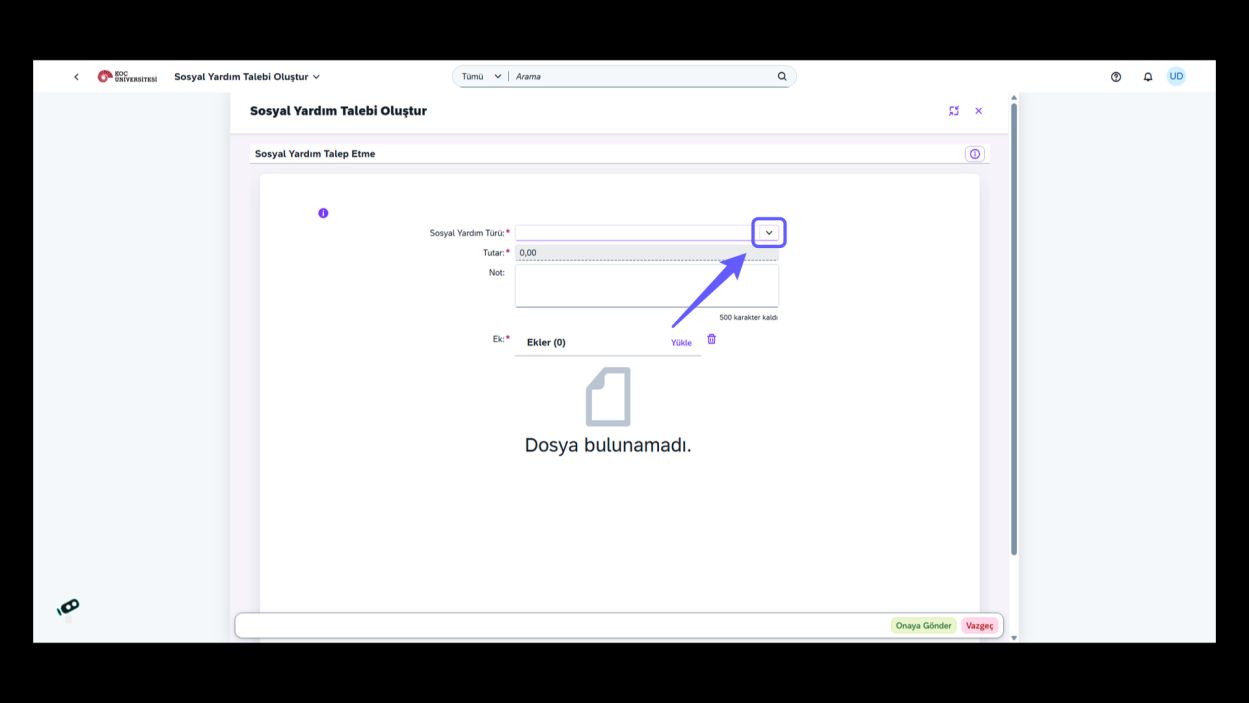
Click the dropdown arrow next to 'Social Benefit Type' to view available options.
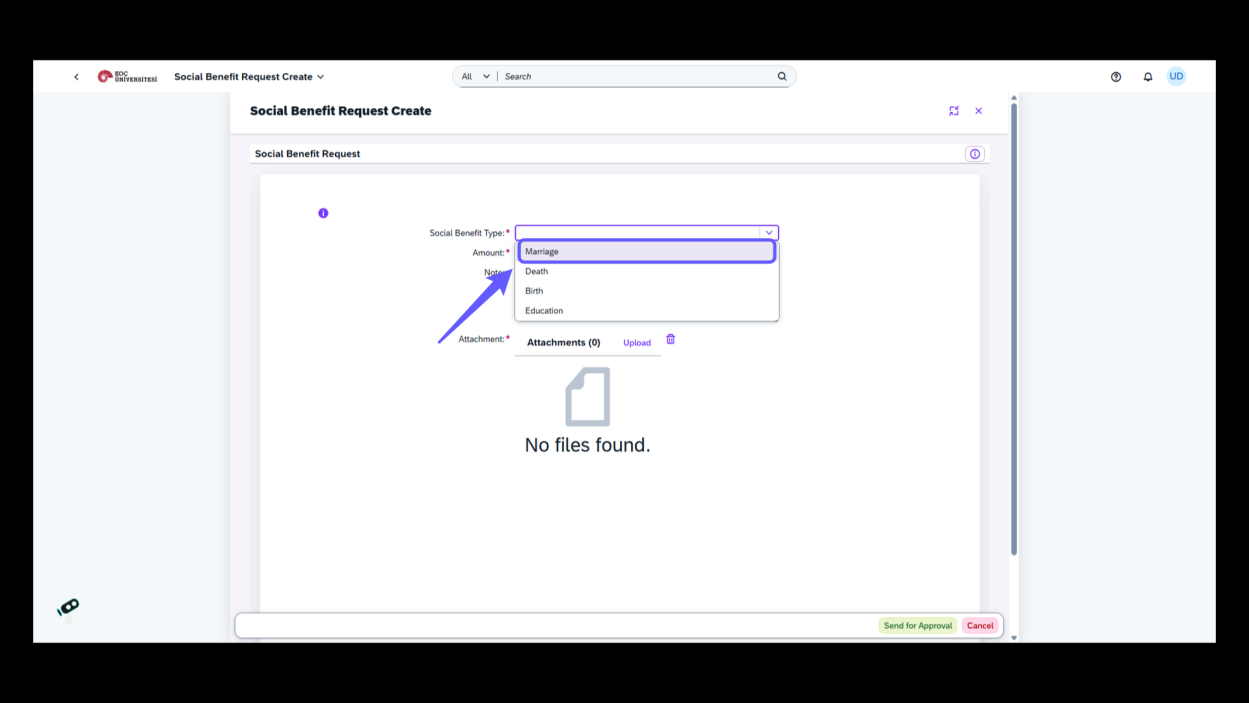
4. Select Social Benefit Type
-
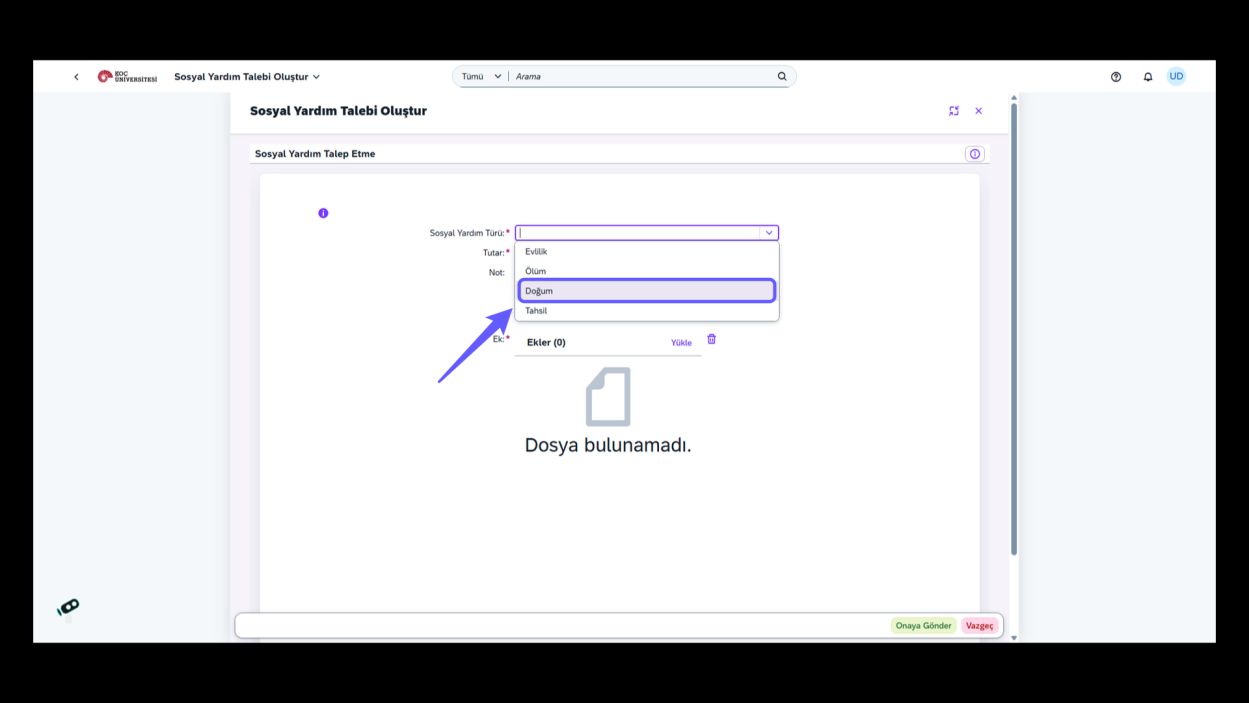
Choose the appropriate option from the Social Benefit Type dropdown menu including Marriage, Death, Birth, and Education.
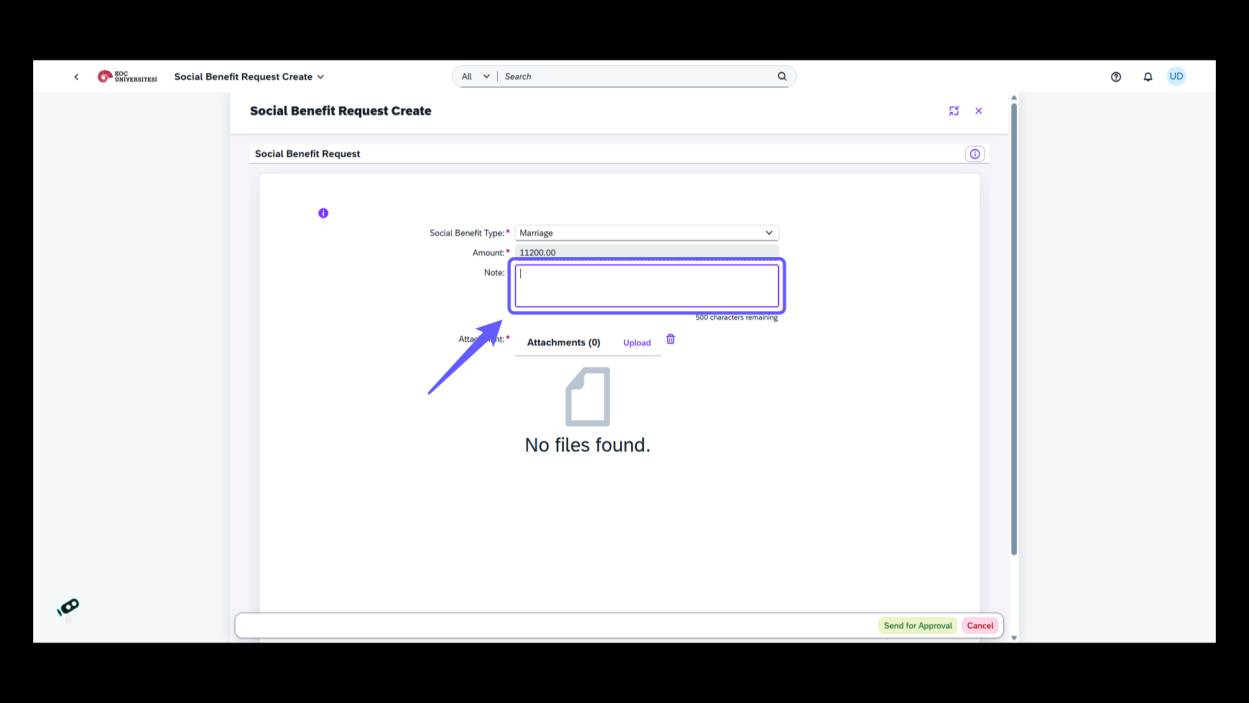
5. Enter Note Details
-
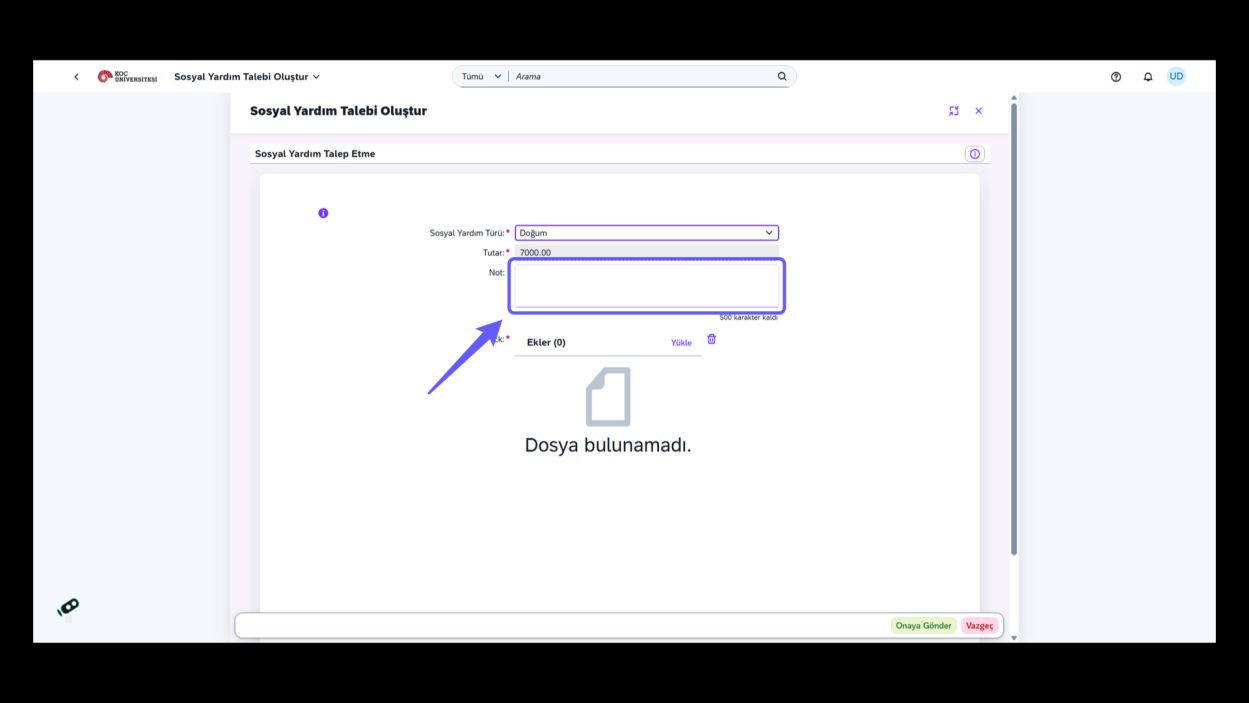
Provide detailed notes related to the social benefit request in this field.
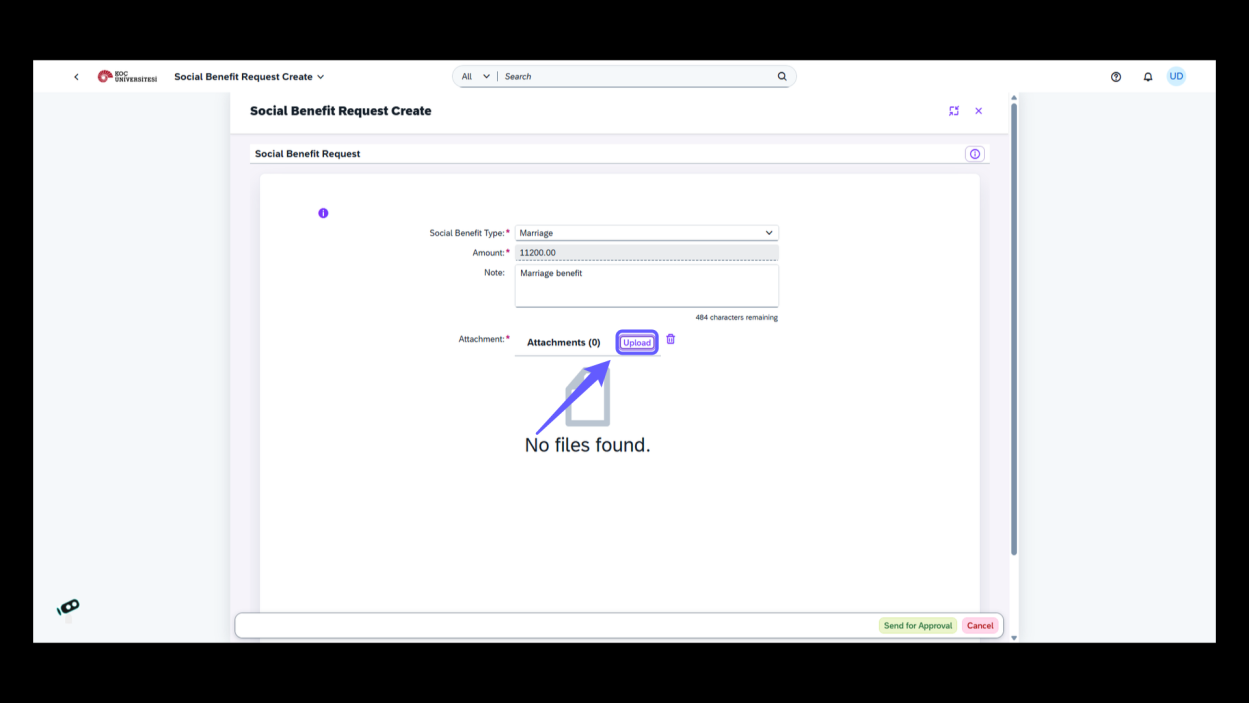
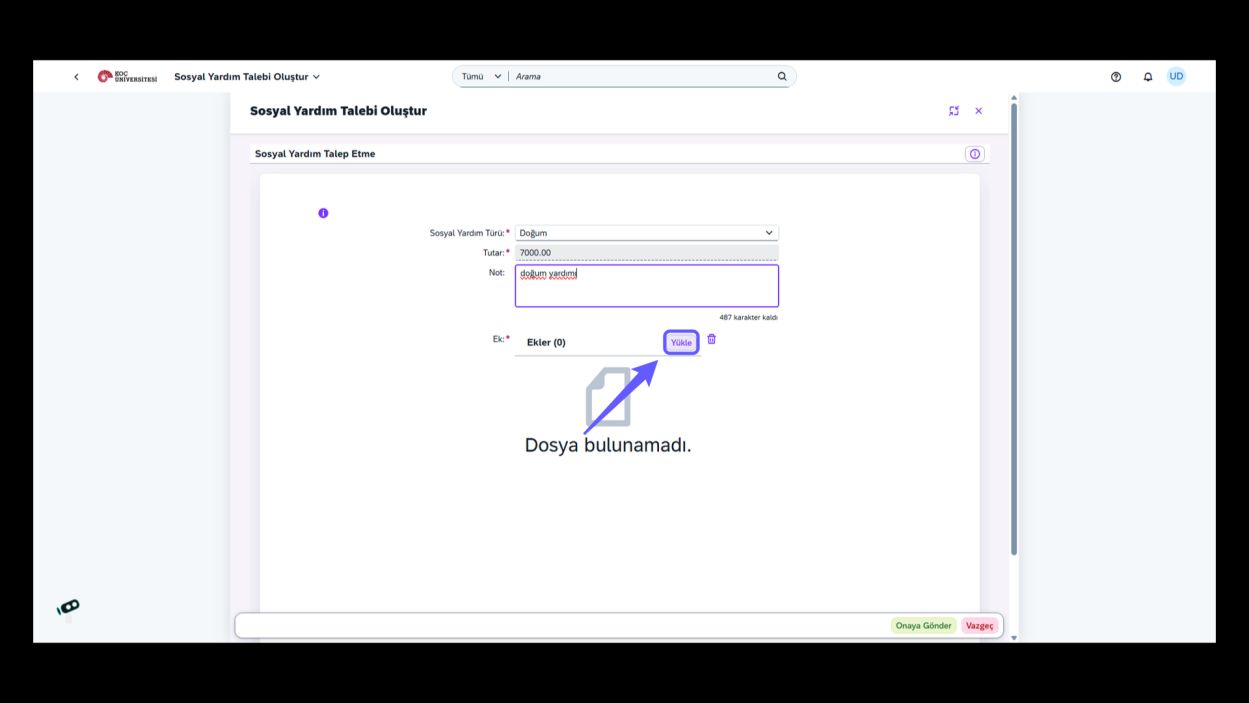
6. Initiate File Upload
-
Click 'Upload' to attach necessary documents for your social benefit request.
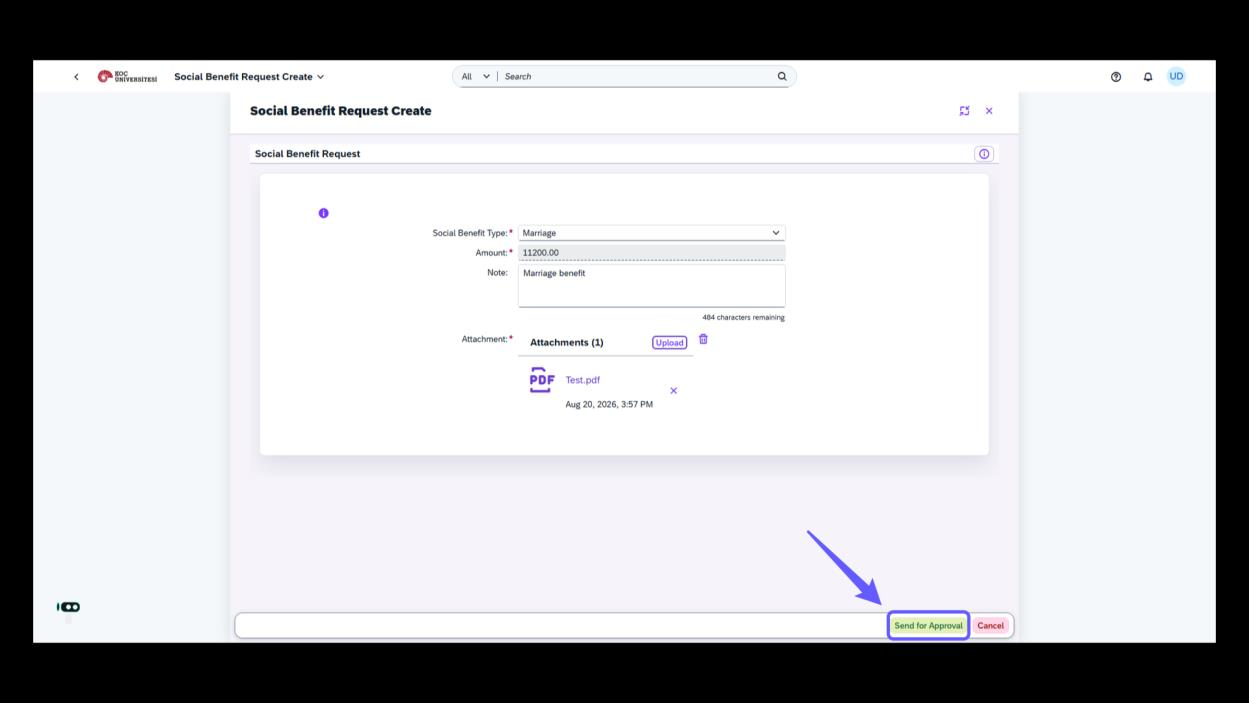
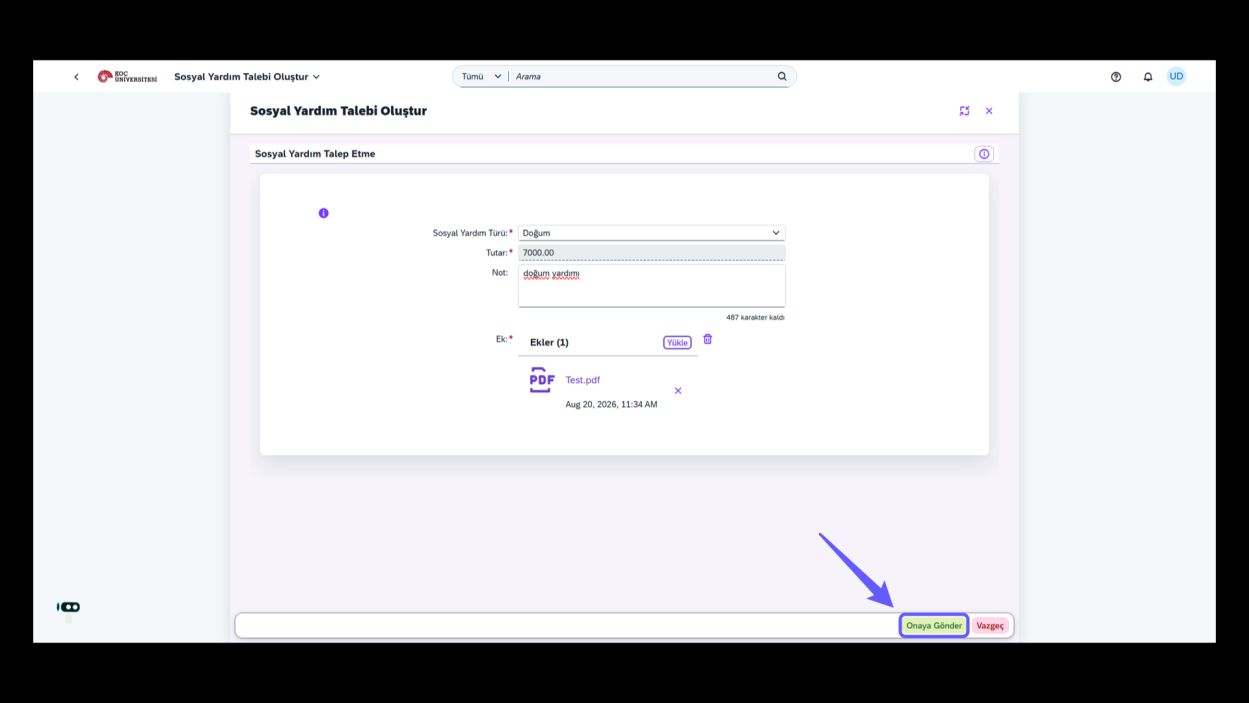
7. Submit the Request
-
Click 'Send for Approval' to submit your social benefit request.
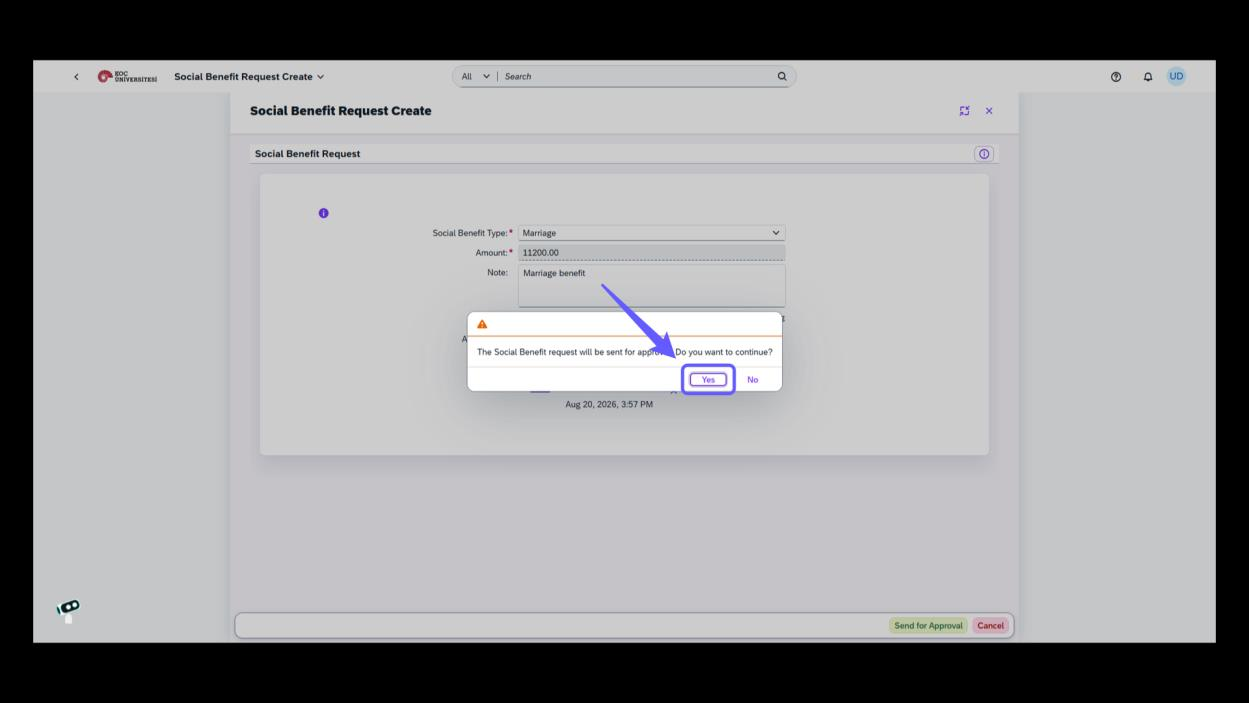
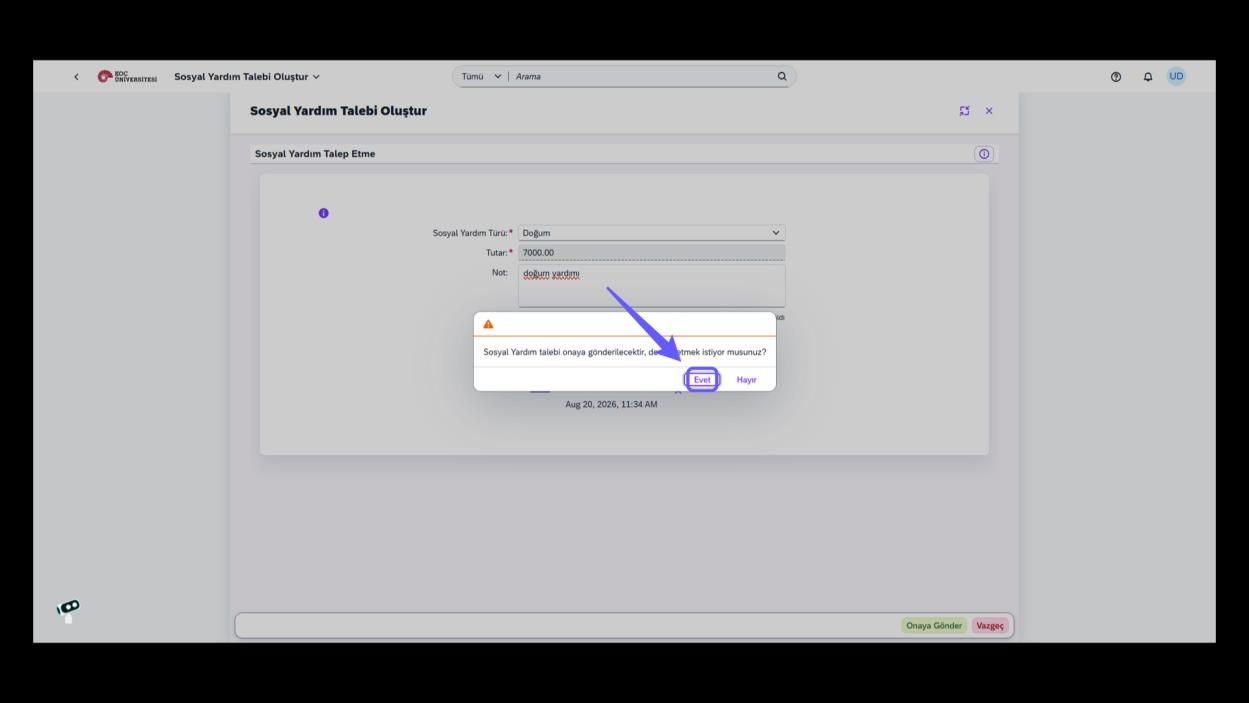
8. Confirm Submission
-
Click 'Yes' to proceed with sending the social benefit request for approval.
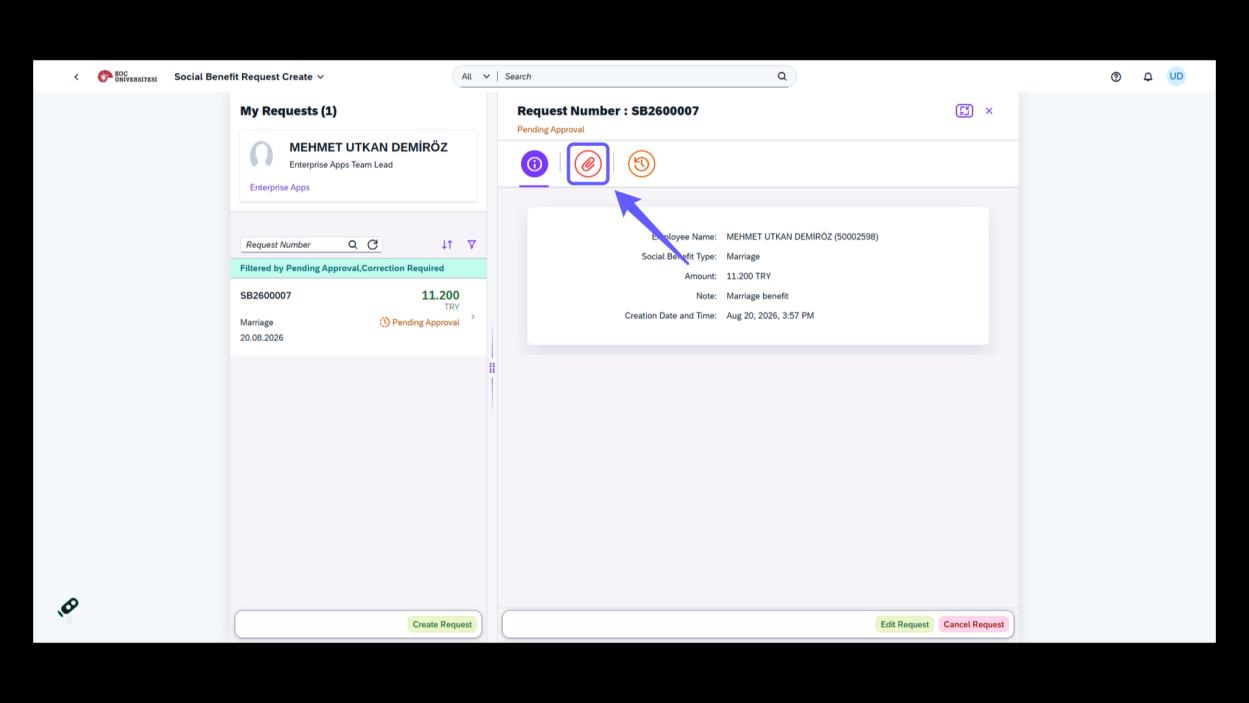
9. Attachment Icon
-
Click the paperclip icon to manage attachments related to the request.
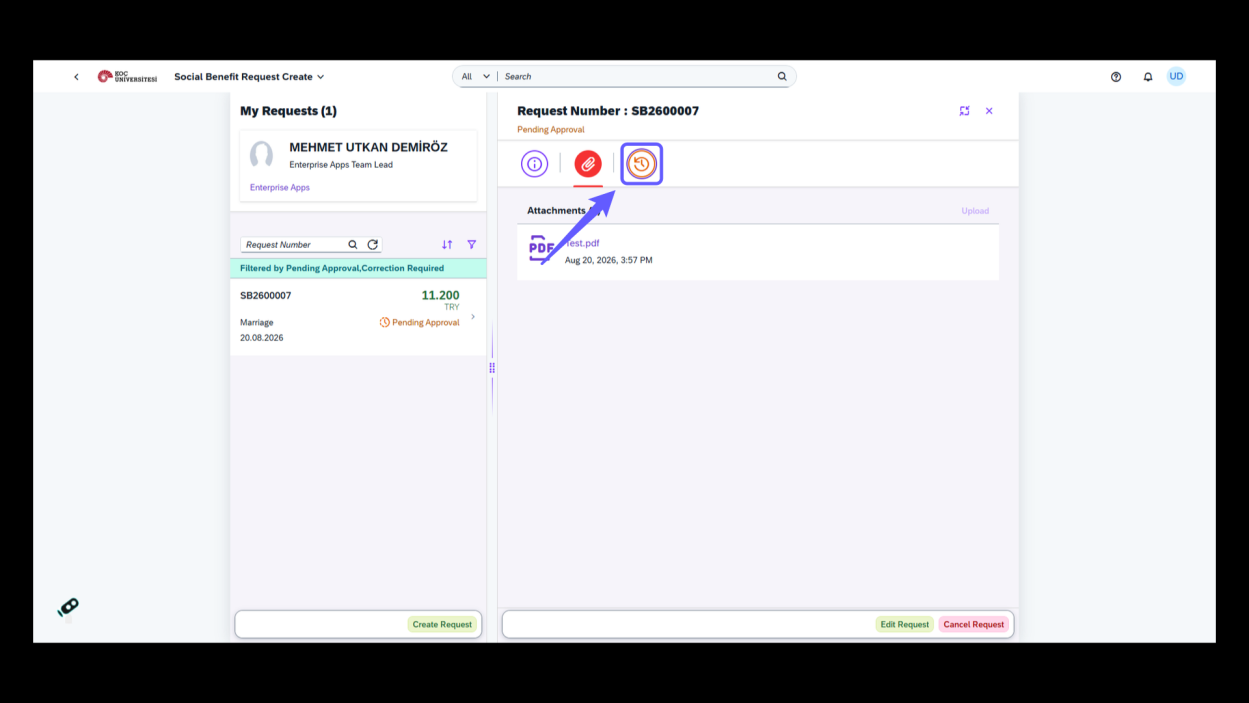
10. View Request History
-
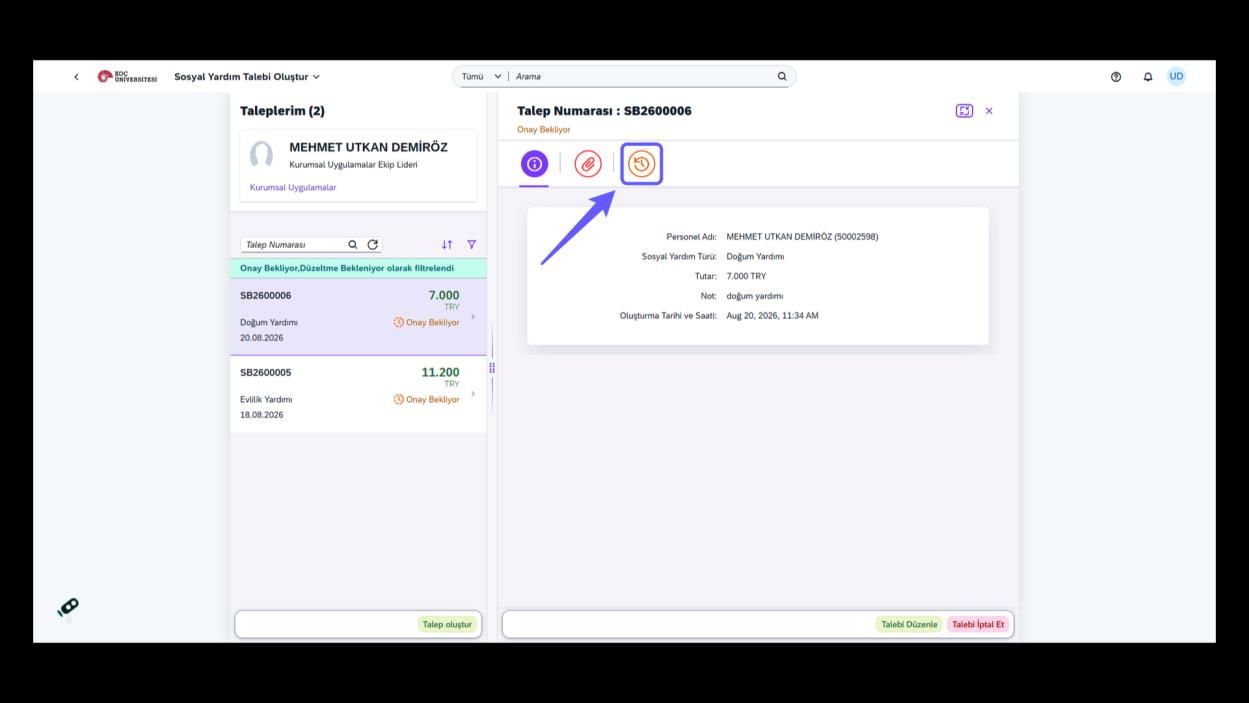
Click the clock icon to view the history of request actions.
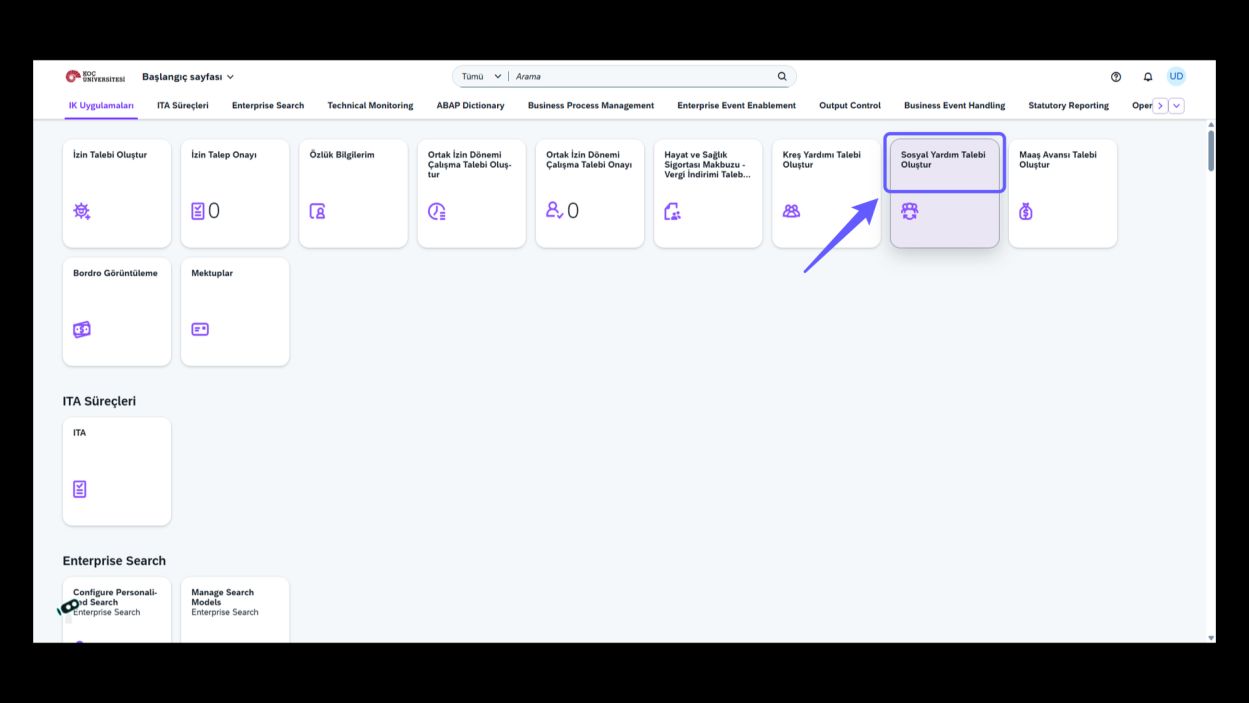
1. Sosyal Yardım Talebine Erişin
-
Başvurunuza devam etmek için 'Sosyal Yardım Talebi' seçeneğini seçin.
2. Talebi Başlatın
-
Yeni bir başvuru süreci başlatmak için 'Talep Oluştur' butonuna tıklayın.
3. Sosyal Yardım Türünü Seçin
-
Mevcut seçenekleri görmek için 'Sosyal Yardım Türü' yanındaki açılır ok simgesine tıklayın.
-
Evlilik, Ölüm, Doğum ve Eğitim dahil olmak üzere Sosyal Yardım Türü açılır menüsünden uygun seçeneği seçin.
4. Not Detaylarını Girin
-
Bu alana sosyal yardım talebinizle ilgili detaylı notlar girin.
5. Dosya Yüklemeyi Başlatın
-
Sosyal yardım talebiniz için gerekli belgeleri eklemek üzere 'Yükle' butonuna tıklayın.
6. Talebi Gönderin
-
Sosyal yardım talebinizi göndermek için 'Onaya Gönder' butonuna tıklayın.
7. Gönderimi Onaylayın
-
Sosyal yardım talebini onaya göndermeye devam etmek için 'Evet' butonuna tıklayın.
8. Ek İkonu
-
Talebe ilişkin ekleri yönetmek için ataç simgesine tıklayın.
9. Talep Geçmişini Görüntüleyin
-
Talep işlemlerinin geçmişini görüntülemek için saat simgesine tıklayın.