
1. Access the Faculty Center
-
Navigate: Home > Teaching & Learning > Faculty Center
2. Check Student Availability
-
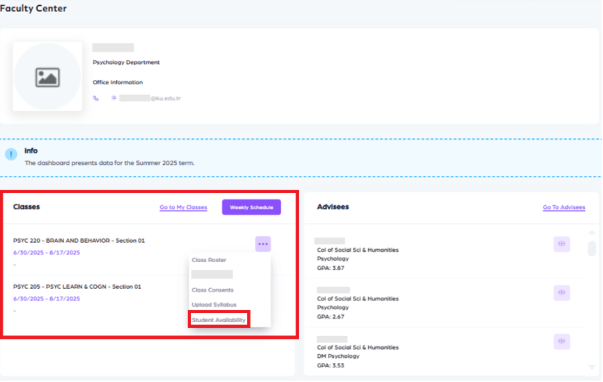
Under the “Classes” menu, click the Student Availability button for the relevant class.
-
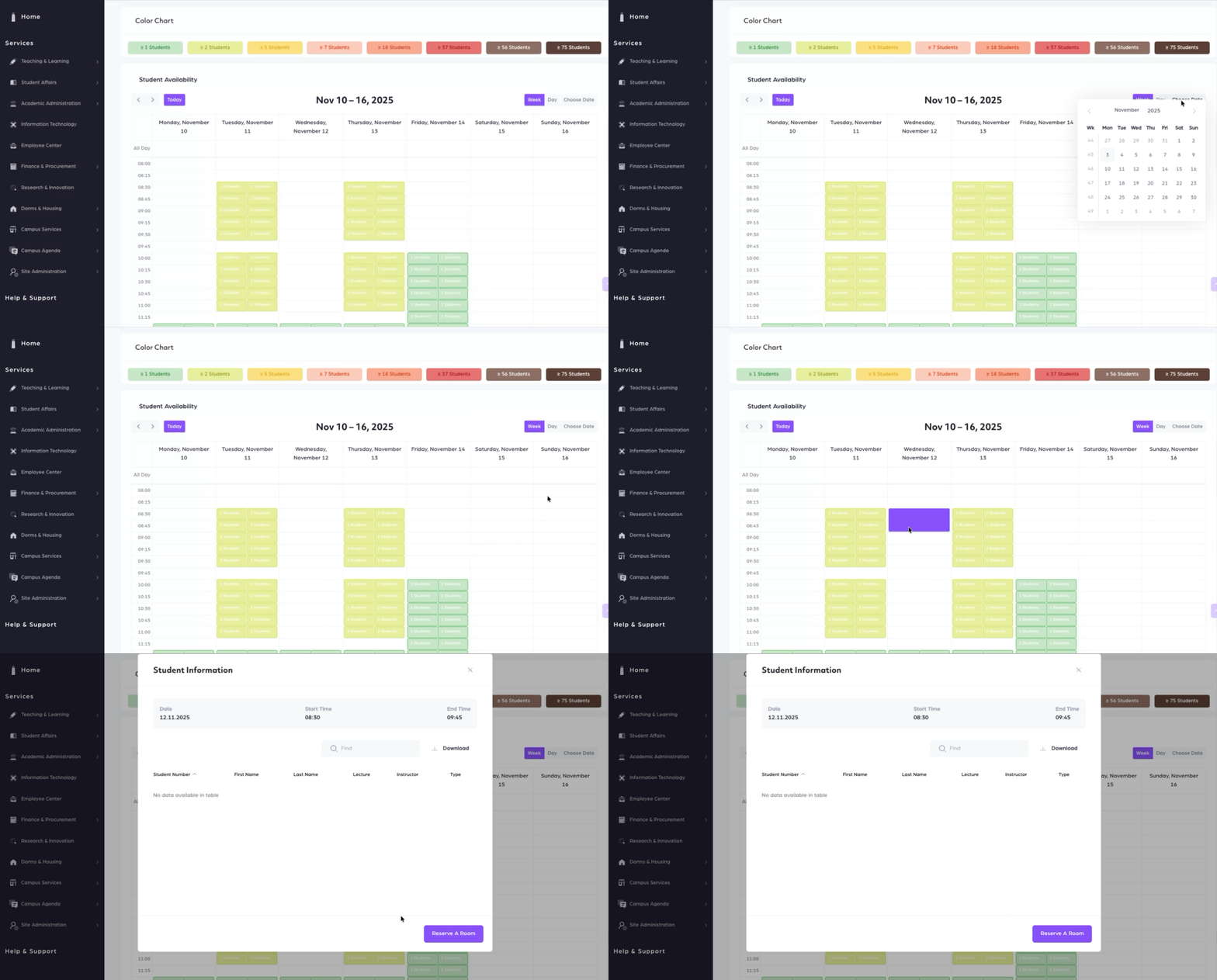
On the calendar, view the number of available students for each date and time slot.
3. Select an Available Time
-
Click on a suitable time slot.
-
In the window that opens, click the Reserve A Room button.
4. Search for a Classroom
-
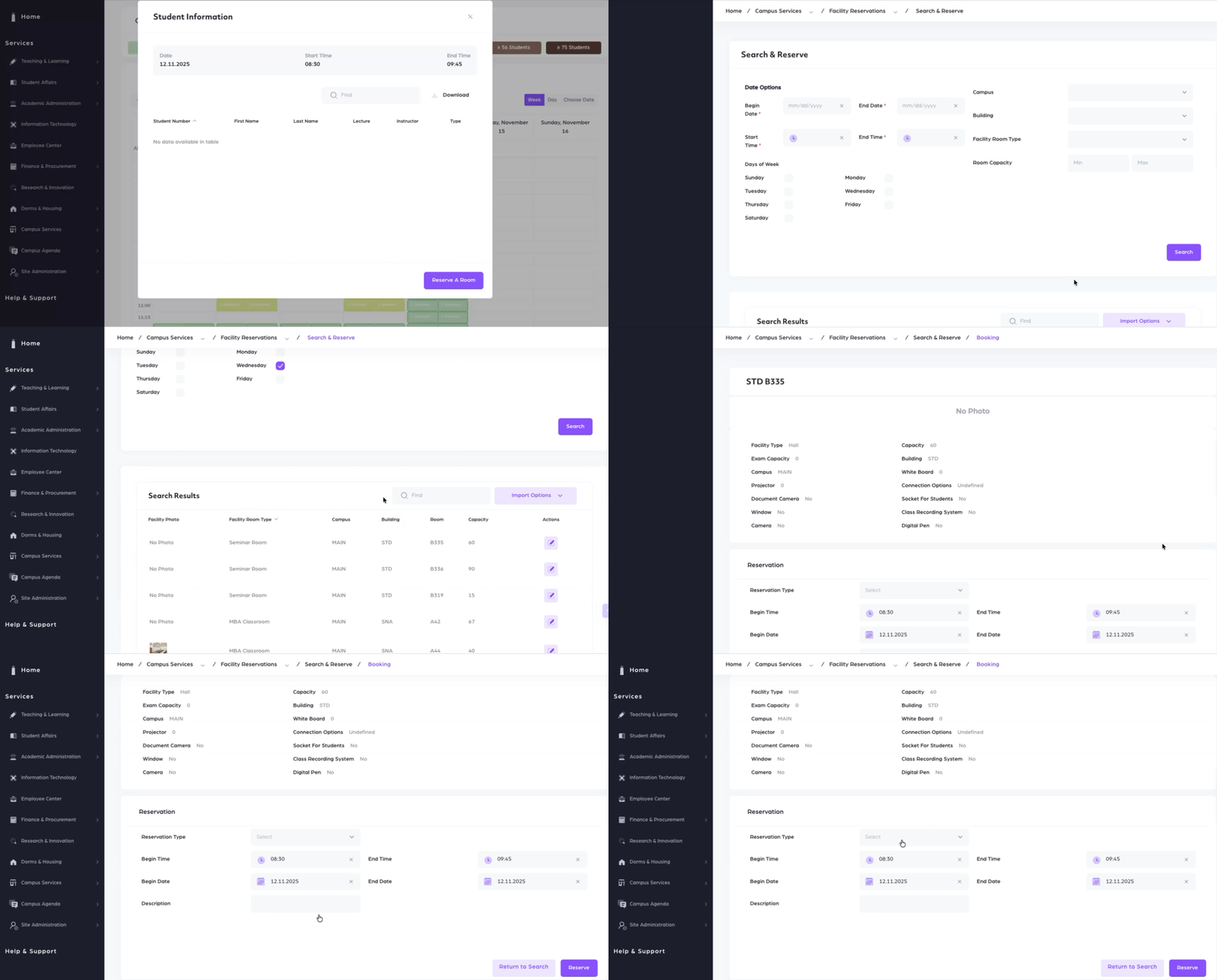
After reserving a time, you’ll be redirected to the Classroom Search page.
-
Set your criteria and click Search.
-
In the Search Results, click the Actions button next to a suitable classroom.
5. Complete the Booking
-
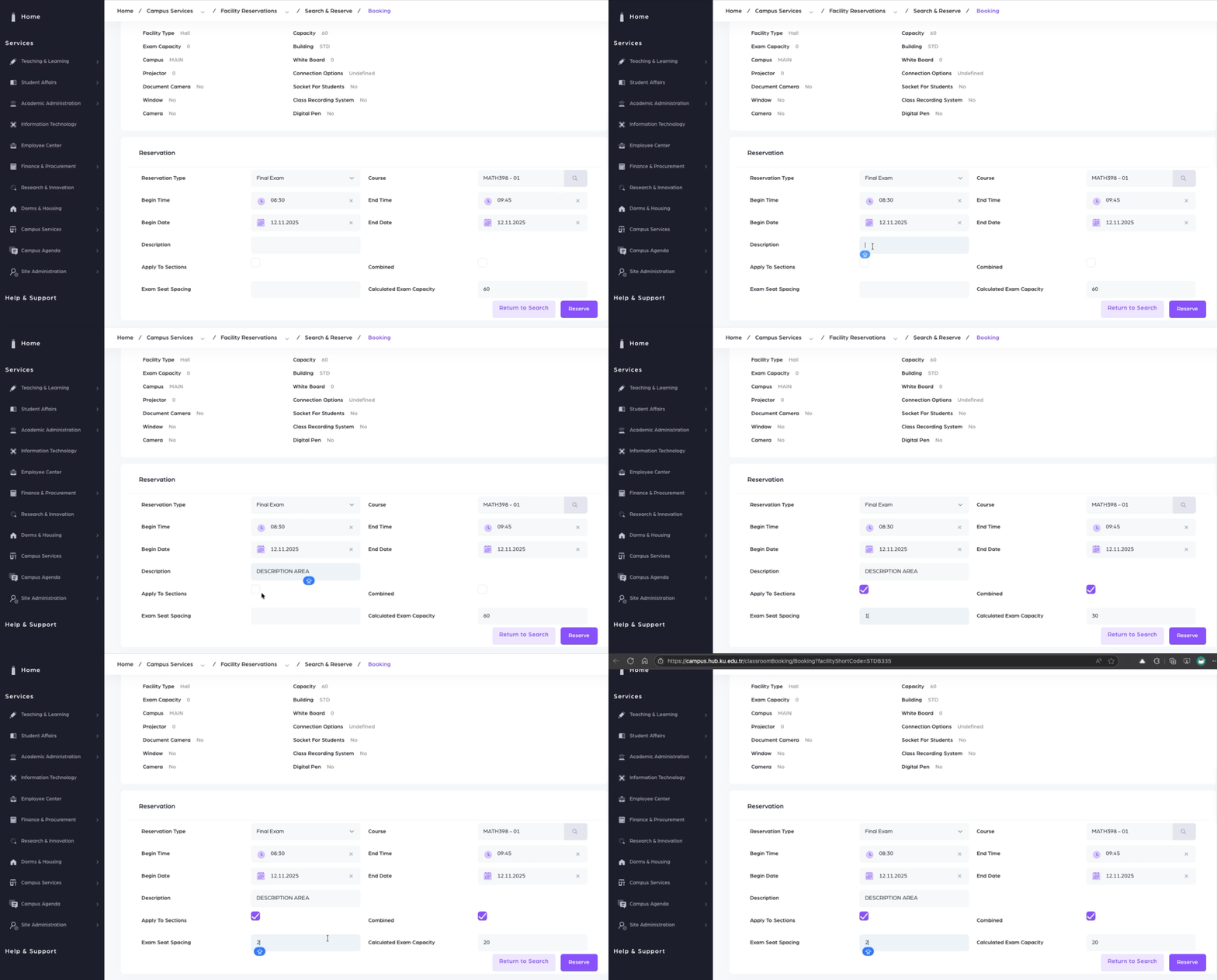
On the Booking page, fill in the required information:
-
Description
-
Combined (if combining rooms)
-
Exam Seat Spacing (if needed for exams)
-
Additional Notes
-
For exams scheduled during class hours:
If you need to assign an additional classroom besides the one already allocated for your course, please make this selection manually during the reservation process. -
For exams scheduled outside class hours:
These exams are centrally planned and managed by the Registrar’s Office, and therefore do not require individual reservations.
-
The system will automatically calculate the new exam capacity if you use seat spacing.
-
Click Reserve.
6. Review and Save Reservation
-
Review your reservation details in the Reservation Summary.
-
Click Save to finalize your booking.
7. Manage Your Reservations
-
After saving, you’ll be redirected to the My Reservations page.
-
Alternatively, access it via: Home > Campus Services > Facility Reservations > My Reservations
-
Use the Actions button to Edit or Delete your reservations as needed.