
1. Access Visitor Management
-
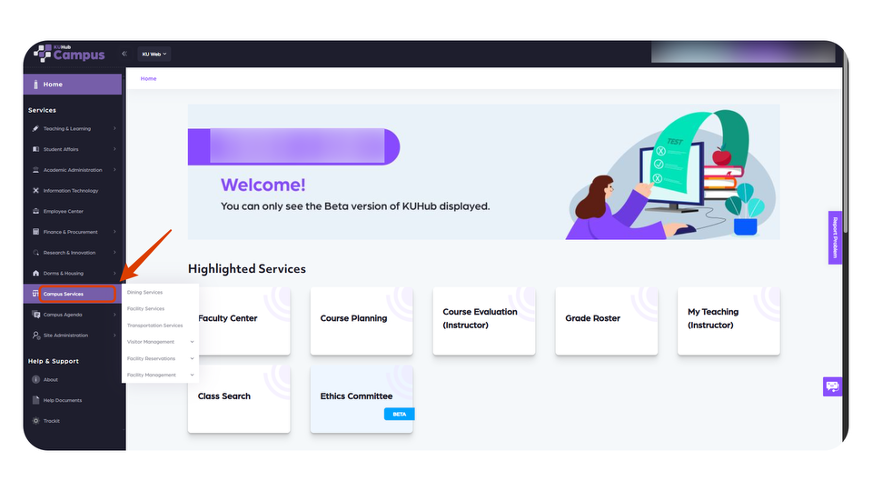
Select 'Campus Services' from the KUHub menu.
-
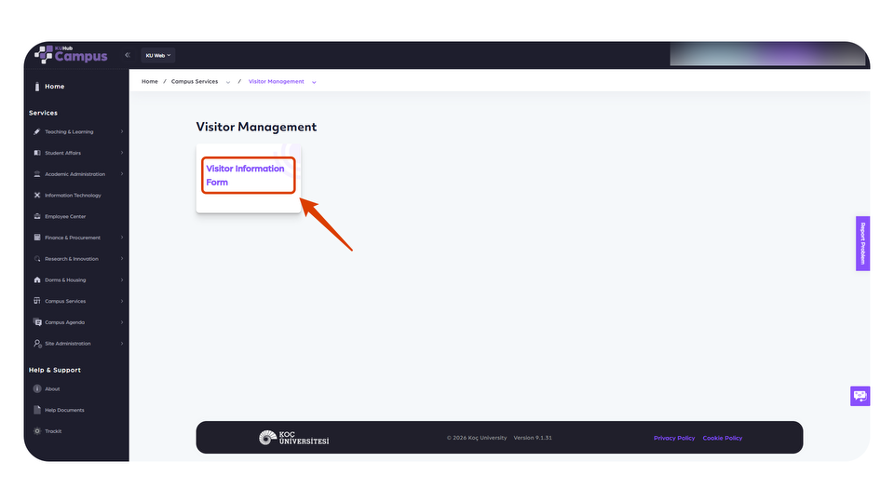
Open the 'Visitor Management' option.
-
Click 'Visitor Information Form' to continue.
2. Search Visitor Records
-
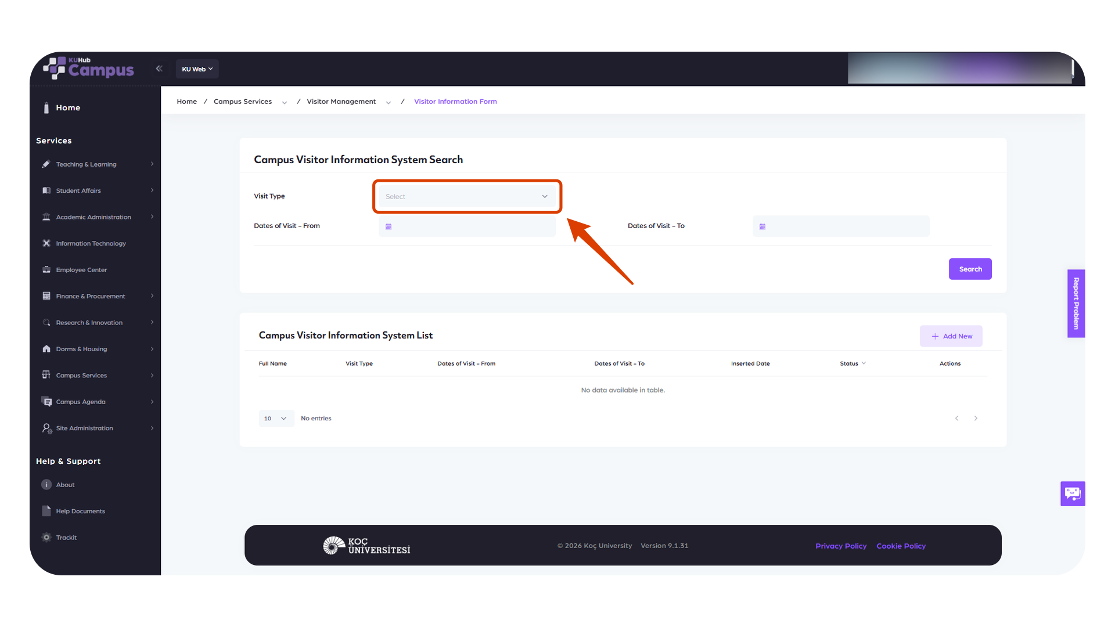
Select the visit type on the search screen.
-
Enter date or other filters if needed.
-
Click 'Search' to list the records.
3. Create a New Visitor Entry
-
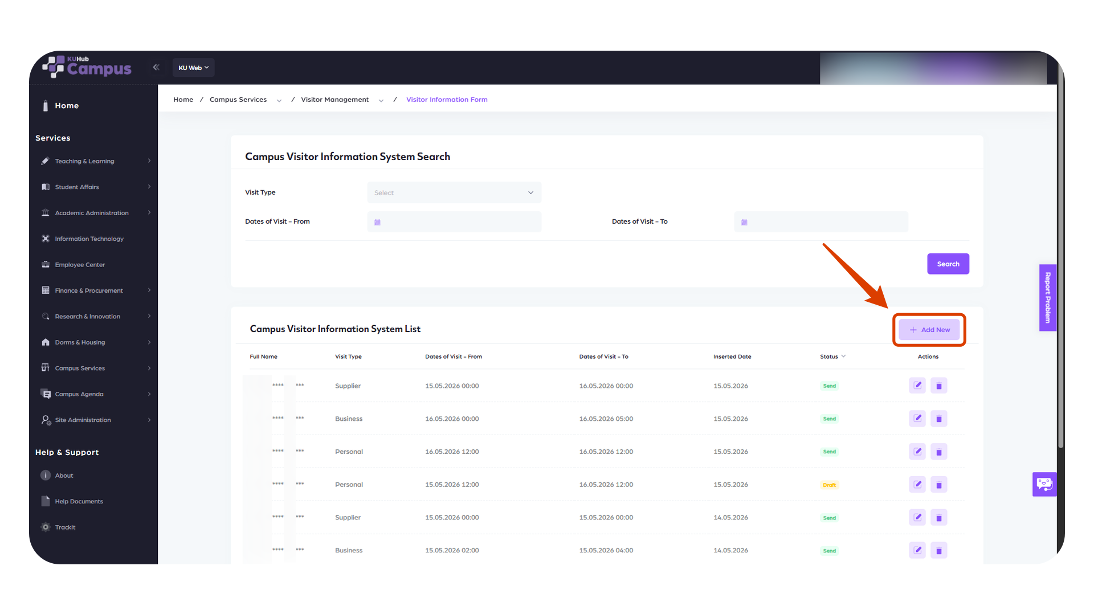
Click 'Add New' on the search screen.
-
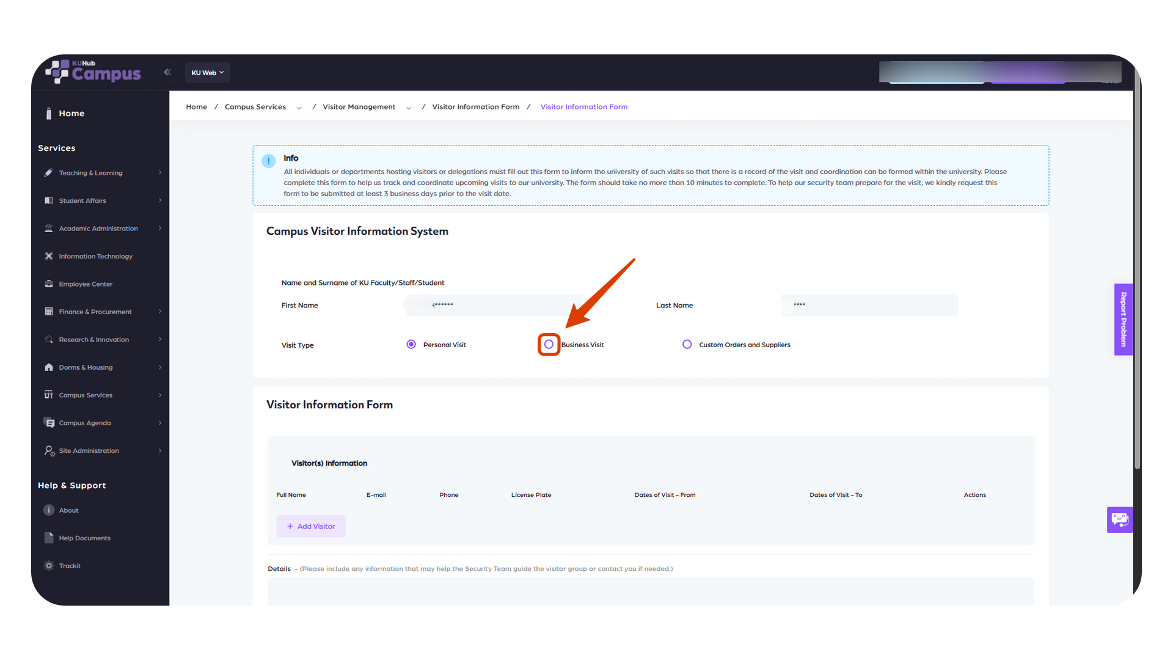
Select the visit type: Personal Visit, Business Visit, Custom Orders and Suppliers.
-
Complete the required fields in the form.
-
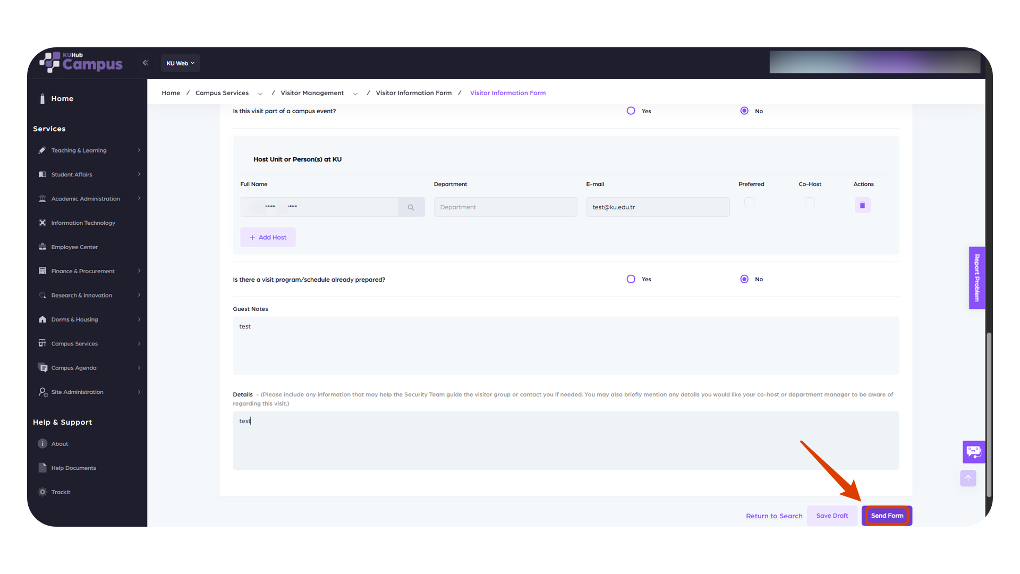
Enter any necessary notes or additional information.
-
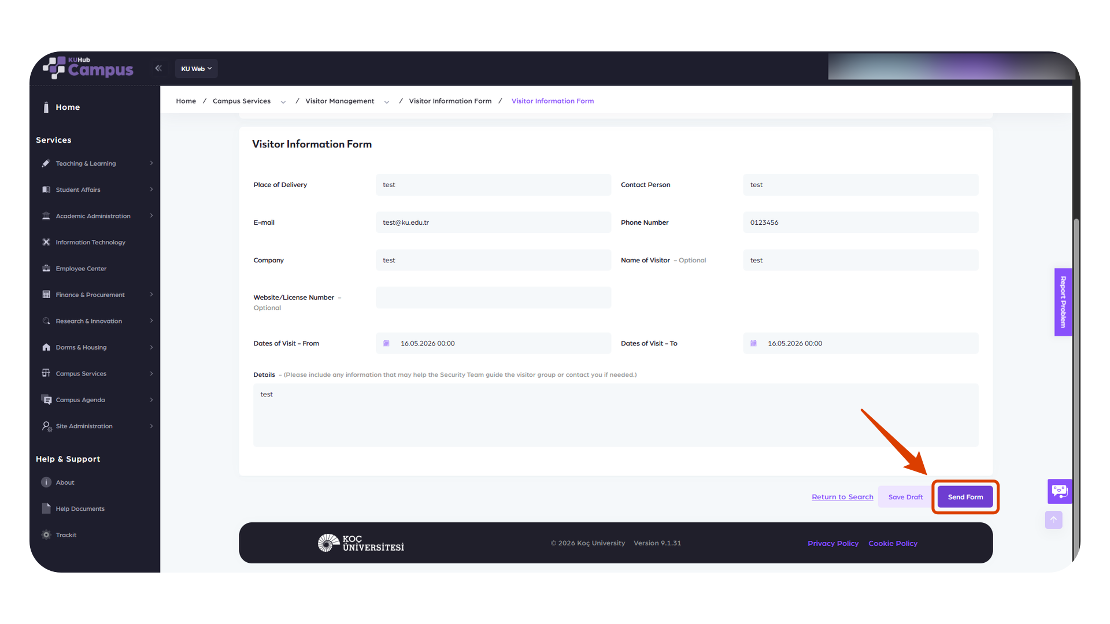
Click 'Send Form' to submit the entry.
4. Personal Visit
-
Select 'Personal Visit' as the visit type.
-
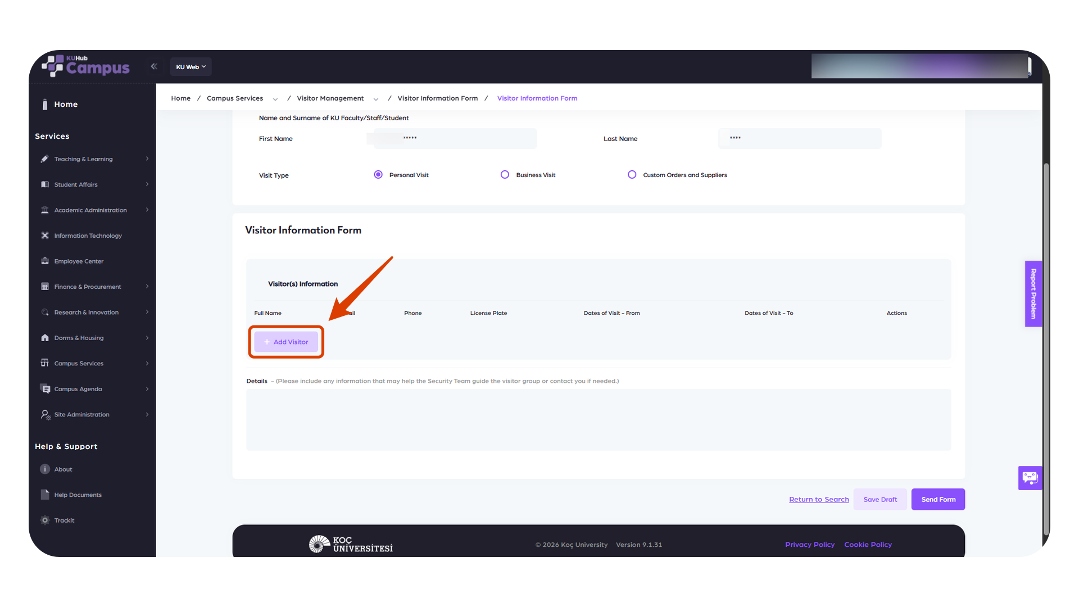
Click 'Add Visitor' to enter visitor details.
-
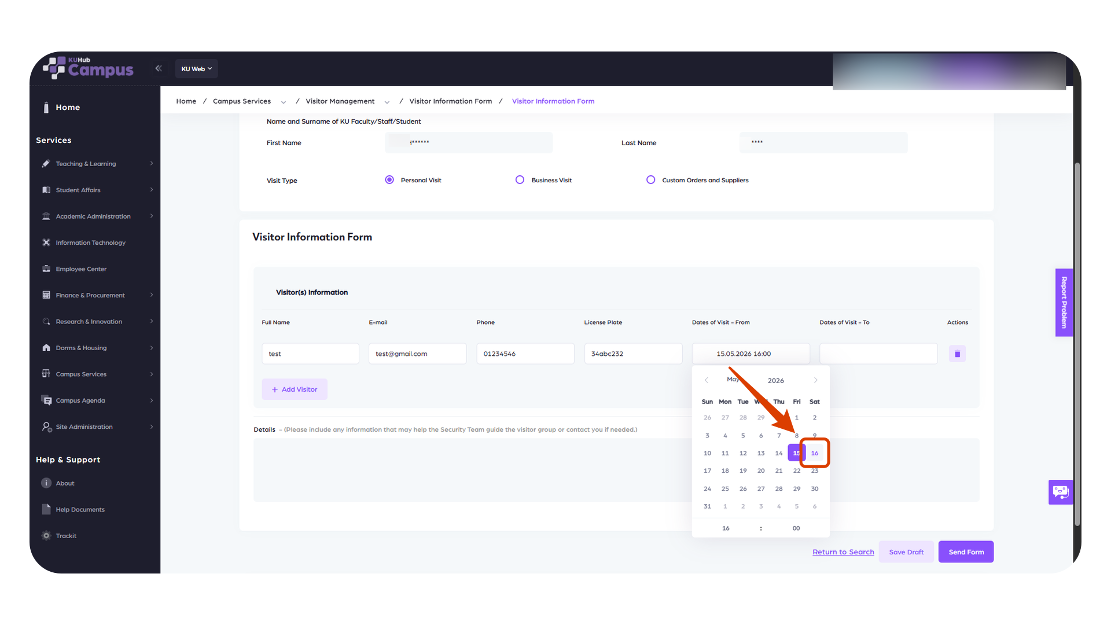
Enter the visitor's full name, vehicle license plate if applicable, and visit start/end date and time.
-
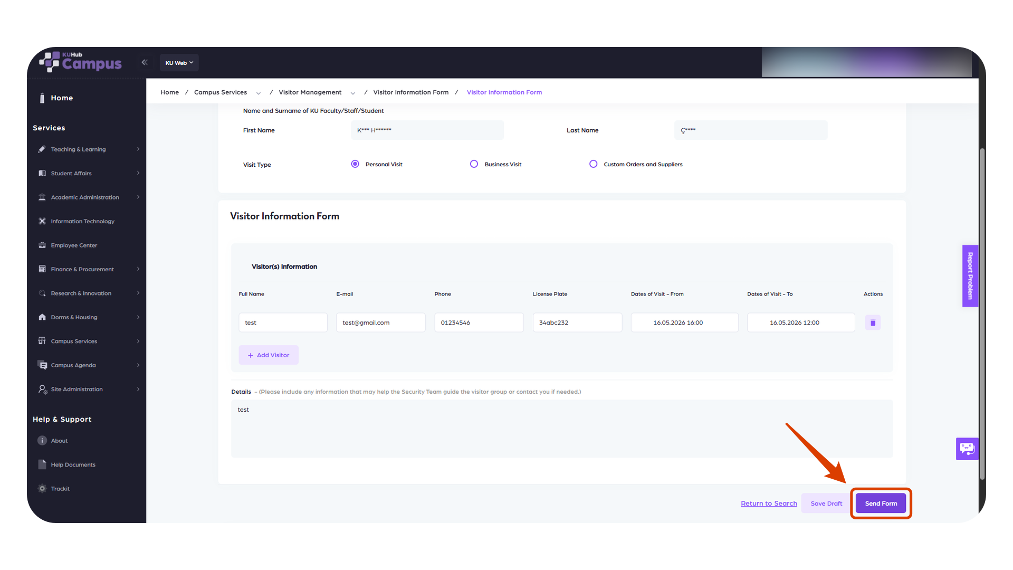
Use the additional information field for notes that may help the Security Team.
-
Complete the process by clicking 'Send Form'.
5. Business Visit
-
Select 'Business Visit' as the visit type.
-
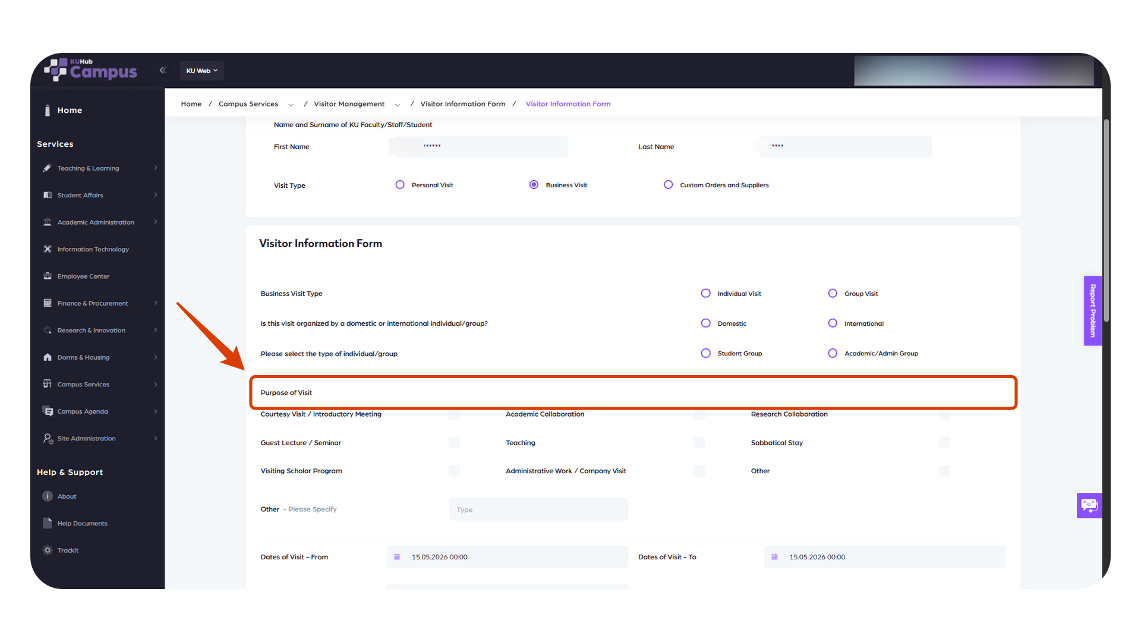
Specify whether the visit is organized by a domestic or international individual/group.
-
Select the purpose of the visit. If none of the listed options apply, use 'Other'.
-
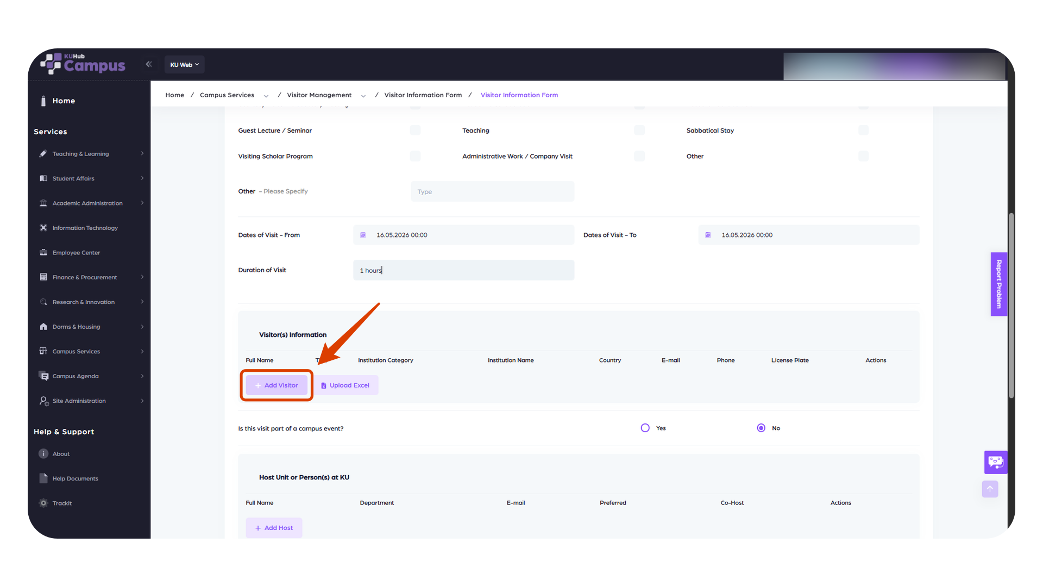
Enter the start date, time, and visit duration.
-
Add visitors manually or upload them using an Excel file.
-
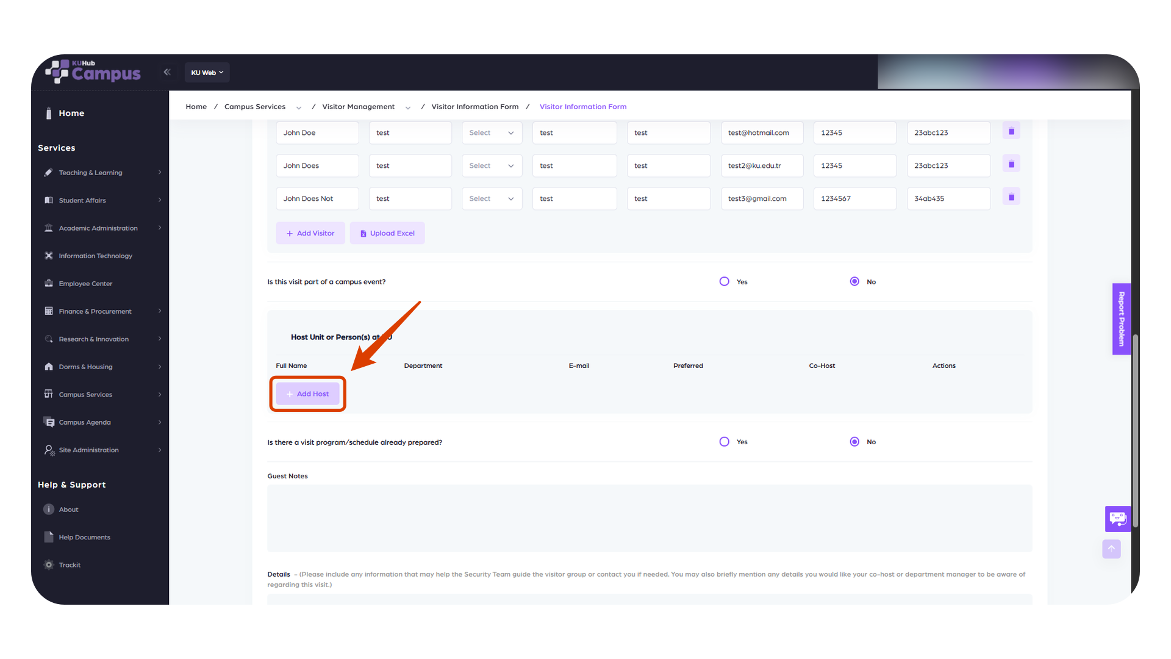
Select the Campus Event option and add host information if required.
-
Enter program status and guest notes, then submit the form.
5.1 Upload Visitors with Excel
-
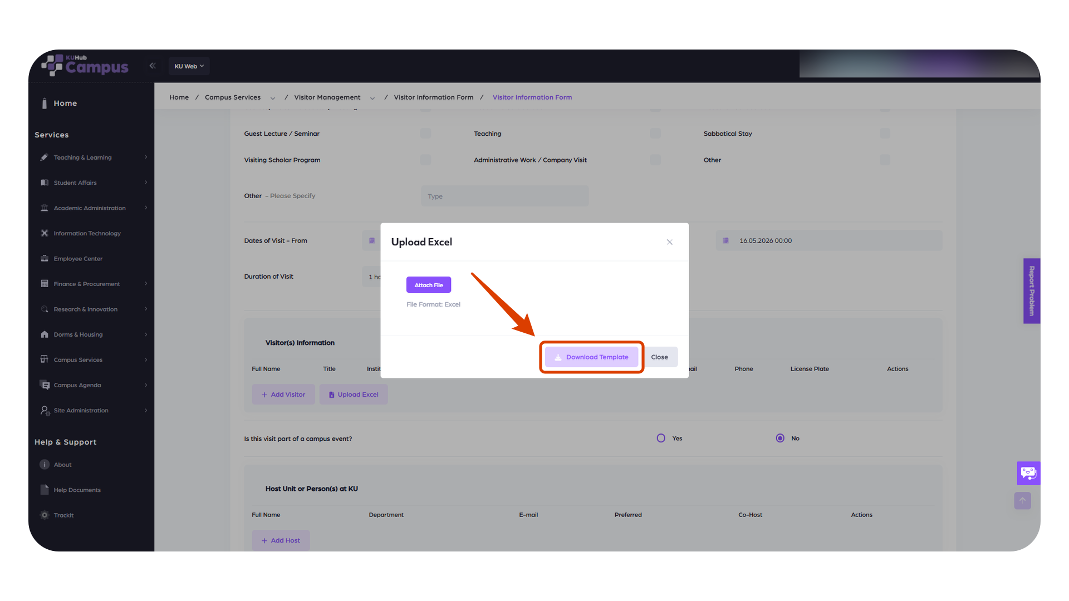
Use the 'Upload Excel' option in the Business Visit form.
-
Download the template using 'Download Template' if needed.
-
Attach the completed Excel file with 'Attach File'.
-
Complete the remaining required fields before submitting the form.
5.2 Add Host Information
-
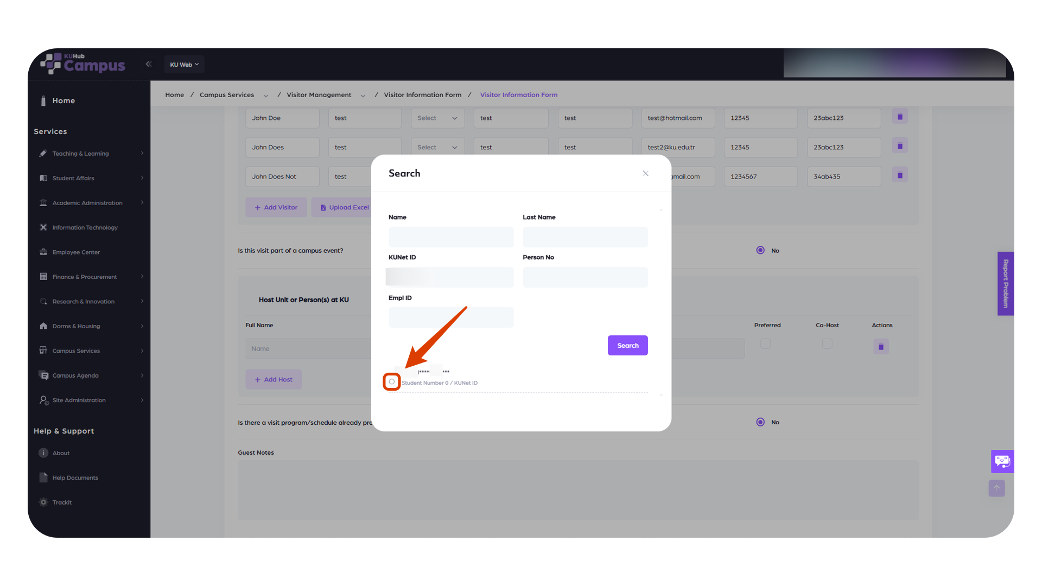
Click the 'Add Host' button.
-
Search by department or person number.
-
Select the relevant person or option from the list.
-
Add notes if necessary.
6. Edit and Update an Existing Entry
-
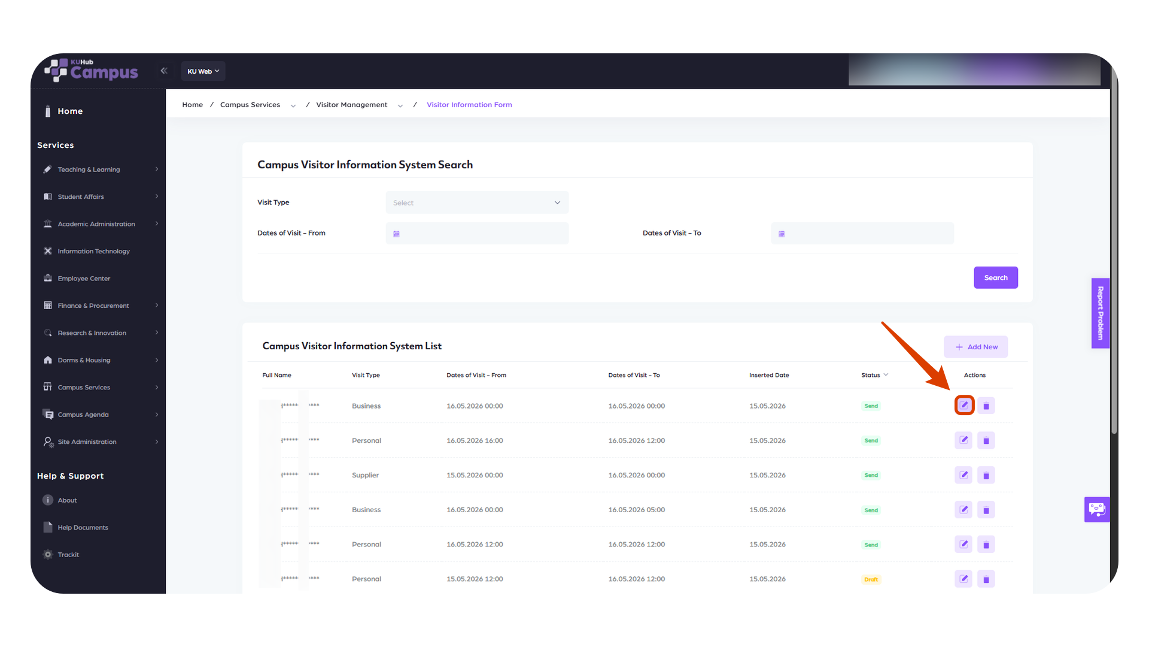
On the search screen, select the relevant visit type and filters, then click 'Search'.
-
Click the edit/pencil icon on the record you want to modify.
-
Update the required fields or guest notes.
-
Click 'Update' to save the changes.
-
Use 'Return to Search' to go back to the search page.
7. Custom Orders and Suppliers
-
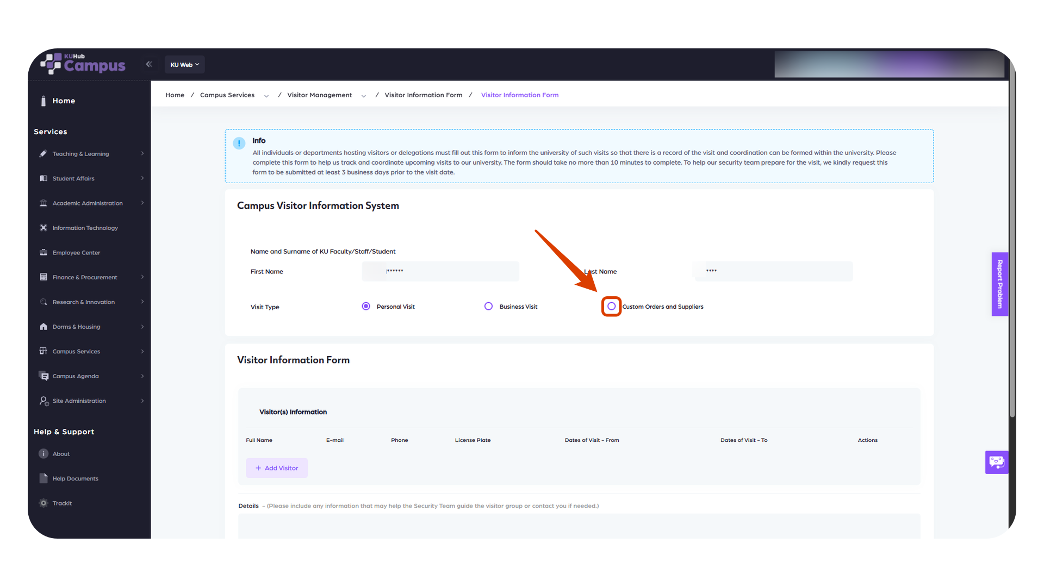
Select 'Custom Orders and Suppliers' as the visit type.
-
Enter the email address for communication.
-
Provide security-related details to help guide or contact the visitor group.
-
Submit the form by clicking 'Send Form'.
8. West Campus Visitor (Only Student)
-
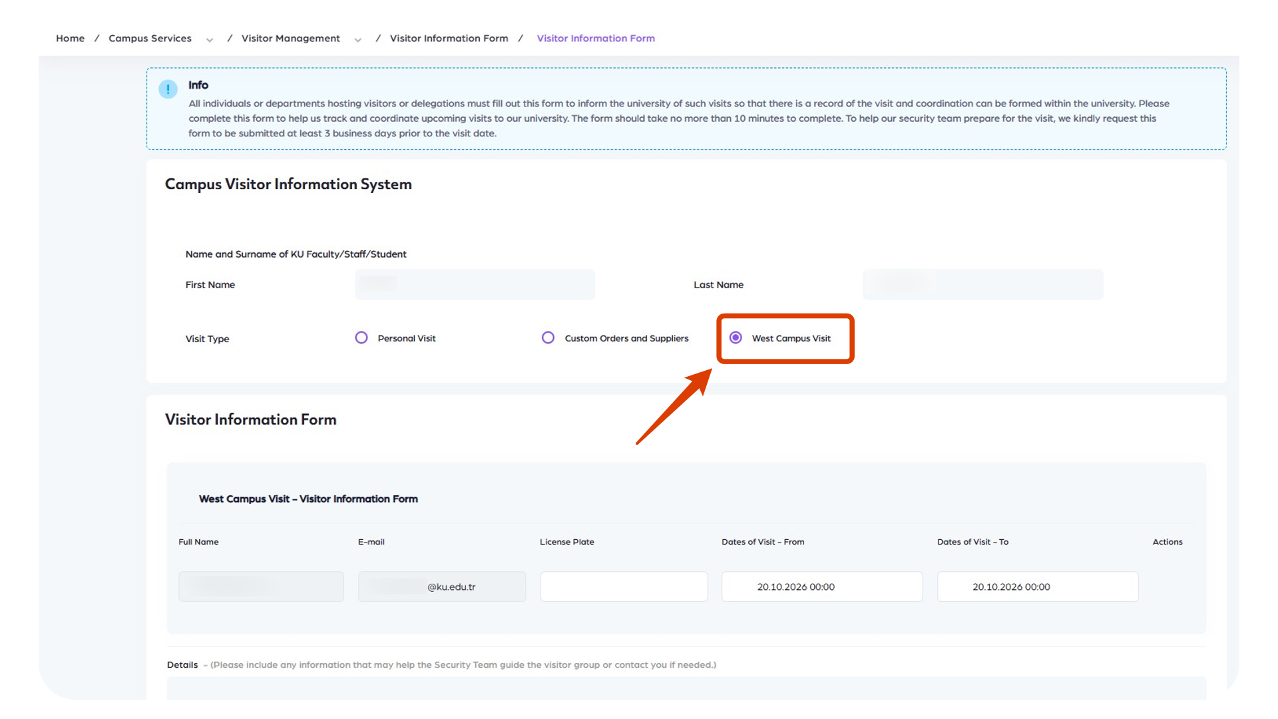
Students wishing to visit the West Campus can select the "West Campus Visit" option.
9. Key Points to Remember
-
The selected visit type may change the fields displayed in the form.
-
Date, time, and duration information must be entered completely.
-
Security notes should be short, clear, and useful for guidance.
-
For group visits, use the Excel template when uploading multiple visitors.
-
Before submitting, make sure all required fields are completed.