Purpose: Use this guide to create, review, and cancel a pool reservation in KUHub Campus.
Key Rules for Pool Reservations
-
Reservations are available only for Saturdays and Sundays.
-
Reservation availability and advance booking limits can be checked in the Information section.
-
Same-day reservation cancellation is not allowed.
1. Start a Reservation
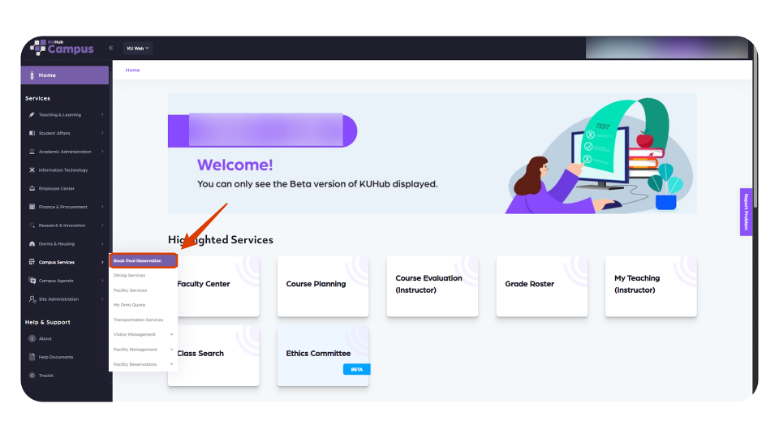
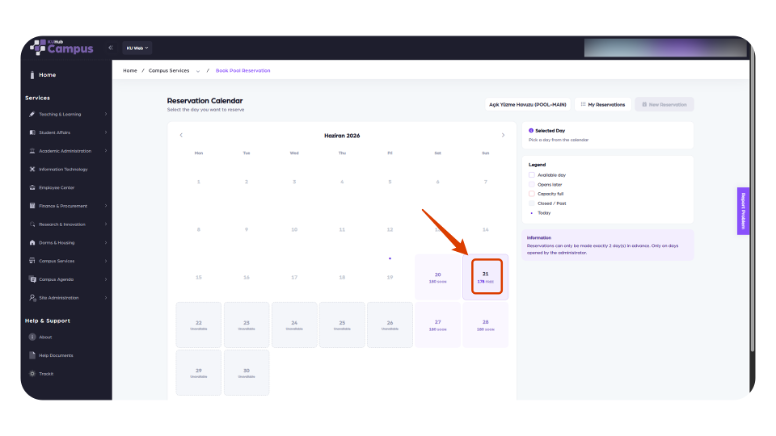
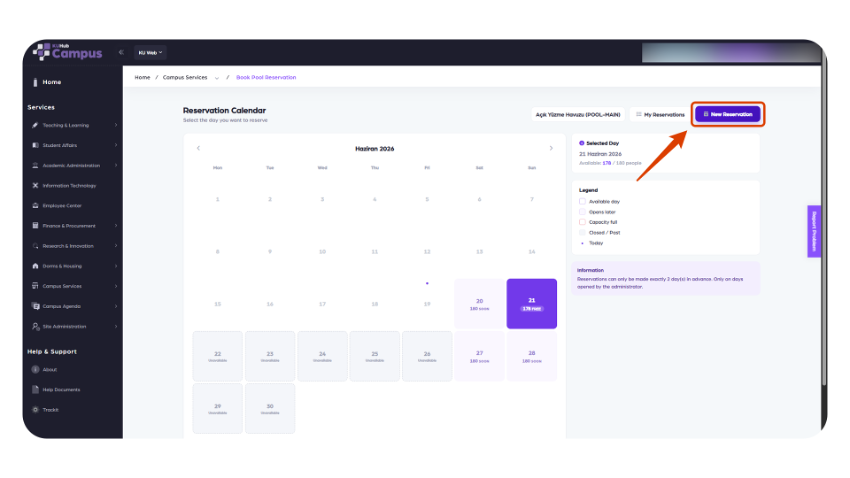
Select 'Book Pool Reservation', choose an available date on the calendar, then click 'New Reservation'.
2. Confirm the Rules
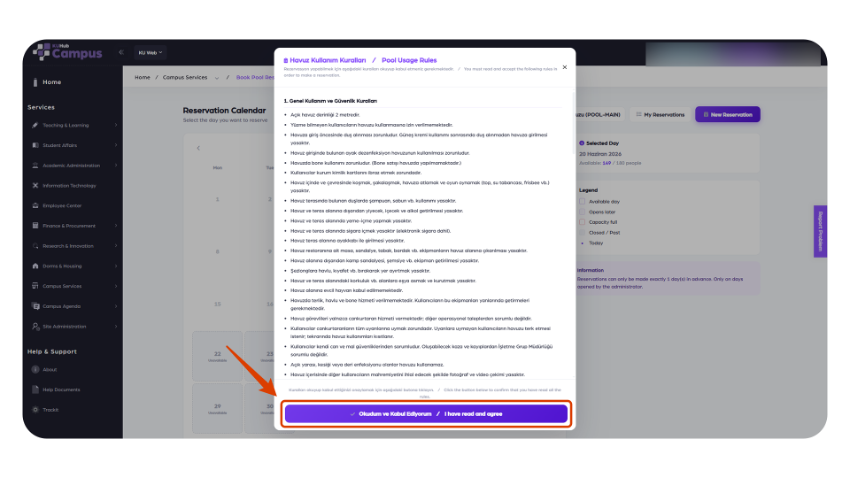
Confirm that you have read and accepted the pool reservation rules before continuing.
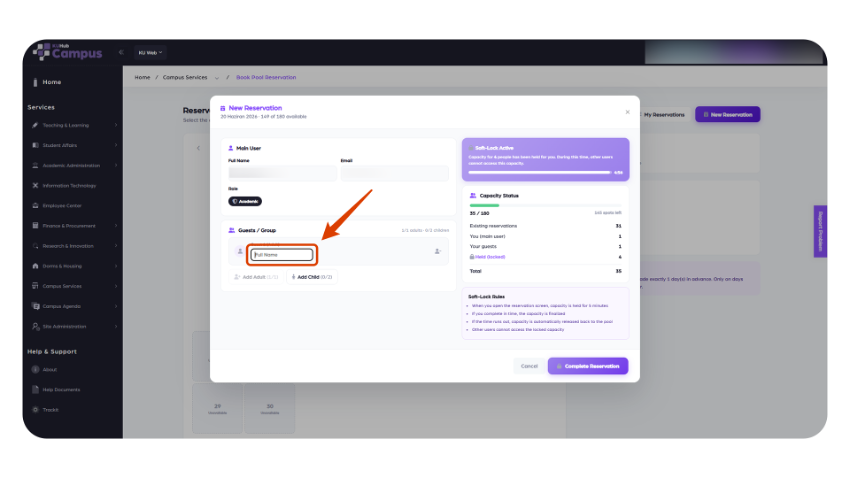
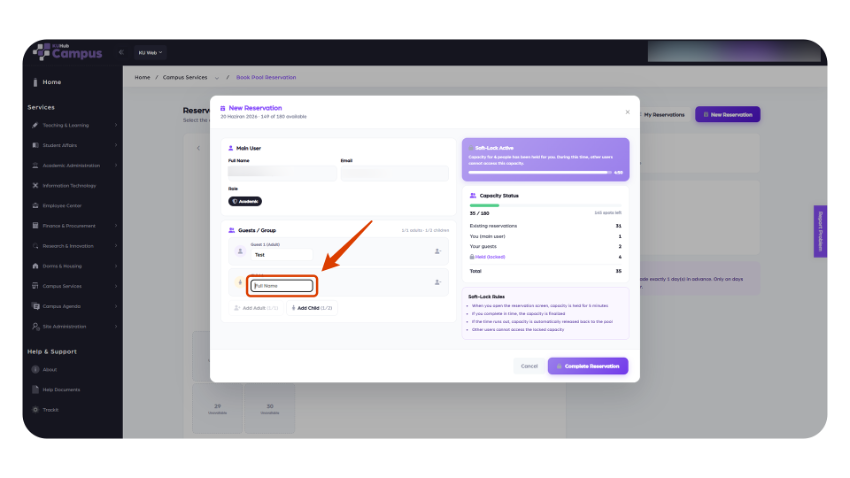
3. Add Guests
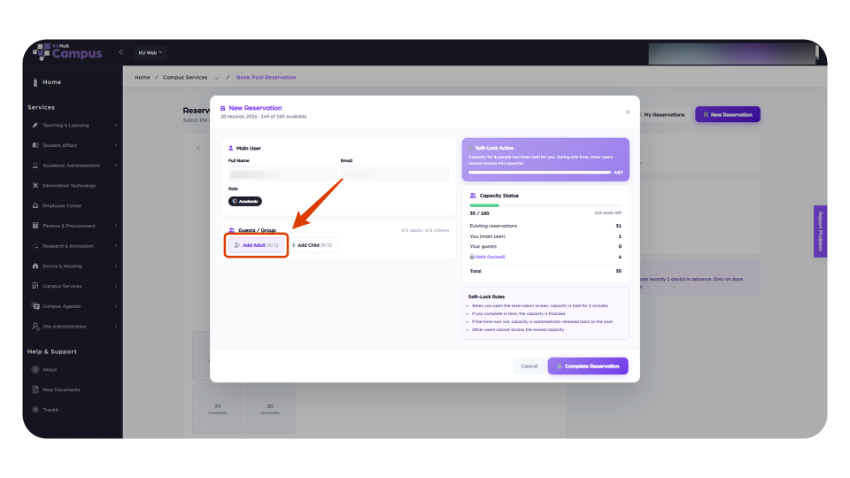
Use the Add option to enter your guests’ full names.
Children are also considered guests.
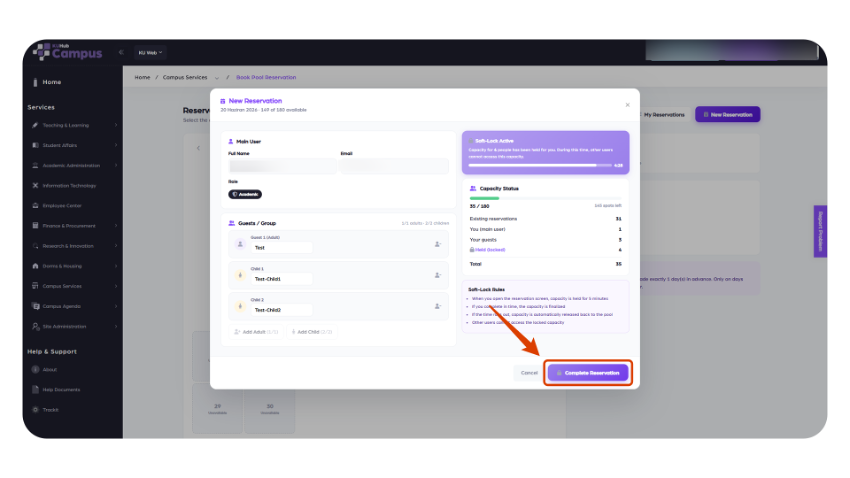
4. Review and Complete
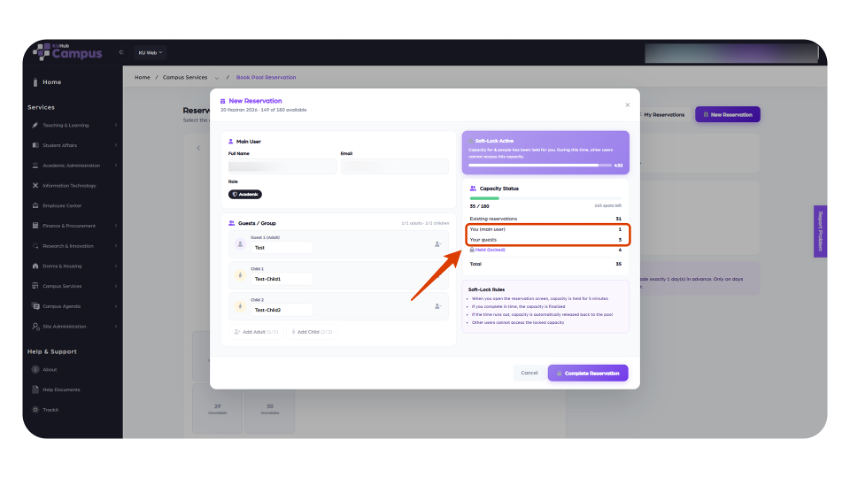
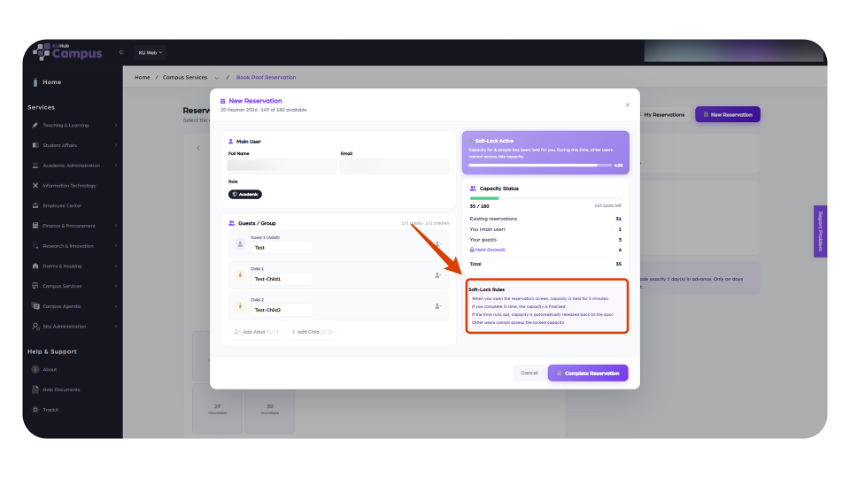
Review the number of current reservations for 'You (main user)' and 'Your guests', check the Soft-Lock Capacity Rules, then click 'Complete Reservation'.
5. View or Cancel a Reservation
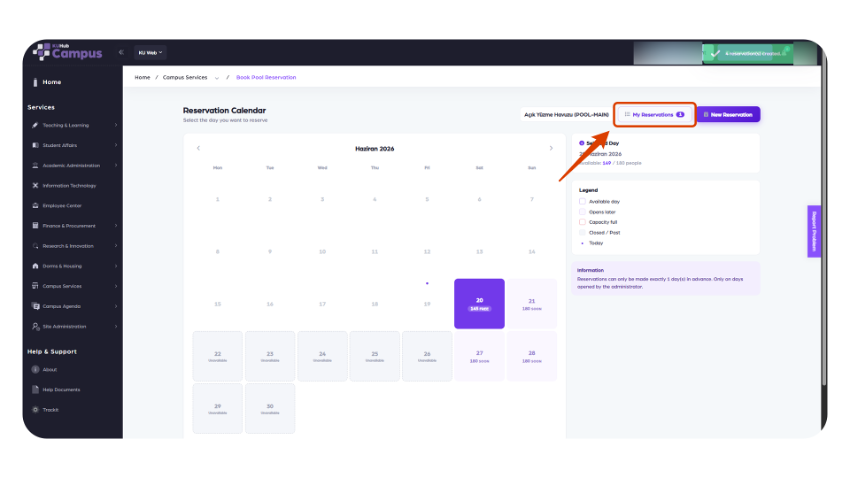
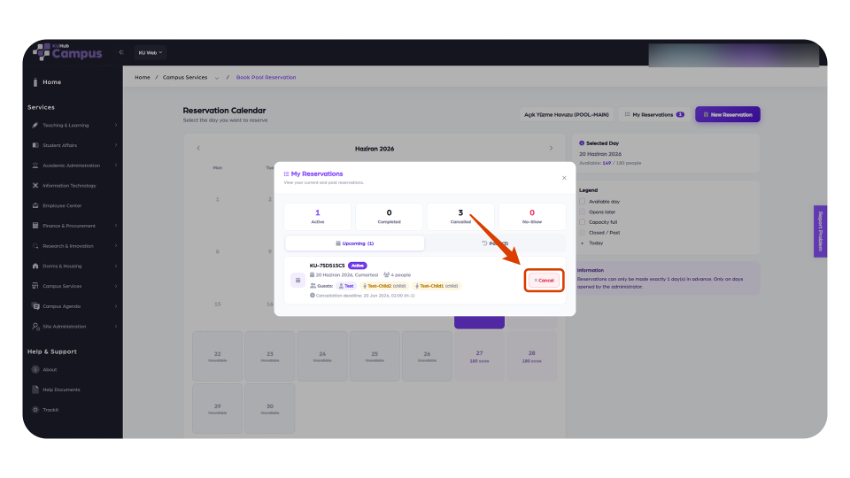
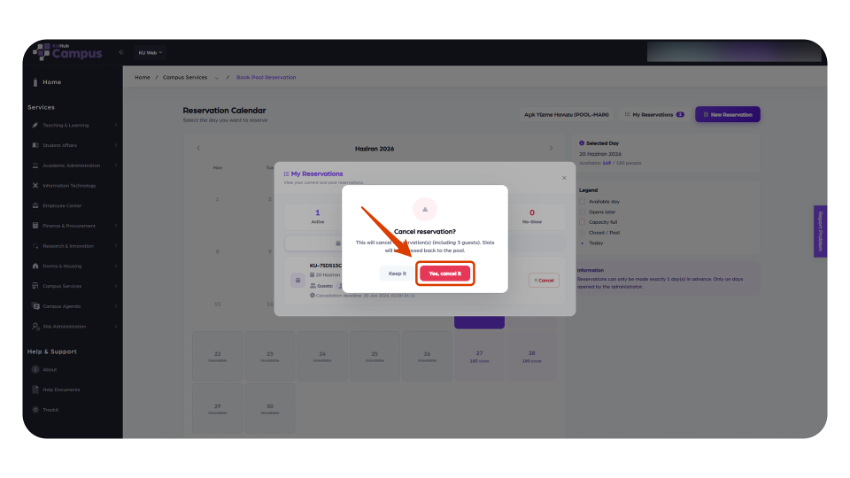
Open 'My Reservations' to view your bookings. To cancel, click 'Cancel' and confirm with 'Yes, cancel it'. The cancellation includes all guests and releases the slots back to the pool.