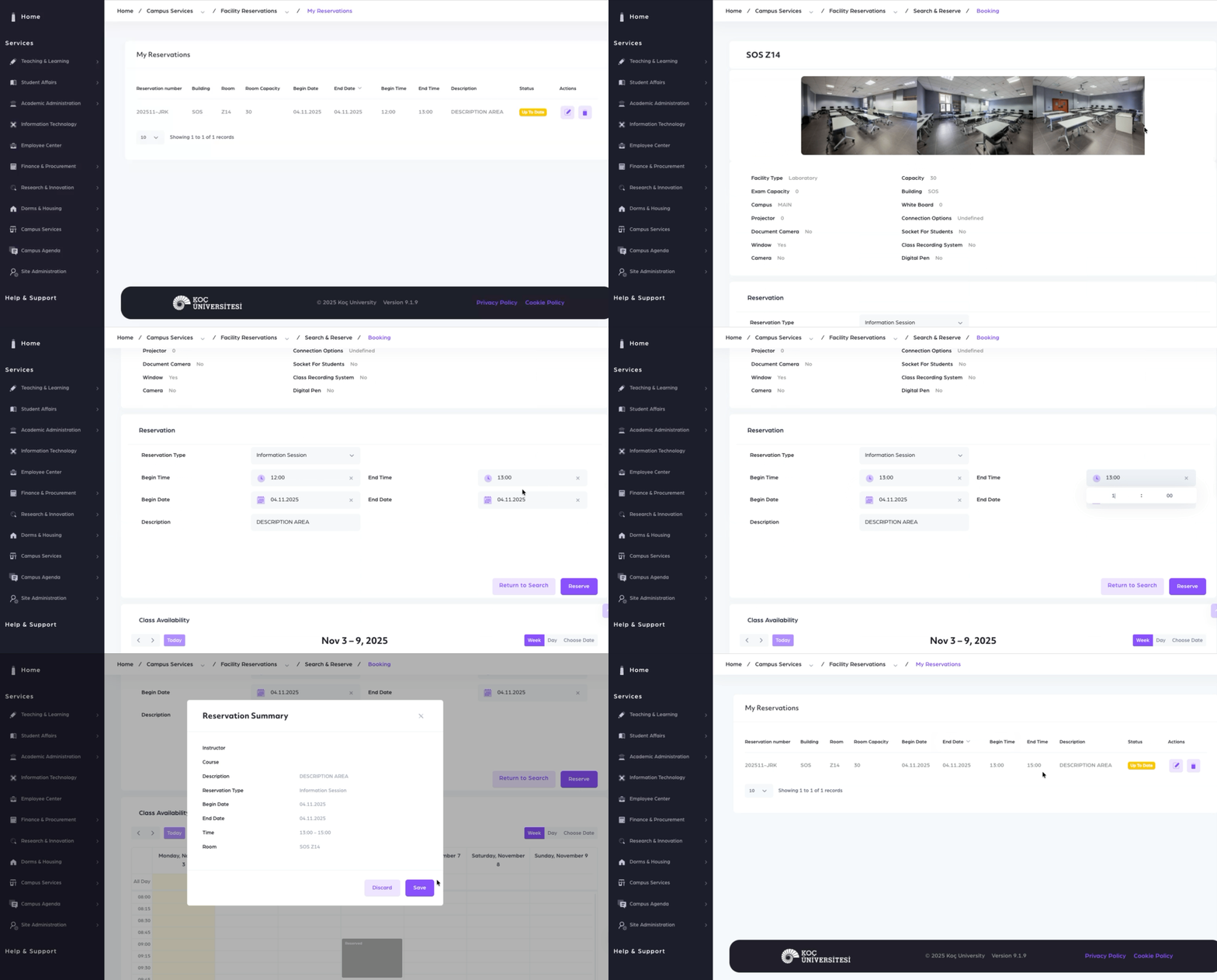
1. Access the Reservation System
-
Navigate: Home > Campus Services > Facility Reservations > Search & Reserve
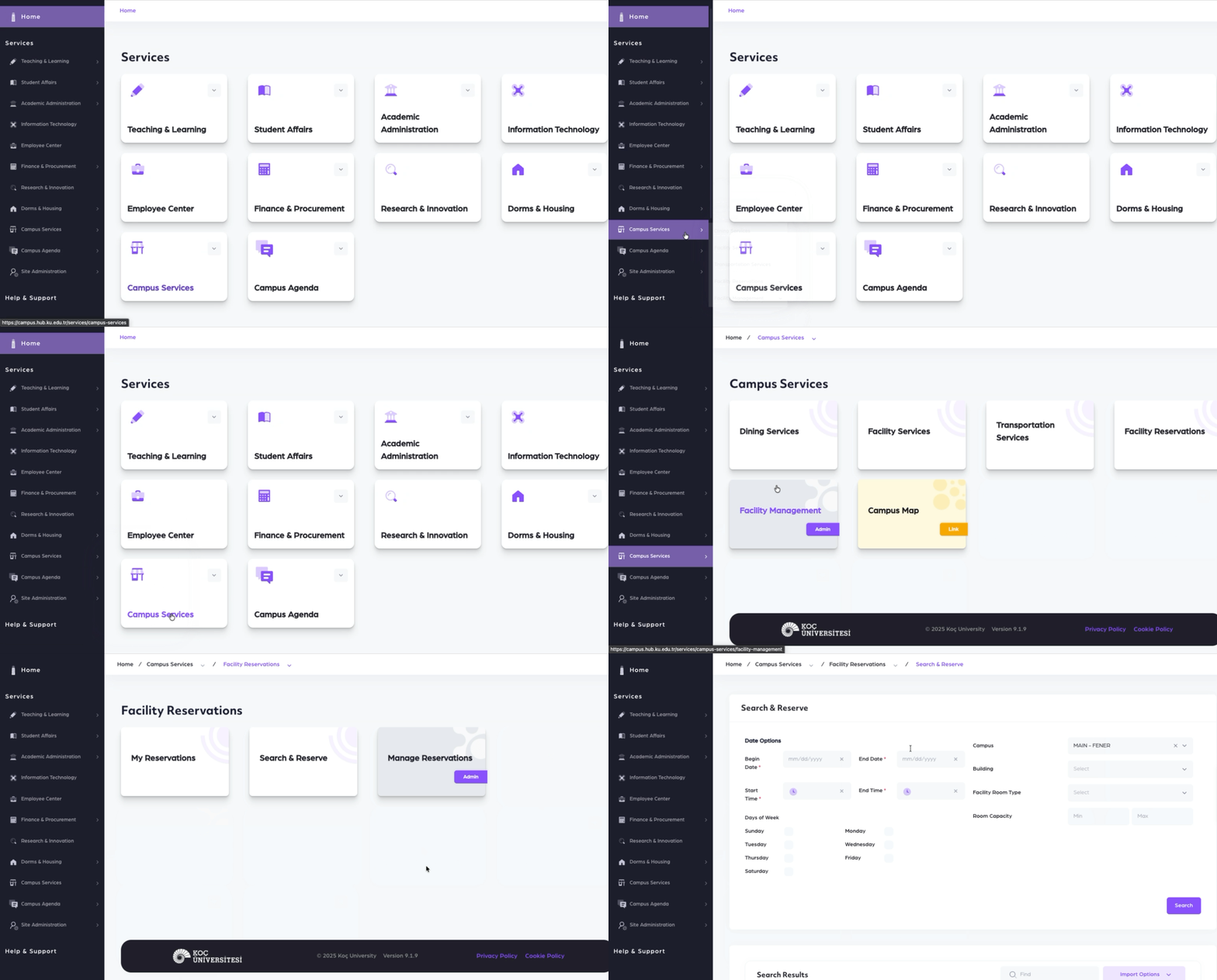
2. Search for Available Facilities
-
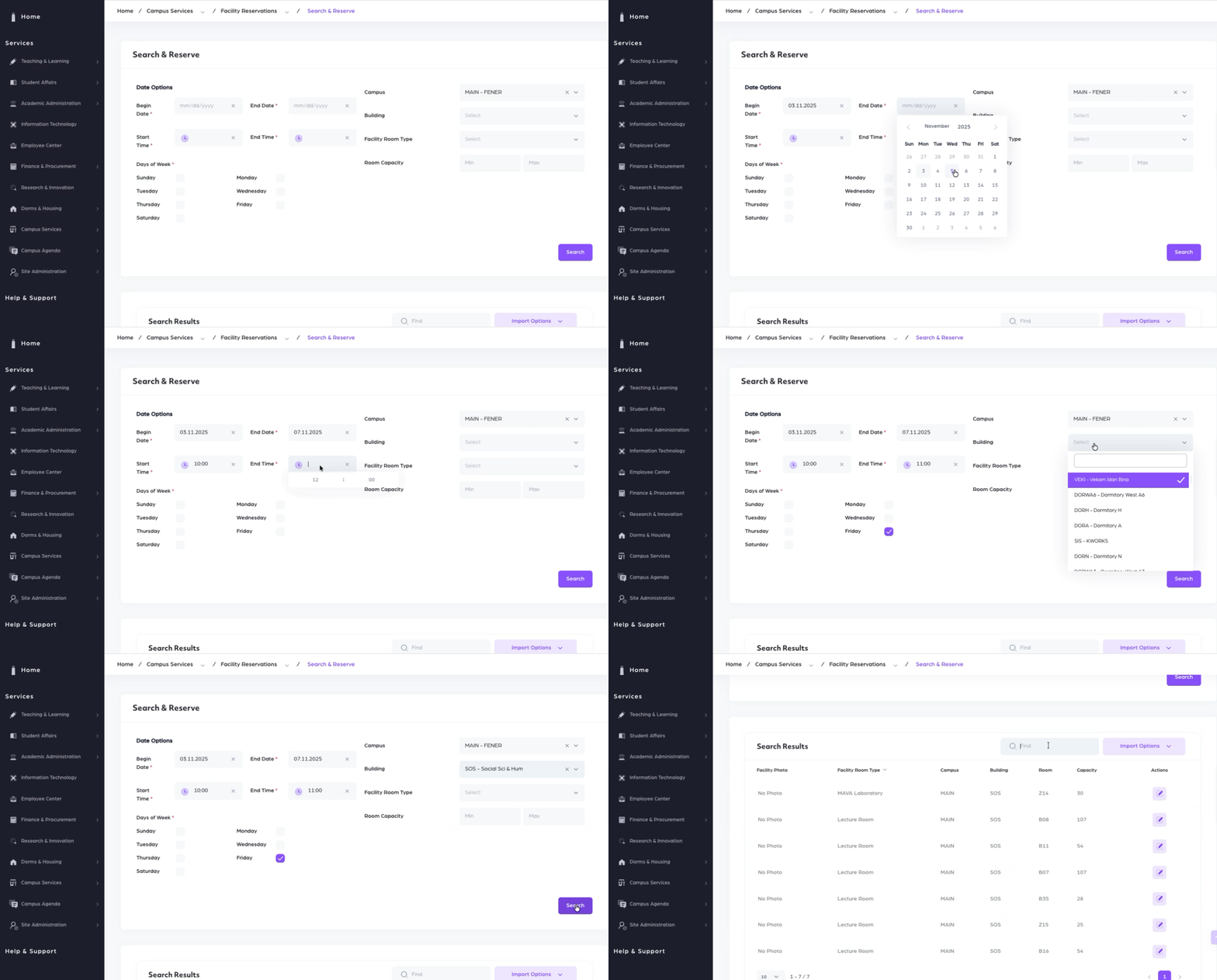
On the Classroom Search page, filter your search using:
-
Date Options
-
Facility Sub Type
-
Days of the Week
-
Start Time
-
Building
-
-
Click Search to view available facilities.
3. Select a Facility to Book
-
In the Search Results section, find your desired facility.
-
Click the Actions button (pencil icon) next to the facility to proceed to booking.
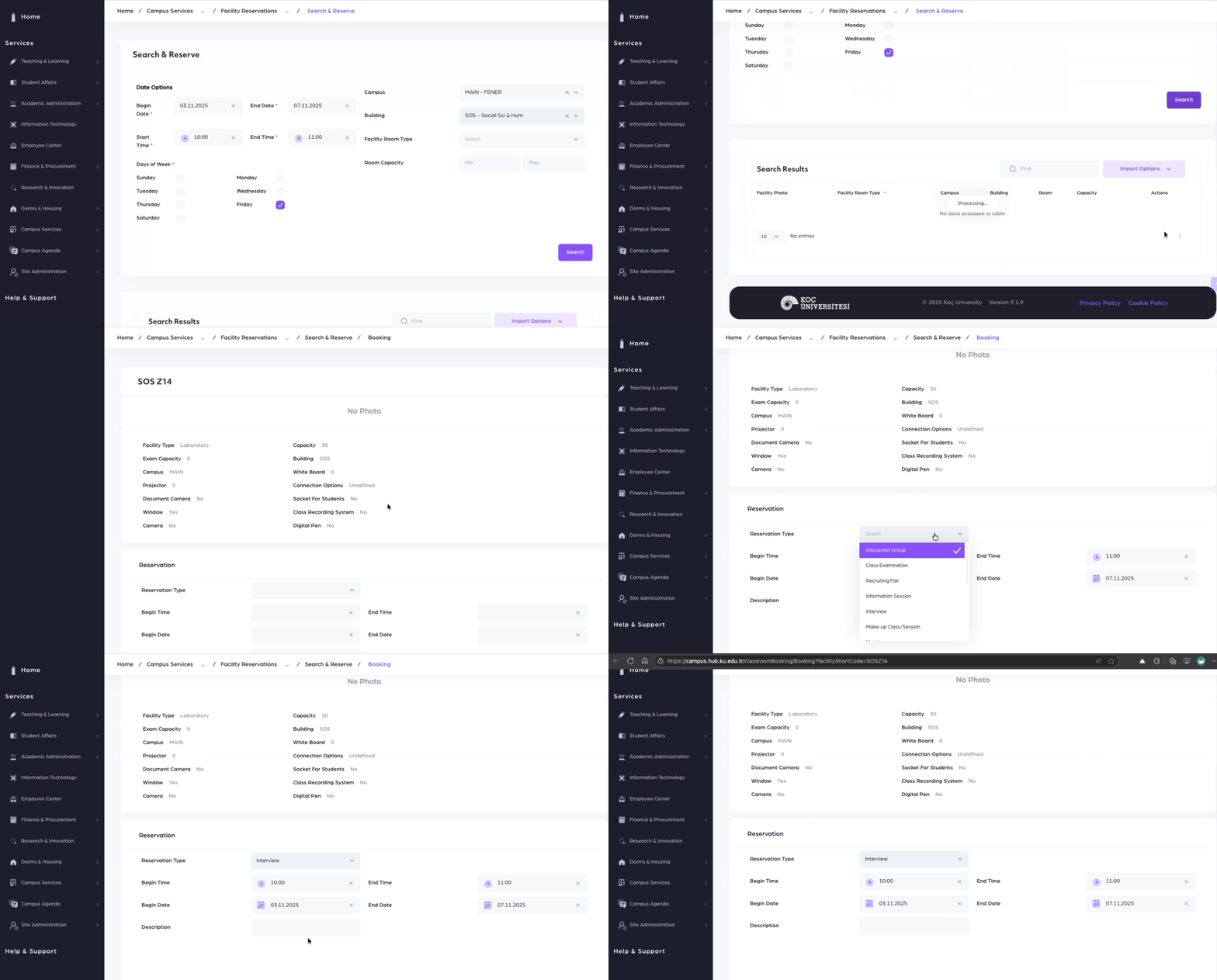
4. Choose Reservation Type
-
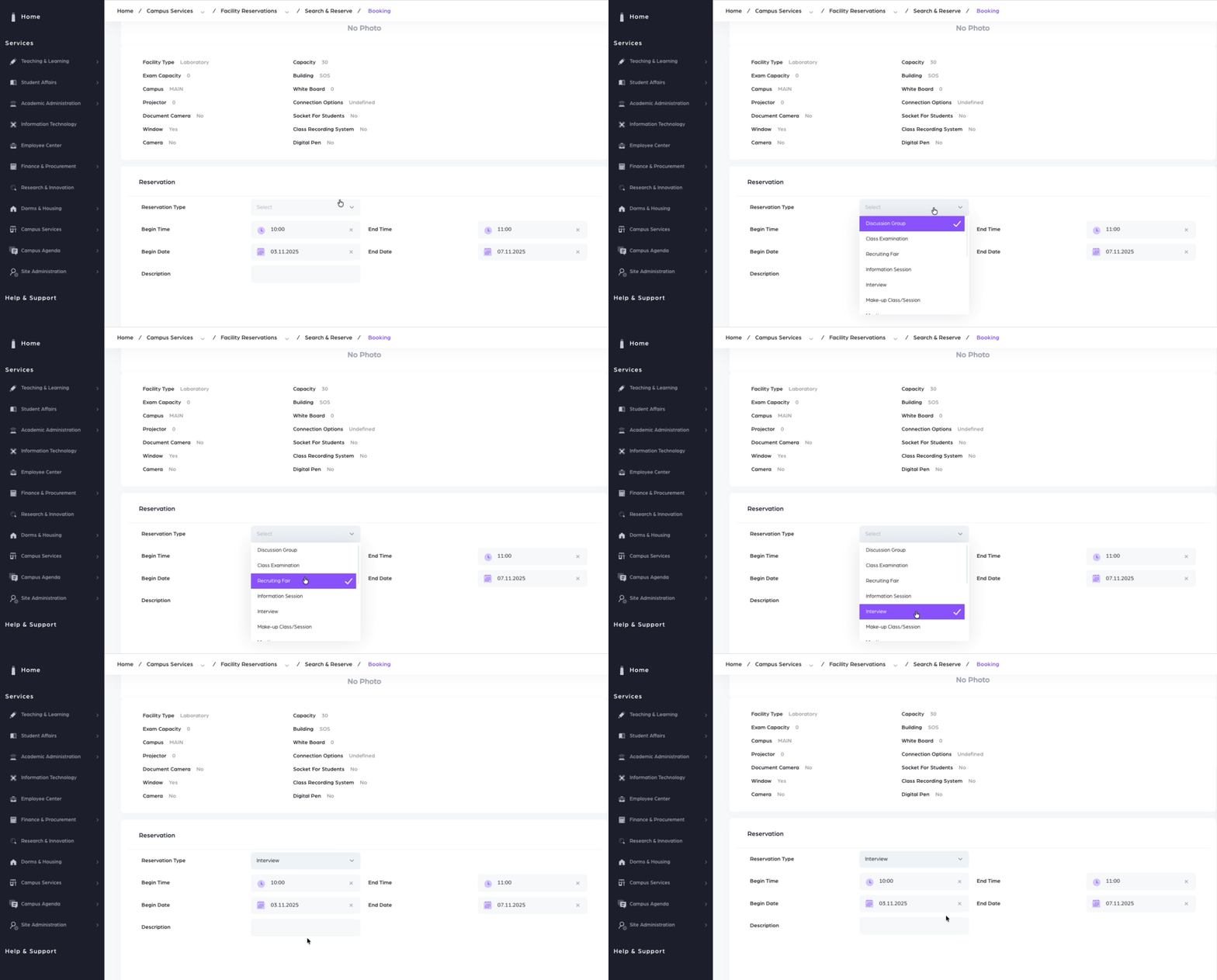
On the booking page, select the appropriate Reservation Type (e.g., Discussion Group, Recruiting Fair, Information Session, Interview).
5. Enter Reservation Details
-
Fill in the required fields:
-
The date, Begin Time, and End Time will be auto-filled based on the selected date.
-
Exam Seat Spacing (if applicable, for exams needing empty seats between students)
-
Calculated Exam Capacity (auto-calculated if seat spacing is used)
-
Combined (if combining rooms)
-
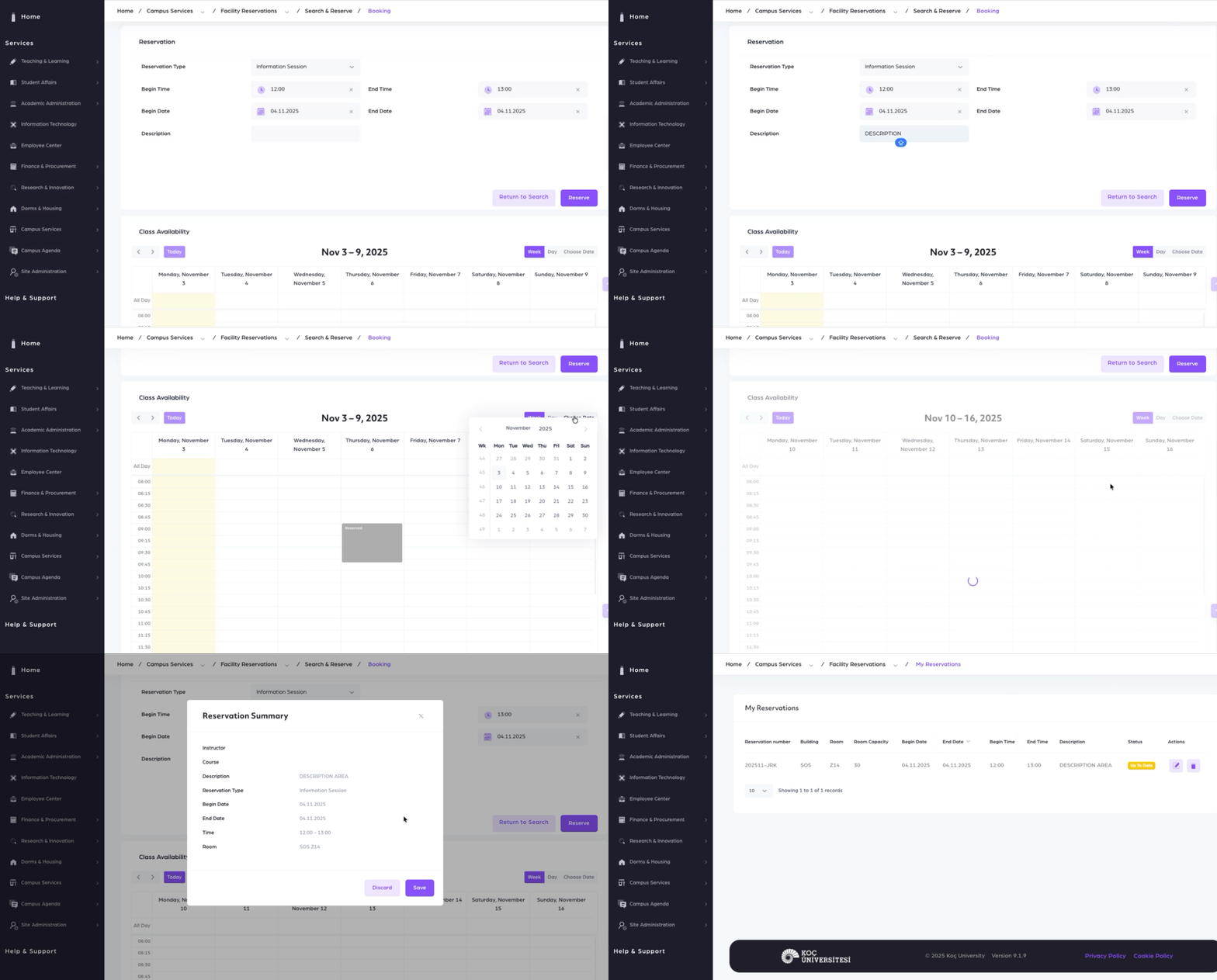
Description
-
-
Use the calendar to select available time slots.
-
Click Reserve.
6. Manage Your Reservations
-
After saving, you’ll be redirected to the My Reservations page.
-
Alternatively, access it via: Home > Campus Services > Facility Reservations > My Reservations
-
Use the Actions button to Edit or Delete your reservations as needed.