
How to access your archived courses?
-
All current data has been archived at https://learnarchive.hub.ku.edu.tr/
-
You can access your archived courses there and back up or reuse them when setting up in KUHub Learn.
Steps
-
Click 2024-2025
-
Select the course you want to access
-
Switch Edit Mode On at the top right corner
-
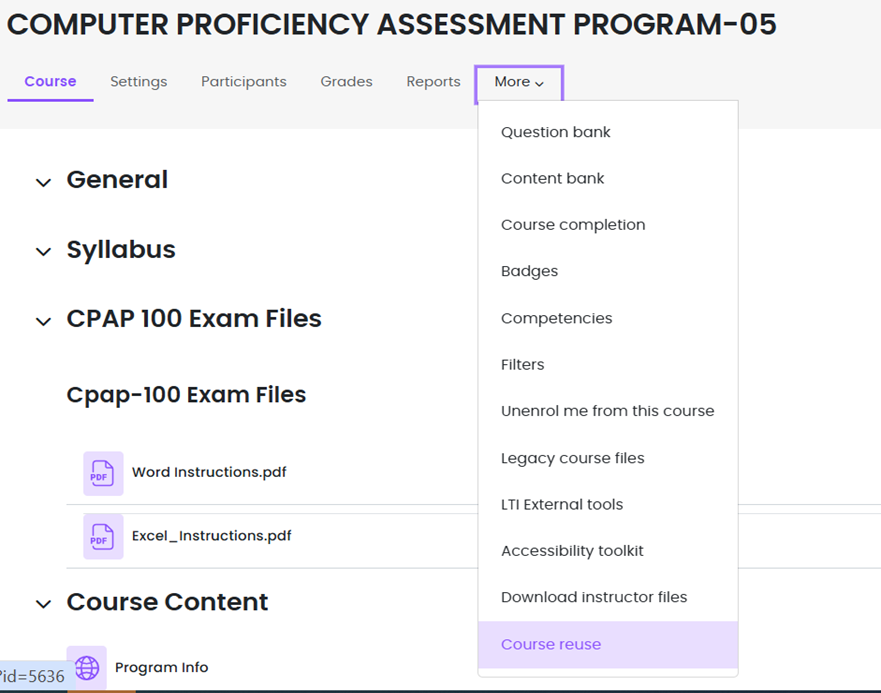
Click More and then select Course Reuse
-
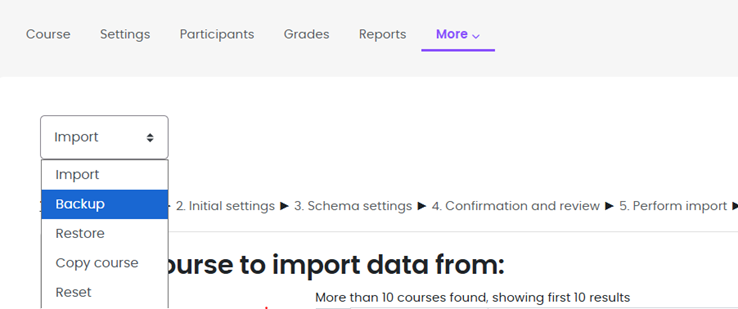
Select “Backup” from the dropdown
-
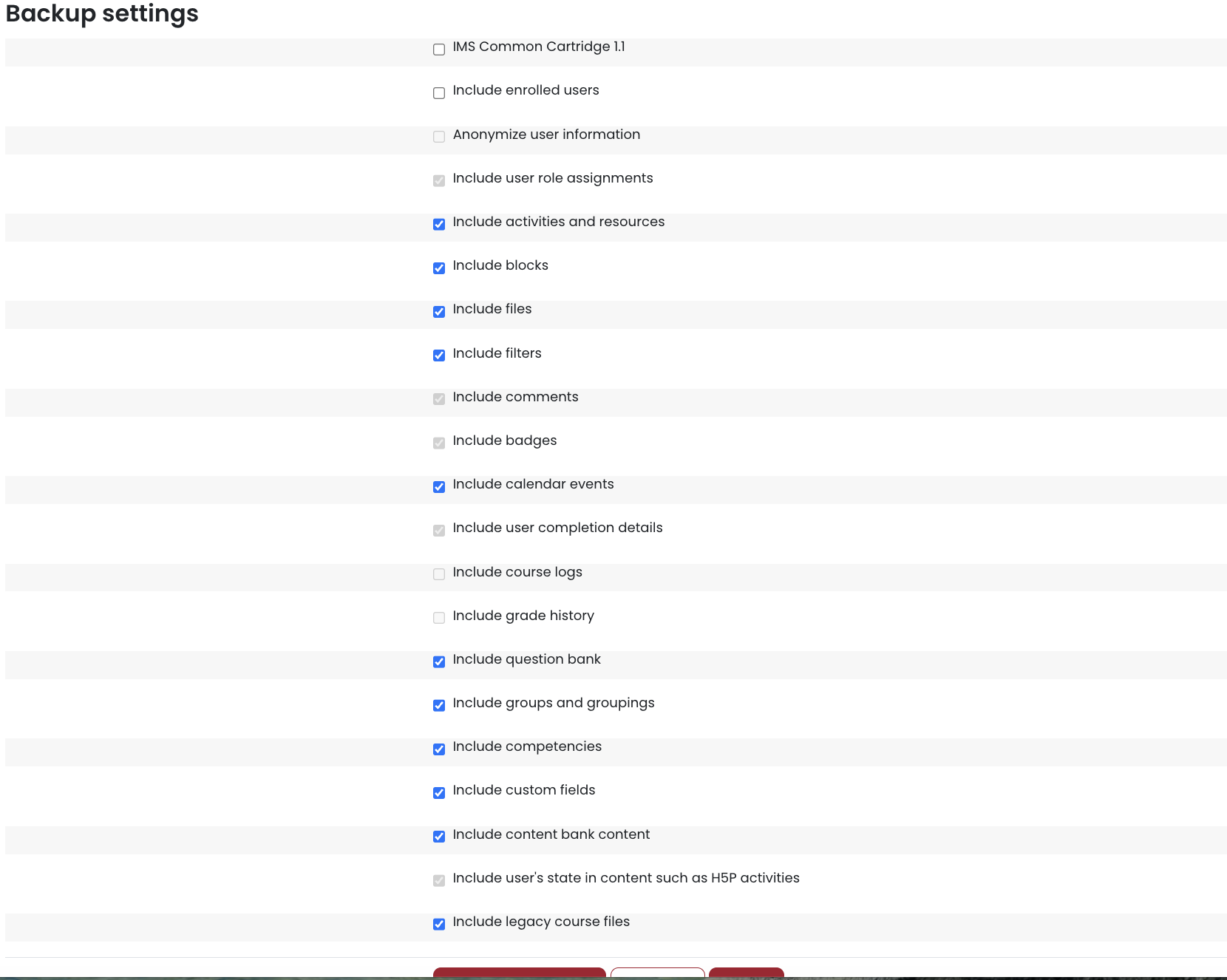
You need to choose which parts of the selected course you want. You can unselect the unwanted parts and click Next to confirm.
-
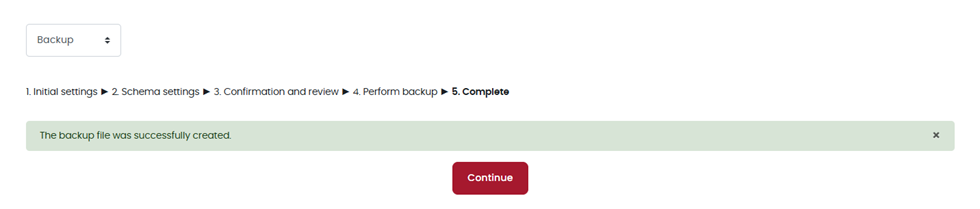
Backup file is created.
-
You can download your backup file by clicking the download button in the same line with the package you created.

-
Once you download your course package from archive, you can go back to learn.hub.ku.edu.tr
-
Go to your course, go to More and then select Course Reuse.
-
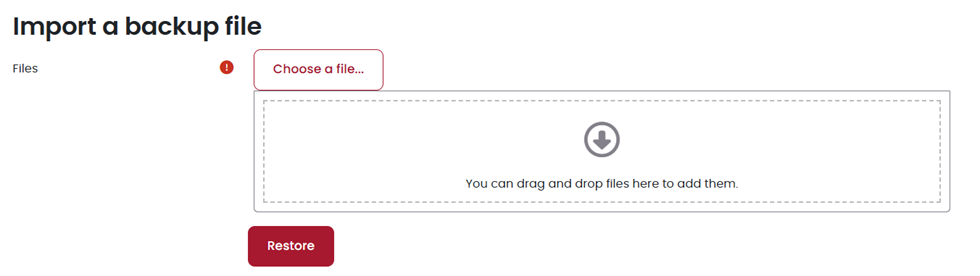
Restore menu will ask you to attach the Backup file you have downloaded before. Upload it by drag-dropping to the area.
-
Once uploaded, click Restore.
-
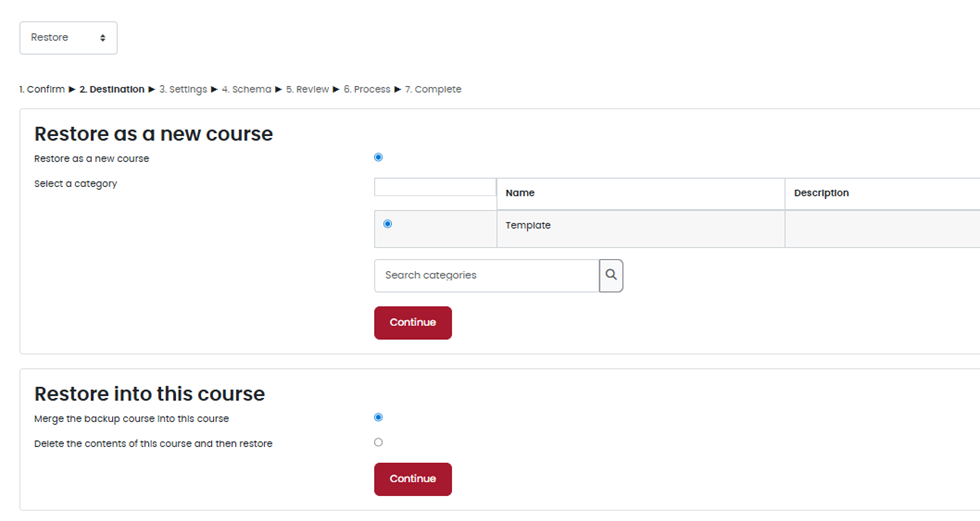
Navigate to the Restore into this course section.
-
Click continue.
-
For the next steps, if you want a basic copy of your course, just click Next, Next and Perform Restore. Otherwise, you can change some settings about content or general settings, although you can change them in the future as well.
-
Clicking Perform Restore will complete the action.
Features
-
Back up
-
Import
-
Restore
Who can use it?
-
Faculty
When can I use it?
This service is available all the time.
How much does it cost?
This service is available at no charge to the KU community.
How do I get it?
-
Login with your KU NetID and Password