
Follow the steps below to download the Moodle mobile application and log in using your institutional credentials.
Step 1: Download the Moodle App
-
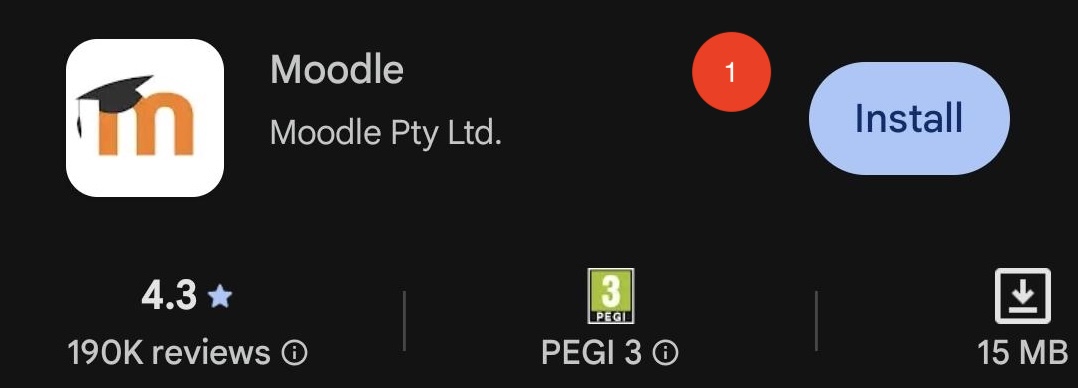
Search for “Moodle” in the Google Play Store.
-
Tap the Install button to download and install the official Moodle app on your device.
-
Make sure you download the official Moodle app developed by Moodle Pty Ltd.
Step 2: Select Your Role
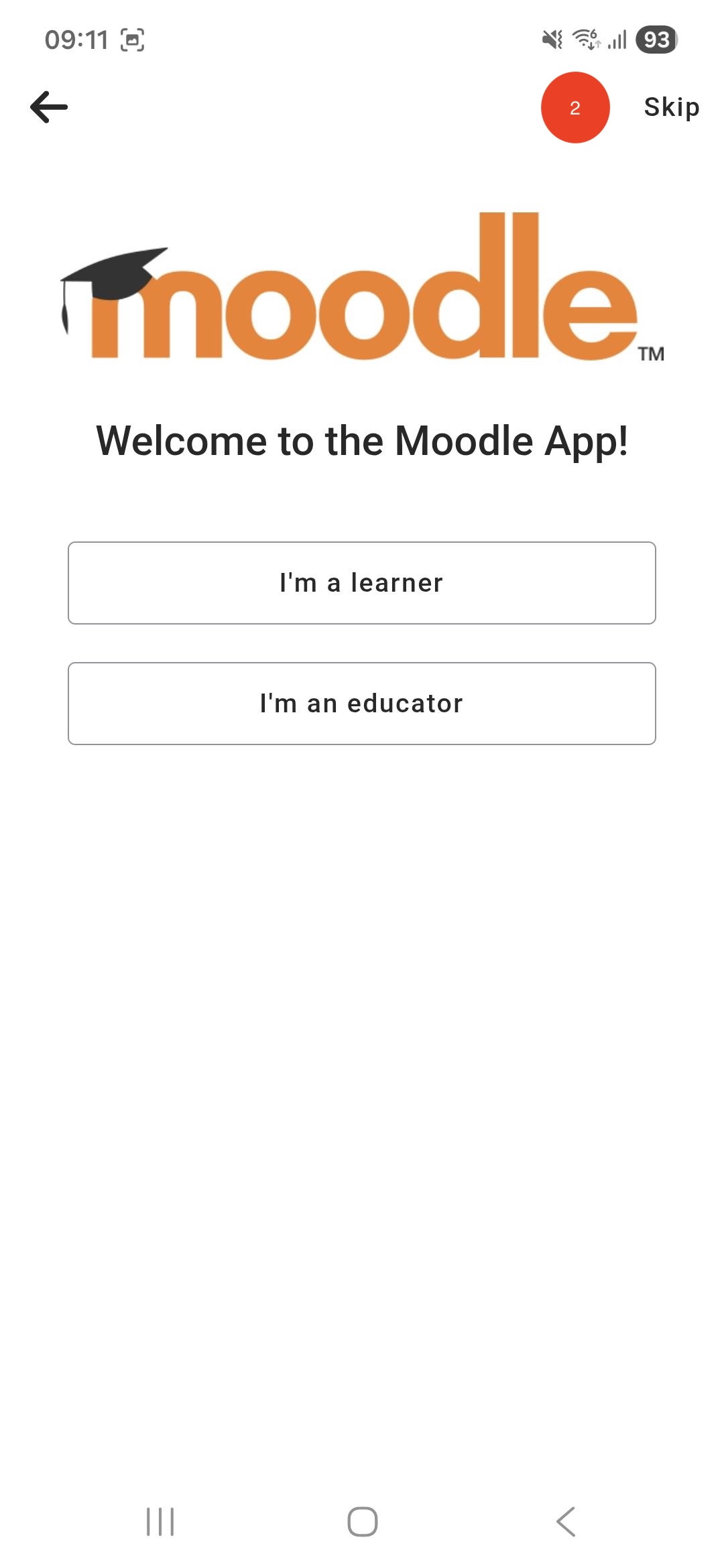
After installing and opening the app, you will be asked to select your role.
-
Tap “I’m a learner” if you are a student.
-
Tap “I’m an educator” if you are an instructor.
Select the option that matches your role at the university.
Step 3: Connect to Your Moodle Site
-
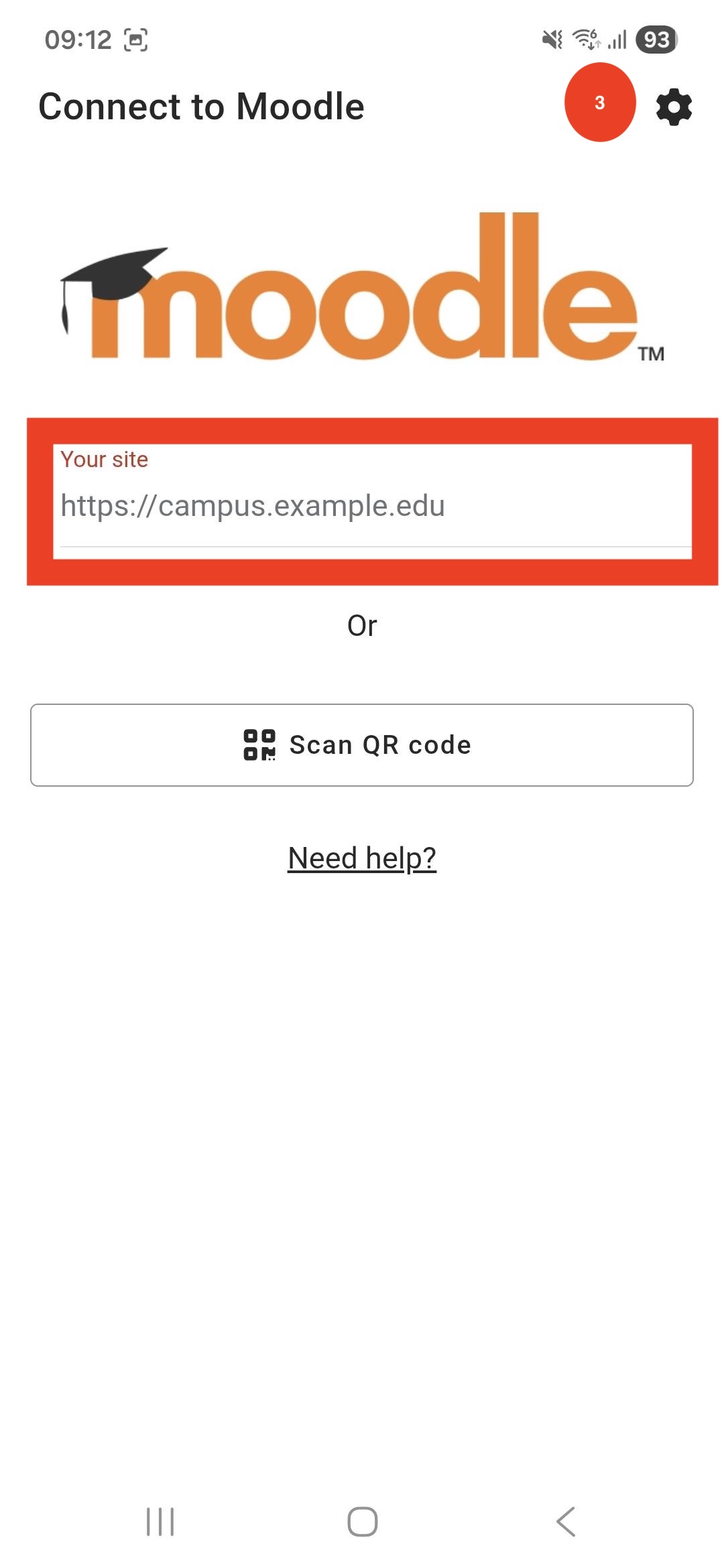
On the next screen, you will see the “Connect to Moodle” page.
-
Tap the field where you can enter your Moodle site address.
Step 4: Enter the Moodle Site Address
-
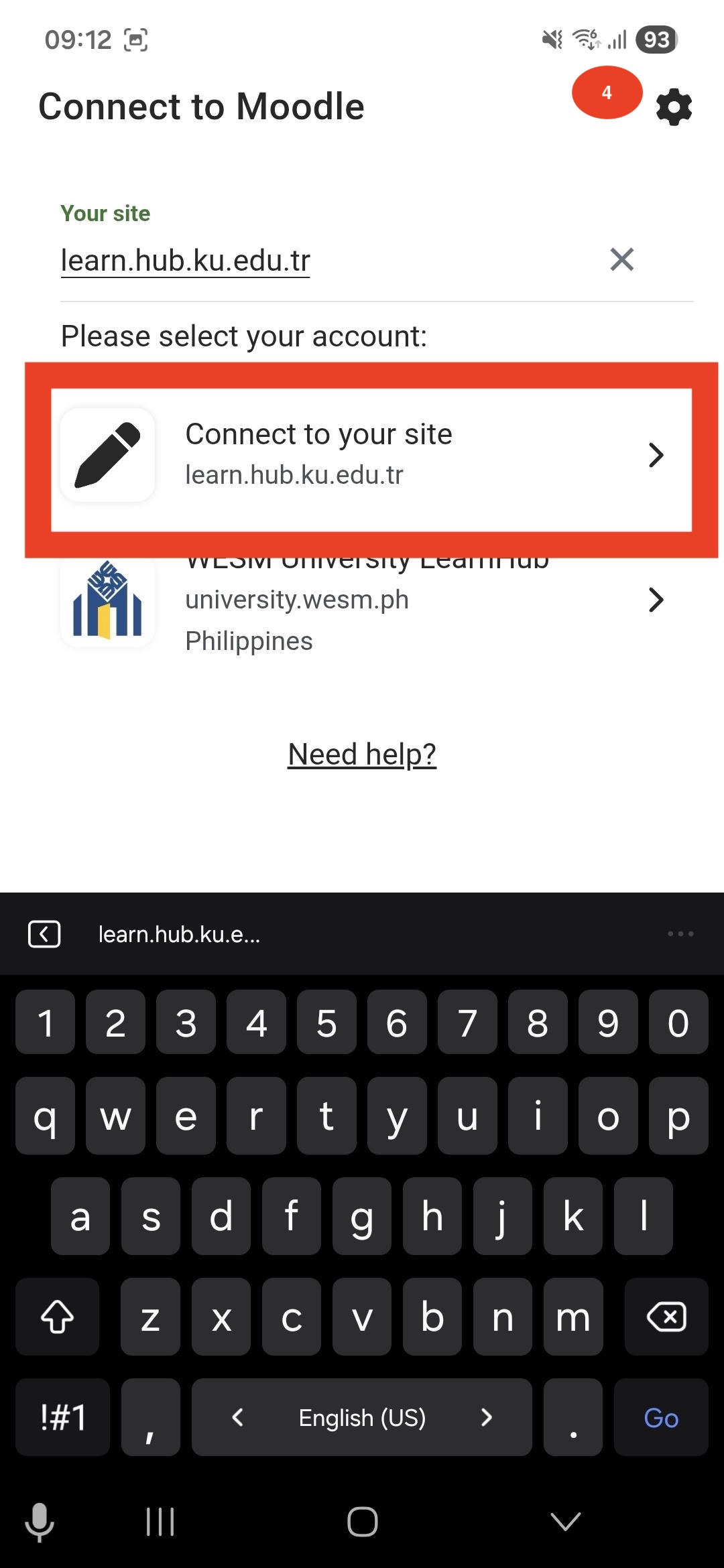
In the site address field, type:
learn.hub.ku.edu.tr -
After entering the address correctly, tap Connect to your site.
-
Make sure there are no spelling mistakes when typing the address.
Step 5: Log In with Your Credentials
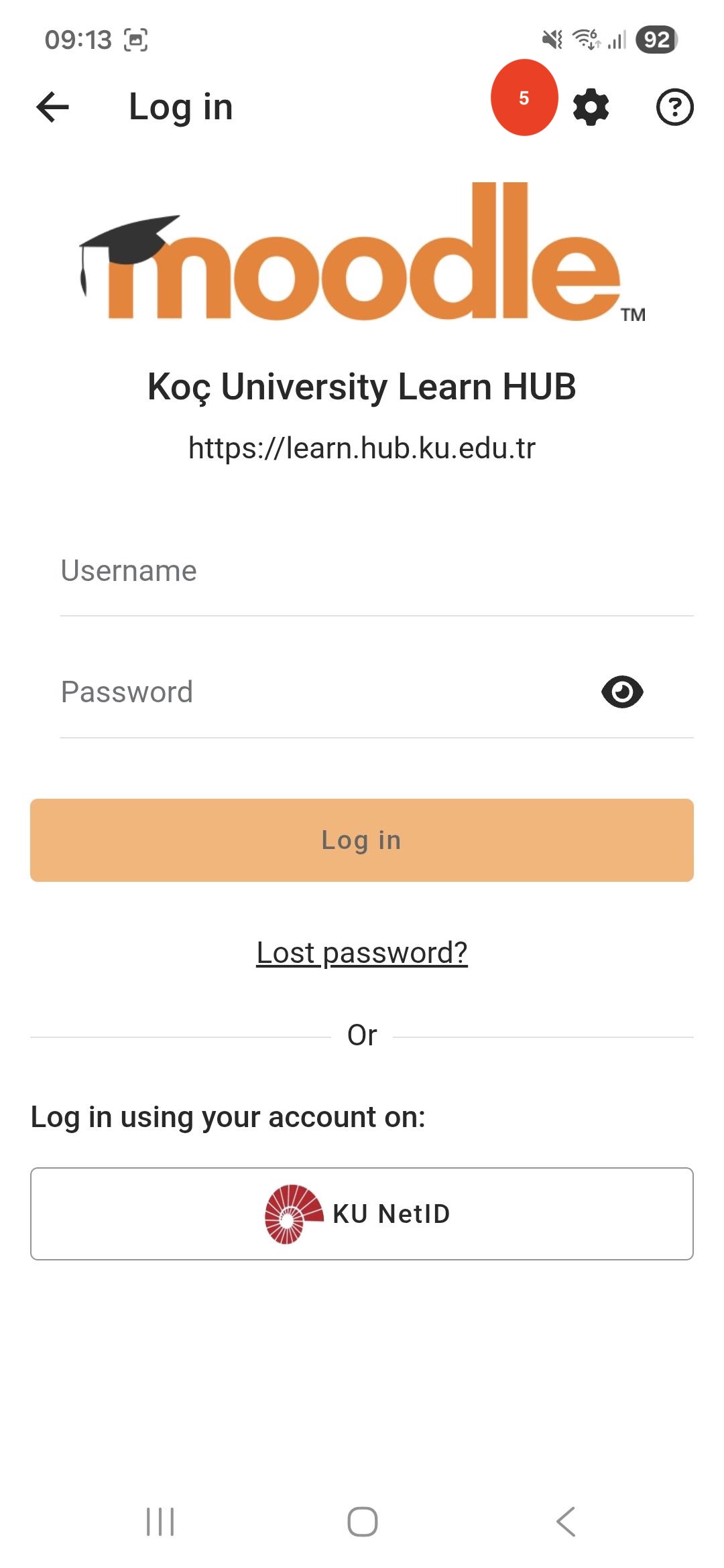
Once the KUHub Moodle login page appears:
-
Enter your username (your institutional email address).
-
Enter your password.
-
Tap the Log in button.
Please ensure that you use your official university credentials.
Step 6: Access Your Courses
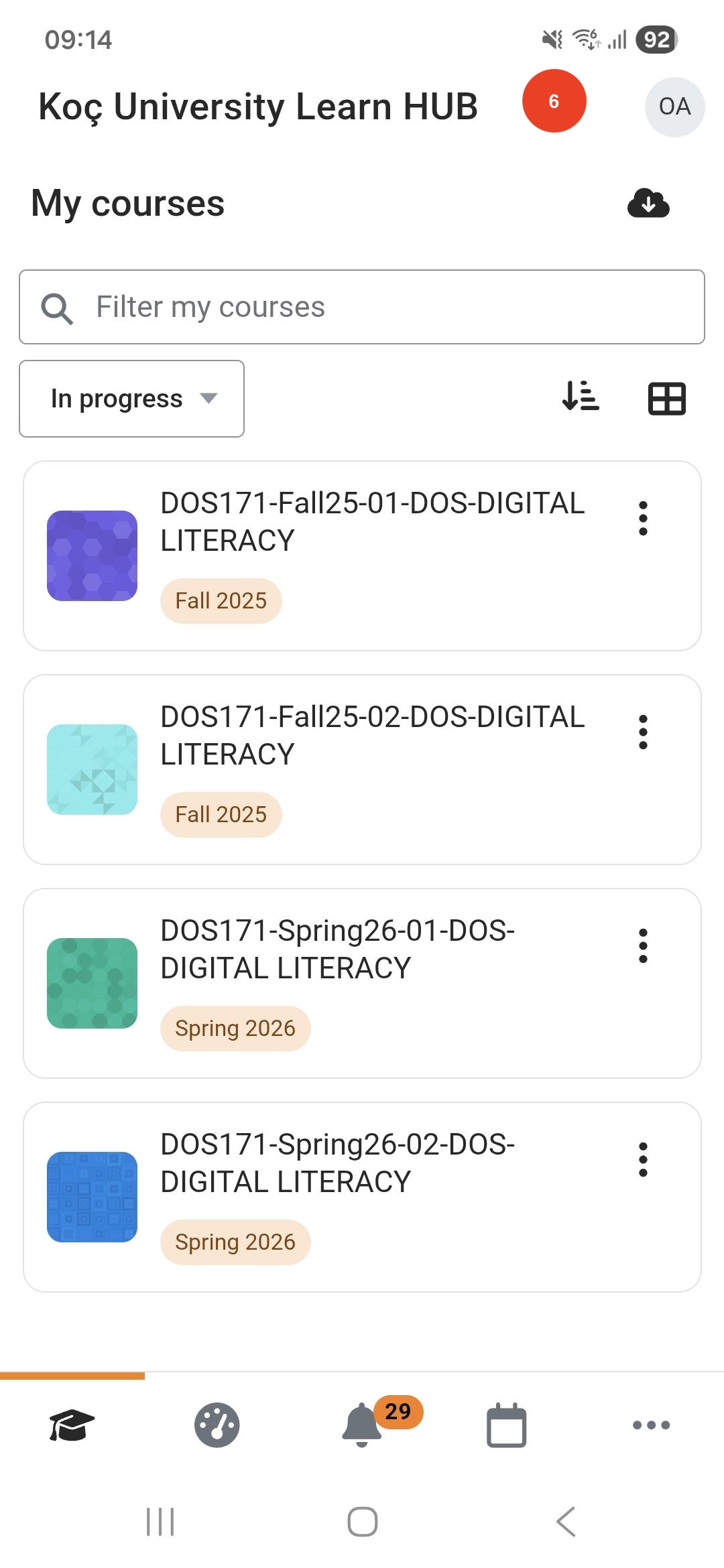
After logging in successfully, the My Courses page will open by default.
Here, you can:
-
View your enrolled courses
-
Access course materials
-
Track your learning progress
Tap on any course to start learning.
If you experience login issues, please make sure:
-
The site address is entered correctly.
-
You are using your official email and password.
-
Your internet connection is stable.