Quizzes created in Learnhub are automatically graded once completed. However, quiz results are not visible to students by default.
To make quiz results visible after the exam, specific settings need to be updated.
This guide explains how to display quiz results to students after the quiz is completed.
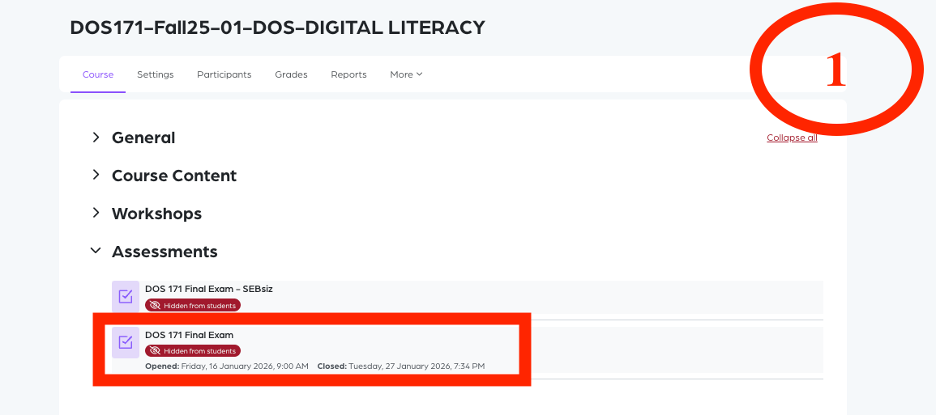
Step 1: Select the Quiz
Click on the quiz for which you want to change the visibility of grades.
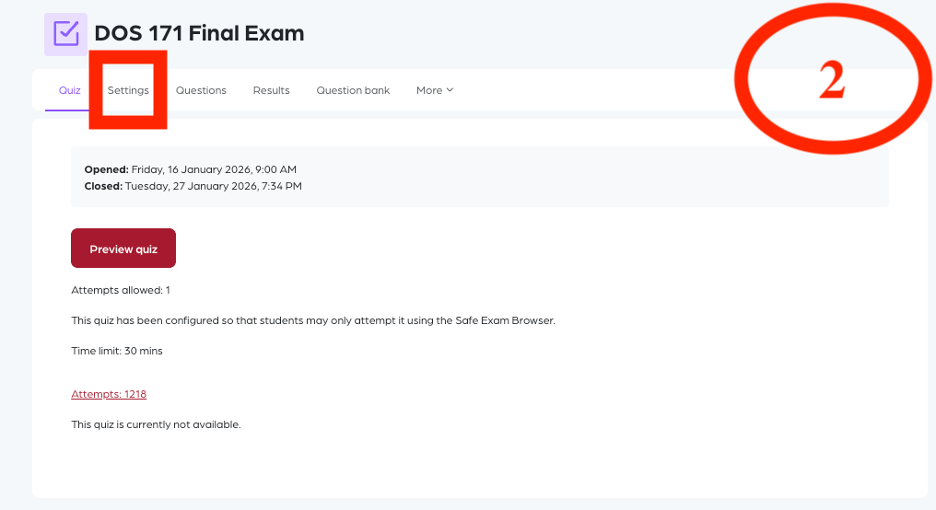
Step 2: Open Settings
Once the quiz page is visible, navigate to the Settings tab.
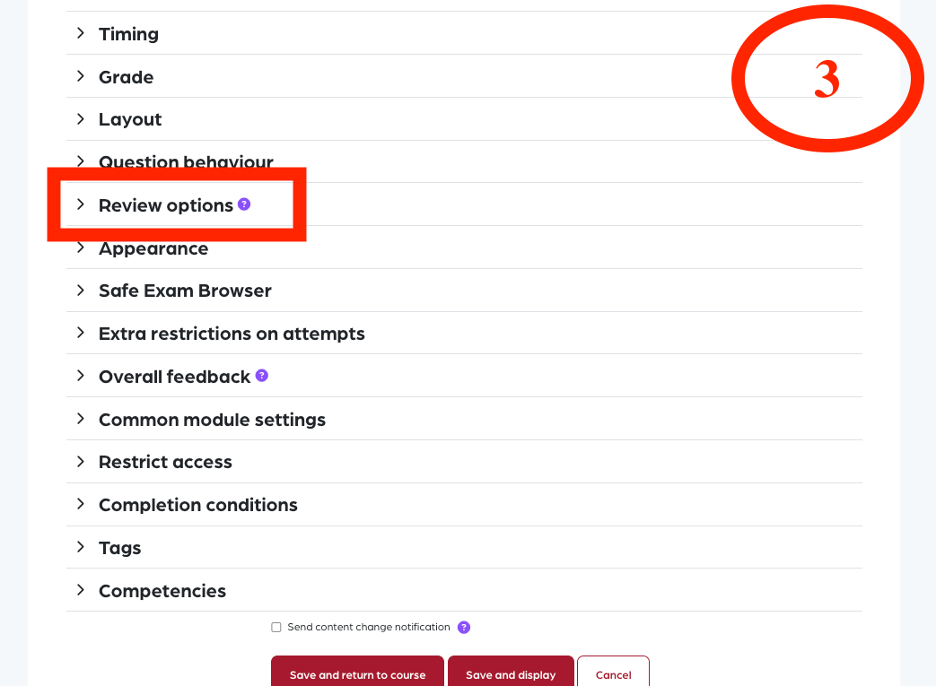
Step 3: Access Review Options
In the Settings tab, click on Review options.
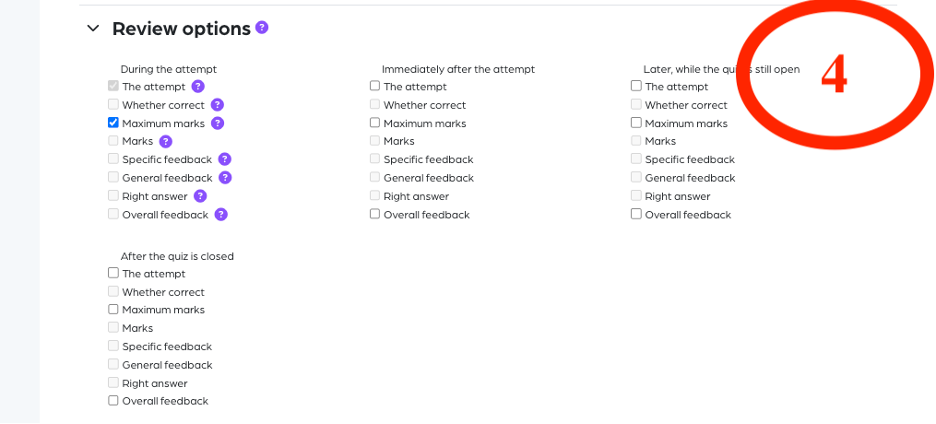
Step 4: View Review Options
You will see multiple visibility options for different time conditions.
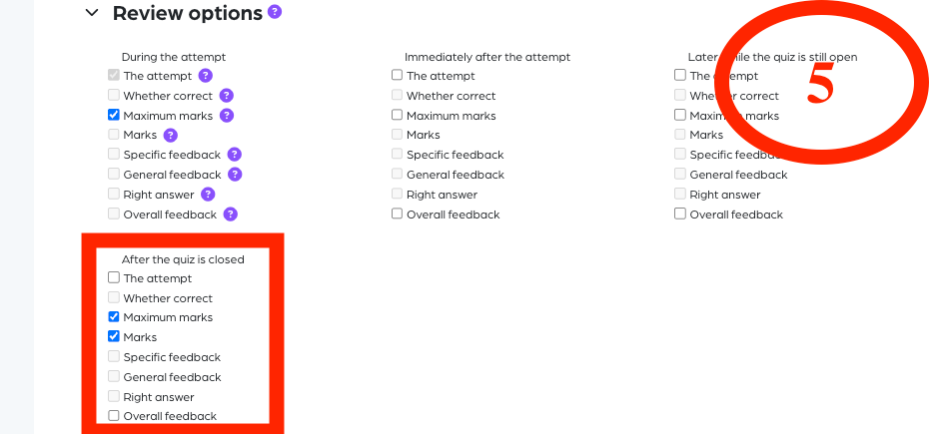
Step 5: Enable Grade Visibility
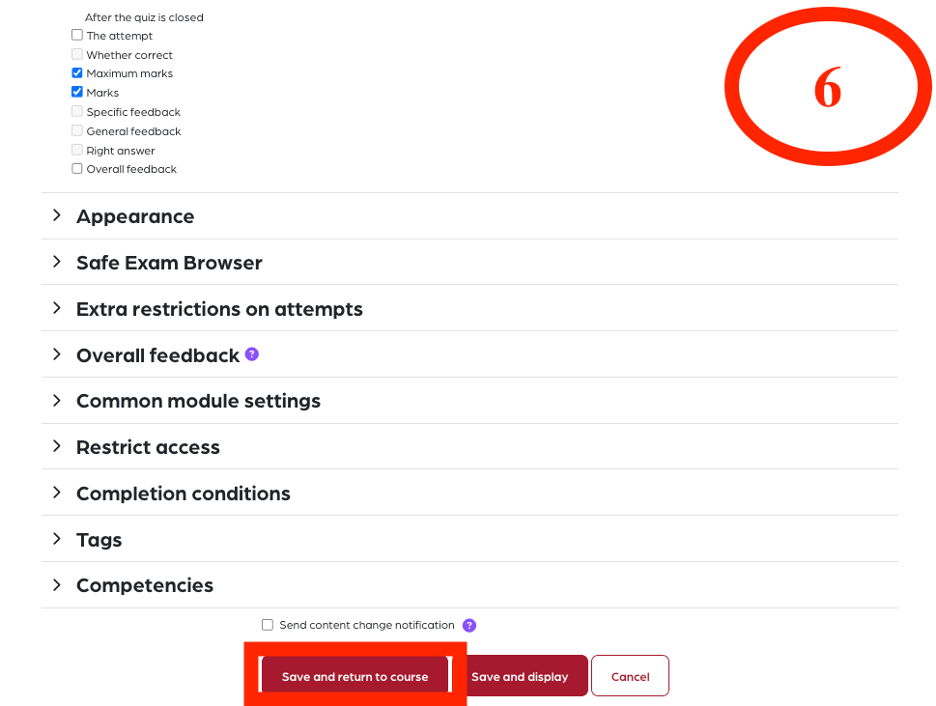
To make grades visible to all students, go to After the quiz is closed and check the following options:
-
Maximum marks
-
Marks
What happens if you enable these options?
Students will be able to see:
-
Their own score (Marks)
-
The total possible score (Maximum marks)
What happens if you do NOT enable these options?
Students will not see any grade information, even after the quiz is closed.
Step 6: Save Changes
Click Save changes to apply the settings.