
Overview
If you experience issues when submitting your attendance by scanning a QR code, follow the steps below to ensure a smooth process.
Before scanning the attendance QR code, make sure you are logged in to LearnHub using your default browser. When you scan the QR code, the link will open in your device's default browser. In this guide, Google Chrome is used as the default browser.
To avoid being asked to log in again after scanning the QR code, we recommend setting Google Chrome as your default browser and logging in to LearnHub before scanning the code.
Step 1: Set Google Chrome as Your Default Browser
Make sure Google Chrome is set as the default browser on your device. This helps ensure that the QR code opens in Chrome.
-
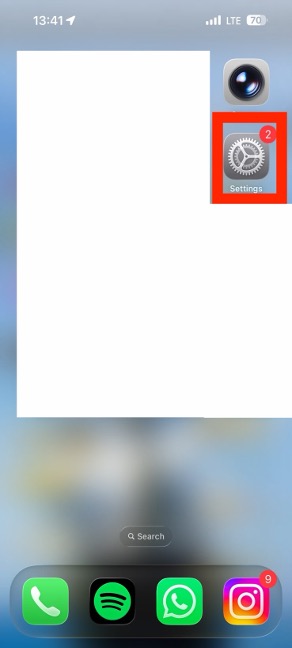
Open your device's settings.
-
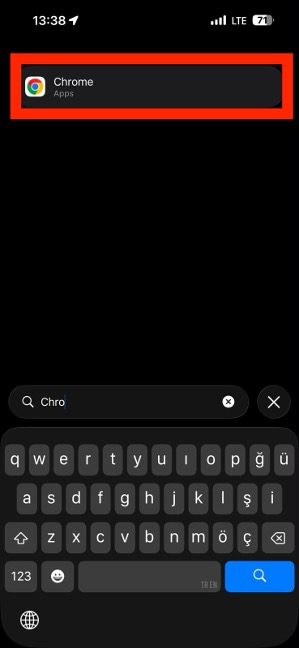
Type Chrome in the search bar.
-
Select Google Chrome as your default browser.
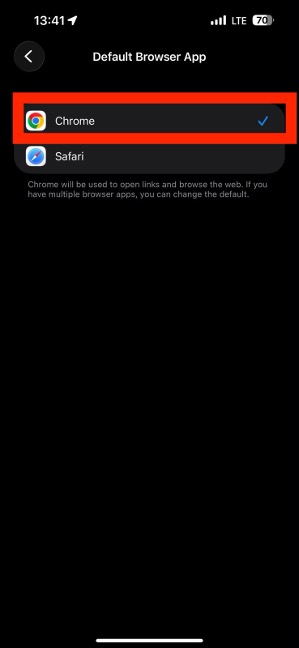
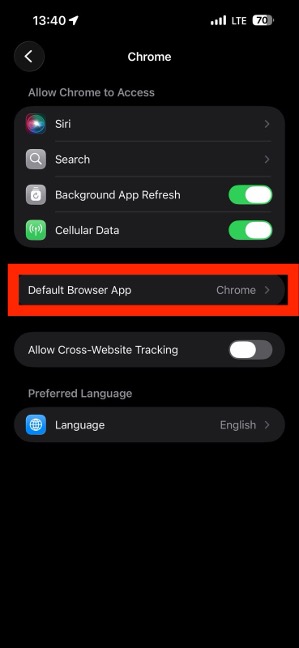
Note: The steps may vary depending on your device and operating system.
Step 2: Open Google Chrome and Log In to LearnHub
Before scanning the QR code, log in to LearnHub using Google Chrome.
-
Open Google Chrome.
-
Navigate to LearnHub.
-
Log in using your university credentials.
-
Make sure you can access LearnHub successfully.
Important: Do not close your Chrome session after logging in. Keeping your session active may help you avoid having to log in again when you scan the QR code.
Step 3: Scan the Attendance QR Code
Once you are logged in to LearnHub:
-
Open your device's camera or QR code scanner.
-
Scan the QR code displayed by your instructor.
-
Tap the link that appears.
-
Make sure the link opens in Google Chrome.
Step 4: Confirm Your Attendance
After opening the QR code link in Chrome:
Confirm that your attendance has been recorded successfully.
Troubleshooting
If you are still experiencing issues:
-
Confirm that Google Chrome is your default browser.
-
Log in to LearnHub in Chrome before scanning the QR code.
-
Make sure the QR code link opens in Chrome rather than another browser.
-
Check that your LearnHub session is still active.
Reminder: QR codes may expire or refresh after a short period. Scan the QR code displayed by your instructor and submit your attendance promptly.