My Courses Page
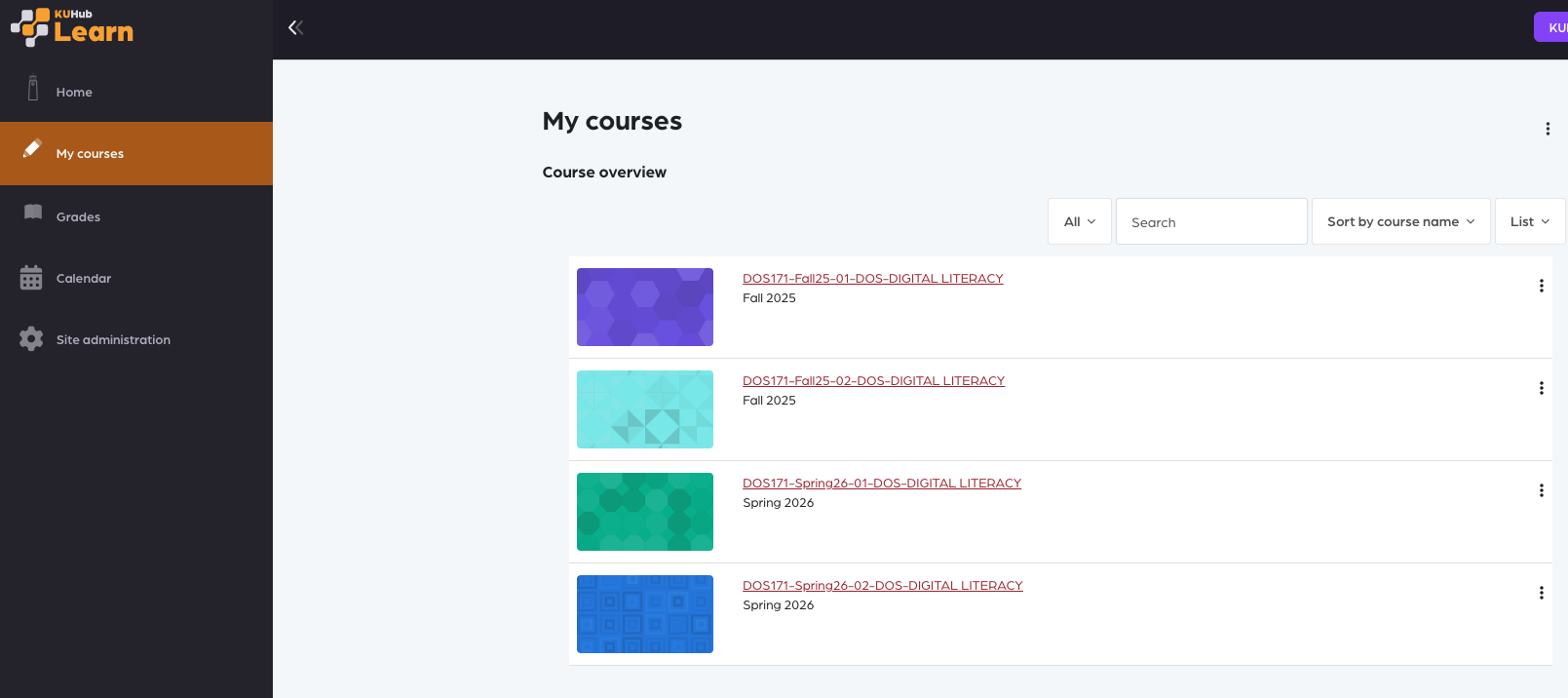
On the My Courses page, you can see all the courses you are currently enrolled in. Each course is displayed as a separate card. From here, you can manage the visibility and organization of your courses.
Accessing Course Options
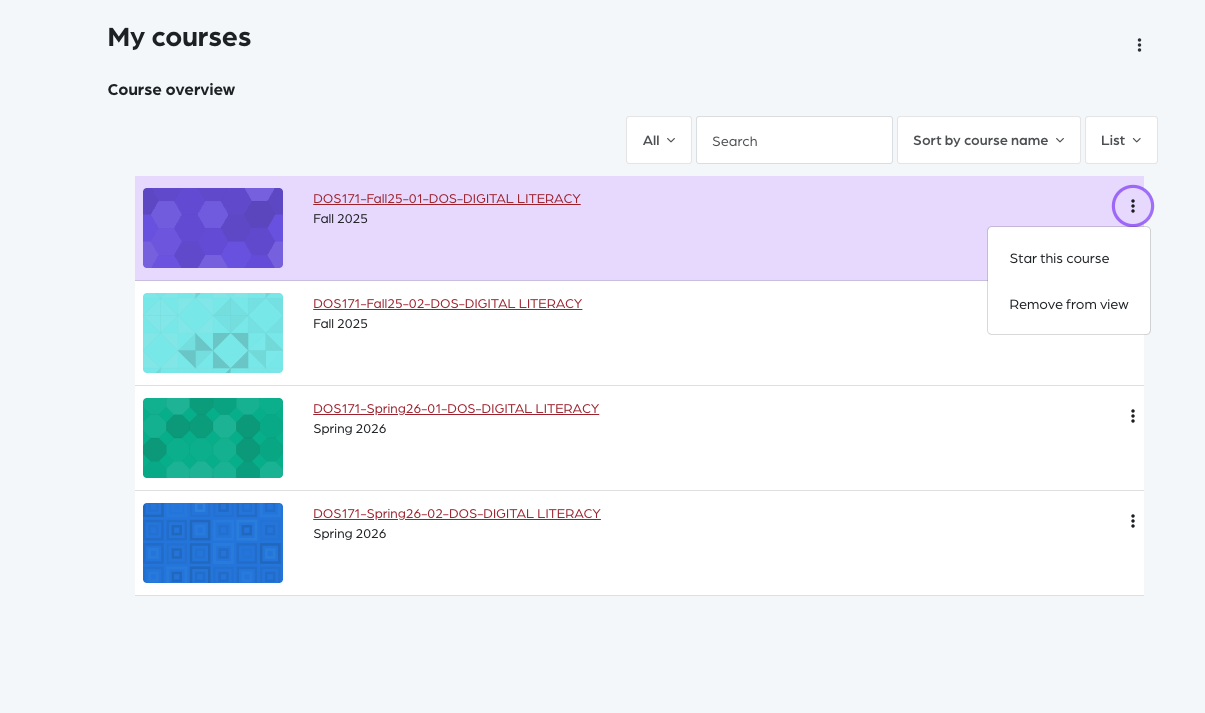
Click on the three-dot (⋮) menu located on the top right corner of a course card.
A dropdown menu will appear with the following options:
-
Star this course
-
Remove from view
Remove from View Option
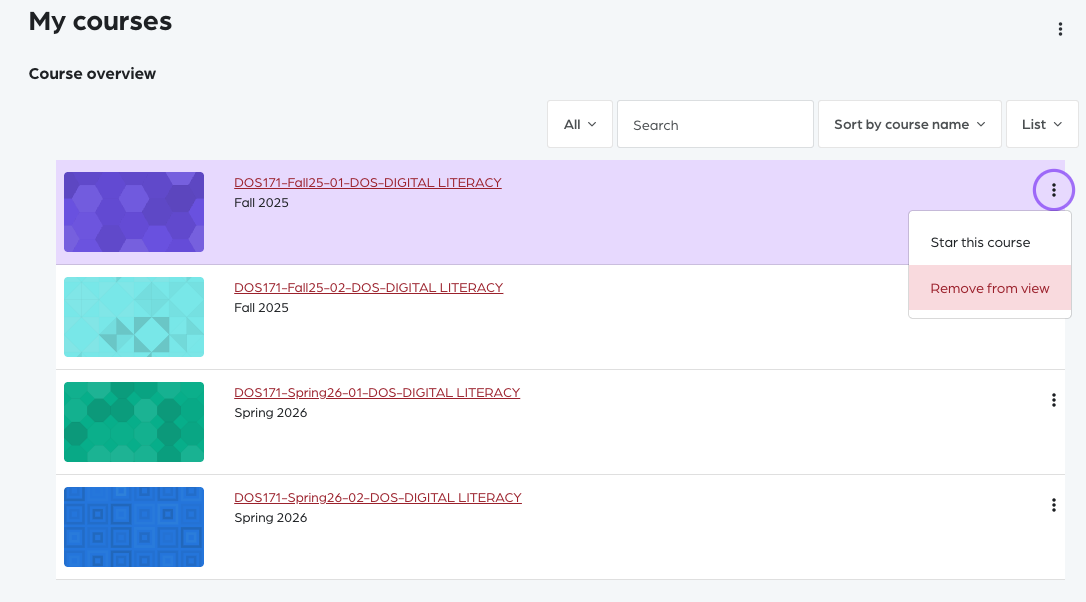
Select Remove from view to hide the course from your main My Courses page.
This option helps you keep your course list clean and organized.
Course Removed from My Courses
After clicking Remove from view, the selected course will no longer appear on your My Courses page.
The course is not deleted — it is simply hidden from this view.
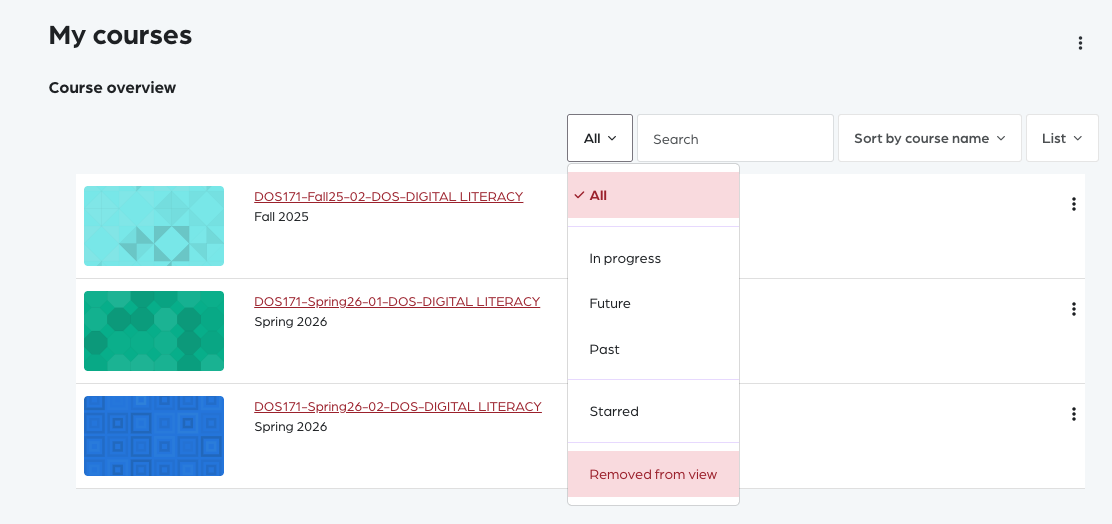
Accessing Hidden Courses via All Tab
Click on the All tab at the top of the course list.
Then select Remove from view from the filter options to display courses that have been hidden.
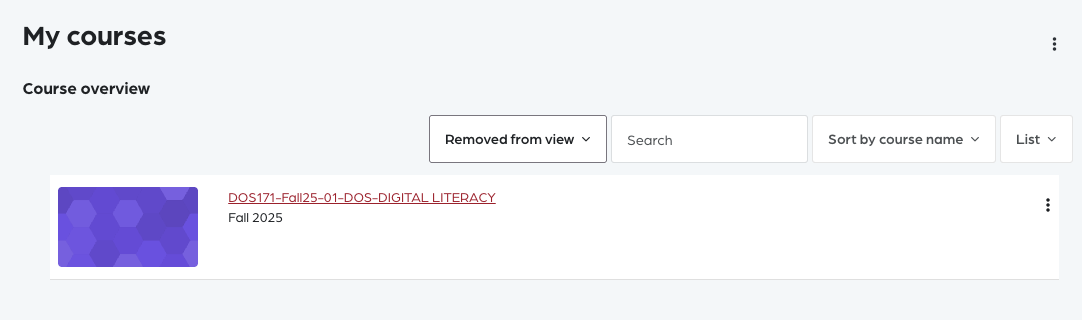
Viewing Removed Courses
When you select Remove from view under the All tab, the courses you previously hid will be displayed here.
You can manage and restore them from this section.
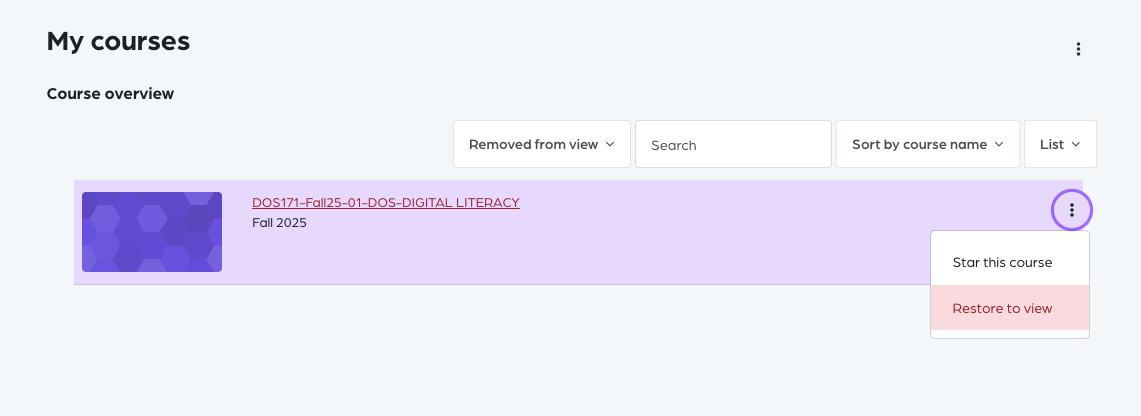
Restoring a Course
Click on the three-dot (⋮) menu of a hidden course.
Select Restore to view to make the course visible again on your My Courses page.
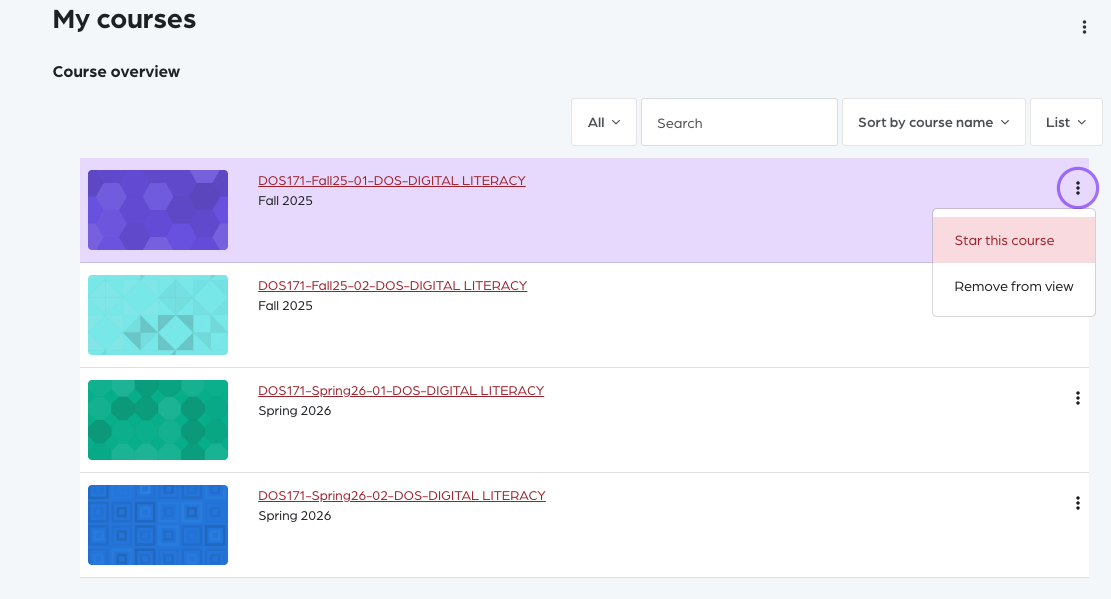
Starring a Course
Click on the three-dot (⋮) menu on a course card.
Select Star this course to mark it as important or frequently accessed.
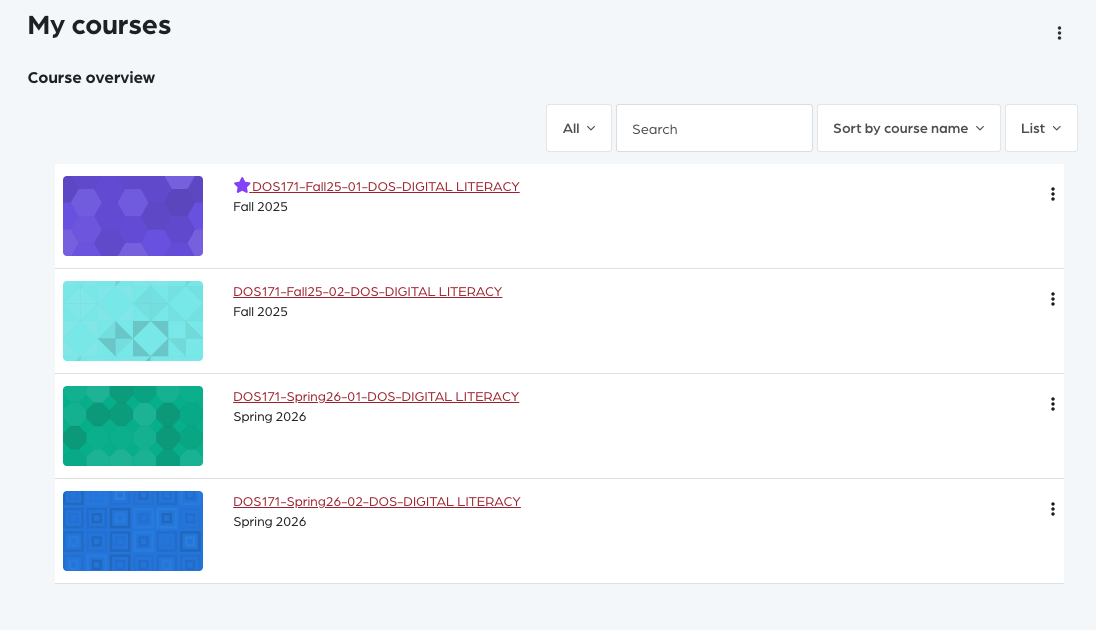
Starred Course Indicator
After selecting Star this course, a star icon will appear next to the course.
This indicates that the course has been added to your starred list.
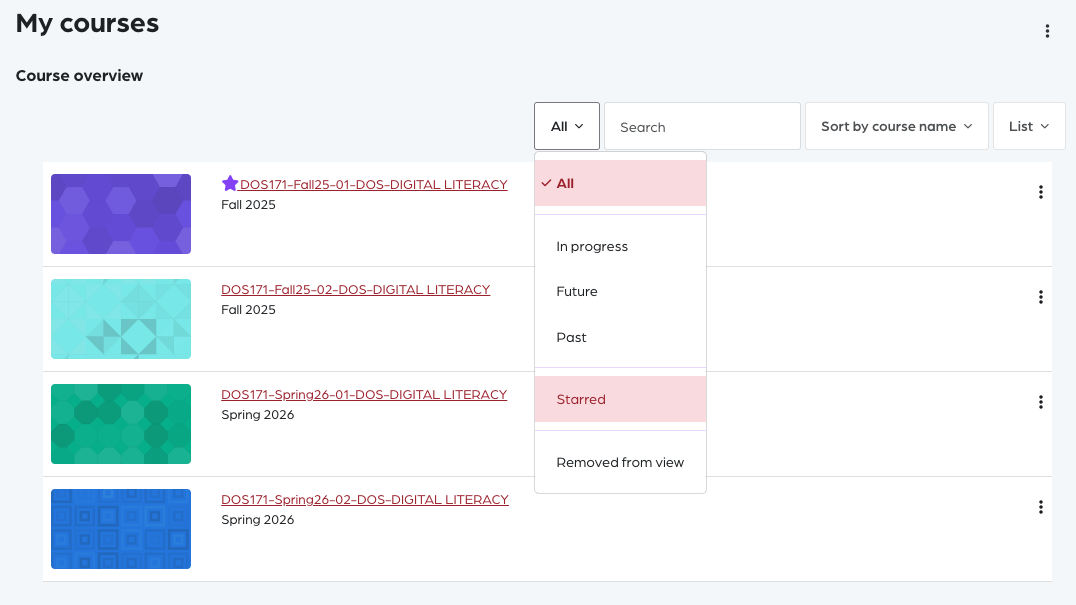
Filtering by Starred Courses
Click on the filter bar labeled All.
From the dropdown menu, select Starred to display only your starred courses.
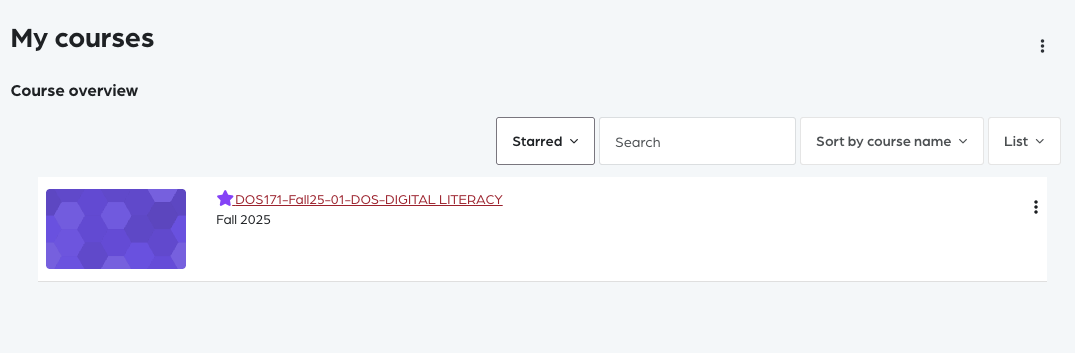
Viewing Starred Courses
When the Starred filter is selected, only the courses you have marked with a star will be displayed.
This allows quick access to your prioritized courses.