
Introduction
In LearnHub, letter grades can be calculated and sent to Campus Hub in two different ways:
-
Using the Course Total
-
Using a specific grade item
The method you choose depends on how your grading is structured.
-
Use Course Total if your final grade is based on the overall course calculation.
-
Use a specific grade item if you want to send grades from a particular assignment or exam.
In both methods, the “kuhub” ID is used to identify which grade will be transferred to Campus Hub.
Method 1: Using Course Total for Grade Calculation
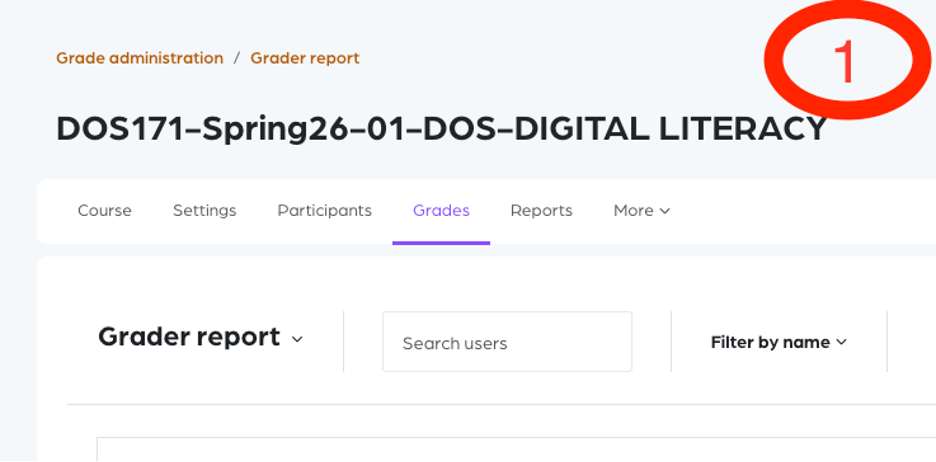
1. Access the Gradebook
-
Click on the Grades tab.
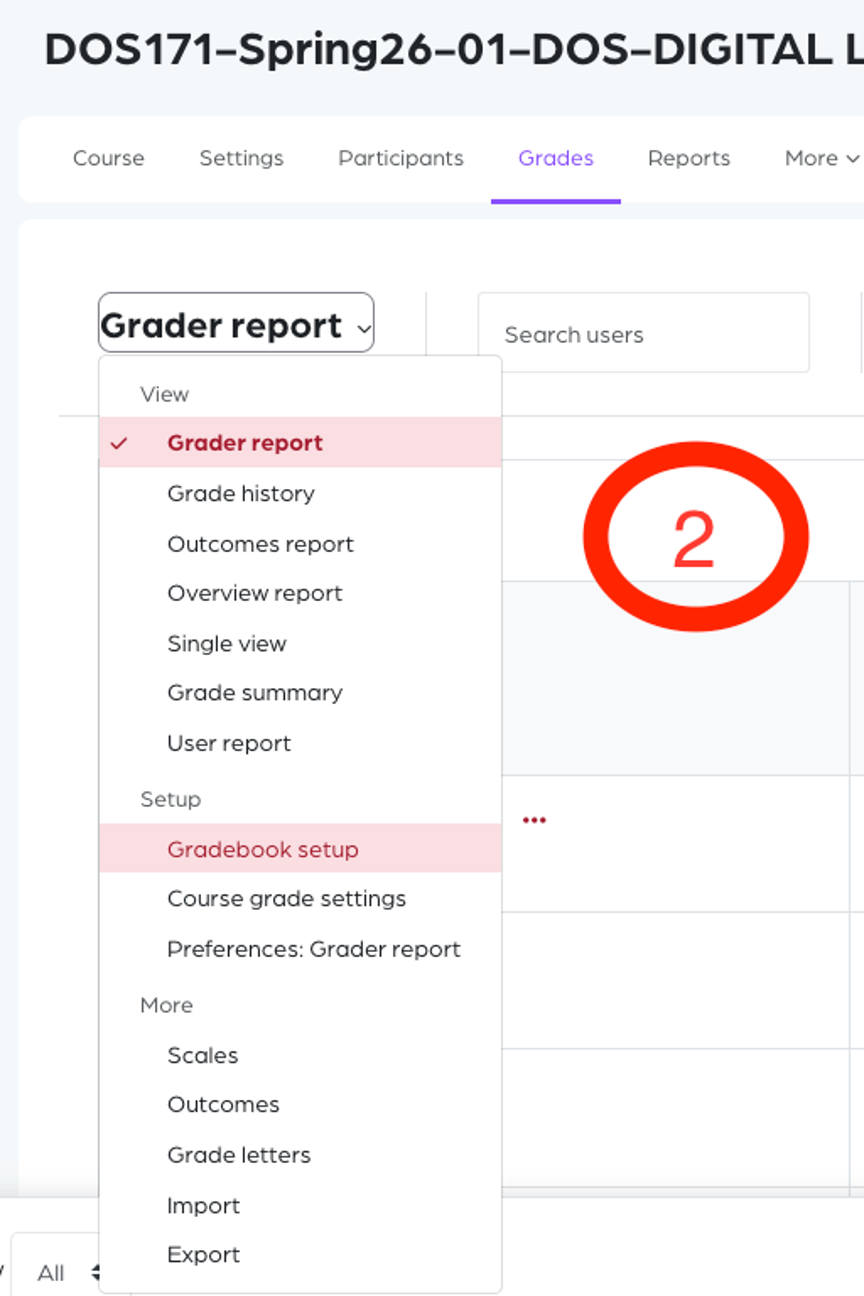
2. Open Gradebook Setup
-
Click on Gradebook setup.
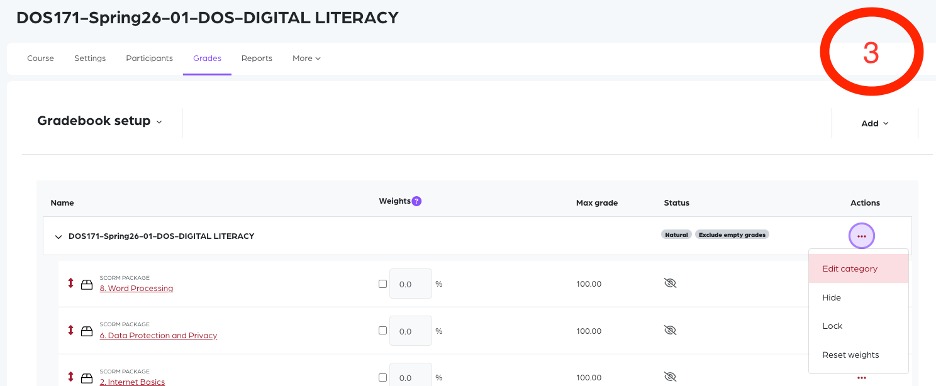
3. Edit Course Category
-
Locate the course category. Click the three dots next to it, then select Edit category.
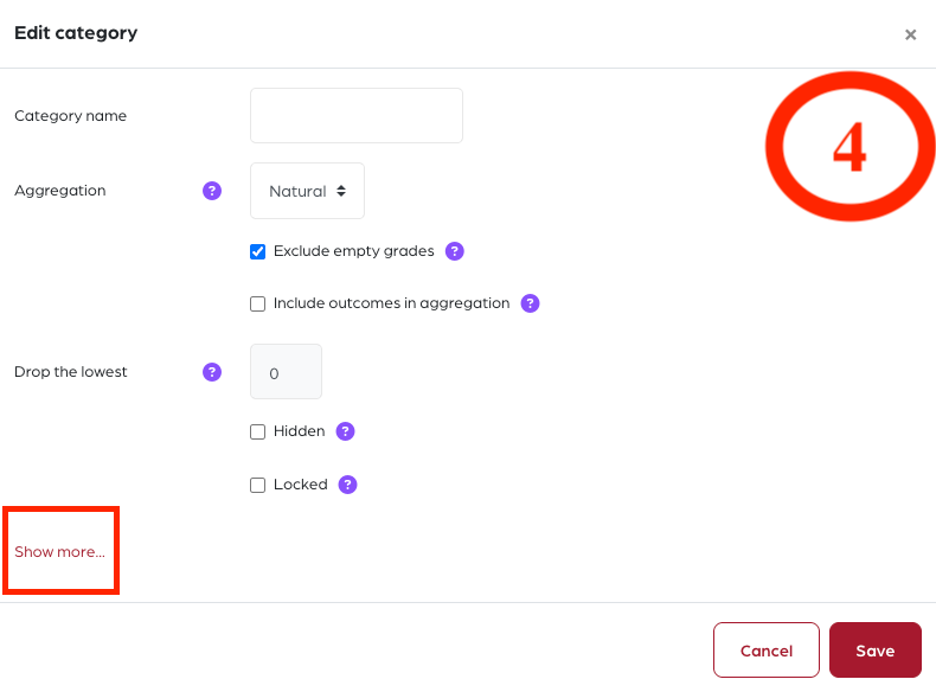
4. Show Advanced Settings
Click Show more to display additional settings.
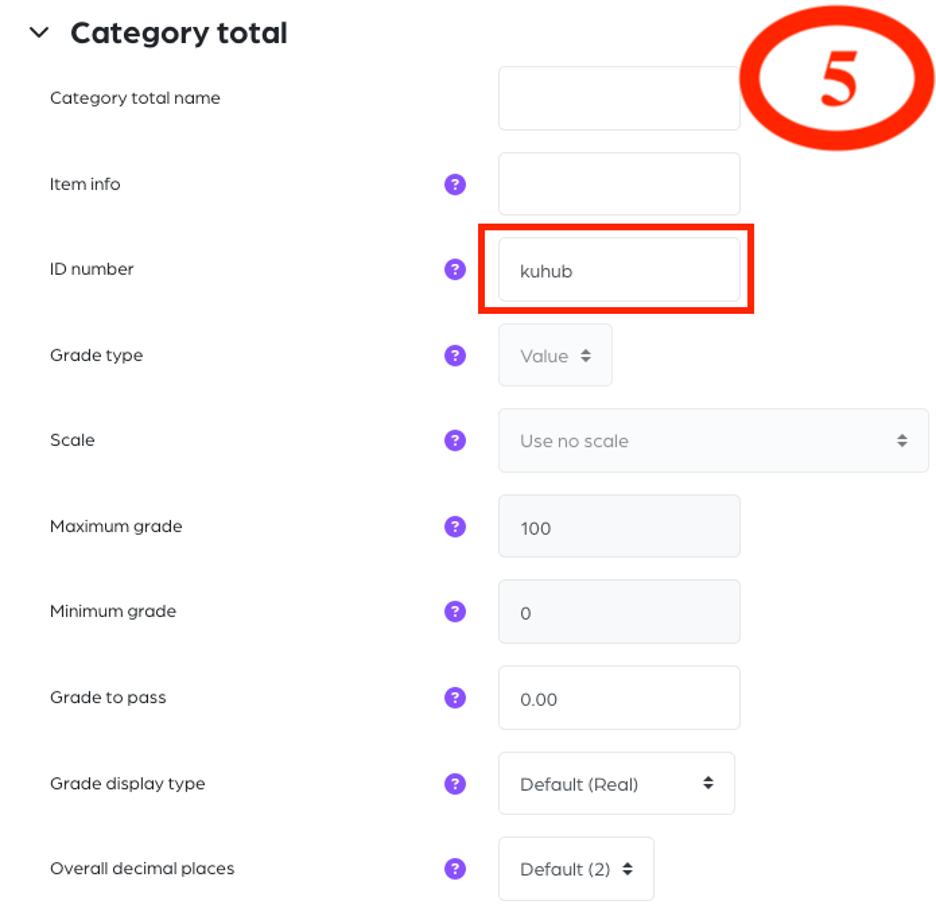
5. Enter Campus Hub ID
-
In the ID number field under Category total, enter:
kuhub
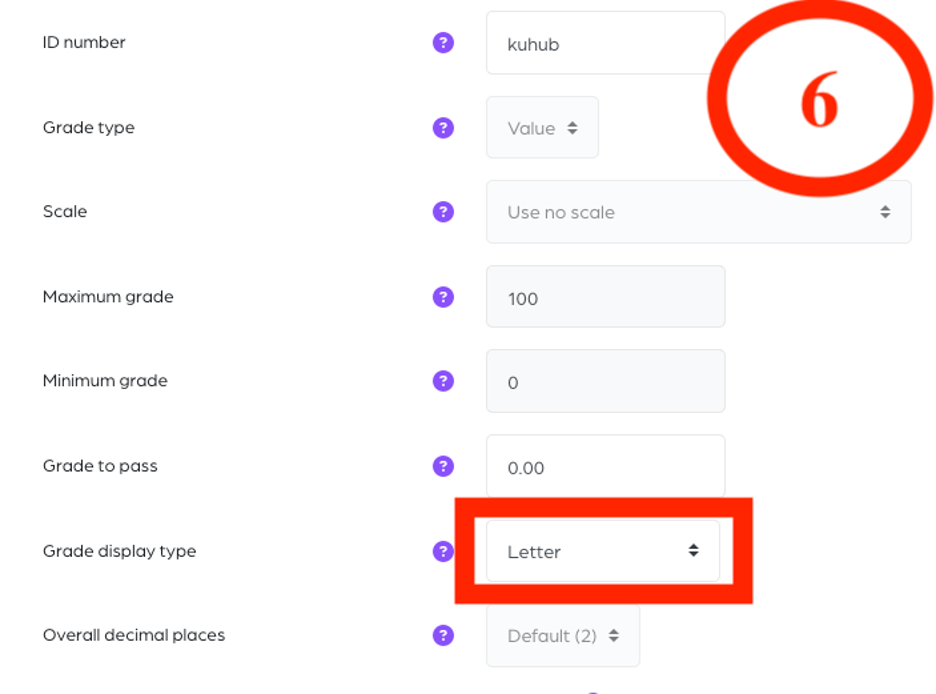
6. Set the Grade display type to Letter
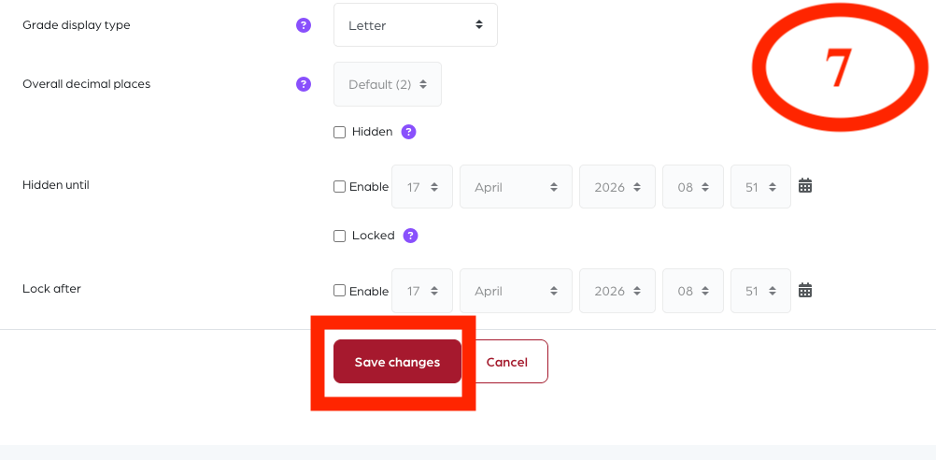
7. Save Changes
-
Click Save changes to apply your settings.
Transferring Grades to Campus Hub
8. Import Grades
Once grading is complete, go to KUHub Campus Grade Roster.
Click the Import Options and Get Grades From KUHub Learn button to import the calculated letter grades.

9. Post Grades
-
After the grades are transferred, click the Post button to make the grades visible to students.
Method 2: Using a Specific Grade Item
This method follows the same steps as the Course Total method.
The only difference is where you enter the “kuhub” ID.
-
Instead of editing the course category, select a specific grade item.
-
Click the three dots next to the item, then select Edit grade item.
-
Set the Grade display type to Letter.

-
In the ID number field, enter:
kuhub -
Click Save changes.
Note
-
Only one item or total should have the “kuhub” ID.
-
Turn on Edit mode to view numeric grades. Turn it off to view letter grades.