
To modify the default grade letter ranges, follow these steps:
-
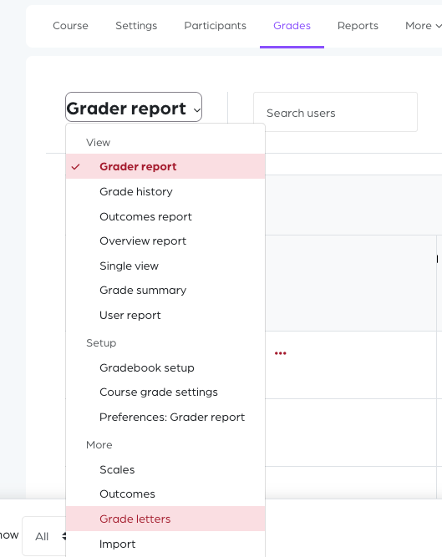
Click on the “Grades” tab.

-
Navigate to the “Grade letters” section.
-
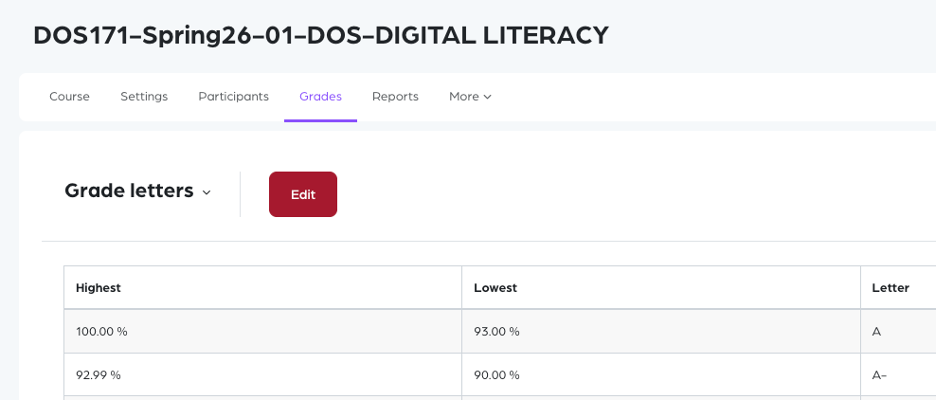
Click the “Edit” button.
-
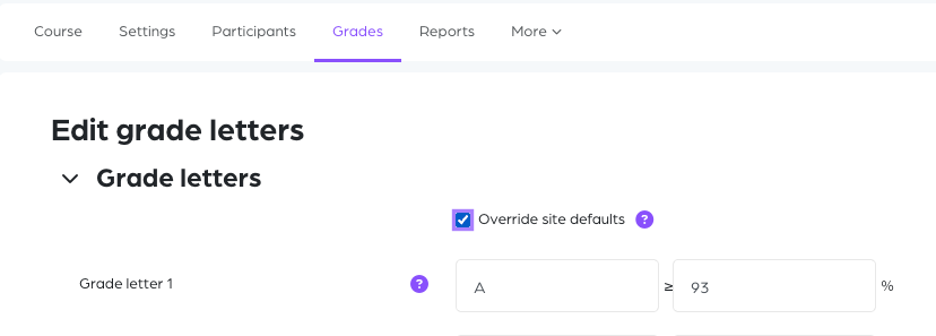
Check the box “Override site defaults” to enable editing.
-
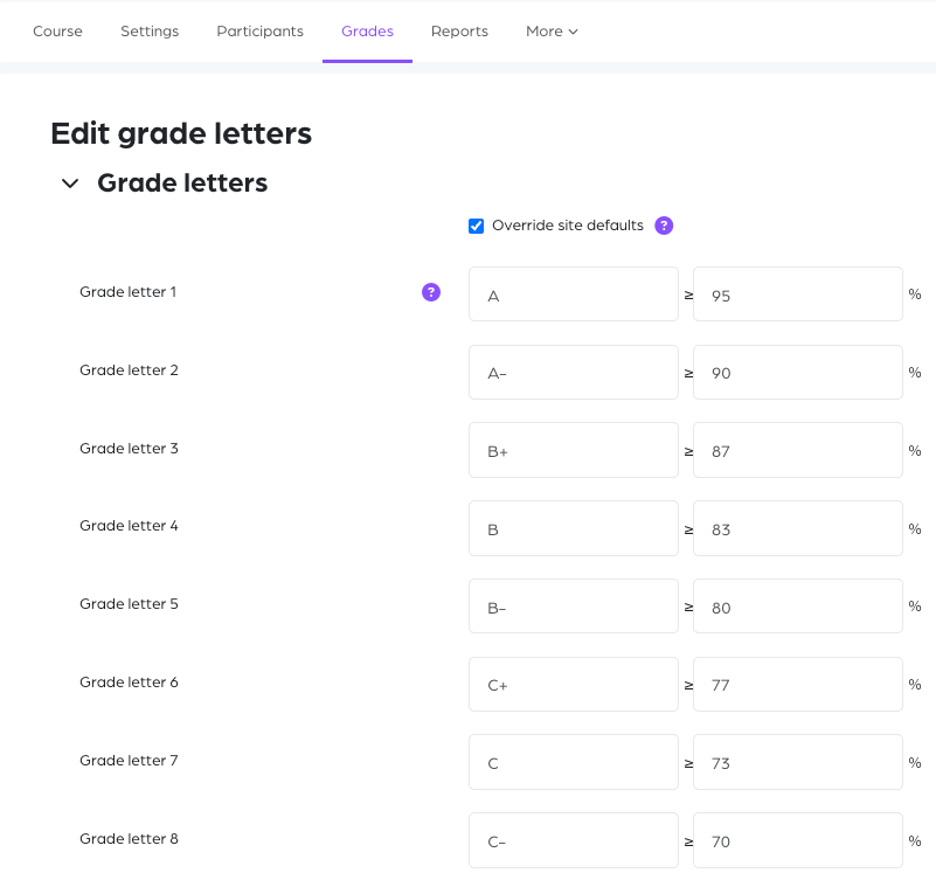
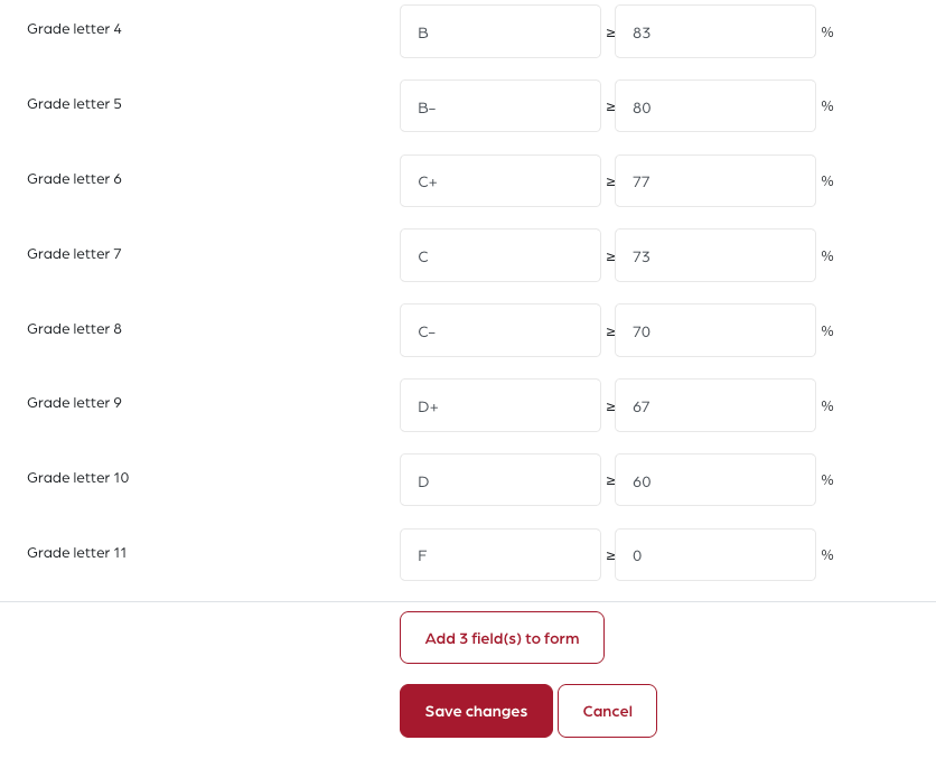
Enter the new grade boundaries in the corresponding fields.
Ensure that grade ranges are consistent and do not overlap.
-
Click “Save changes” to apply your updates.
Tips
-
To add a new grade letter, click the “Add fields” button.
-
Double-check that all ranges cover the full grading scale (e.g., 0–100).
-
Changes to grade letters may affect how final grades are displayed to students. Always review the results after updating.